Google Ads Automated Rules for Better Management

Performance fluctuations in Google Ads occur for various reasons. The causes are often challenging to pinpoint, but automated rules can help.

Google Ads automated rules send notices or implement changes based on predetermined criteria. For example, an advertiser could set a rule to schedule a campaign or receive an email when a keyword has 75 clicks and zero conversions.

Automated rules are similar to scripts but more turn-key. Scripts are more dynamic and comprehensive than rules, such as alerting when an ad group doesn’t have a responsive search ad.

To set up an automated rule, navigate to the left navigation bar and click “Tools > Bulk Actions > Automated Rules.” Then set up rules for the account, campaigns, ad groups, keywords, and more.

Here are my four top automated rules.

Disapproved Ads or Keywords

A frequent reason for performance swings is Google’s disapproval. Disapproved entities at the ad or keyword level can produce drastic changes. Google’s notification option is in the top navigation bar, but it’s easy to miss. I’ve spent hours diagnosing a performance drop only to realize it was due to a disapproved ad. Setting separate rules to notify you when an ad or keyword is disapproved is easy and saves time.

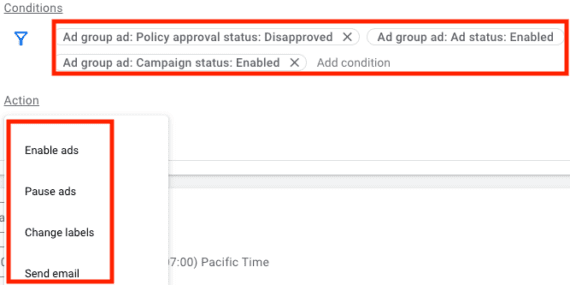
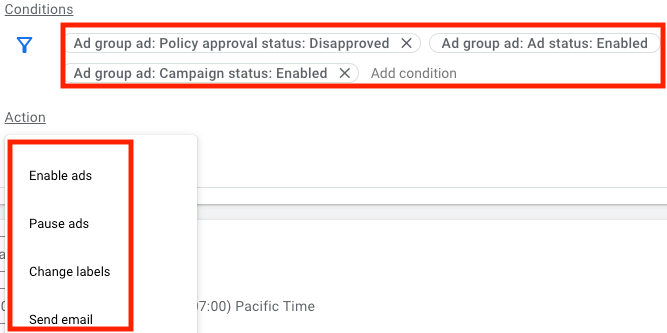
The rules can apply at the account, campaign, or ad group levels. I prefer the account level to capture all campaigns. For ad rules, set the conditions to review disapproved status for all ads in active campaigns and ad groups. You can preview a rule before saving it.

Screenshot of Google Ads screen for the automated rule

Set the condition such as “Disapproved” status and then the action such as “Send email.”

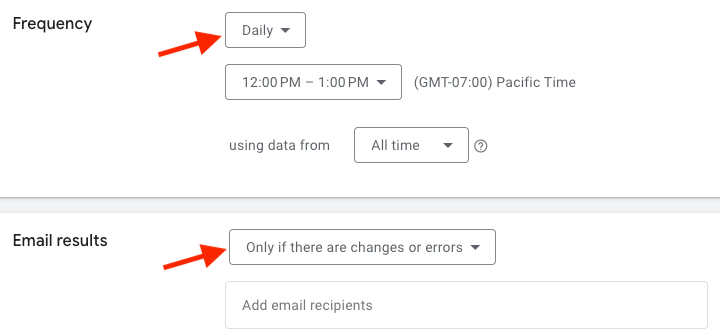
The action is to send an email. Daily emails are suitable for disapprovals — I elect to receive them only for changes or errors. Thus I’ll receive an email only when an ad is newly disapproved.

Screenshot of Google Ads screen for email frequency and the prompt.

Select the email frequency and the prompt, such as “Only if there are changes or errors.”

The process for keyword disapprovals is nearly identical. The only difference is selecting “disapproval” in the keyword status reason to get alerted. Keyword-level URLs may result in disapproved links.

Limited by Budget or Bid Strategy

Monitoring restrictions for multiple campaigns and bid strategies can be challenging. For example, a profitable campaign may hit its daily budget by noon each day, or a bid strategy with a too-high ROAS target could restrict traffic. A rule can identify such limitations.

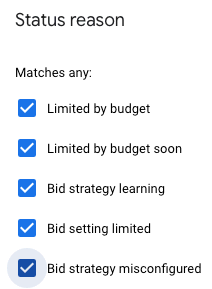
The rule is set at the campaign level and requires setting a status condition. Google provides 20 potential statuses to check, but the first five tend to be enough in my experience.

Choosing the first five statuses is likely sufficient.

The associated actions are to change budgets or send an email notification. There is no action to adjust the bid strategy. I prefer receiving a notification rather than Google automatically changing budgets. I can then view the campaigns and bid strategies and decide the next steps. As with the disapproved rule, I run the restrictions rule daily and opt to receive an email only for an issue.

Threshold Rules

Threshold rules identify ineffective tactics at any account stage. For example, a threshold rule can review all campaigns with 200 clicks and no conversions over the last 60 days, or ads with ROAS lower than the goal and a conversion rate under 1%. The possibilities are endless and depend on how you gauge performance.

Here are a couple of scenarios.

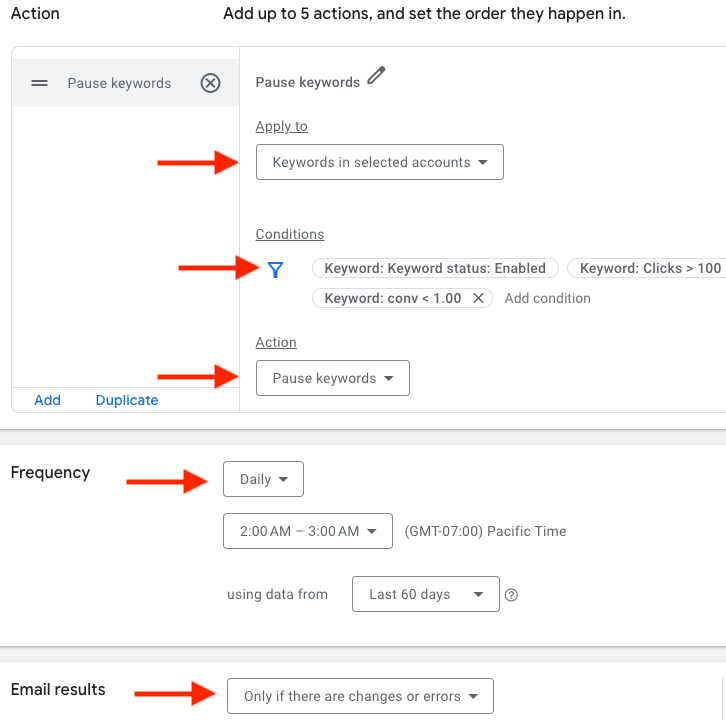
Action: Pause Keywords when “Keyword status: Enabled,” “Keyword clicks > 100,” and “Keyword conversions < 1 using data from the last 60 days.”

Screenshot of a threshold rule setup screen

Set a threshold rule by designating the target, the condition, and the action. Then select the action’s frequency and prompt.

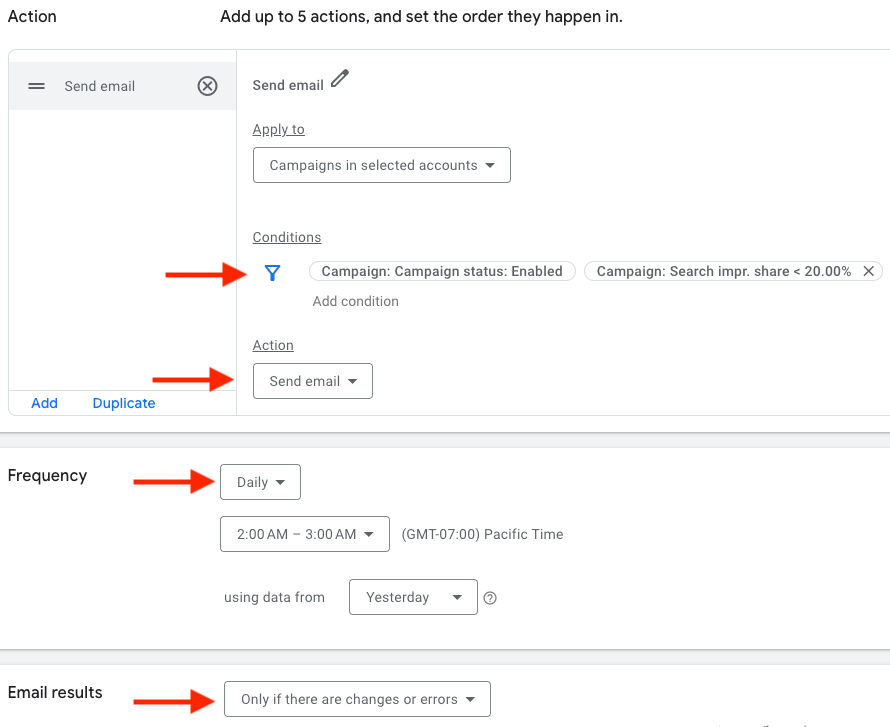
Action: Send email when “Campaign status: Enabled,” “Campaign Search impression share < 20%” using data from yesterday.

Screenshot of the threshold rule setup screen.

This example applies the action to “selected accounts,” sets the conditions, and chooses the action. It then shows the action’s frequency and prompt.

Remember that a metric may naturally be lower on a weekend when running rules based on yesterday’s data. For example, a campaign may have an impression share of over 20% daily except for Sunday. Thus a 20% impression rule would generate an email on Monday.

No Activity

Ad groups sometimes stop showing impressions because an ad or keyword is disapproved. Yet occasionally ads and keywords have no impressions because a negative keyword blocks traffic or Google has declined payment methods.

The solution is to create a rule for the ad group when impressions were zero the day before. No impressions do not imply an error, especially with ad groups containing low-volume keywords, but the rule at least alerts you to check.

Setting the no-activity rule at the campaign level will only notify you if an entire campaign saw zero impressions instead of individual ad groups.

I sometimes set a trigger for less-than-normal impressions. For example, if an ad group typically sees at least 50 daily impressions, I might create a rule to alert me when impressions drop below that number.

Holiday Promotions in Google Text Ads

With the holidays approaching, advertisers are shoring up their Q4 promotional schedules. On Google Ads, those promotions will show across the company’s various properties. For example, advertisers can set up a promotion feed for Google Shopping to publicize items on sale.

Screenshot of the two Google Shopping ads

Google Shopping ads from Best Buy and Target showing monitors on sale.

Similarly, display and video ads can showcase special offers, making it easy for shoppers to see the deals before clicking to the site.

It’s trickier to showcase promotions in text ads. Advertisers can submit up to 15 headlines and four description lines. Google will then decide which headlines and descriptions it shows. The headlines and descriptions for a specific promotion may or may not see many impressions.

Advertisers can pin a headline or description, ensuring the preferred text appears in every ad. However, Google tends to lower the ad score for those pins, which could result in fewer overall ad impressions. Plus, going through every ad to pin an asset is tedious.

Before responsive search ads, scheduling and showing text-ad promotions was easier.

Luckily, there is a little-known feature in Google Ads text versions that can better highlight promotions, helping advertisers this holiday season.

Campaign Headlines and Descriptions

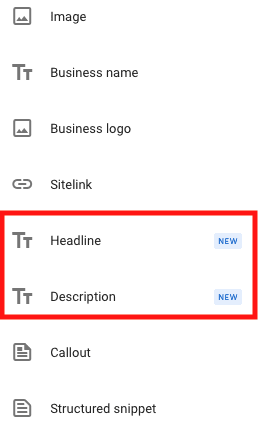
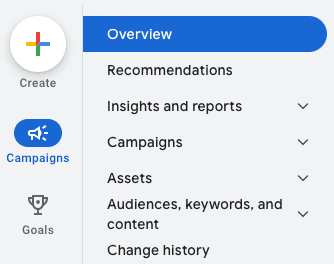
The Google Ads interface has an “Assets” option in the left navigation under “Campaigns” at account and campaign levels. A plus sign marks the option to add a headline or description.

Add a “Headline” or “Description.”

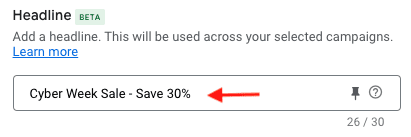
Selecting “Headline” or “Description” produces a screen to add the asset. In the example below, I’ve inserted a headline (“Cyber Week Sale — Save 30%”) across my campaigns. Instead of updating 25 individual ads, the headline will appear in every ad and ad group in the campaign.

Select “Headline,” then insert the asset “Cyber Week Sale – Save 30%.”

I’ve specified that the headline should show across all ads, but it’s up to Google to determine when the asset will show. My next step is to pin the headline to show only in position one, two, or three. I tend to pin a promotion to show only in headline two or, alternatively, description line 1 if I compose that related copy. I prefer headline two so the searcher’s query can show in headline one. For example, a search for “men’s dress shoes” could show headlines 1 and 2 of:

Luxury Men’s Dress Shoes | Cyber Week Sale – Save 30%

Pinning assets may result in fewer impressions. But conversely, implementing campaign-level assets is a big time saver. Moreover, these promos typically run for a short time — during the holidays, I want fresh offers that stand out.

Scheduling Promotions

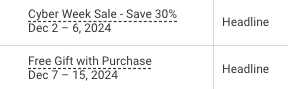
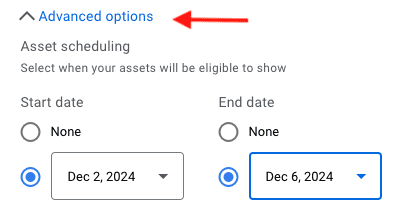
Campaign-level assets allow scheduling. Here’s an example of the two promotions between December 2 and 15.

Screenshot of scheduling window

Campaign-level assets allow scheduling, such as these two headlines.

Click the link titled “Advanced options” (below the asset) to schedule it.

Click “Advanced options” to schedule the asset.

Promotion Assets

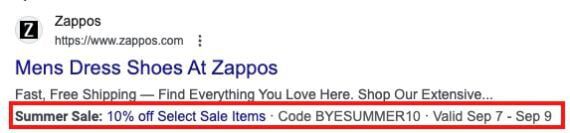
Advertisers can set promotion assets (formerly “promotion extensions”) at the account, campaign, and ad group levels. Promotion assets allow an extra line of text for a monetary or percentage discount. The example below shows a Zappos promotion asset — “Summer sale: 10% off… .”

Screenshot of the Zappos ad

Zappos ad with a “Summer Sale: 10% off” promotion asset.

As with campaign-level headlines and descriptions, promotion assets can be scheduled. Google offers a menu of sale occasions, such as Black Friday and Christmas. Unlike pinned headlines and descriptions, promotion assets won’t always show. It’s up to Google when these extra assets appear.

Google’s Search Tie-ups Are Illegal, Judge Rules

A federal judge ruled on August 5 that Google’s search business violates U.S. antitrust law. In U.S. District Court in Washington, D.C., Judge Admit Mehta’s opinion states, “Google is a monopolist, and it has acted as one to maintain its monopoly.”

Though Google has stated that it will appeal, the ruling will have lasting implications.

Distribution Agreements

According to Judge Mehta, in 2020 nearly 90% of search queries went through Google. The decision focuses on Google’s distribution deals to reach users. The company pays billions to third-party providers — web browser software, mobile device manufacturers, wireless carriers — to be the default search engine. Apple alone received $20 billion in 2022 to make Google the default search engine on Safari.

For Google, more users means more data and more advertising revenue. According to the opinion, Google’s advertising revenue grew from $47 billion in 2014 to $146 billion in 2021.

The Ruling

In 2020, the U.S. Department of Justice filed two lawsuits against Google. One claimed that the distribution agreements violate the Sherman Antitrust Act, which prohibits activities restricting commerce and competition. The second asserted that Google Ad Manager restricted competition in advertising technology.

Judge Mehta, ruling in the first case, concluded that Google indeed violated the Sherman Antitrust Act, stating:

  • General search services and search ads are distinct markets,
  • Google has monopoly power in those markets,
  • Google’s distribution agreements are exclusive and anticompetitive,
  • Google has not offered valid procompetitive justifications for those agreements.

He also concluded that Google charges “supracompetitive” prices for general search text ads, which show its monopoly power.

Mehta announced no fines or sanctions pending Google’s appeal.

Advertisers

Little will change in the short term to impact advertising performance. Likely Google will cease pursuing new distribution deals. Even if the ruling is upheld, it’s unclear when and if those deals end. For example, the Apple deal is through 2026.

Nonetheless, advertisers should consider options beyond Google. Presumably more search providers will emerge, although Google will likely remain the most popular. (AI-powered search competitors have not lessened Google’s dominance, per SparkToro.)

Future legislation could force platforms such as Safari to give users a clearer option of their preferred search engine. We’ve seen this scenario with user privacy. Websites must be transparent about how they use and collect data and allow users to opt out of tracking.

This ruling could foretell similar lawsuits. The DOJ’s second case, against Google Ad Manager, goes to trial in September, and the Federal Trade Commission has charged Amazon and Meta with anticompetitive practices.

Google Ads Alters Design, Broad Match, Payments

Google has implemented three significant updates in the past couple of months. The changes impact all advertisers to varying degrees, so it’s essential to understand them and act accordingly.

New Interface

Every few years, Google Ads redesigns the admin interface to make it easier to use and integrate new features. The existing design will disappear on August 30. The most significant change is a single central menu.

Previously, the left-hand navigation was a long menu of options. It was easy to get lost. Users had to scroll to see all options despite having submenus. Plus, the top menu contained options for “Tools and settings,” which included conversion setup and performance features. The categorization was confusing.

The new menu has five high-level categories, each with multiple options:

  • Campaigns,
  • Goals,
  • Tools,
  • Billing,
  • Admin.

For example, “Campaigns” is the hub for campaign setup, assets, keywords, and more.

Screenshot of new Google Ads admin menu

In the new menu, “Campaigns” is the hub for campaign setup, assets, keywords, and more.

The new menu is cleaner and contains non-management items such as page appearance and notifications. It also includes a more prominent search bar for accessing all pages and campaigns in an account.

Broad Match Queries

Google has emphasized broad match in recent years as it relies on machine learning and AI to target users better. Through my own testing, I’ve found broad match typically produces more revenue, even if its efficiency lags behind phrase and exact match.

One concern with broad-match keywords is potential conflicts with brand keyword goals. For example, if Best Buy bids on the broad-match version of its name, a search for “flat screen tvs” could trigger a brand ad.

Remember that Google takes liberties with query matching. Bidding on a brand name doesn’t mean the query is that term. “Brand inclusions” instructs Google to show ads only when the brand is included. Thus a “Best Buy” brand ad will appear only if the query contains a variation of those two words. Brand inclusions is available for campaigns solely using broad match keywords.

“Brand inclusions” instructs Google to show ads only when the brand is included. Click image to enlarge.

Conversely, regardless of match type, brand exclusions is available across all campaigns. Best Buy can bid on “flat screen tvs” in a non-brand campaign and exclude ads from queries containing “Samsung,” for example. Best Buy could add “Samsung” as a negative keyword, but the brand exclusion covers all variations.

The other query update is for misspellings in negative keywords. Previously, negative keywords had to be exact. “Dinosaur” would apply only to the precise spelling of that word. But now, with the update, it could apply to:

  • “Dionsaur,”
  • “Dinnosaor,”
  • “Denosaur.”

Review search query reports to see if misspellings are converting. If they are, consider adding the misspelled versions as negative keywords.

Payment Method Change

Google has changed its accepted payment methods. Henceforth, only direct bank payments are permissible. Advertisers can no longer pay with credit or debit cards. I’ve received conflicting notification emails for the effective date — either July 31 or August 31. Regardless, advertisers should update their payment method right away —to monthly invoicing or direct debit from bank accounts.

Eliminating credit cards saves Google from incurring processing fees. Yet the change hurts advertisers who will no longer receive credit card points and rewards or a much-needed cash flow buffer.

Google Ad Updates from Marketing Live 2024

Marketing Live is Google’s annual conference to announce new advertising features. This year’s event, on May 21, emphasized AI initiatives. Many changes — from Performance Max to Search — apply to ecommerce companies.

Google announced over 30 updates. In this post, I’ll review the 10 most impactful to merchants.

Ad Updates for Merchants

Ads in AI Overviews

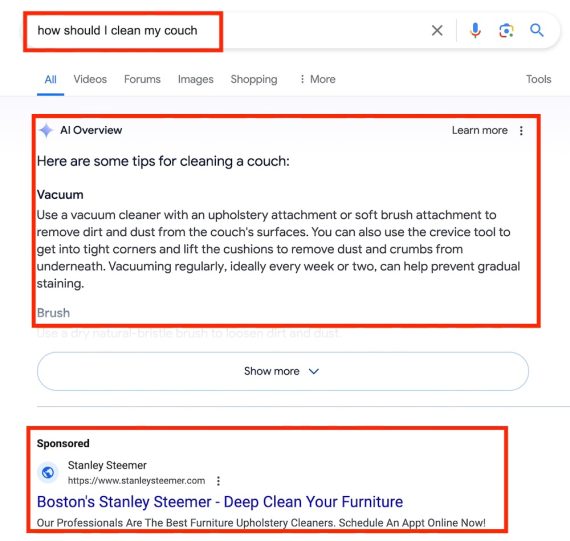
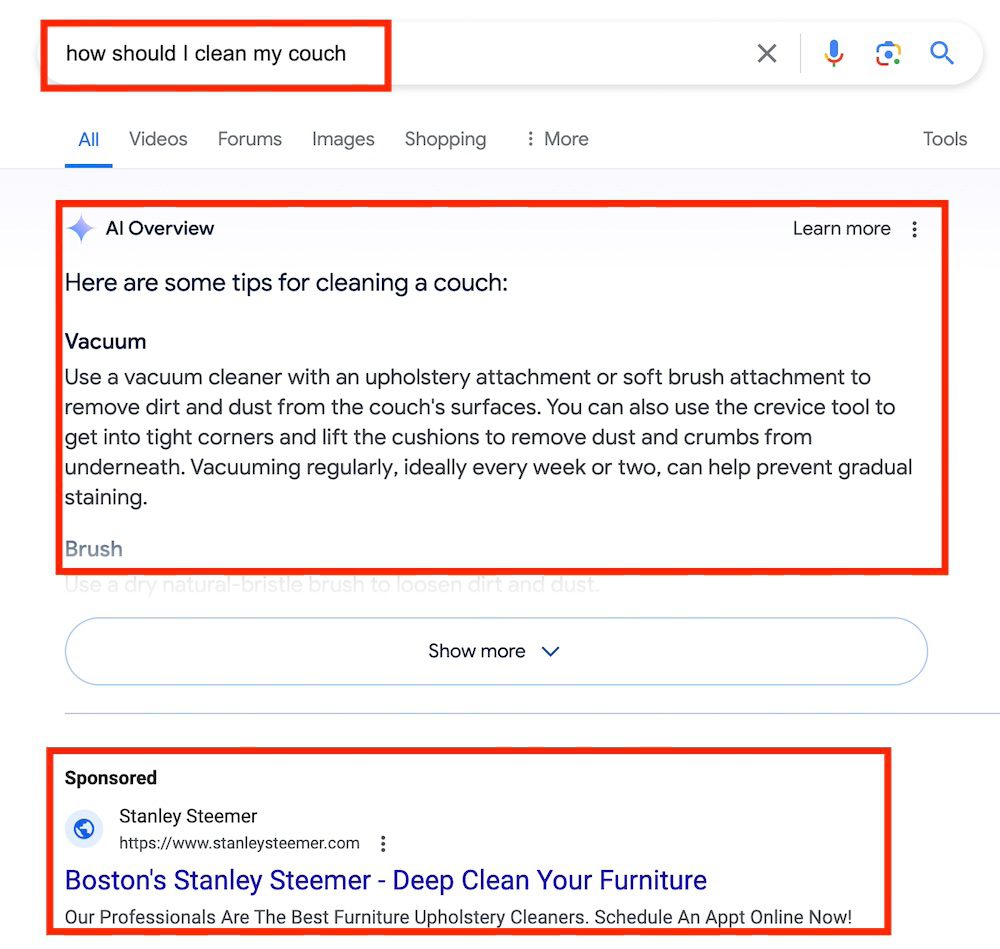
AI Overviews is Google’s response to a query, displayed directly on search results. Google scrapes Overviews from external sites and then inserts limited links to those sources. Google Ads can show above or below Overviews and, soon, in them.

For example, the query “how should I clean my couch” produces an Overview with an ad for cleaning services below it.

Screenshot of search results showing the query, AI Overview, and ad from Stanley Steemer

The query “how should I clean my couch” produces an AI Overview with a related ad below it. Click image to enlarge.

Shopping ads in visual search

Shopping ads now appear at the top of visual search results. Consumers don’t search by text alone. They may see an item, take a picture, and then search on that image for options to purchase. Google Lens or Circle to Search provides this functionality.

3D images

A coming feature later this year in Shopping ads is 360-degree views. Merchants can provide Google with footwear images, and AI will repurpose them into three-dimensional spins, giving shoppers a more complete look. Likely the feature will roll out to more categories.

Profit optimization

Advertisers can soon optimize Performance Max and Standard Shopping campaigns for profit. The feature is not a new bid type; instead, it uses cart-level conversions and Merchant Center account data to highlight products with higher margins. Advertisers have long maximized profits manually by creating campaigns around specific products. This new feature will make it easier.

Shopping ads by customer type

Many ecommerce stores have separate marketing programs for customers versus prospects. Merchants can now include those promotions in Shopping ads and customize by user type. Google hasn’t explained how, but my guess is via Customer Match. Advertisers can upload customers’ info and show ads to that group. Everyone else is a prospect.

Brand standards

Advertisers can soon upload brand guidelines such as colors and fonts when creating Performance Max and Demand Gen campaigns. Google’s AI would then create images that match the guidelines or produce variants to test. This feature ensures advertisers’ branding is consistent across sites and platforms.

Performance Max asset-level reporting

A common frustration with Performance Max campaigns is the lack of conversion data by asset. Advertisers can see conversion performance at the ad level but not individual assets. Hence Headline 1 could generate more sales than Headline 3, but an advertiser wouldn’t know it. Until now. Asset-level reporting will be invaluable.

YouTube transparency in Performance Max

Performance Max campaigns include YouTube video ads. Advertisers can set account-level YouTube exclusions but cannot view the performance of individual placements. That’s now changing. YouTube advertisers in Performance Max can soon see conversion data by placement and adjust budgets as needed.

Lower lookalike threshold

Google Ads demand generation campaigns resemble those on social media platforms such as Meta and LinkedIn. Such campaigns don’t often drive sales, but they do grow top-of-the-funnel audiences. The critical segment with the Demand Gen type is lookalikes. Advertisers upload a list of customer email addresses, and Google creates a lookalike segment to target, similar to Meta’s program.

The challenge has been Google Ads needs at least 1,000 contacts to create the segment. That’s not always attainable for smaller advertisers. But now, as announced at Marketing Live, Google requires only 100 contacts.

AI Essentials

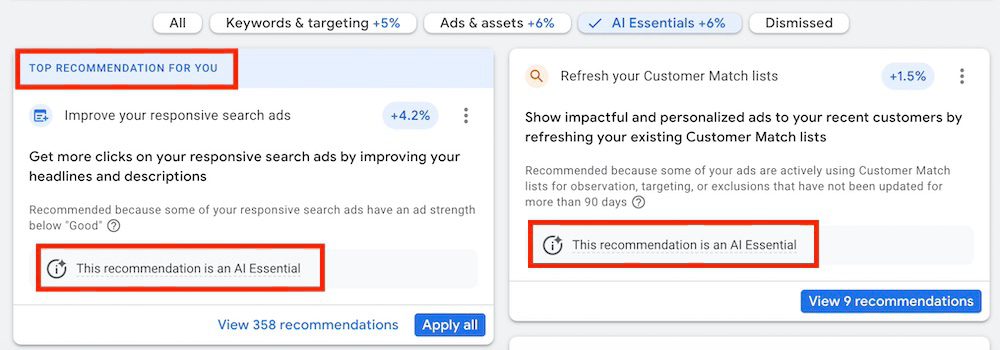
Google Ads recommends optimization tactics in its interface. Many don’t make sense, although they inform Google’s priorities, which include growing advertising revenue. In the example below, Google recommends driving more traffic by updating responsive search ads and customer match lists. But more traffic isn’t always advertisers’ primary goal, although it does produce more revenue for Google.

The “AI Essentials” portion of the recommendations is new. It states where and how advertisers should use Google’s AI. But be wary. Carefully weigh each recommendation.

Screenshot of AI Essentials recommendations in Google Ads interface

The new “AI Essentials” recommendations states where and how advertisers should use Google’s AI. Click image to enlarge.

4 Google Ads Scripts to Free Up Time

I’ve twice addressed my fondness for Google Ads scripts for automating everyday tasks. Scripts are code snippets that work behind the scenes for functions such as:

  • Identifying URL errors,
  • Finding negative keyword conflicts,
  • Notifying when an account receives no impressions in a certain period.

Scripts free up time for account strategy and critical optimizations. Here are four more of my go-to scripts.

Change History Alerts

What it does. Frequently multiple users have access to a single Google Ads account. It’s easy for one user to miss tweaks by another, requiring constant reviews of change history. For example, someone could alter a setting or pause a keyword, affecting the entire account. “Change History Alerts” shows the change, the date, and the user. I run the script daily.

What to customize.

  • SPREADSHEET_URL. Create a Google Sheet and paste its URL.
  • EMAIL_ADDRESSES. Add the email addresses (comma separated) of the report recipients.
  • IGNORE_USERS. Add the email addresses of users whose changes do not require reporting.
  • SEND_EMAIL. Set as “true” to receive an alert when someone not on the ignored users list makes a change.
  • EMAIL_SUBJECT. Keep the default subject line in the notification or update it.
  • EMAIL_BODY. Keep the default body message in the notification or update it.
  • PERIOD. The default setting is “yesterday” for daily runs. Change it as needed.

The script. Copy the “Change History Alerts” script.

Performance Max Search Terms and Categories

What it does. For years Google didn’t share search queries that triggered ads in Performance Max campaigns. It does now but requires users to dig through the Insights report. “Performance Max Search Terms and Categories” provides this info in an easy-to-read Google Sheet to then segment, filter, and format. Add queries that convert well as keywords in search campaigns. Request as negative keywords queries with many clicks but few conversions.

What to customize.

  • MINIMP. The minimum impressions for including a search term or category. Larger accounts require a higher threshold to avoid entities with little activity. The script defaults to 10 impressions.
  • SPREADSHEET_URL. Create a Google Sheet and paste its URL, or leave the field blank and the script will generate a new spreadsheet every time it runs.
  • REPORTLASTNDAYS. The data lookback window. The default is 30 days.

The script. Copy the “Pmax Search Terms and Categories” script.

Performance Max Insights

What it does. This script provides the most comprehensive Performance Max data, showing:

  • Percentage of spend by channel (Shopping, Video, Display, and Search/Other),
  • Cost and conversion metrics by campaign and network,
  • Performance by asset group.
Chart from Performance Max Insights script

Performance Max Insights reports the spend percentage by Shopping, Video, Display, and Search/Other. Click image to enlarge.

Performance Max advertisers have little control over where ads appear and the included products, but this script provides transparency. For example, a retailer with a product feed should expect more Shopping ads. If the spend percentage for Shopping is high, the campaign works as intended. If half goes to Display and is not converting, advertisers should reevaluate Performance Max.

What to customize.

The script default to the last 30 days. The paid version allows for longer date ranges.

The script. Download the “Performance Max insights” script.

RSA Checker

What it does. “RSA Checker” finds ad groups without active responsive search ads. Google classifies all newly created ads as RSAs. This script was more impactful during the transition of expanded text ads to RSAs, yet it still has value. I’ll run this script weekly on new accounts to identify ad groups that haven’t transitioned to RSAs. The script will also alert if no RSA is present due to Google rejecting an ad.

What to customize.

  • CHECKPAUSEDCAMPAIGNS. Set to “true” to check paused campaigns for RSAs.
  • CHECKPAUSEDADGROUPS. Set to “true” to check paused ad groups for RSAs.
  • CHECKPAUSEDADS. Set to “true” to check paused ads for RSAs.
  • ALERTONNEWENTITIESONLY. Set to “false” to receive emails only when new ad groups have no RSAs.
  • RECIPIENTEMAILS. Add the email address(es) of recipients.
  • LABELNAME. The label assigned to ad groups without RSAs. The default is “no_rsa_present.”

The script. Get the “RSA Checker” script.