Search Console’s Average Position, Explained

Google Search Console is the most reliable way to evaluate a site’s organic search visibility.

Unfortunately, the Performance reports are often confusing for busy executives who lack optimization expertise. A frequent example is the “Average position” metric.

I’ll help clarify in this post.

Overall Average

I’m regularly asked, “Why is my average position so low?”

The term refers to the overall average position as shown at the top of the Performance report. It’s the aggregated position of your site across all ranking queries. Google’s search results typically show 10 organic listings per page. Thus an average position of 25 suggests an average ranking on page 3.

The theoretical best ranking is 1; I’ve not seen anything worse than 100. Average position provides little insight, which is why I typically recommend ignoring it.
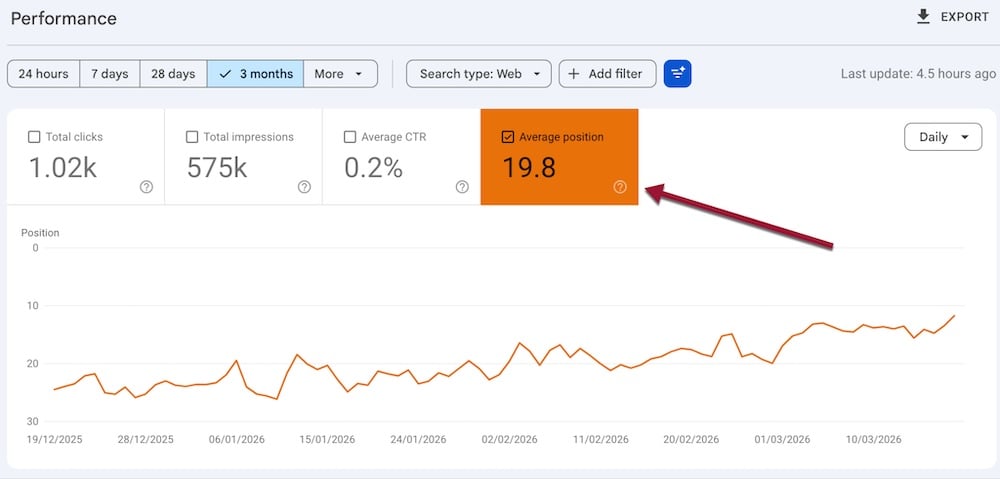
Search Console’s “Average position” aggregates all queries.

Query Average

Scroll down the Performance report for the average position for each query. This number represents the average position of a URL across all searchers for that term.

Suppose two people searched Google using the same word or phrase. If a URL appeared in position 1 for one user and position 2 for the other, Search Console’s reported average would be 1.5.

Search Console shows an average query position only if a human or AI bot views it.
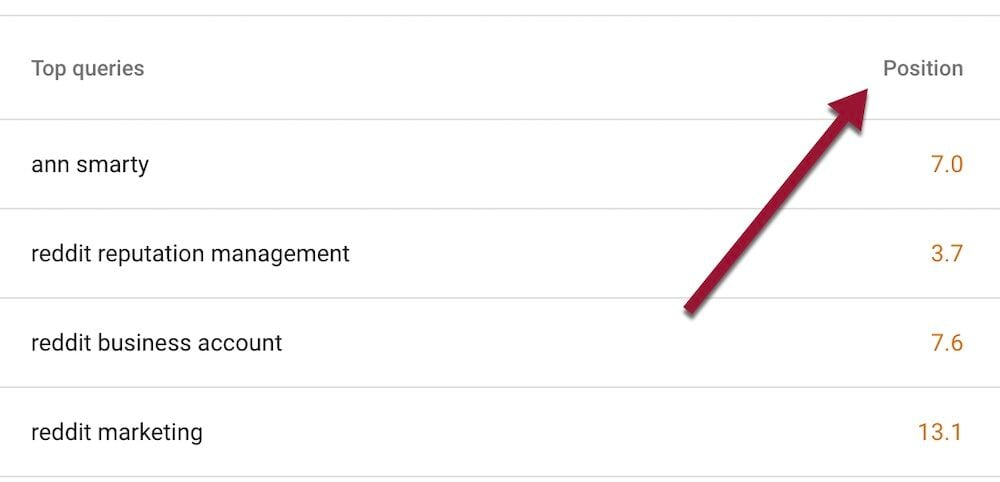
Screenshot of the query section of Search Console's Performance report

The average position for each query represents all searchers for that term.

Topmost positions

Per Google, each organic result equals one position, as does each special element, such as AI Overviews, image packs, and People also ask. (Search result sections with no external links occupy no position, nor do ads.)

So a page’s average position is 2 if it ranks 1 organically for all searchers but doesn’t appear in a top image pack.

Conversely, the page would be in position 1 if it appeared in that top image pack, but in position 2 organically. That’s the case in the screenshot below for Giphy.
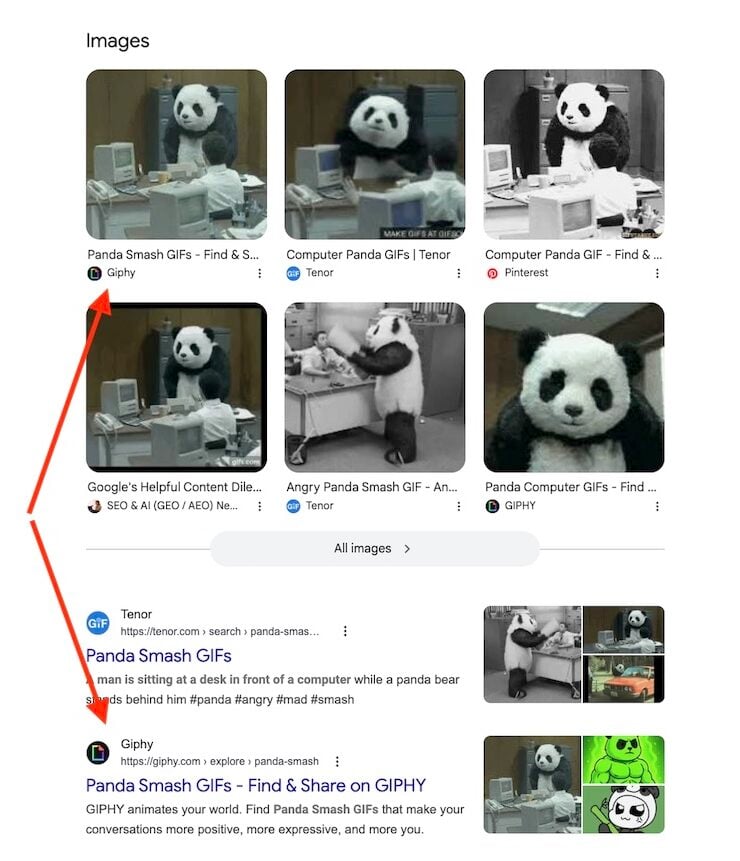
Giphy appears in the top image pack, but at position 2 in organic listings.

URLs in special sections

All URLs in a special section have the same average position. In the image above, all URLs in the image pack have an average position of 1.

Similarly, all URLs cited in an AI Overview at the top search results have an average position of 1.

Cannot verify a position

URLs in search results are not always obvious. For example, a URL may appear in the lower portion of an AI Overview after other citations, or cited in a “People also ask” box visible to a searcher only after clicking the question.

Moreover, Search Console can report a position that differs among users for several reasons.

  • URLs appear only in select views, such as those visible in Google Chrome but not Firefox.
  • An AI Overview included a URL only for select users. Citations in AI Overviews are fluid and often differ among searchers.
  • Personalization. Users’ searches can disproportionately include their own sites due to personalized results. To avoid such results, depersonalize searching.

Positions vary by device

Google often orders mobile and desktop search results differently, such as excluding special sections on mobile browsers.

Search Console shows desktop data by default. Switch to the mobile performance report by clicking “Add filter” > “Device” > “Mobile.” Select “Compare” for average positions across all devices.
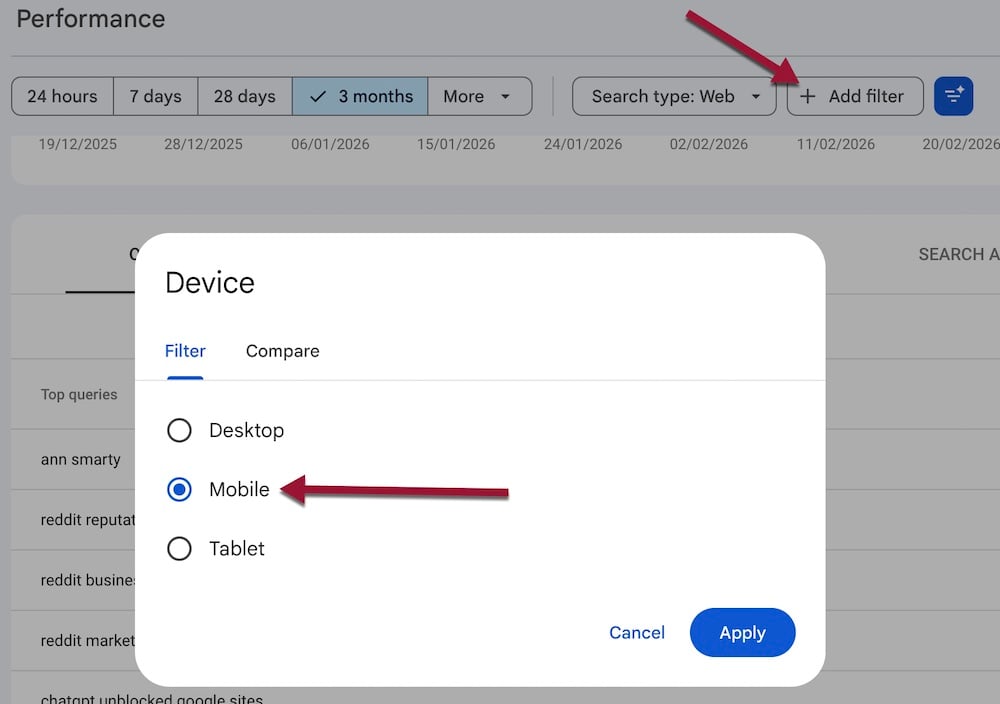
Screenshot in Search Console of performance by device.

Switch to the mobile report by clicking “Add filter” > “Device” > “Mobile.” Select “Compare” for all devices.
Search Console Adds Brand Filters

Search Console now includes filters to show only branded queries or exclude them.

Google uses AI to classify queries, and notes that it can make mistakes. Branded queries include:

  • Name of company or site,
  • Domain,
  • Brand-specific products and services, including common misspellings.

The feature makes query filtering easier but adds no new functionality. Query filters had included brand names via regular expressions and AI prompts.

In my testing, the new filter produced brand-name variations, such as:

  • One word and two,
  • Hyphenated,
  • Abbreviated,
  • Misspellings.

The filter correctly included the names of products and of human representatives, though it skipped quite a few branded items that it evidently didn’t recognize. For example, it identified a founder’s name as a branded query but not the title of the founder’s book.

It also included queries for unrelated executives and products, as well as for competitor names and clients’ case studies. Those inclusions may have been intentional, however, depending on Google’s definition of a “brand” search.

Brand-name filters

Despite the apparent mistakes, the feature makes it easier to analyze branded and non-branded rankings.

Here are a few use cases.

Find where you’re losing customers

Competitors likely bid on your brand terms in Google Ads or create “Alternative to [Your Brand]” pages.

If your average position for a branded term isn’t number 1, or if the click-through rate is lower than 50%, a competitor might be outranking you for your own name or aggressively advertising against it.

Evaluate each instance and create a plan to improve your branded search rankings.

Track the impact of a new marketing campaign

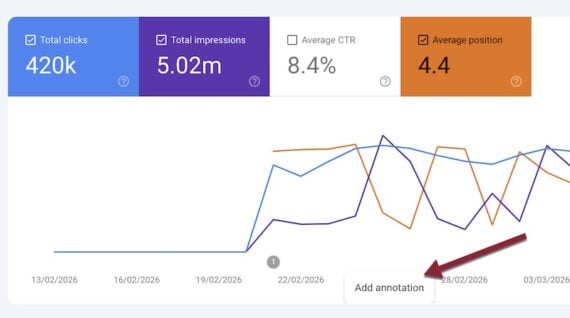
Any marketing campaign (advertising, email, editorial outreach) likely elevates branded traffic. Annotate those campaigns in Performance reports to track the impact, even if the direct attribution is unclear. (Note the new branded filter shows results from February 21 onward.)

To add an annotation, right-click on any performance chart.

Right-click on a Performance chart to activate annotations.

Compare branded search by region

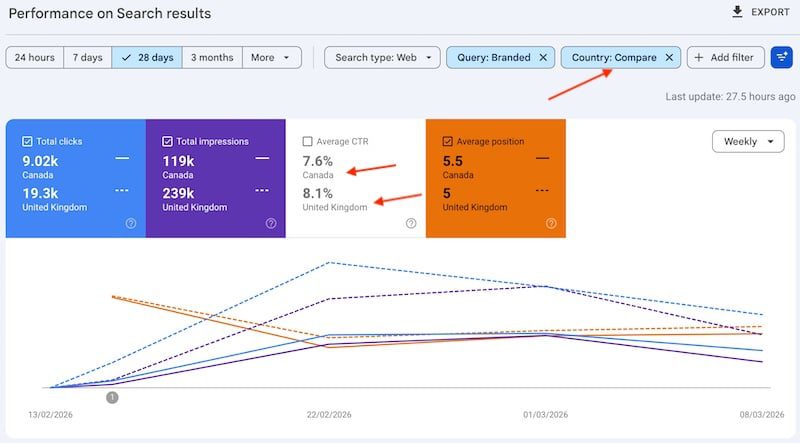
Global sellers can check brand searches by country. Use the branded query filter and then add any country. Sellers can also compare two countries, such as branded traffic in Canada and the United Kingdom.

Screenshot of a Search Console report showing organic search performance in Canana and the U.K.

Compare brand recognition in two countries, such as Canada and the U.K.

AI Prompts Come to Search Console

Google Search Console’s AI analysis went public last week after being available to select users.

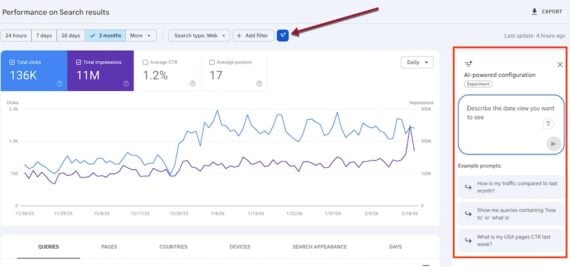
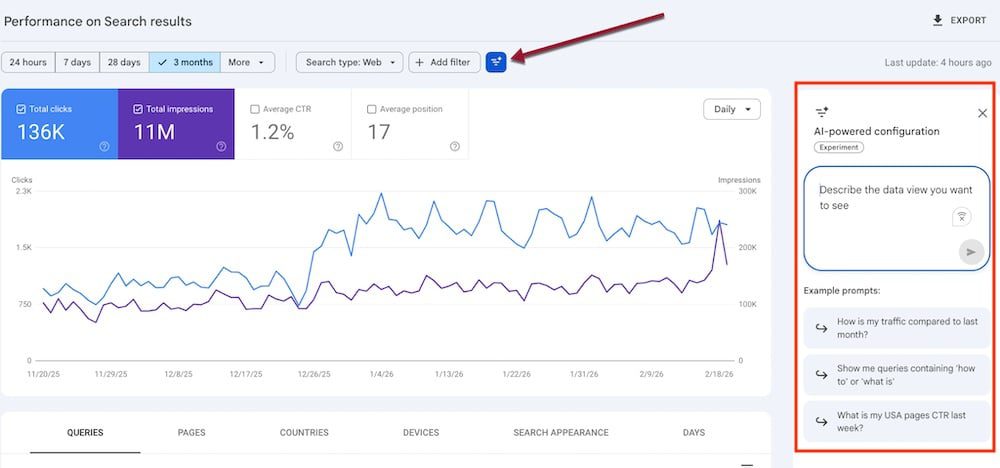
The feature, in the Performance > Search results tab, enables insights on a site’s organic search performance by entering generative AI-like prompts.

I’ll provide examples in this post.

Screenshot of Search Console's new AI analysis

Search Console’s AI analysis responds to genAI-like prompts. Click image to enlarge.

Query analysis

Instead of using prebuilt filters to discern various types of searches, users can enter prompts, such as:

  • “Show question-like queries.”
  • “Filter queries longer than [xx] characters.”
  • “Show informational queries.”

The feature initially responds to the prompts with regular expressions. For example, for the prompt, “Show queries with informational intent,” it created the following regex:

Queries matching regex: (what|how|why|guide|tutorial|explain|definition|example|best way to|steps to|tips for|reasons why|benefits of|difference between)

I could then click “Apply” to see the filtered results.

Similarly, I prompted “Show product research queries.” The feature responded:

Queries matching regex:(best|review|compare|vs|price|buy|alternatives|guide|recommendations|features|specs|cost|discount|deal|sale|where to buy|how to choose|top rated|pros and cons)

Again, I could “Apply” or “Dismiss” that regex.

Brand search

The AI analysis performed surprisingly well on brand-name searches. I prompted, “Show branded queries.” The regex responses included my brand name and a one- and two-word pattern:

Queries matching regex: (brandname|brand name)

Traffic drop

Search Console’s AI analysis can assemble traffic change reports. For example, I prompted:

  • “Show pages that lost the most clicks over the past 30 days.”
  • “Compare clicks last month with the same month of the previous year.”

Country-specific

Users can also evaluate organic search visibility in countries:

  • “Show me clicks, Average CTR, and Average Position of my queries in Canada last month.”

Here’s a prompt for traffic changes:

  • “Show pages that lost the most clicks over the past 30 days in Canada.”

Limitations

The new AI feature, while helpful, is not a game-changer. Inexperienced users do not typically know what to ask, while seasoned pros can go directly to the prebuilt filters.

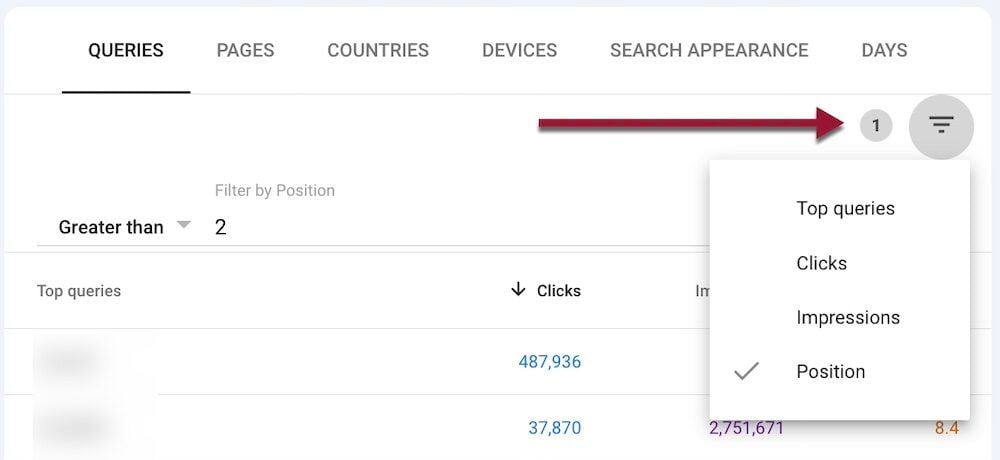
Moreover, the AI integration works only with top filters. It cannot process requests for filters unavailable in the Performance reports. For example, it cannot respond to prompts for queries with an average position greater than 2, indicating room for improvement.

Screenshot of a Performance report showing a filter only on position 1.

Default Performance reports allow filtering only on position 1.

Tools for Fast Search Query Analysis

I rely on Search Console to understand a site’s organic visibility on Google. In my experience, third-party tools miss roughly half of Search Console’s data, especially now that queries are becoming longer, more diverse, and less predictable.

This keyword shift means researching organic search queries (and opportunities) has never been more important. Search Console provides filters to help, but they take time to review each page separately.

Here are three Chrome extensions that streamline query analyses in Search Console.

Query Scout

Query Scout

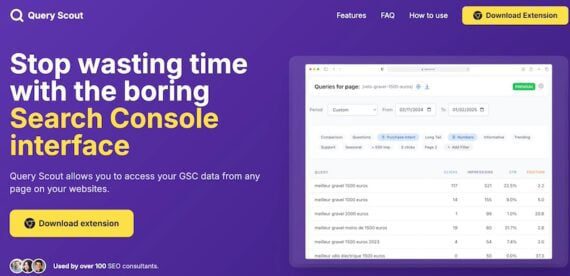
Query Scout is a freemium extension that loads the search terms that produced organic traffic for any page on your site. The extension makes page-level analysis much quicker by eliminating the need to create manual filters for each.

Install Query Scout, grant access to your Search Console account, and then click the extension’s icon to see queries driving traffic to that page. The queries load in a handy window that overlays the page, avoiding the need to click elsewhere for the data.

The free option reveals a page’s search terms and the essential metrics for each: clicks, impressions, click-through rates, and average position. It also allows downloading the complete list as a CSV file.

A $29 one-time upgrade provides pre-built query filters:

  • Phrased as questions,
  • Commercial or informational intent,
  • Comparisons,
  • Longer than five words,
  • Include numbers,
  • Seasonal,
  • Drive no clicks,
  • Page rankings.

Find Real Prompts in Google Search Console

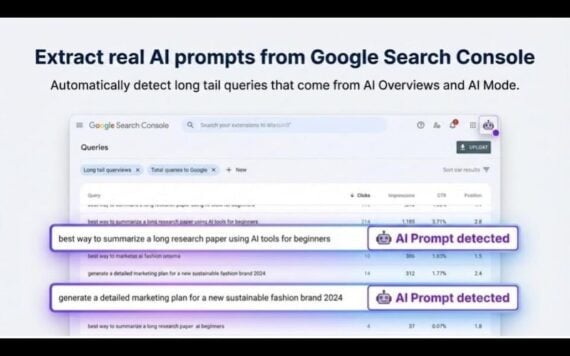
Screenshot from Find Real Prompts of Google Search Console queries with highlighted long-tail searches labeled “AI Prompt detected,” showing examples such as “best way to summarize a long research paper using AI tools for beginners.”

Find Real Prompts

Find Real Prompts in Google Search Console is a new, free extension that analyzes queries in Search Console’s Performance section and extracts longer ones that appear to be AI prompts. The extension doesn’t need access to your Search Console account. Just log in to Search Console and load the “Queries” data in the Performance section. Find Real Prompts will then pull the data from your browser.

Find Real Prompts also provides an interface to prompt ChatGPT to analyze the query list. Click “Send to ChatGPT for Analysis” and the extension will create this prompt:

I have a list of search prompts where [my website] appeared in Google search results.

Your tasks:

a. Filter out irrelevant prompts
– Remove any queries unrelated to [my product topics]

b. Identify the 50 most relevant prompts based on:
– High commercial or transactional intent (people comparing tools, looking for solutions, or intending to buy).
– Strong product fit for [my brand] [list a couple of topics]

c. Provide the final output as a table with the following columns:
– Search Prompt- Search Intent (Commercial, Transactional, Informational, Navigational)
– Reason for Inclusion (e.g., bottom-of-funnel, competitor comparison, strong product fit, purchase intent)

d. Rank the prompts from highest to lowest conversion potential (bottom-of-funnel first). Provide me with a CSV file. Here are my queries [insert list]:

The extension also provides a full CSV export, which includes:

  • Category and, occasionally, intent,
  • Keyword search volume,
  • Notes on why it was detected.

Google Search Console Enhancer

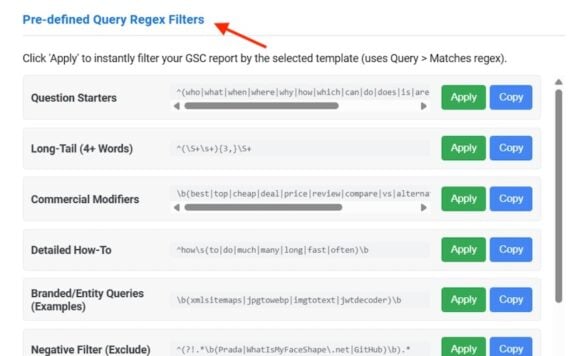
Interface screenshot of Google Search Console Enhancer displaying pre-defined Search Console regex filters, including options for question starters, long-tail queries, commercial modifiers, and how-to searches, each with Apply and Copy buttons.

Google Search Console Enhancer

Google Search Console Enhancer is another free extension that adds helpful, automated filters to Performance data, such as:

  • “Low-Hanging Fruit.” Use the one-click “Highlight Low-CTR” filter to find queries ranking in positions 4–10 but with underperforming click-through rates, revealing immediate optimization opportunities.
  • “Regex Template Library.” Access a collection of pre-defined, complex query patterns via regular expressions (e.g., “Question Starters,” “Long-Tail,” “Commercial Intent,” “Troubleshooting”). You can apply complex filters with a single click or copy the regex string for manual use.

Google Search Console Enhancer operates locally. It doesn’t require access to your Search Console account.

GSC Groups Keywords as AI Queries Expand

Google Search Console’s “Insights” section no longer shows click trends for individual keywords. It now displays trends for keyword groups, once available only to high-traffic sites.

Selecting any group of keywords takes you to the Performance section with the regex filter activated to show details.

Many marketers believe the future of organic search monitoring is keyword groups. Consumers’ queries are becoming longer and more diverse as they interact with genAI platforms such as ChatGPT and Google AI Mode. Hence tracking individual words is becoming ineffective.

Here’s how to benefit from Search Console’s query grouping feature.

Screenshot of Search Console's Insights keyword trends report.

Search Console’s “Insights” section now displays click trends only by keyword group.

Analyze SERPs

Identify new sections or features on search engine result pages impacting your site’s performance.

If an important keyword group (such as brand-name queries) is trending down, run a live search and analyze the results (on desktop and mobile). A loss of brand visibility often results from advertising: a competitor bidding on the terms. To combat, adjust your paid search strategy (or report policy-breaking ads).

A new AI Overview for a vital keyword could also reduce visibility and clicks. The loss is not reversible unless Google changes the SERP.

For branded searches, at least ensure the AI Overview does not misrepresent your business. If it does, check all URLs it cites, identify the one with incorrect info, and try to correct it. Also, clarify that point on your own pages, especially if those rank for that brand term.

Fix Lagging Groups

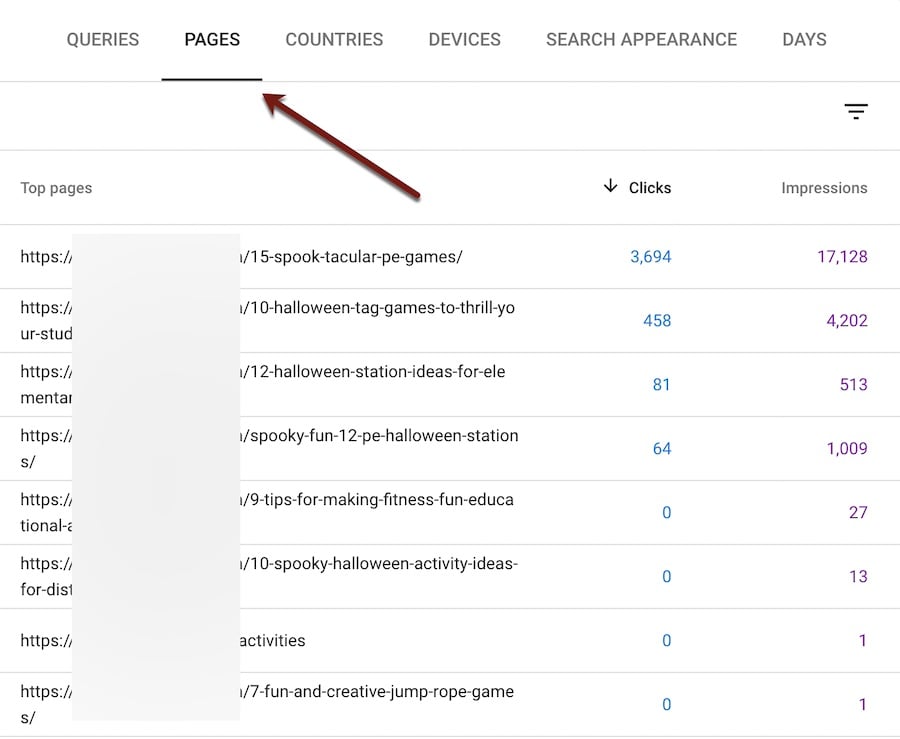
Trending-down keyword groups may need work. Select the keyword group in Search Console to load it in the Performance section. Then click the “Pages” tab. Here you can see the URLs that rank for this cluster.

Tactics that could elevate SERP visibility for the entire cluster include:

Search Console may display ecommerce content and product pages in the same cluster. This is a great opportunity:

  • Link related product and content pages.
  • Identify product opportunities, those not included in related ranking content.
  • Create product categories to match the cluster.
Screenshot of Search Console's Pages tab.

Click the “Pages” tab in the Performance section to see the URLs that rank for a cluster.

Content Opportunities

Upward-trending keyword groups usually signal content opportunities.

Use keyword research tools to uncover related topics, such as a new demographic. Or update older relevant content and link it to a popular, related version.

Rising clusters validate a broader content strategy. Optimize further with supporting FAQs, comparison guides, or video tutorials.

New GSC ‘Insights’ Show Trends, Status

Google has relaunched the “Insights” section in Search Console. The section doesn’t provide data unavailable in other reports, but it’s helpful for quick trends and items needing attention.

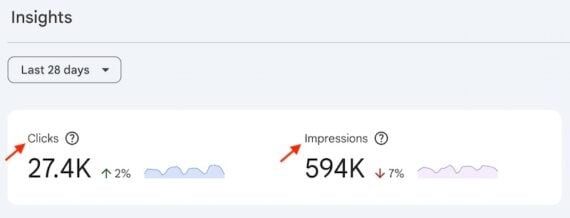
“Insights” shows just two organic search metrics: clicks and impressions.

Impressions are declining across most sites, presumably owing to Google’s dropping support for the &num=100 URL parameter, which eliminated many bot searches. Thus don’t be alarmed for declines.

Screenshot of the top section in Insights

“Insights” shows just two metrics: clicks and impressions in organic search results.

‘Your content’

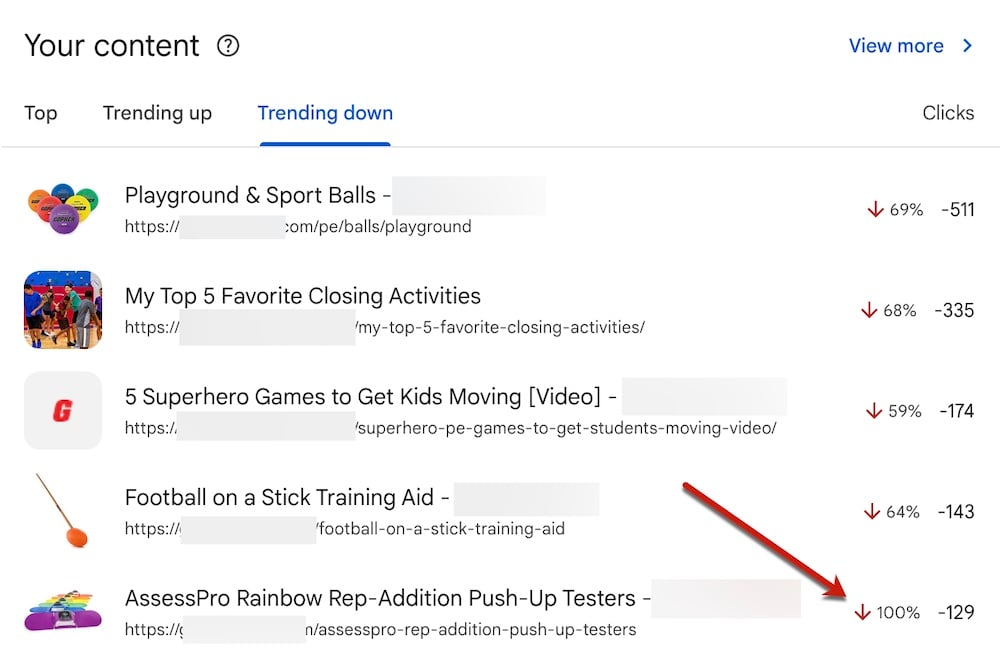
The “Your content” pane shows pages with the most organic clicks, as well as those trending up or down compared to the previous period (7 days, 28 days, or 3 months).

I focus here on the pages whose clicks are trending down. Each URL is worth exploring. I start with those that lost 100% of clicks, as it could indicate a technical glitch. A quick use of the “URL inspection” tool will confirm indexation, or not.

Clicking a URL in the report produces the “Performance” section, which shows additional data.

Pages that lost 100% of clicks could have a technical glitch, requiring a quick “URL inspection” to confirm indexation.

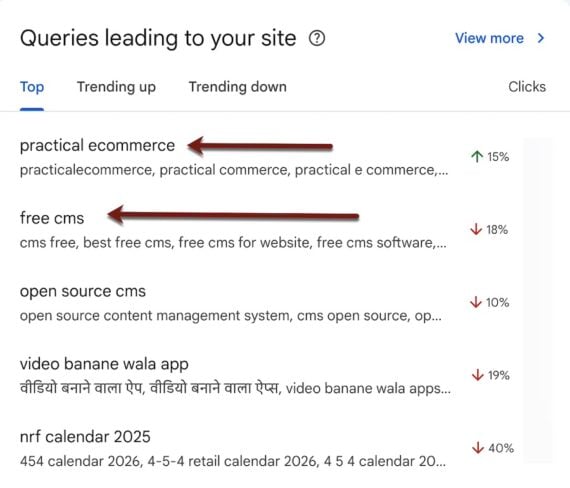
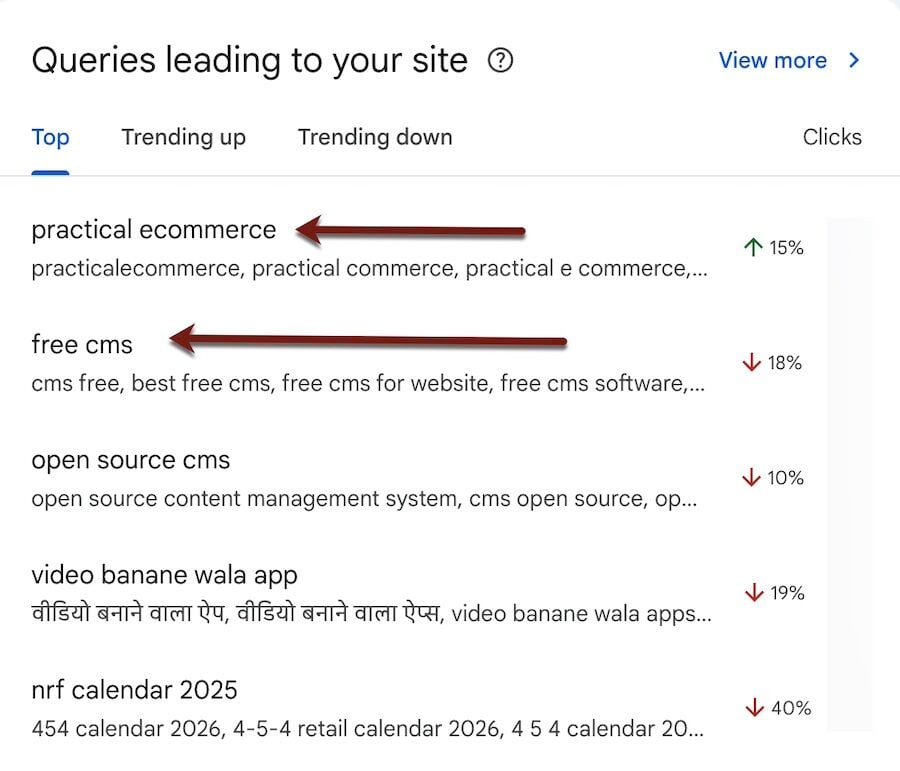
‘Queries leading to your site’

This section shows click performance by query:

  • “Top queries,” those that drove the most clicks during the reporting period.
  • “Trending up” queries are those that had the largest percentage increase in clicks as compared to the previous period. (New pages include a notation “Previously 0.”)
  • “Trending down” queries are the most critical, especially those that lost 100% of clicks.

Each of these tabs includes a “View more” link for metrics on additional pages.

For websites that rank for extensive search terms, the “Queries leading to your site” report may show groups of keywords.

Keep in mind that organic search results increasingly drive less traffic, mainly due to AI Overviews. Thus “trending down” queries are expected, requiring no fix typically, although 100% losses could mean deindexation, as confirmed by the URL inspection tool.

‘Additional traffic sources’

This section shows other Google properties that sent traffic. It’s a handy overview of channels to monitor and optimize. Common sources include:

  • Image search
  • Video search
  • Google News
  • Google Discover

Clicking each source displays the Performance section with details for that source, not overall. For example, a high position in “Image search” is for that channel only.

Google News and Discover sections show the top pages by clicks and impressions, but not queries.

In short, the revamped “Insights” report is useful for a quick status check of potential glitches requiring attention.

Did Google Just Prevent Rank Tracking?

Google’s default search results list 10 organic listings per page. Yet adding &num=100 to the search result URL will show 100 listings, not 10. It’s one of Google’s many specialized search “operators” — until now.

This week, Google dropped support for the &num=100 parameter. It’s a telling move. Many search pros speculate the aim is to restrict AI bots that use the parameter to perform so-called fan-out searches. The collateral damage is on search engine ranking tools, which have long used the parameter to scrape results for keywords. Many of those tools no longer function, at least for now.

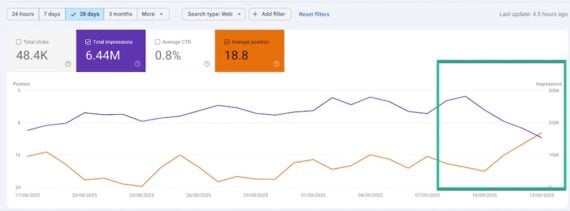
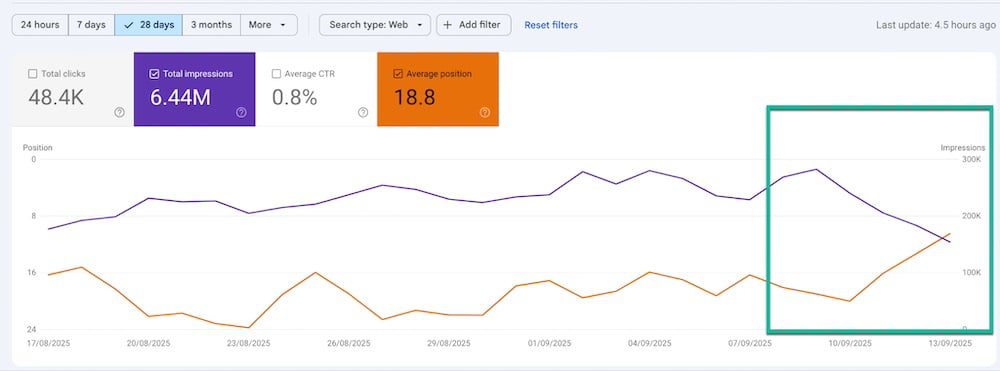
Surprisingly, the move affected Performance data in Search Console. Most website owners now see increases in average positions and declines in the number of impressions.

Screenshot of Search Console Performance report

In Search Console, most website owners now see increases in average positions and declines in the number of impressions. Click image to enlarge.

Search Console

Google has provided no explanation. Presumably the changes in Performance data are owing to traffic from the third-party bots, not humans, to track rankings. That is the unexpected huge takeaway: Search Console data at least partially includes bot activity.

In other words, the lost “Impressions” were URLs as shown to bot scrapers, not human searchers. The “Average Position” metric is closely tied to “Impressions,” as Search Console records the topmost position of a URL as seen by searchers. Impressions now decline if “searchers” are bots.

Thus organic performance data in Search Console now is more human impressions and fewer bots. The data reflects actual consumers viewing the listings.

The data remains skewed for top-ranking URLs because page 1 of search results is still accessible to bots, although I know of no way to quantify bot searches versus those of humans.

Adios Rank Tracking?

Search result scrapers require much computing time and energy. Third-party tools will likely raise their prices as, from now on, their bots must “click” to the next page nine times to reach 100 listings.

Tim Soulo, CMO of Ahrefs, a top SEO platform, hinted today on LinkedIn that the tool would likely report rankings on only the first two pages to remain financially sustainable.

So the future of SEO rank tracking is unclear. Likely, tracking organic search positions will become more expensive and produce fewer results (only the top two pages).

What to Do?

  • Wait for the Performance section in Search Console to stabilize
  • Consider SEO platforms that integrate with Search Console. For example, SEO Testing allows customers to import and archive the Performance data and annotate industry updates (such as Google’s &num=100 move) for traffic or rankings impact.

To be sure, rank tracking is becoming obsolete. But monitoring organic search positions remains essential for keyword gap analysis and content ideas, among other SEO tasks.

Chrome Extensions for AI Bot Access

AI crawlers are not as efficient and sophisticated as Google’s and other traditional search engines. They require extra effort by web admins to access a page and retrieve info to answer a prompt and cite or link to the source.

Here are free Chrome extensions to ensure ChatGPT and other AI crawlers can access a page.

AI access

AI bots sometimes use third-party browsers to load and fetch page content. Thus we don’t know whether the bots respect robots.txt directives. The safe tactic is to assume the bots will crawl and adhere to your robots.txt file. Ensure it’s not blocking AI crawlers if you want those platforms to use, reference, or link to your content.

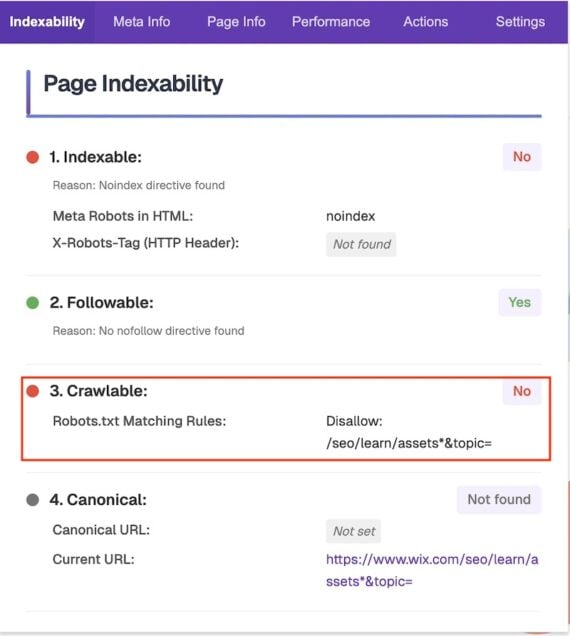
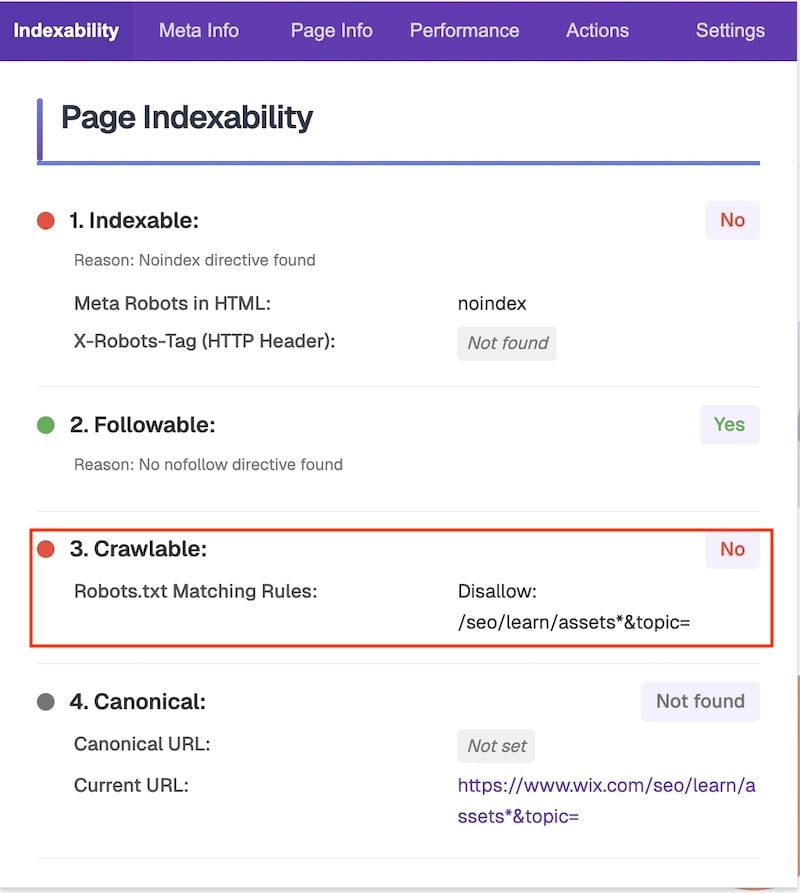
SEO X-Ray is a Chrome extension to detect a page’s accessibility to crawlers. Load a page in Chrome and click the extension icon to check. The extension provides additional info such as detected structured data markup, HTML headings, images, and alternative image text.

Audit report screenshot from SEO X-Ray showing page indexability issues. The page is not indexable due to a 'noindex' directive, is followable, but not crawlable due to robots.txt disallow rules. Canonical URL is not set. Current URL is a Wix SEO learn page.

This sample report from SEO X-Ray shows the robots.txt file blocking a crawler from Wix “seo/learn/assets*&topic=”. Click image to enlarge.

RoboView is another helpful extension to “experience websites exactly as search engine crawlers and AI bots do.” It automatically works when a page loads, alerting the user of any blocked elements and robots.txt restrictions in real-time.

Users can choose a bot and receive alerts when a page blocks it.

RoboView will highlight a page’s blocked sections, including images embedded from a blocking domain. The extension is a quick way to verify access for any AI bot.

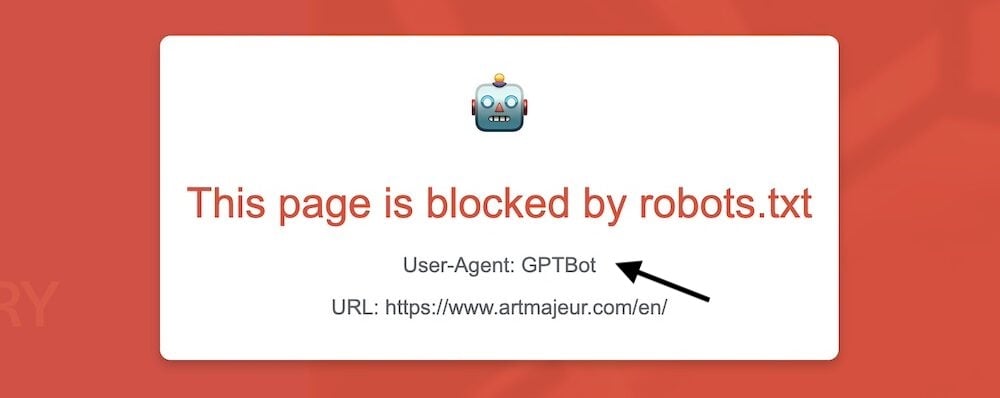
RoboView alerts users of any blocked elements and robots.txt restrictions, such as this example blocking the ChatGPT crawler. Click image to enlarge.

Page elements

Unlike Google and Bing, AI platforms don’t maintain an index or cache of web pages. AI bots can access pages through those external indexes to gather information and respond to prompts.

Moreover, most AI crawlers cannot render JavaScript efficiently. It’s essential to ensure critical content is accessible through static HTML.

Rendering Difference Engine is a free extension that shows elements of a page that require JavaScript rendering and thus may be invisible to AI crawlers.

Install the extension, go to a page, and click the icon for the analysis. In a separate window, the extension will highlight:

  • Headings hidden behind JavaScript elements (such as tabs and toggles),
  • Invisible or unclickable links,
  • Text that requires rendered JavaScript to be visible.

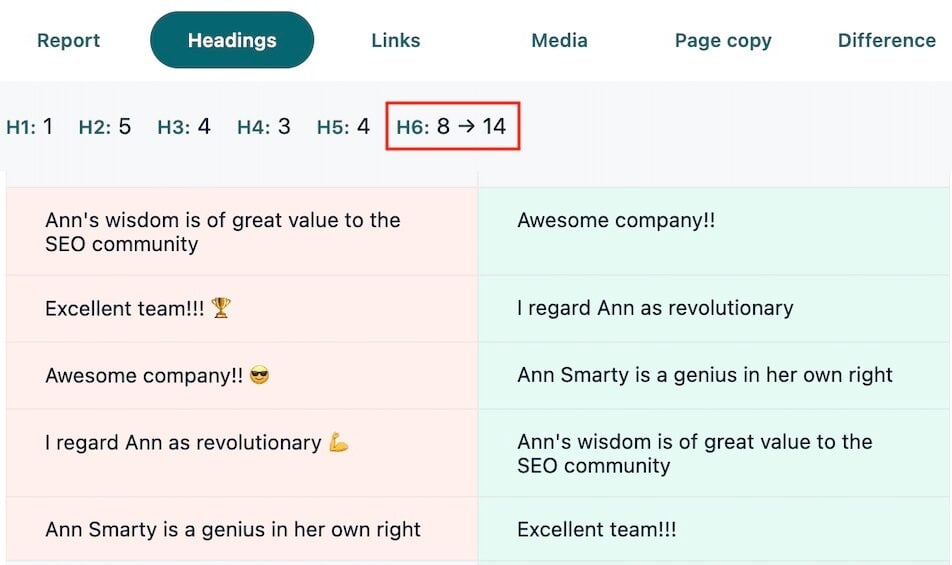
The report below shows that only 8 out of 14 H6 headings are likely visible to AI crawlers.

Users can also highlight AI-crawlable links on the page. It is an easy way to confirm the bots can see, fetch, and follow all elements.

SEO tool report from Rendering Difference Engine showing heading structure comparison. Lists multiple H1–H6 headings with differences between two versions, including phrases such as 'Ann's wisdom is of great value to the SEO community,' 'Excellent team,' 'Awesome company,' and 'Ann Smarty is a genius in her own right'.

Rendering Difference Engine shows page elements that require JavaScript rendering and may be invisible to AI crawlers, such as the H6 heading restriction shown here. Click image to enlarge.

AI Eyes is another extension that shows a page as AI sees it. It focuses on text. Load the page and click it. The extension can then generate a report of missing content when JavaScript is enabled. Scroll down the report to see the words AI crawlers may not have fetched.

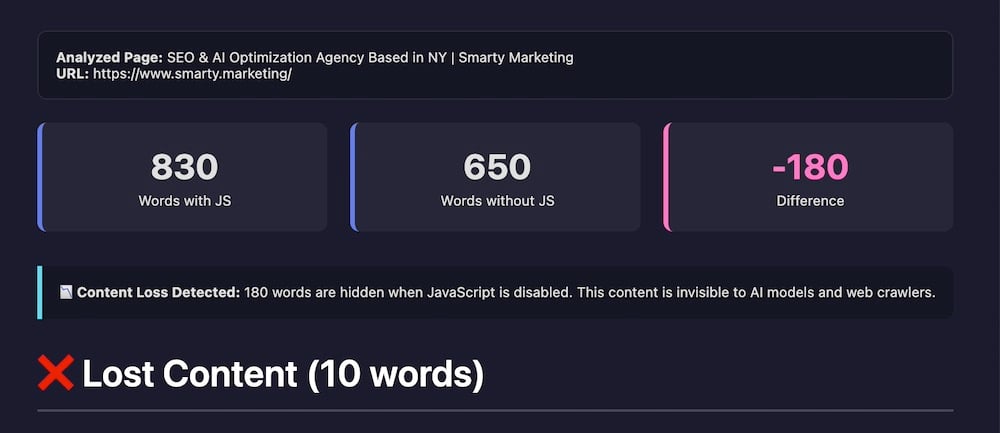
SEO analysis report from AI Eyes for Smarty Marketing webpage showing word counts with and without JavaScript. 830 words with JS, 650 words without, difference of -180. Message highlights content loss of 180 words hidden from crawlers when JavaScript is disabled.

AI Eyes shows a page’s missing content due to JavaScript rendering. Ten words are invisible to AI crawlers in this example. Click image to enlarge.

How Search Console Reveals AI Overviews

Google’s AI Overviews answers queries directly on search result pages. The feature often eliminates the need to visit external sites, although it includes links to some for deeper research.

Google provides no comprehensive reports of links in Overviews, leaving little official insight for publishers. Third-party tools offer that data, but at prices many merchants cannot afford.

We’re left with Search Console to reveal links to a site in Overviews indirectly. Here’s how.

Search Console ‘Positions’

Search Console’s “Performance” tab lists a site’s URLs in organic search results. Every section (“element”) of search results (e.g., “People also ask,” image packs, AI Overviews) counts as one single position.

Per Google:

A Google Search results page is composed of many search result elements. The “position” metric is an attempt to show approximately where on the page a given link was seen, relative to other results on the page…

Each element in Search results occupies a single position, whether it contains a single link or many different links or child elements.

For example, a URL in an image block at the top of results will show in position 1 in the Performance section for that query. A competitor’s URL in that same image section for the same query would also show as position 1.

Search Console shows the topmost position of a URL in search results. A URL simultaneously in a top image pack and the fourth organic search listing would show as position 1.

AI Overviews are one of those elements. Thus all links in a single AI Overview for a given query will show in Search Console as position 1. Google’s John Mueller confirmed this with the caveat, “I don’t know if AIO is always shown first.”

Hence identifying your URLs in AI Overviews starts with those in the top position.

Step 1: Create a filter

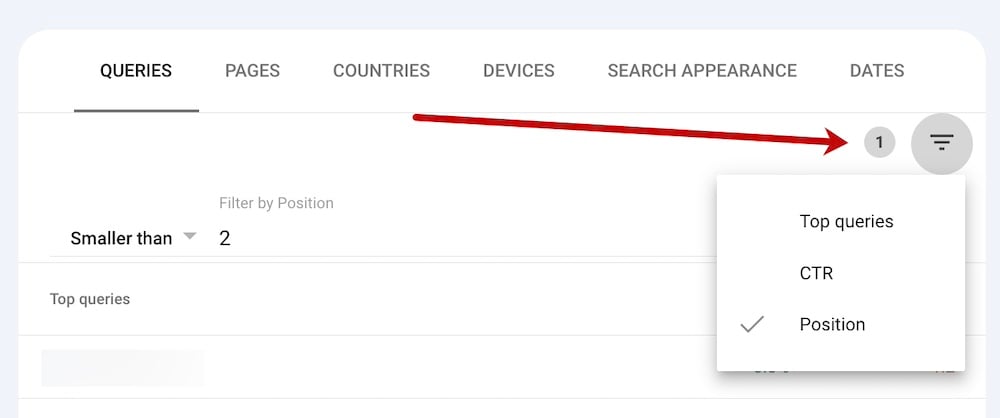
In Search Console’s “Performance” tab, scroll down to “Queries” and create a filter to see where your site ranks number 1:

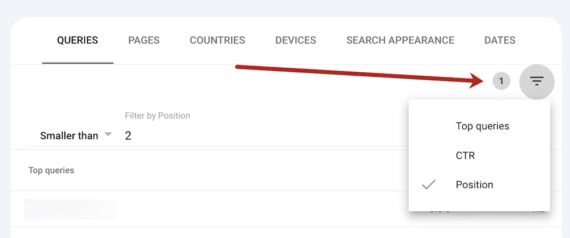
  • Click the “filter” icon to the top-right of your query list.
  • Select “Position.”
  • In the filter settings, select “Smaller than” and type “2.”
  • Click “Done.”

Your report is now filtered for search queries where your site ranks below 2. This will include average positions — e.g., if your site appears in AI Overviews on mobile but not desktop, the average position is slightly higher than 1.

In Search Console, filter “Queries” by “Smaller than 2.” Click image to enlarge.

Step 2: Sort results by clicks

Click-throughs in AI Overviews are much lower than traditional organic listings. Sorting the above report by “CTR” will isolate queries with low clicks, making them good candidates for AI Overviews.

To sort the report, click the “CTR” header twice.

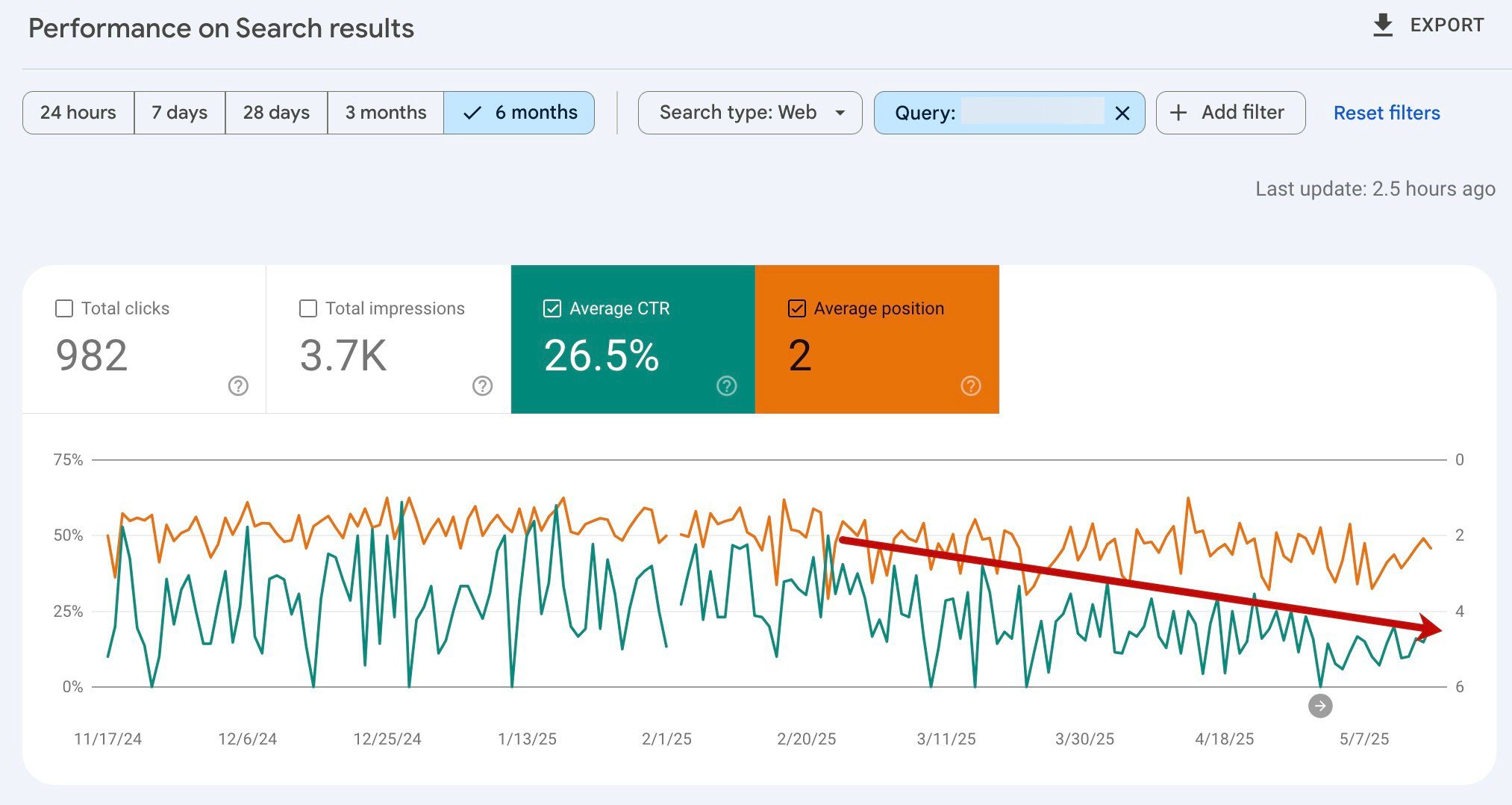
Clicking any query in this list will also show when an AI Overview likely began citing your URL: when the average position increased, and the CTR dropped.

Screenshot of the Search Console report sorted by position and CTR.

Sort the report by click-through rate to see when the average position increased and the CTR dropped. Click image to enlarge.

This exercise does not provide total site performance in AI Overviews, but it’s the only free method I know. It helps evaluate the impact of AI Overviews on your site’s visibility in search results and identify URLs better optimized for AI-driven answers.

It’s Time to Pay Attention to Bing

Bing is on the rise because ChatGPT uses the search engine’s index and platform. And Bing’s advertising program is reportedly growing. I’ve corresponded with companies that state Bing’s ads (i.e., Microsoft Advertising) perform much better than Google’s.

It’s time to pay attention to Bing.

Start by verifying your site at Bing’s Webmaster Tools.

Webmaster Tools

Verification

Verify your site by (i) placing an XML file in the root directory, (ii) adding a meta tag to the home page, or (iii) creating a CNAME record to your domain name server, such as GoDaddy or similar.

From there, allow Bing about 24 hours to collect the data. Then access Webmaster Tools, which are similar to Google’s Search Console.

Screenshot of the the verification page on Webmaster Tools

Bing Webmaster Tools provides three ways to verify a site.

Performance

This section displays queries on Bing that drive impressions and clicks for your domain. The report shows the number of impressions and clicks per query, the click-through rate, and your site’s average ranking for each query.

You can filter and export the data by date range, country, and device type.

Site Explorer

Site Explorer shows a site’s structure as experienced by Bing’s crawlers. Users can block or request indexing for any folder, see when each was last indexed, and obtain performance stats.

Screenshot of a sample Site Explorer page

Site Explorer shows the structure of a site as experienced by Bing’s crawlers.

URL Inspection

This tool can inspect any URL on your site to ensure Bing can crawl and index it. Unlike Search Console, Webmaster Tools offers a quick analysis of any page to improve its search performance.

Sitemaps

Like Search Console, Webmaster Tools allow the submission of XML sitemaps for faster discovery and crawling.

IndexNow

This section facilitates quick indexation requests of any URL. It claims to work faster than sitemaps. Bing supports third-party indexing integrations such as Cloudflare and the All in One SEO (AIOSEO) WordPress plugin.

Backlinks

This report lists links to your site, showing the linking page, the anchor text, and the URL on your site with the inbound link.

Free Ranking Tools

Bing also offers a few free tools to optimize search rankings:

  • “Robots.txt tester” won’t help you understand or translate your robots.txt file, but it will report errors.
  • “Keyword research” is handy for finding new (but limited) keyword ideas. It also includes your high-ranking URLs and titles for any keyword, helpful for perceived search intent.

AI Optimized

Overall, Bing Webmaster Tools is basic but free and therefore worth a look. The indexation features (sitemaps and IndexNow) can increase the likelihood of being cited by ChatGPT and Copilot (Microsoft’s AI assistant). It’s another step to being AI optimized.