Google’s search results are highly personalized. Varying levels of personalization exist for each query based on:
Search history,
Interaction (clicks) history,
Search Console properties of searcher,
Location,
Browser settings (e.g., language).
Thus what a merchant sees in search engine result pages, for example, could differ from shoppers. Here are three ways to depersonalize the results to understand what others may encounter on important keywords.
Chrome Incognito Mode
The Incognito mode prevents Chrome from saving browsing history, cookies, site data, and form-completion info.
Searching Google using Incognito will remove the three top personalization types — search history, clicks, and Search Console properties — but not necessarily location and browser settings.
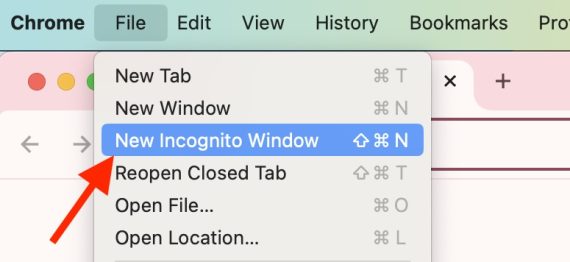
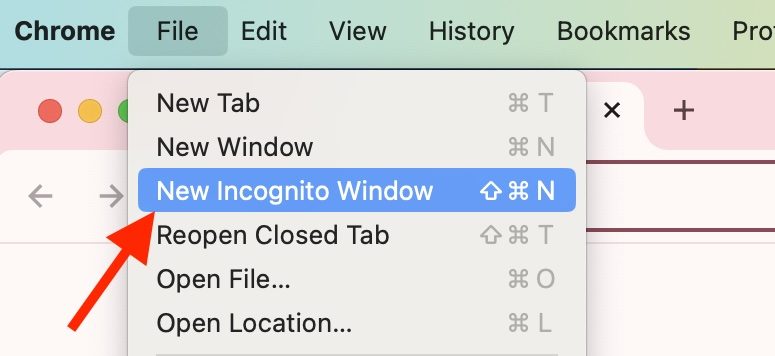
To access Incognito, go to “File” > “New Incognito Window.”
From there, use third-party SERP extractor tools to copy to a local file. For example, Serpsonar exports SERPs in an Excel file to include ranking URLs, titles, and descriptions. SEO Minion, a Chrome app, offers a one-click copy of the entire SERP in view.
To access Incognito in Chrome, go to “File”> “New Incognito Window.”
Keyword Insights
Keyword Insights freemium SERP Explorer can extract up to 100 results per query. The tool will extract all components of the SERP, not just organic results.
It also provides country- or city-specific SERPs without a needing a VPN service or proxies.
To start a new SERP Explorer project:
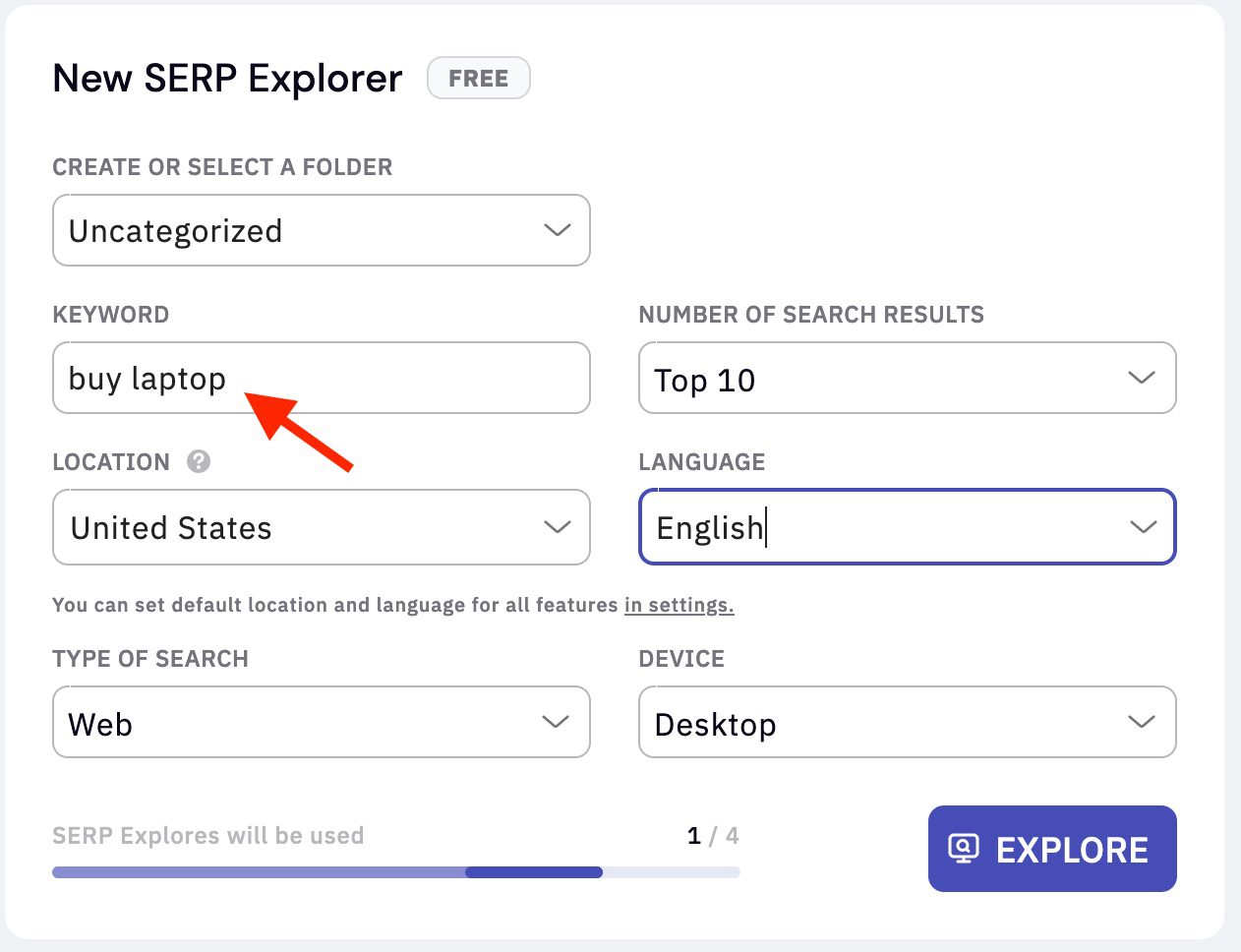
Type a keyword,
Choose the target location and language,
Select the type of search results: web, image, news, shopping, or video,
Select device: desktop, mobile, or tablet.
Once extracted, the search results are easily copied and retained locally.
SERP Explorer offers five free daily searches with exports limited to the top 10 desktop results. To access all features, upgrade to the professional tier at $145 per month.
To start a new SERP Explorer project, type the keyword (“buy laptop”), location, language, and more. Click image to enlarge.
Thruuu
Thruuu is an AI-powered optimization tool for keyword discovery, SERP analysis, and content creation. The tool extracts organic results and additional SERP components such as local packs, videos, and “People also ask” sections.
Thruuu extracts up to 100 results on mobile and desktop devices and provides additional data for each listing, such as the number of words, number of images, publication date, on-page schema types, page type, and page rank (via the Open PageRank initiative).
Users can download the SERP and related data as an Excel file.
Thruuu offers four free credits to analyze and compare SERPs. Paid plans start at $19 per month.
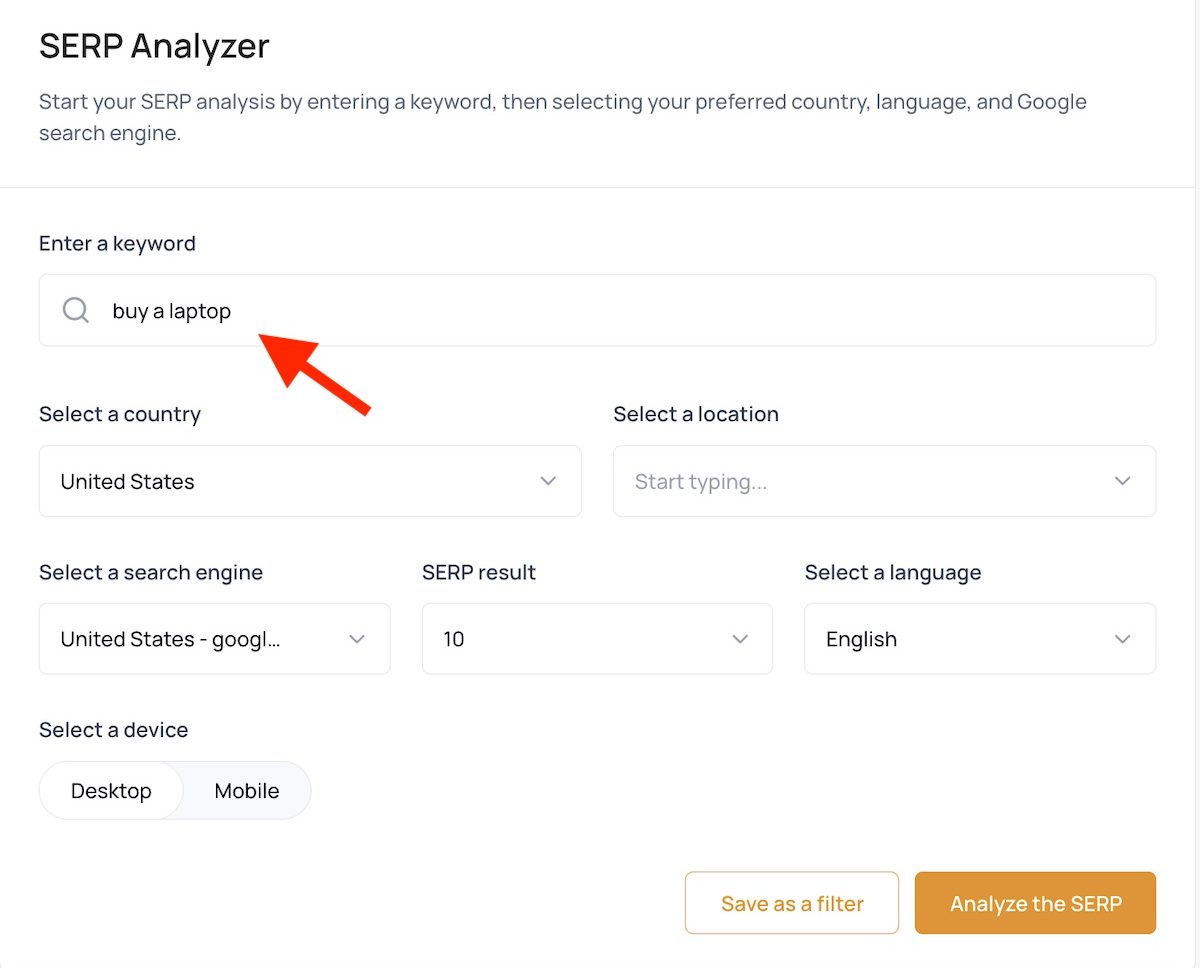
Thruuu is a tool for keyword discovery, SERP analysis, and content creation. This example is for the keyword “buy a laptop.” Click image to enlarge.
Google releases updates to its search algorithm seemingly nonstop. Each release typically lowers organic rankings for many sites. Hence keeping an eye on those updates and their impact is essential for evolving optimization strategies.
Here are four tools to track the releases and their effect.
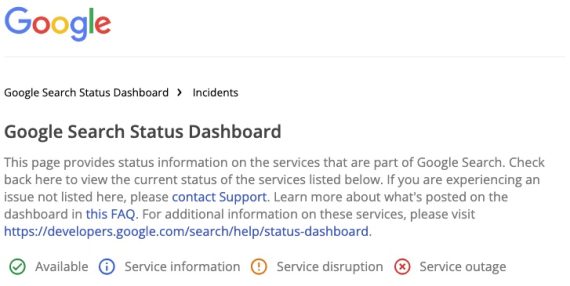
This is the only reliable way to confirm when an update has started and ended. It is also helpful for determining if search fluctuations are due to non-algorithm incidents such as crawling and indexing glitches.
Sistrix
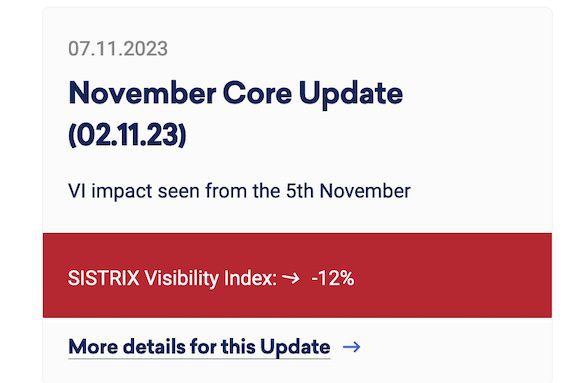
Sistrix’s Google Updates page.
Sistix is premium SEO software with a free tool to evaluate the impact of a Google update on your site. Choose your country and type your domain; the tool will check your ranking fluctuations for each update, allowing 25 daily queries for free.
Sistix also provides a summary of each update and its purpose.
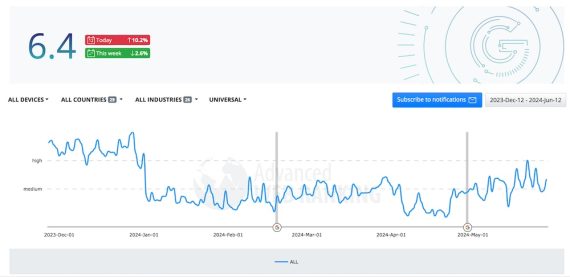
Advanced Web Ranking publishes daily SERP volatility and fluctuations based on approximately 400,000 desktop keywords (and 200,000 mobile) across multiple countries.
Users can filter reports by industry, device, and country — with confirmed Google updates.
The tool offers free alerts on volatility and Google-announced releases.
GSC Guardian
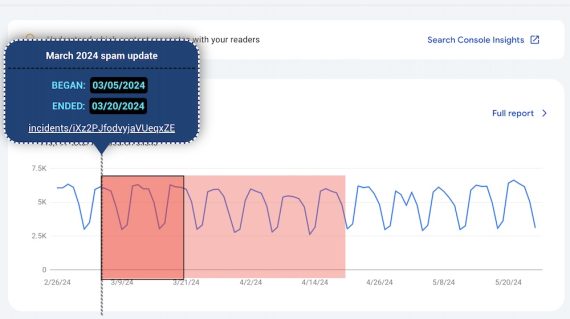
Search Console overlay on GSC Guardian.
GSC Guardian is a free Chrome extension to track Google’s updates against overlays in Search Console reports. Users can create annotations of tasks or observations in their Search Console dashboards.
The extension simplifies evaluating the impact of a Google update on your organic search visibility.
Monitoring Google’s updates is essential, but remember, organic traffic fluctuations are normal, and core algorithm releases often address queries and their intent, not weaknesses in websites.
Thus traffic declines are not typically penalties. Assess search result pages and note the changes. Have your organic positions changed, or are they pushed down the page owing to AI Overviews or new SERP features? For example, recent updates replaced review sites with ecommerce results for many queries.
Not all ranking fluctuations are reversible. But knowing the status of target queries and SERPs is key for identifying new opportunities.
Google has many interesting free tools, but two important ones for helping you improve your site are Search Console and the Rich Results Testing Tool. Search Console helps you get a general feel for how your site is doing in the SERPs, plus keep an eye on any errors to fix and improvements to make. The other one, the Rich Results Testing Tool, helps you see which of your pages are eligible for rich results. Rich results are those highlighted search results like product and event listings.
Rich results are incredibly important in today’s world. Once you add structured data to your site, you might get a highlighted listing in the SERPs. This gives you an edge over your competitor, as highlighted listings tend to get more clicks. For many sites and types of content, it can make sense to target rich results.
Adding structured data to your courses might lead to highlights like this one
Here, we look at how to verify your eligibility and what you can do to improve on that. Google’s Rich Results Testing Tool helps you check your pages to see if they have valid structured data applied to them and if they might be eligible for rich results. You’ll also find which rich results the page is eligible for and get a preview of how these would look for your content.
Using the Rich Results Testing Tool is very easy. There are two ways to get your insights: enter the URL of the page you want to test or the piece of code you want to test. The second option can be a piece of structured data or the full source code of a page, whichever you prefer.
While testing, you can also choose between a smartphone and a desktop crawler. Google defaults to the smartphone crawler since we live in a mobile-first world, people! Of course, you can switch to a desktop if needed.
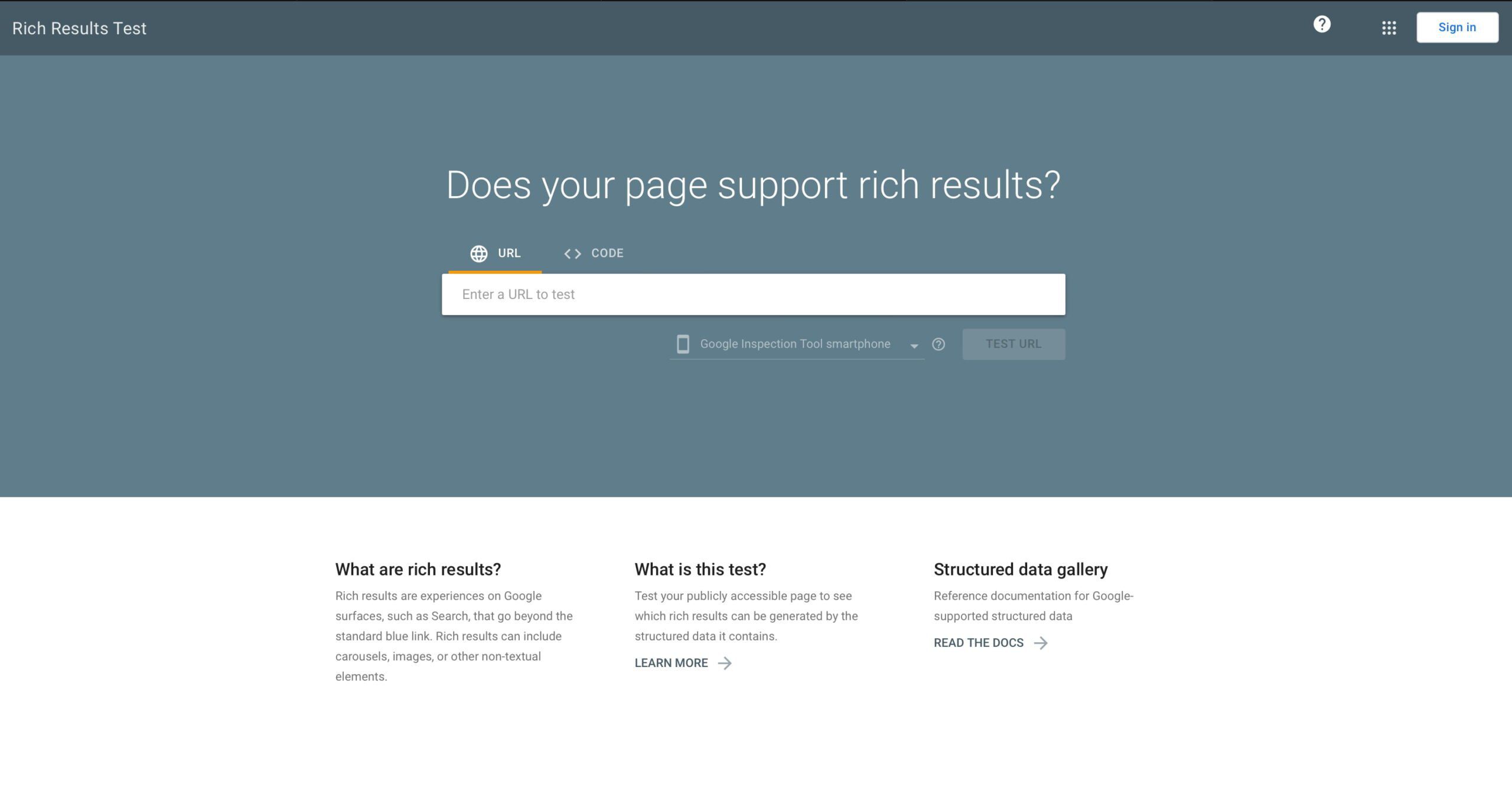
Enter a URL or a piece of code to get going. You can also choose between a smartphone or desktop crawler.
There is a difference, of course. It is a good idea to use the URL option if your page is already online. You’ll see if the page is eligible for rich results, view a preview of these rich results, and check out the rendered HTML of the page. But there’s nothing you can ‘do’ in the code. The code option does let you do that.
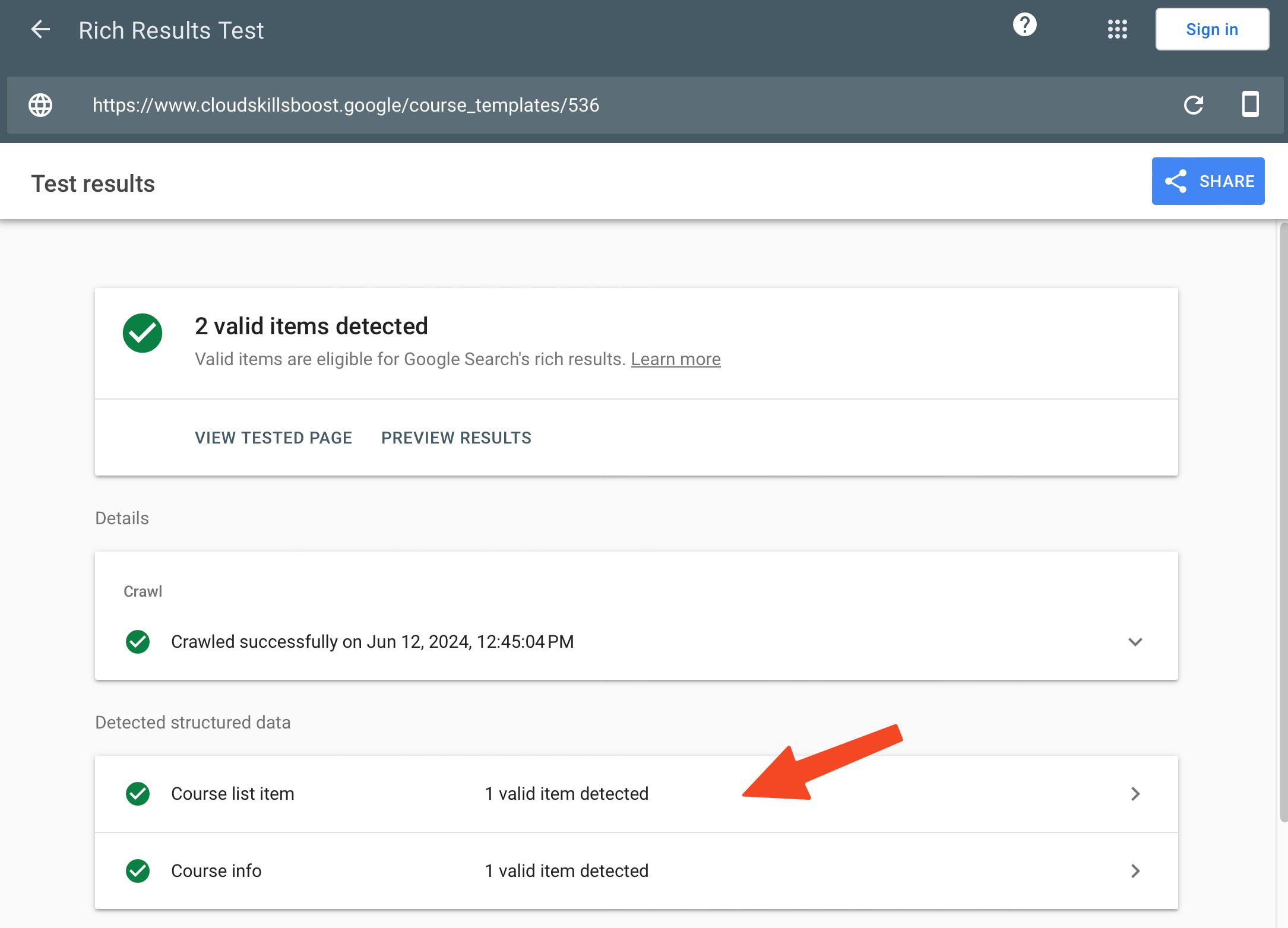
This particular page has a valid Course list item and Course info and is, therefore, eligible for rich results — which you can see in the first screenshot.
Working with structured data code
If you paste a piece of JSON structured data into the code field and run the test, you get the same results as the URL option. However, you can now also use the code input field to edit your code to fix errors or improve the structured data by fixing warnings.
If it’s minified, unminify it for better readability
Paste the code in the code field of the Rich Results Testing Tool
Run the test
You’ll get a view similar to the one below.
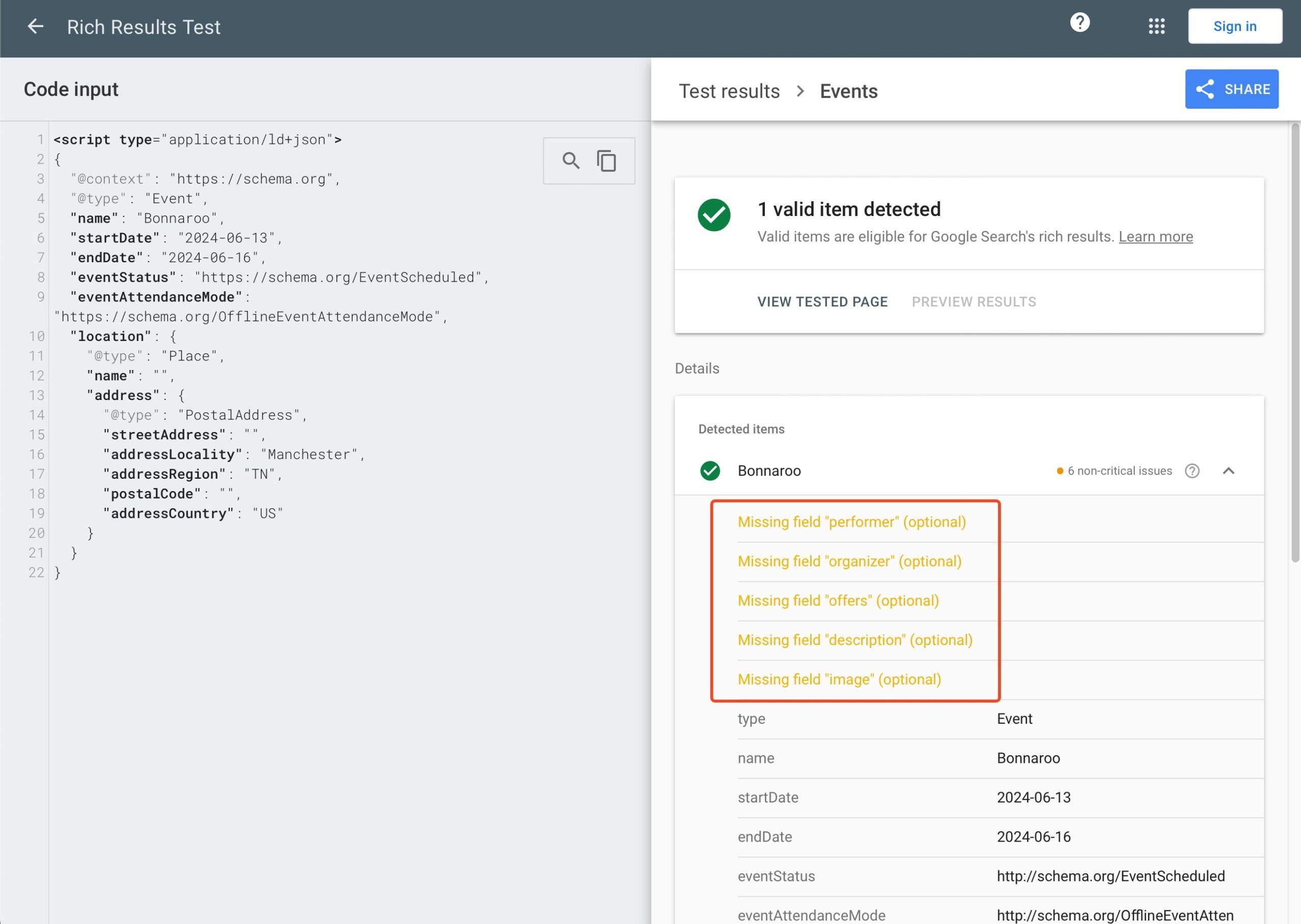
Code input is on the left; rich results test is on the right. You can now edit the code and quickly run the test after making those edits to see the changes.
Editing an event page
The page above is an event page; you’ll notice warnings in orange. Remember: red is an error, and orange is a warning. An error you have to fix to be valid, but a warning is a possible improvement to make. Because this concerns a paid event, the page misses an offers property. It also misses the optional fields performer, organizer, description and image. We could add these to remove the warnings and round out this structured data listing — because more is better.
Look at Google’s documentation about events and find out how they’d like the offers to appear in the code. To keep it simple, you could copy the example code and adapt it to your needs. Find a good place for it in your structured data on the left-hand side of your Rich Results Testing Tool screen and paste the code.
You could expand the code until it looks something like this:
Rerun the test, and more sections should turn green. If not, you might have to check if you’ve correctly applied and closed your code.
Once you’ve validated your code and know it’s working, you can apply it to your pages. Remember that we’ve described a very simple way of validating your code, and there are other ways to scale this into production. But that’s not the goal of this article. Here, we’d like to give you a quick insight into structured data and what you can do with the Rich Results Testing Tool.
See a preview of your rich results
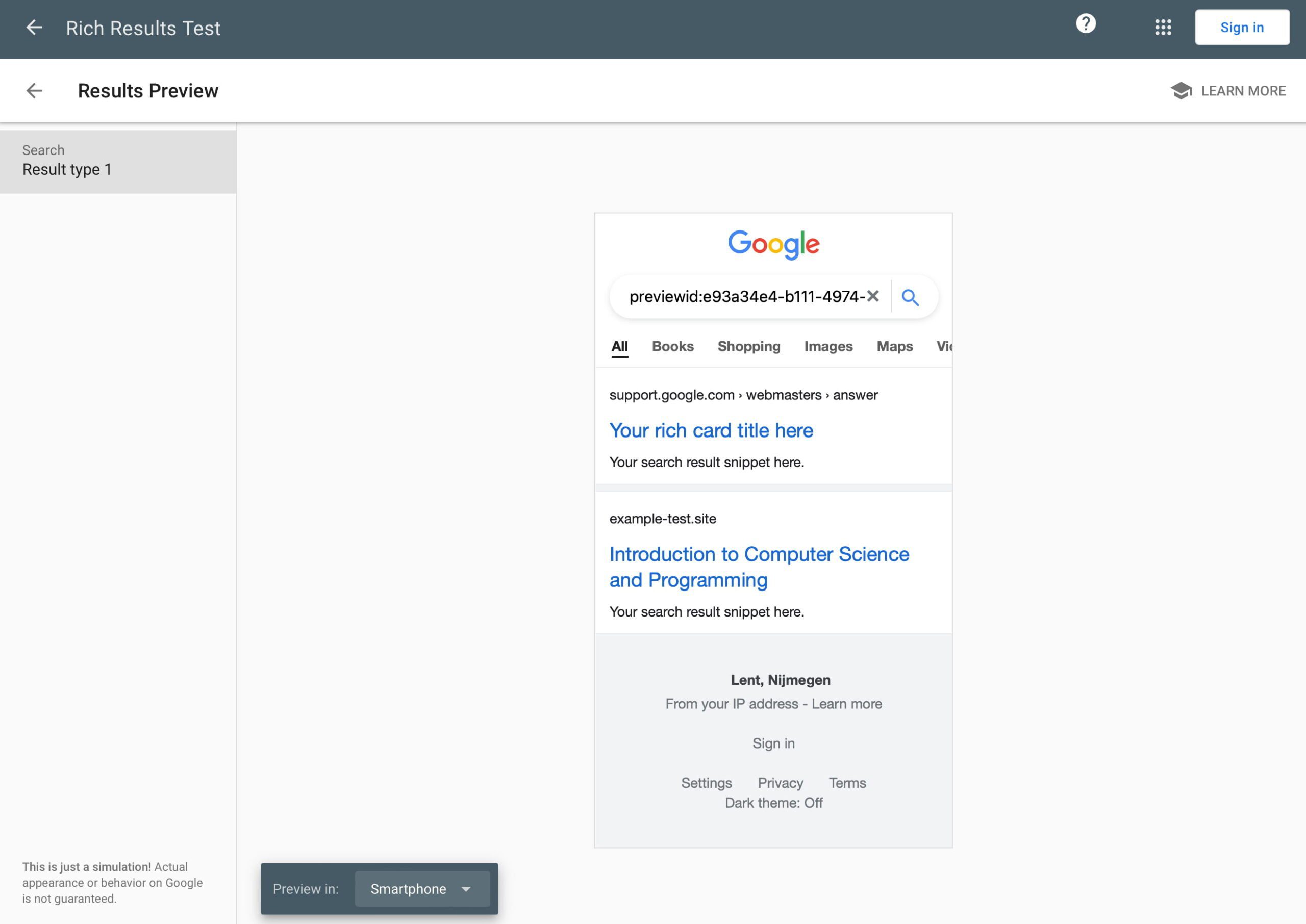
The preview option is one of the coolest things in the Rich Results Testing Tool. This gives you an idea of how that page or article will appear on Google. There are several rich results that you can test, like breadcrumbs, courses, job postings, recipes, and many more.
These previews aren’t just for showoff — you can use them to improve the look of the rich results. Maybe the images look weird, or the title is not very attractive. Use these insights to your advantage and get people to click your listings!
Get a glimpse of how your rich result might appear in the SERPs
This is a short overview of what you can see and do with the Rich Results Testing Tool. Remember that your content is eligible for rich results if everything is green in the Rich Results Testing Tool and no errors are found. This does not — and we mean not — guarantee that Google will show rich results for this page. You’ll just have to wait and see.
Artificial intelligence is upending Google Search. Merchants who rely on organic search traffic must track a nonstop flow of changes and updates to maintain performance.
Search Console is the most reliable tool because it uses Google’s own data. Here are three Chrome extensions to better understand Search Console’s data.
GSC Guardian
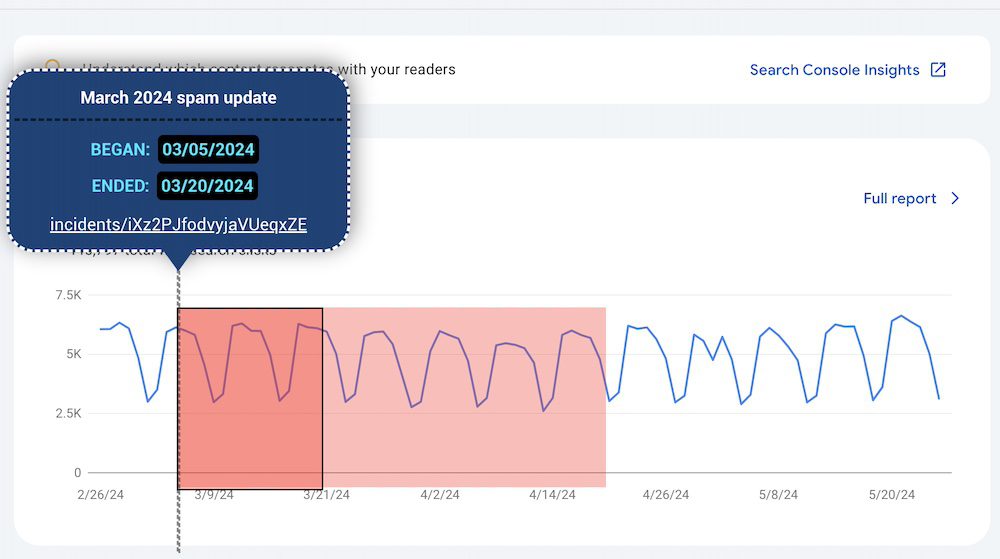
Sample overlay on Search Console from GSC Guardian. Click image to enlarge.
GSC Guardian overlays Search Console reports with information from Google’s Search Status Dashboard. Users can create annotations on Search Console for tasks or observations and then export them to a CSV file or Google Sheet.
The extension helps correlate Google’s updates with your site’s traffic, to react accordingly.
Search Console Enhanced Analytics
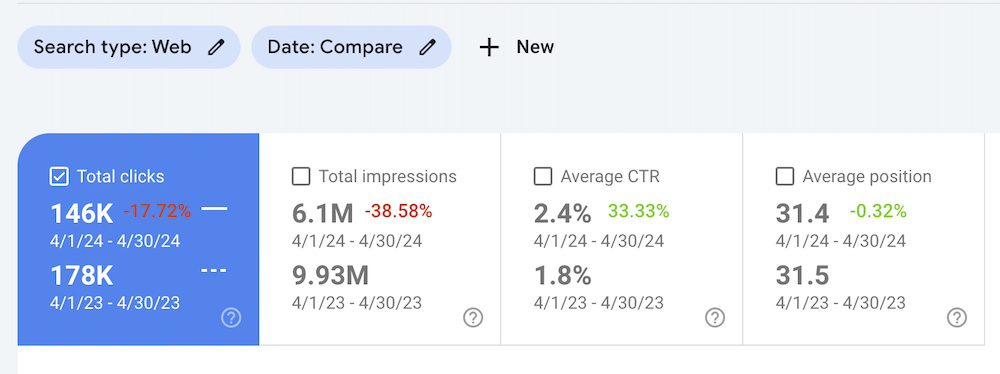
Google Search Console Enhanced Analytics compares clicks, impressions, and positions across periods. Click image to enlarge.
Google Search Console Enhanced Analytics compares clicks, impressions, and positions across two periods to analyze (via color coding) traffic fluctuations, trends, and more.
Use a premium feature to generate search volume for each query your site ranks for, per Search Console, at $0.05 per request.
GSC Crawl Stats Downloader
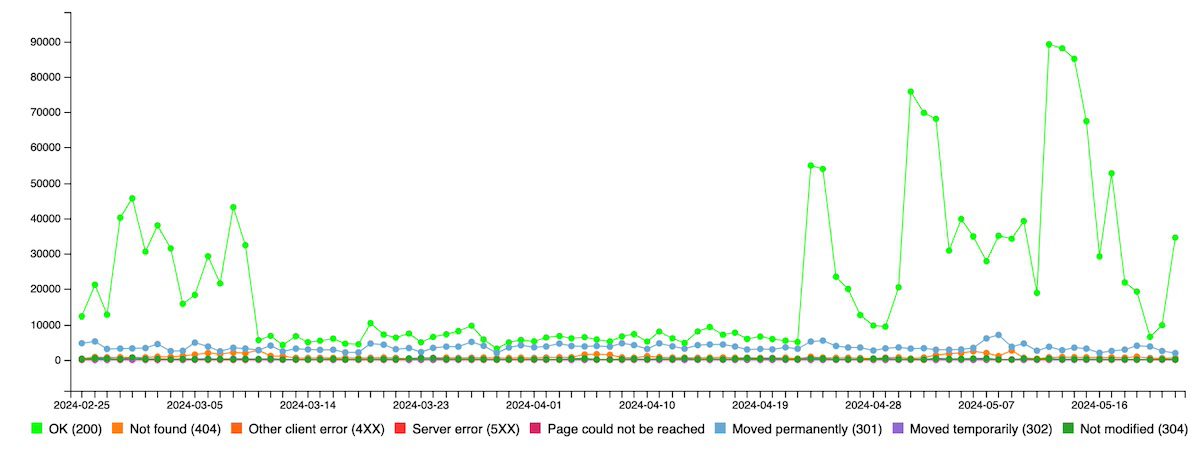
GSC Crawl Stats Downloader builds a handy visualization of crawl activity. Click image to enlarge.
GSC Crawl Stats Downloader provides a better way to download crawl stats from Search Console. Instead of downloading multiple CSV files (by response, file type, purpose, Googlebot type, or summary), this extension can download everything with one click.
Google assigns a crawl budget for every site. Knowing how often Google visits your site is essential. The crawl frequency or page volume usually implies the priority (to Google) — sites with higher rankings typically see more crawls.
Conversely, it’s a possible structural problem if Google crawls many pages but fails to index them.
Install the extension and click it while viewing Search Console. The extension will identify and merge the crawl stats and build a handy visualization to show the crawl activity at a glance.
Google’s Gemini has launched extensions that integrate with external platforms. Its YouTube extension is live and available for activation in the Gemini settings behind the “Extensions” tab.
The extension lets users search and summarize YouTube videos inside Gemini. Here’s how it can help video marketing.
Find Top Videos
Native YouTube search is highly personalized by viewing history and subscriptions. To see non-personalized results, searchers must log out or use a browser’s privacy (“Incognito”) mode. Even then, the results differ among users.
Moreover, exporting search results from YouTube is burdensome, requiring copying each video’s URL without the parameters.
Gemini’s extension produces the top five search results without personalization. Users can watch any video inside Gemini without impacting their viewing history on YouTube.
Watch YouTube videos without leaving Gemini. Click image to enlarge.
Simply prompt:
@YouTube search for [keyword]
Or create a more advanced prompt:
@YouTube search for [keyword] and return results as a table containing the video title (linked), number of views, and creator’s name (linked)
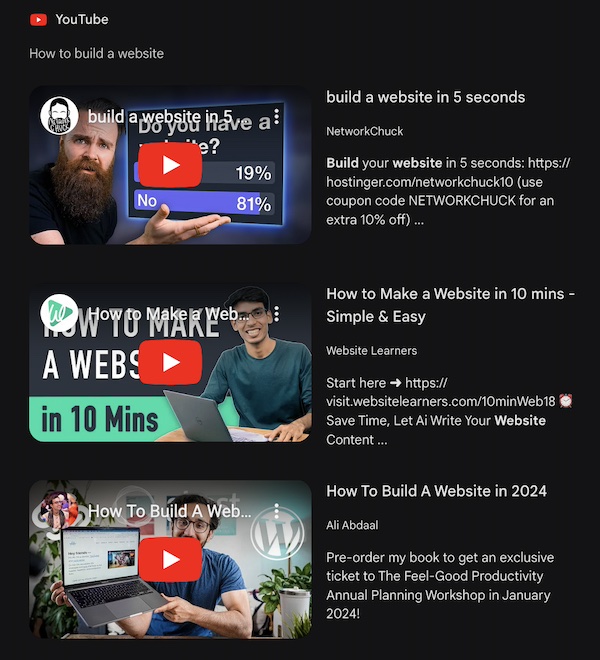
My results for the query “how to build a website” are below. I’ve reproduced Gemini’s table for this article.
Produce Video Ideas
Like any generative AI platform, Gemini is a good brainstorming tool. It can suggest helpful video topics to research and refine. The YouTube extension can find competing videos on each proposed topic.
Here’s my prompt:
My target phrase is “how to build a website.” Generate specific video ideas for that audience @YouTube.
Here are two of Gemini’s suggestions:
Building a website with HTML in 30 minutes or less (targets beginners who want a quick and easy introduction).
Creating a simple portfolio website using HTML and CSS (targets those who want to showcase their work online).
Search @YouTube for each idea and produce examples.
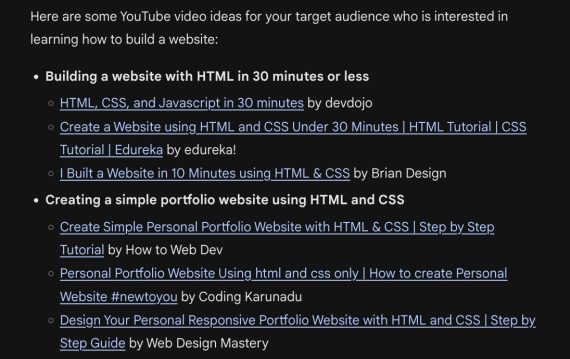
Gemini’s results are well-ranking videos for each idea.
Gemini produced well-ranking videos for each idea in this partial list. Click image to enlarge.
Improve Video Descriptions
Gemini’s YouTube extension can create detailed descriptions of videos on YouTube and add clickable timestamps.
In my testing, Gemini responds better to one task per prompt. Here’s my first prompt: a YouTube video from Brian Dean, “SEO for Beginners: Rank #1 In Google (2023).”
@YouTube Summarize this video by pulling key takeaways and action items [link].
Here is Gemini’s response:
The main takeaways and action items:
Find low-competition long-tail keywords that are trending:
Use Google Autocomplete to find these keywords.
Look for keywords that are more specific and answer user queries in detail. For example, instead of targeting a broad keyword like “skin care routine”, target a long-tail keyword like “skin care routine for dry skin”.
Create high-quality content that satisfies search intent:
When creating content, make sure it answers the questions users have behind their search queries.
Focus on providing value and insights instead of just creating generic content.
Look at the content structure of websites like Investopedia where they answer user queries directly and in a clear way.
Optimize your content for on-page SEO:
Include your target keyword in the title, the first couple of hundred words of your content, and a few other times throughout the content.
Optimize your content for user experience:
Make sure your content is easy to read and navigate.
Use short paragraphs, subheadings, and bullet points to break up your text.
Front-load the value by placing the most important information at the beginning of your content.
Build backlinks to your website:
Create content that is link-worthy, such as content with unique data or insights.
Target specific statistics in your niche that other websites might want to cite.
My next prompt:
Add a timestamp for each takeaway from the video. The format: mm:ss.
Here’s Gemini’s response with clickable timestamps:
Target low-competition, long-tail keywords that are trending and not yet mainstream (01:53)
Create content that satisfies search intent and gives searchers exactly what they’re looking for (02:51)
Optimize your content for on-page SEO by adding your keyword to your page a couple of times (04:11)
Optimize your content for user experience by making sure people can get value as soon as possible after landing on your site (04:22)
Build backlinks by being the source for a specific statistic in your niche (05:04)
Organic search traffic fluctuates. It’s never static owing to Google’s algorithm updates, changes in search result layouts, and competition.
The fluctuations have been dramatic in 2024, the biggest in years. I’ve corresponded with many legit, non-spammy businesses whose sites have lost a lot of traffic. Most don’t know why.
Here is how to identify pages with traffic losses and the cause.
Search Console
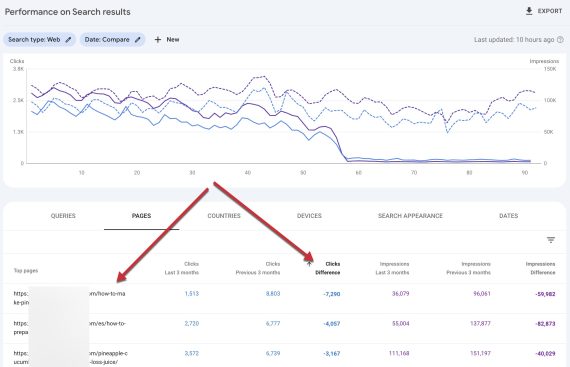
Google Search Console is the quickest way to identify pages that lost organic traffic. Use the “Compare” option inside the “Performance” report and set the dates before and after the losses.
Then click on the “Pages” tab and sort by the number of clicks. Here’s an example of a site with extreme organic traffic losses and the impacted pages.
In Search Console, set the dates before and after traffic losses and compare clicks for each page. Click image to enlarge.
From there, click any URL in the first column, and the report will filter to that page. Click the “Queries” tab and sort by “Clicks” again to see the search terms with the biggest traffic drop.
Those are the priorities. Search on Google for each query. Note new features in the results. Study the top-ranking pages for quality, user experience, and search intent.
Click the “Queries” tab and sort by “Clicks” to see the search terms with the biggest traffic drop. Click image to enlarge.
Google Analytics
Google Analytics 4 can also identify pages with traffic losses, although it has no easy sorting options.
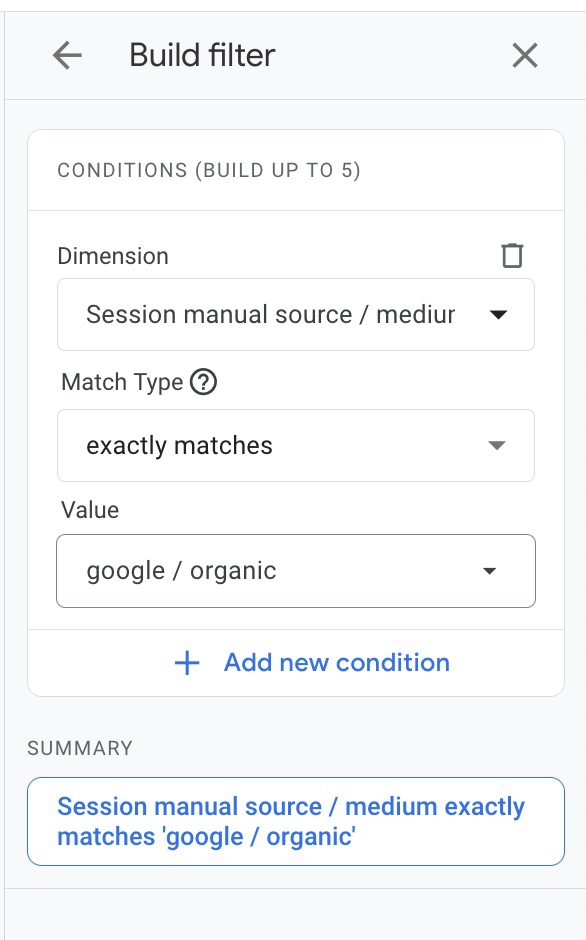
Typically, popular pages account for most declines. In GA4, go to “Engagement” > “Landing Page.” These pages have the most traffic — from all sources, not just organic search.
In GA4, apply filters to isolate organic search traffic. Click image to enlage.
Next, after filtering for organic search, select “Compare” to analyze two periods.
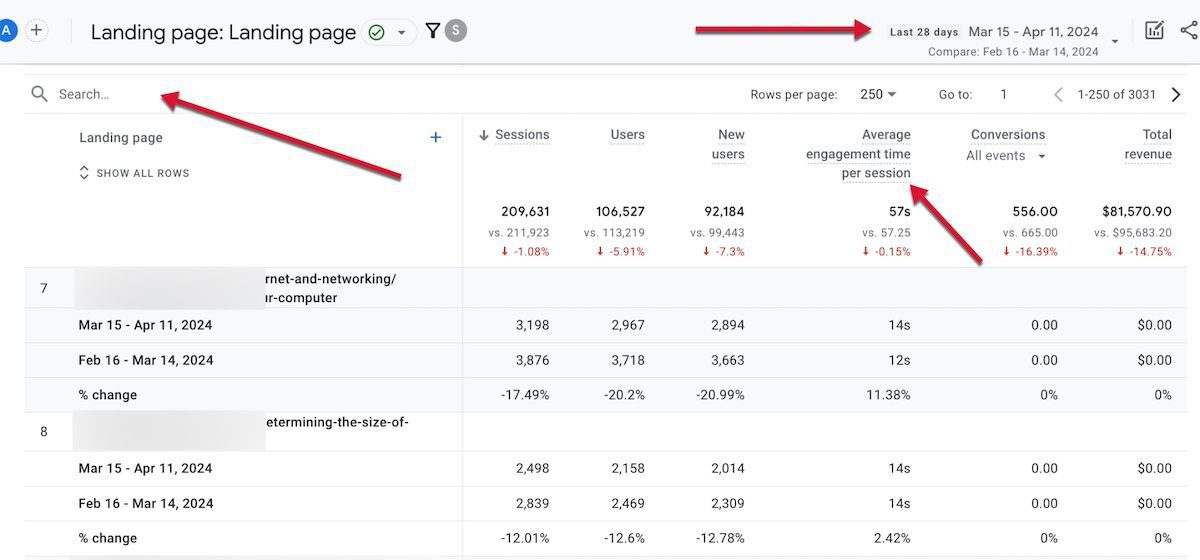
Unlike Search Console, GA4 provides engagement time and thus potential recovery tactics. Improve or update pages with an average engagement of a few seconds that also lost traffic. (Use the “Search” field to find a specific page.)
Follow the same filtering steps for any traffic source beyond organic search.
GA4 provides “Average engagement time per session,” a helpful recovery metric. Click image to enlarge.
Google launched the “People also ask” section in search results in 2015. Since then, search engine optimizers have strategized how to appear there. But the benefits of researching keyword-focused questions extend beyond “People also ask” to include:
Conversational search, where people speak queries into mobile devices.
Generative AI searches, such as ChatGPT, wherein users tend to type complete questions.
An understanding of consumer demand and pain points.
Here are five tools to research questions around your targeted keywords.
Moz
Moz Keyword Explorer
Moz’s “Keyword Explorer” includes a new question research feature. Type your keywords and click the “Questions” tab. The most useful component is the ability to group related keywords — which Moz labels “lexical similarity” — by “low,” “medium,” or “high.”
“Low” similarity produces larger groups with questions loosely relevant to one another. I chose the “medium” option for the “cat food” keyword. The resulting questions are easily addressed in a single web page, making the option very helpful.
Pricing for Moz Pro starts at $99 a month with a free 30-day trial.
Semrush
Semrush Keyword Magic Tool
Semrush offers a “Questions” option inside its “Keyword Magic” tool. Type your base term, and switch to the “Questions” tab. The questions are sorted by search volume by default. The left panel lists the keyword modifiers commonly found in those questions.
Semrush starts at $125 per month, with a free 7-day trial.
AlsoAsked
AlsoAsked
AlsoAsked pulls questions from “People also ask” sections. It also shows more questions, which Google generates from searches on the original “People also ask” content.
AlsoAsked’s initial search is free. Upgrade to the $12 per month plan to see the follow-up questions.
BuzzSumo
BuzzSumo
BuzzSumo’s “Content Discovery” tab includes “Questions” from Reddit, Quora, and other discussion boards. Users can enable or disable any data source by top-level or full domain name. The questions are grouped by word and adjustable by time frame — day, week, month.
Users can also view “Related themes” to discover more base terms for potential questions.
Pricing for BuzzSumo starts at $199 per month with a free 30-day trial.
Answer The Public
Answer The Public
Answer The Public pulls questions from autocomplete results on Google, Bing, YouTube, and Amazon and groups the output by word. The tool also provides cost per click and search volume for each question.
Answer The Public offers a free, limited trial. Paid plans start at $9 per month.