A legal document filed in federal court formally notifies that Automattic and Matt Mullenweg have added new representation, a lawyer who has previously represented Meta and Facebook. The new documentation is formally called NOTICE of Appearance. There may be an additional legal filing that may indicate that the previous legal team may no longer be representing Automattic and Matt Mullenweg.
New Attorney
A legal form was filed titled “NOTICE of Appearance filed by Rosemarie Theresa Ring on behalf of Automattic.” Rosemarie Theresa Ring is an attorney at Gibson, Dunn & Crutcher LLP, one of the top law firms in the United States.
Gibson Dunn was founded in 1890 and has represented George W. Bush in the Bush v. Gore legal fight over votes in Florida, Apple, Inc. in an infringement lawsuit against Samsung and also has represented Meta and Facebook.
The law firm that has previously represented Automattic and Matt Mullenweg in their defense in the WP Engine federal lawsuit are Quinn Emanuel Urquhart & Sullivan, LLP, a prestigious international law firm specializing in litigation. According to a citation in Wikipedia, Quinn Emanuel Urquhart & Sullivan have been recognized as a top tier legal firm for intellectual property, patent, trademark, and copyright law, as well as other categories.
“77 Jan 24, 2025 NOTICE of Appearance filed by Rosemarie Theresa Ring on behalf of Automattic Inc., Matthew Charles Mullenweg (Ring, Rosemarie) (Filed on 1/24/2025) (Entered: 01/24/2025)
Jan 24, 2025 Notice of Appearance/Substitution/Change/Withdrawal of Attorney”
The legal documents aren’t yet available to view but this article will be updated when they are.
What Does It Mean?
It’s unclear if the previous legal representation is still representing Automattic and Matt Mullenweg as part of their legal team as defendants in the WP Engine lawsuit. But it does appear that the defendants are preparing to fight back with some seriously experienced legal representation.
WordPress Multisite is a feature for managing the structure and multiple sites from a single WordPress installation.
In this article, I’ll share the step-by-step approach to creating a new WordPress website or converting an existing WordPress website into a WordPress Multisite.
But before that, let’s understand the basics of WordPress Multisite.
What Is WordPress Multisite?
WordPress Multisite enables you to create and run multiple websites on the same WordPress installation. It is like having one central hub to control an entire network of sites.
Websites on a Multisite network share core files and databases, making it easy for network administrators to manage all websites from one WordPress user account.
The reason why businesses opt for Multisite is because it helps save both time and money. Plus, it takes less server space than separate installations.
To know WordPress Multisite better, let’s look at some of its significant features:
Centralized management: Allows you to control all your websites from one single dashboard.
Shared themes and plugins: Use your website anywhere after you install these shared themes and plugins.
User management: Enables you to create super admins to oversee the entire network.
Domain mapping: Facilitates you assigning unique domains to each site in your network.
How Does WordPress Multisite Work?
To understand the functionality of WordPress Multisite, you need to understand WordPress user roles and how they differ. By default, a standard WordPress site has five user roles:
Administrator (site Admin).
Editor.
Author.
Contributor.
Subscriber.
However, for WordPress Multisite, there is one more user role called super admin. There are six user roles for WordPress Multisite:
Super Admin (own/control – all sites of multisite network).
Administrator (site Admin) – controls one website of the network.
Editor.
Author.
Contributor.
Subscriber.
For a regular WordPress website, the site admin has administrative access to only one website. As there is just one website on the network, the admin controls only that website.
Site admins can add users, but only to the websites they administer. They cannot install WordPress plugins or themes, but they can choose which ones to activate or deactivate.
However, in WordPress Multisite, the super admin has access to more than one website.
The super admin, also known as the network admin, controls a whole network of websites and has activated Multisite initially.
They also have access to every website’s network admin setting and dashboard within the network. Super admins can also map custom domains.
Pros And Cons
After weighing the pros and cons of WordPress Multisite, it will become easy for you to decide if it aligns with your specific needs and technical expertise.
The Pros
Easy To Manage: With Multisite installation, you can control multiple sites from one admin panel. There is no need to switch and log each site separately.
Efficient Updates: You can apply core updates, plugin updates, and theme changes across all your websites with just a few clicks.
Easier Delegation: WordPress Multisite enables you to assign site-level admins to network sites to make it easy to share site management tasks.
Scalability: The best part about Multisite websites is that you can scale it as your business grows, as unlimited WP subsites are allowed under one URL. It will also enable you to delete the old ones that are not required without impacting the rest of the network.
Targeting Marketing And Branding: Multisite websites let you create tailored experiences for different geographic regions, product categories, and customer segments. For instance, if you’re doing SEO and link building, you can promote content in a much more geographically or niche-relevant way.
Greater Control: When you use multisite, you have greater control over using plugins and themes for each site. This lessens the risk of bad plugins or themes, which can compromise the security or performance of the entire network.
SEO-Friendly: WordPress multisite can help with SEO as well. You can properly structure your website and content for languages, locations, topics, products/services, etc. Having a well-structured website helps Google to understand your website easily. Also, you can track and understand which part of the site is performing well (even for Google algorithmic updates) and adjust your SEO strategy accordingly.
The Cons
Here are some of the drawbacks of using multisite:
Performance Issues: One of the major challenges with Multisite is that users may face performance issues in situations when one site gets adversely impacted; it affects the other sites as well.
Steep Learning Curve: Multisite has its own set of complexities. If you are not a technical expert, the initial setup and management can be quite challenging for you.
Limited Plugin Compatibility: Not all plugins are compatible with a Multisite setup, which can limit your options. In fact, various premium plugins may require a license per subsite, which can lead to an increase in cost.
Backup And Migration Challenges: Migrations can be challenging as every site shares one database. Migrating one site off your network is very challenging; therefore, ensure that you have a solid backup strategy in place.
Use Cases: When To Use A WordPress Multisite
Here are some use cases when using a WordPress Multisite is a good idea:
Franchise Businesses
If you have a franchise business, opting for Multisite can be one of the best decisions.
Every franchise will get a separate website, but you will have control over the look and functionality of all of them.
Subway, McDonalds, Dominos, and many other brands use this to give every location a unique online presence while ensuring brand consistency.
Learning Management System (LMS) Websites
Imagine a university where every department needs its own website. Using Multisite, offers each department its own space while maintaining brand consistency and centralized management.
LMS websites are created for various schools and universities, but they have a similar structure and functionality.
Multi-Language Websites
WordPress Multisite can be a great idea for businesses that target a global audience. It also offers a solution for managing multiple language versions of a website.
Every language gets its own site, which makes it easier to manage translations and localized content.
Business Or Ecommerce Sites
Using WordPress Multisite is a perfect option for ecommerce sites. It creates different versions of the same service or product website.
For instance, you can create different sites on the same product line, accounting for differences in language and culture. Furthermore, you can delegate network administrator control to business representatives in every region.
Social Commerce Integration
WordPress Multisite can be a powerful tool for businesses looking to leverage social commerce.
By creating separate subsites for different product categories or target audiences, businesses can tailor their offerings and marketing messages to specific demographics.
Additionally, plugins can be integrated to allow for direct product sales from social media platforms like Facebook and Instagram, creating a seamless shopping experience for customers.
A Multisite installation could be useful for government sites, SaaS businesses, educational organizations, magazines and media publications, ecommerce, etc., or simply where you want to create a well-structured website with an easy approach.
When Using A WordPress Multisite Is Not Recommended
Here are some of the use cases that explain when you should think twice about using WordPress Multisite capability:
1. Have Different Website Requirements
WordPress Multisite is not recommended for websites with varied functionalities, structures, plugins, or purposes.
For example, if you have three types of businesses that provide healthcare, LMS, and SaaS services, Multisite won’t help.
2. Can’t Afford Sufficient Hosting
WordPress Multisite is resource-intensive, especially when your business grows.
It requires substantial hosting plans, as inadequate hosting can lead to slow load times across all your sites. To avoid this, you should ensure that you have a WordPress Multisite optimized hosting for your website.
3. Security Risks
All the websites in a multisite network share a single database, potentially compromising data isolation. This shared structure might also not comply with industry-specific regulations.
Thus, if you have security concerns, it might not be an ideal choice for you.
4. Don’t Have A Permanent Programmer
If you run a small company without a dedicated programmer or IT team, opting for Multisite might get you in more trouble than it’s worth.
Multisite demands more technical know-how to set up and maintain, so if any issues arise, they will be challenging to diagnose and fix without expert help.
Steps To Create A WordPress Multisite
Before you start creating a WordPress Multisite, you need to choose a domain structure for Multisite – either a subdomain or subfolder structure.
Example of Sub-domain structure:blog.website.com/
uk.website.com/
Examples of Sub-folder structure:
website.com/blog/
website.com/uk/
WordPress Multisite also allows using a different domain for each website of the network. For example, you can use the website.us domain for the USA-targeting website and website.ca for the Canada website.
You can follow this guide to set up domain mapping for your WordPress website.
Once you have these essentials, you can start with the process of creating a WordPress Multisite.
Step 1: Enable The WordPress Multisite Network Feature
To enable this, you need to install a new WordPress as you normally do. You need to enable a WordPress Multisite network feature on an existing WordPress website if you want to convert it into a Multisite.
But before that, you should completely back up your website.
Follow these steps to enable the Multisite feature:
Set up an FTP connection to your website or Cpanel > file manager and edit the wp-config.php file.
Navigate to the wp-config.php file. Scroll down to the bottom and add this code before the /* That’s all, stop editing! Happy blogging. */. line:
Save the changes and close the wp-config.php file.
Step 2: Setting Up The Multisite Network
Screenshot from WordPress, December 2024
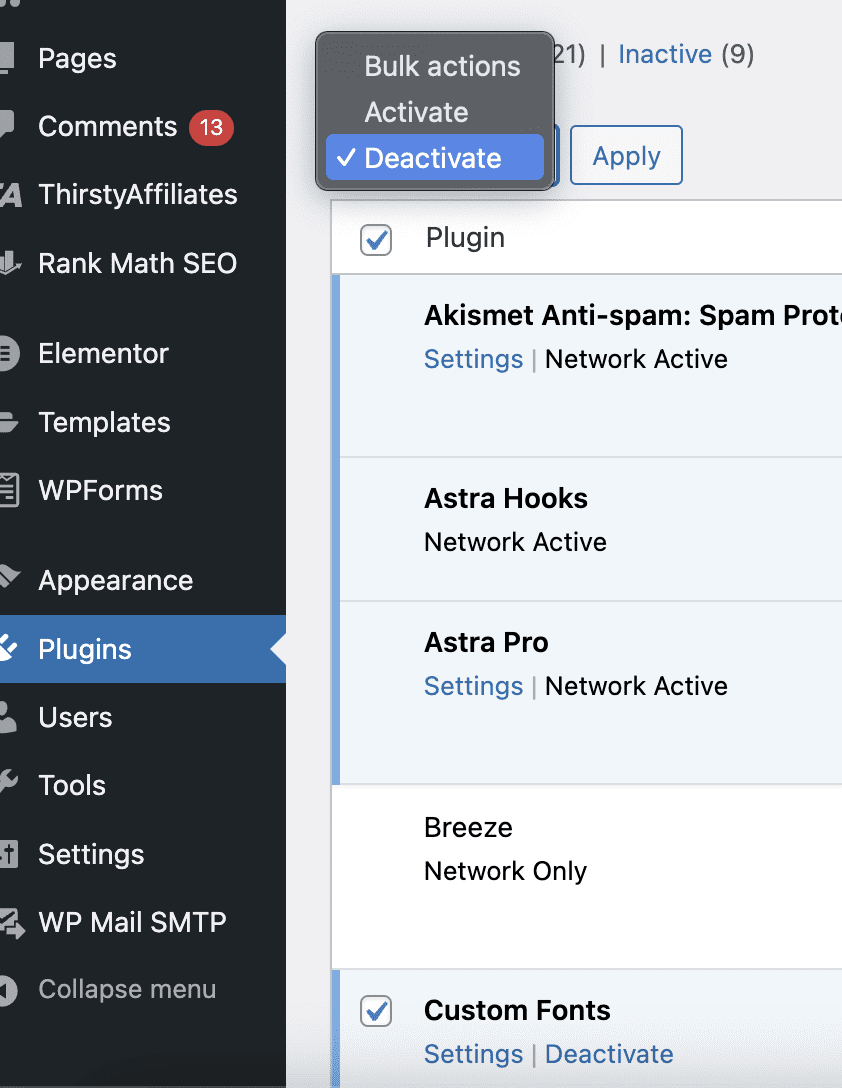
Before doing anything, you need to deactivate all of your plugins to complete the process.
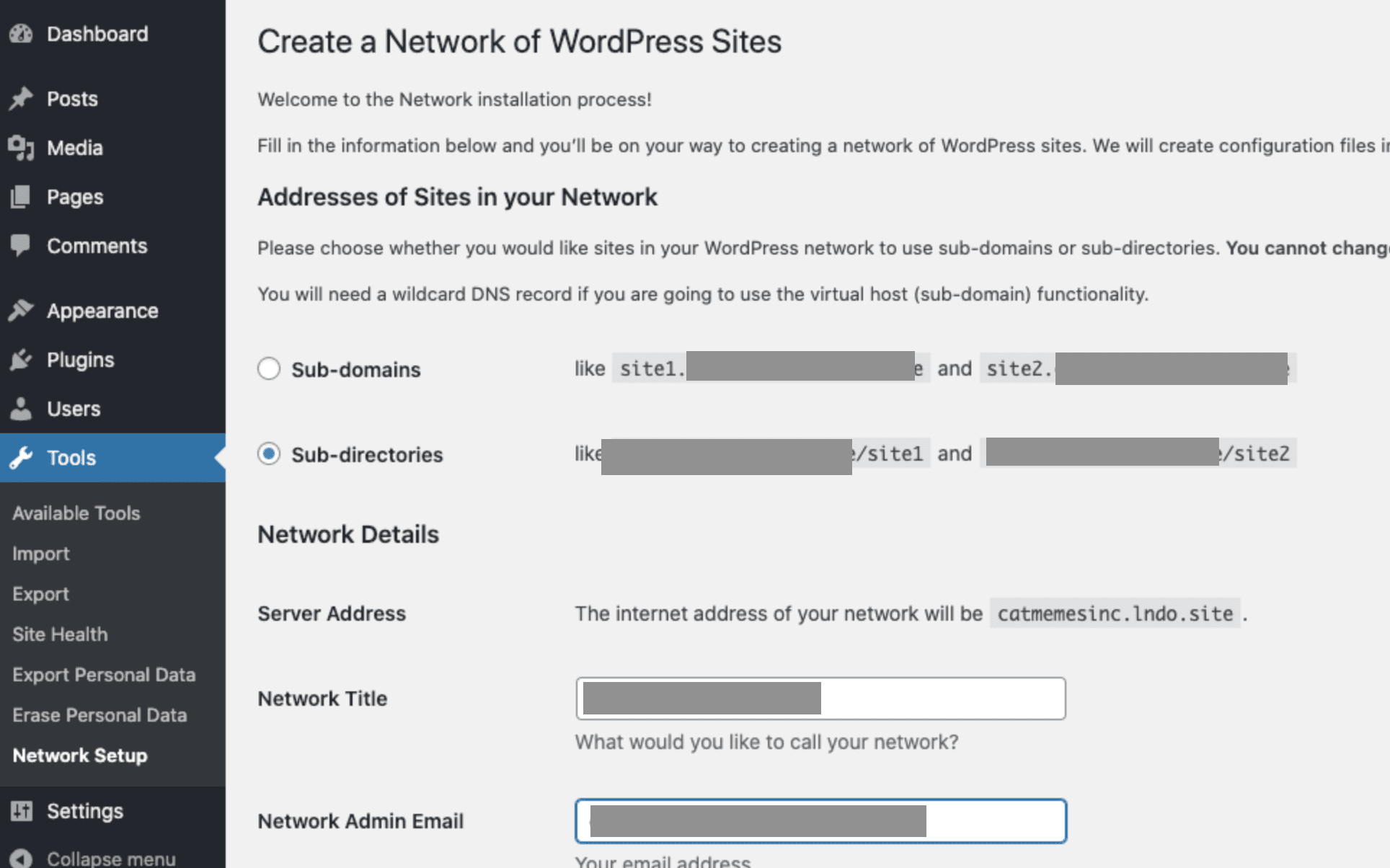
Then go to Tools > Network Setup page.
Screenshot from WordPress, December 2024
Now, you should choose between subdomains (e.g., site1.yourdomain.com) or subdirectories (e.g., yourdomain.com/site1) for the Multisite structure. Then Click “Install.”
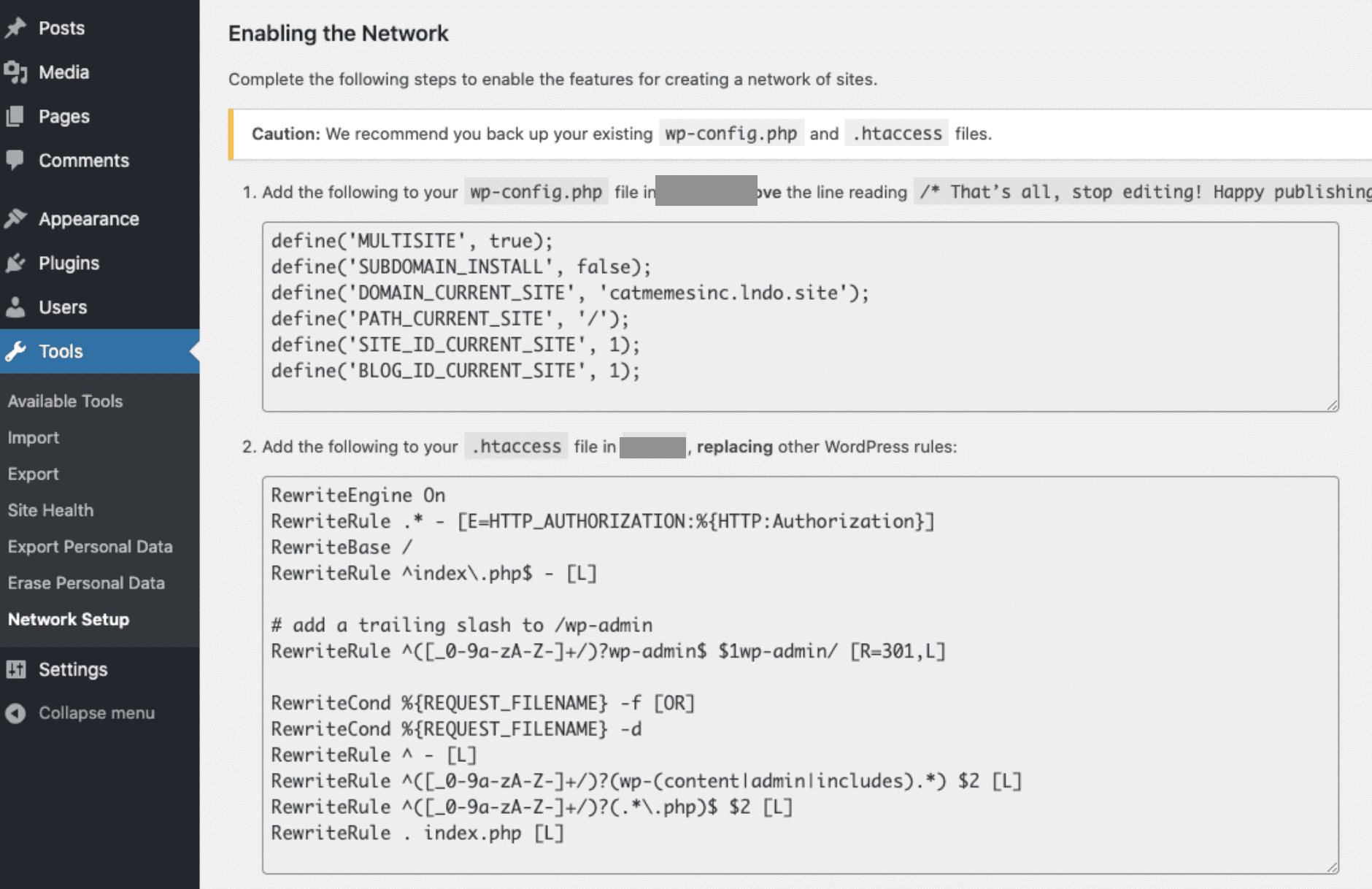
Now, WordPress will show you some code snippets to add to your website’s wp-config.php and .htaccess files.
Screenshot from WordPress, December 2024
Step 3: Edit The wp-config.php And .htaccess Files
You need to edit the wp-config.php file and add the code just below the line (code) you added before.
Then, edit the .htaccess file and replace the existing code with the new code of the WordPress Multisite installation.
Don’t forget to save the changes.
After finishing it, you need to re-login to your website to access the Multisite network.
Step 4: Configure Network Settings
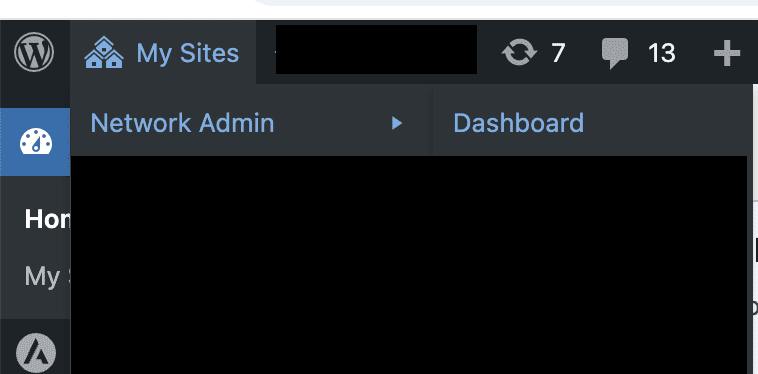
After logging in to your website, go to Network Dashboard to add new sites and change network settings. For this, go to My Sites > Network Admin > Dashboard.
Screenshot from WordPress, December 2024
Settings and other things are the same as those for the normal WordPress installation.
It’s done. This is how you can create your first site in your Multisite network.
If you want to convert your existing website into a Multisite, then here are the steps.
How To Convert An Existing Site To Multisite?
By default, WordPress allows you to convert an existing WordPress site into a Multisite sub-domain only.
If you want to convert a WordPress SubdomainMultisite, then you can follow the above-mentioned steps.
But if you want to convert an existing site into a Multisite Subfolder, then follow these steps:
(Pro tip: Take a complete website backup before starting the process.)
Step 1: Enable The WordPress Multisite Network Feature
You need to edit the wp-config.php file and add this code:
Now, you can find and choose the subfolder option for your Multisite. To do this, go to Tools > Network setup.
Screenshot from WordPress, December 2024
Then, choose the Subfolders option, and click the Install button.
Step 4: Enable The Network
You need to add the code shown by WordPress to the wp-config.php and .htaccess files, as shown above in Step 3 of creating a new multisite.
Once you have done it, you can create your first subfolder site. For this:
Screenshot from WordPress, December 2024
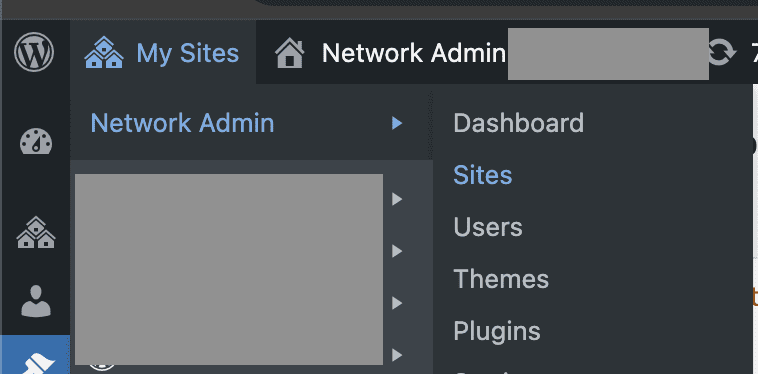
Go to My Sites > Network Admin > Sites.
Congratulations! You’ve successfully converted your WordPress site to a Multisite.
WordPress Multisite FAQs
What is the difference between WordPress Multisite vs. managing separate installations?
Here are the major differences:
In separate installations, you have full control and customization for each site, whereas WordPress Multisite offers limited individual site customization.
WordPress Multisite has a centralized dashboard for all sites, whereas separate installations demand individual management for each site.
Multisites generally use server resources more efficiently; on the contrary, for separate installations, each site uses its own resources.
What are the best tips for managing WordPress Multisite?
Some of the best tips for managing WP multisite are:
Choose network-wide themes carefully.
Implement two-factor authentication.
Set up regular, automated backups of your entire network.
Wrapping Up
Setting up a WordPress Multisite network is like creating a digital theme park where visitors can effortlessly explore all your attractions.
Converting a WordPress site to a Multisite subdirectory is a powerful solution whether you are managing multiple brands, creating a network of niche sites, or simply planning for future growth.
Use this guide to create a WordPress Multisite for your business.
Your WordPress theme encapsulates your brand and helps provide a good user experience. But people often forget about the search engine optimization aspect of it.
A WordPress theme that isn’t SEO-friendly (or worse, is bloated and slow) can be a real hindrance in the fiercely competitive battle to land on top of the search engine result pages (SERPs).
And since higher rankings can drive more organic traffic, leads, and revenue — this is one element you really want to get right.
In this guide, you’ll learn what an SEO-friendly theme is, what you should consider when selecting one, and which five WordPress themes are best for SEO.
The Basics Of A Search-Friendly WordPress Theme
A WordPress theme built with search engine optimization in mind helps websites achieve better rankings on SERPs.
Optimized WordPress themes are built to elevate your SEO efforts and provide a great user experience.
There are thousands of themes for WordPress users to choose from and thousands more from third-party providers.
Most of these themes make your WordPress website look stunning, but a glance under the hood could tell a different story.
Poor coding, slow loading speeds, and a lack of plugin support can be hiding underneath a beautiful facade. All of these flaws affect search engine rankings.
When you have significant technical SEO issues, Google won’t trust your website as an industry authority, and you’ll likely struggle to reach the first page.
On the other hand, the best WordPress themes for SEO are both stunning and optimized with the latest SEO techniques in mind. They’ll have:
A responsive design.
Clean code.
Fast loading speeds.
And they’ll let you optimize your WordPress website effortlessly.
How To Choose The Best WordPress Theme For SEO
So, how do you choose an SEO-friendly WordPress theme?
You should:
1. Pick A Responsive Theme
Mobile devices (excluding tablets) account for nearly 60% of web page views worldwide.
A majority of smartphone users look up websites, products, and related content on their phones. After all, when you hear about a cool product, you usually don’t want to wait until you’re home to check it out.
SEO-friendly WordPress themes have responsive layouts. A responsive WordPress website will adjust to varying screen sizes across devices with ease.
That way, mobile shoppers aren’t greeted with a poorly adjusted ecommerce homepage when they click through.
Google prefers mobile-friendly websites and offers a tool where you can test how your website fares and performs on different devices.
WooCommerce, Jetpack, Akismet, and Google Analytics are popular plugins. You can also download the best SEO plugins to make optimization easier.
The WordPress theme you pick should support popular plugins, especially those you use regularly.
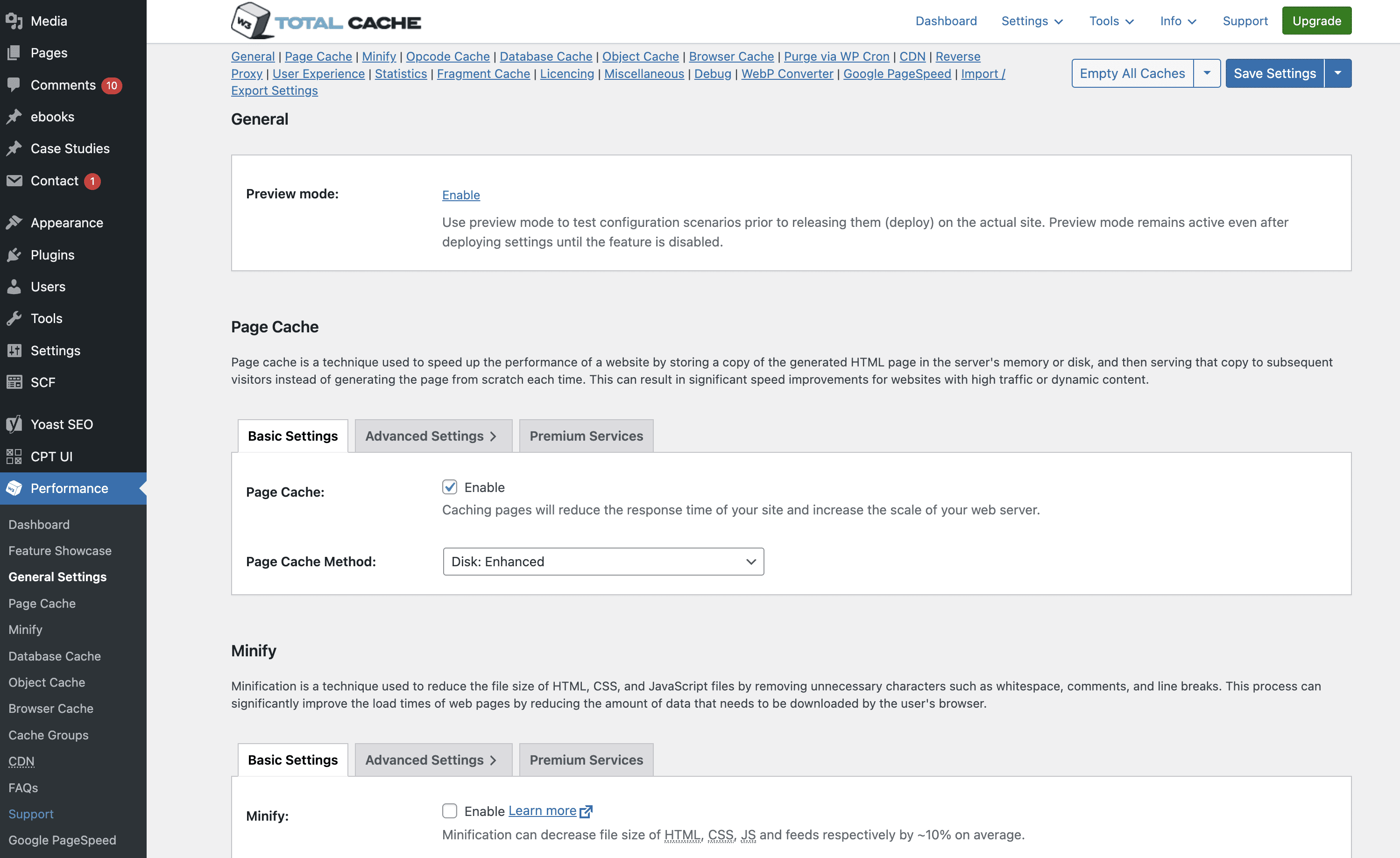
W3 Super Cache is an example of a plugin that’s always active because it maintains optimum page speed. You don’t want it to fail because you switched themes.
Screenshot of W3 Total Cache dashboard in WordPress CMS, November 2024
3. Pick A Theme With Clean Code
Your website is made up of code. If code is poorly written, it can affect your website’s security, speed, and resources.
The same applies to WordPress themes.
The best WordPress themes for SEO have clean code that makes them more secure and reliable, with less downtime.
Clean code and SEO go hand-in-hand. This is because clean code WordPress themes boost page load speed and SEO ranking.
For example, an optimized theme with clean code speeds up updates of essential SEO elements like meta, title, and header tags. This helps search engines to:
Find these tags quickly.
Crawl your website easily.
To analyze your chosen WordPress theme and ensure it has clean code that conforms to the standard WordPress coding conventions, you can make use of themecheck.info.
Upload a theme to the website using a zip file, and it will evaluate the theme for security and code quality.
Note that free WordPress themes don’t have the cleanest code and might pose security threats, especially if the developer copies and alters code from an online source.
4. Choose A Theme That Works On Multiple Browsers
Google Chrome, Mozilla Firefox, Safari, and Opera are common desktop and mobile browsers, but there are several more. You don’t need to cater to all of them, but your theme should work across the most popular browsers.
An SEO-friendly WordPress theme caters to all popular browsers, making it convenient for users to read and share your content, regardless of their browser choice.
Besides supporting different browsers, check version compatibility. Not everyone uses the latest browser version. Often, updates are delayed based on the device or operating system they’re using.
Ideally, your website should work seamlessly on the last five versions of the most popular Windows, iOS, Android, and Linux browsers.
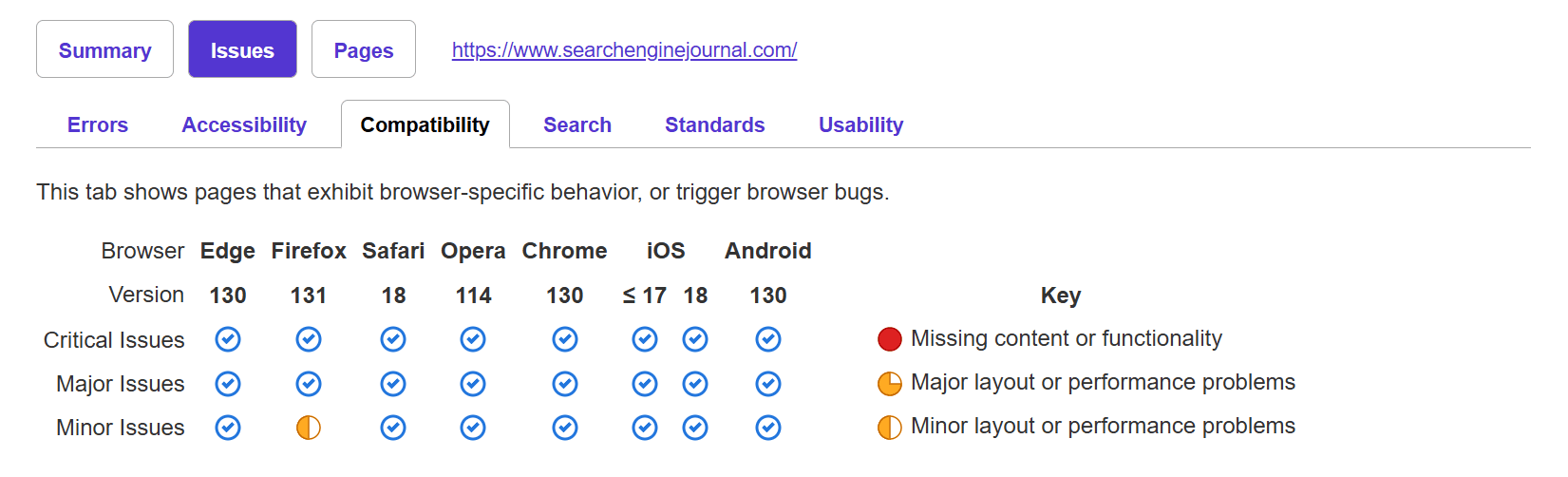
You can use tools like PowerMapper to check browser compatibility.
Screenshot of powermapper.com, November 2024
Developers can also manually run tests to determine compatibility.
5. Evaluate Page Builder Plugins Carefully
A page builder is a WordPress plugin that makes creating your website’s layout easier through drag-and-drop features. You can quickly choose from premade layout options and drag and drop the elements to place them where you want.
Page builders are an excellent option for easy website creation, and most premium WordPress themes offer them.
If you’re a digital marketing agency working with multiple clients, you can use page builders to set up multiple websites quickly.
But page builders do have a few issues.
Page builders generate a lot of code, and, as mentioned earlier, bloated websites are slow. This is bad for SEO.
More importantly, when you create a website using a page builder and then switch themes, the layout – and consequently, the content on it – will require several edits.
You will need to weigh the benefits of drag-and-drop page builders against the development resources required to fix any bloated code. If you’re building websites for clients you will need to expend resources to ensure that the sites perform well by fixing bloated code.
6. Choose A Theme That Loads Quickly
Users have very short attention spans. Many will leave if a website takes more than a few seconds to load. Page speed is crucial for SEO.
Improving page speed has shown tremendous results. A study from NitroPack in partnership with Google showed that compared to a 2-second page load speed, 50% more visitors drop off when a page loads in 3 seconds. And a 0.1 second improvement led to an 8.4% increase in ecommerce conversions.
It’s tempting to go for a reasonably-priced theme with a laundry list of features, like custom widgets or Google Fonts. But if you don’t actually use these functions, then they’re just slowing your website down.
You should pick a fast, lightweight, and customizable WordPress theme with only the features you need. Alternatively, you can pick SEO-optimized themes that let you disable functions you don’t use.
Use Google Search Console to find out how fast your website is and see if it’s slowed down after you’ve installed a theme.
7. Select A Theme That’s Updated Regularly
Regular theme updates are crucial for security and bug fixes. You don’t want a WordPress theme that’s updated once a year.
Developers use updates to provide the latest security patches, fix bugs, address compatibility issues with the latest browsers and plugins, and clean up old code.
Your SEO takes a hit when you use an outdated theme. If your theme isn’t compatible with the latest version of Google Chrome, it won’t load. You’ll lose out on the potential traffic generated by Chrome users and give your competitors a chance to leapfrog you.
Outdated themes might also have limited functionality on newer devices and browsers.
8. Choose A Theme With Good Ratings
The easiest way to identify the best WordPress themes for SEO is to check user reviews and ratings.
Don’t just check the reviews and testimonials on the theme’s official website – check for ratings on third-party websites and social media, too.
Users might not leave SEO-focused reviews, but they will often list things like “slow loading speed” or “not mobile-friendly.” Compare these to your SEO checklist to understand how usable and well-built the theme is.
Compare common user problems with issues that could affect your website in general, and avoid those themes.
While a small number of speed-related complaints in a sea of positive reviews is OK, you should avoid themes with mostly poor reviews.
Best WordPress Themes For SEO
Divi.
Astra.
Kadence.
Hello by Elementor.
GeneratePress.
If you’re looking for the best WordPress theme for SEO, these are it. Let’s take a deeper look into each of them:
Divi
Screenshot of www.elegantthemes.com, November 2024
Divi is an SEO-optimized WordPress theme with a wide range of pre-built templates to suit websites across most niches, including SEO agencies and blogging.
It lets you customize almost every aspect of your WordPress website.
Created by Elegant Themes, Divi has built-in SEO optimization and is regularly updated, so you never have to worry about compatibility.
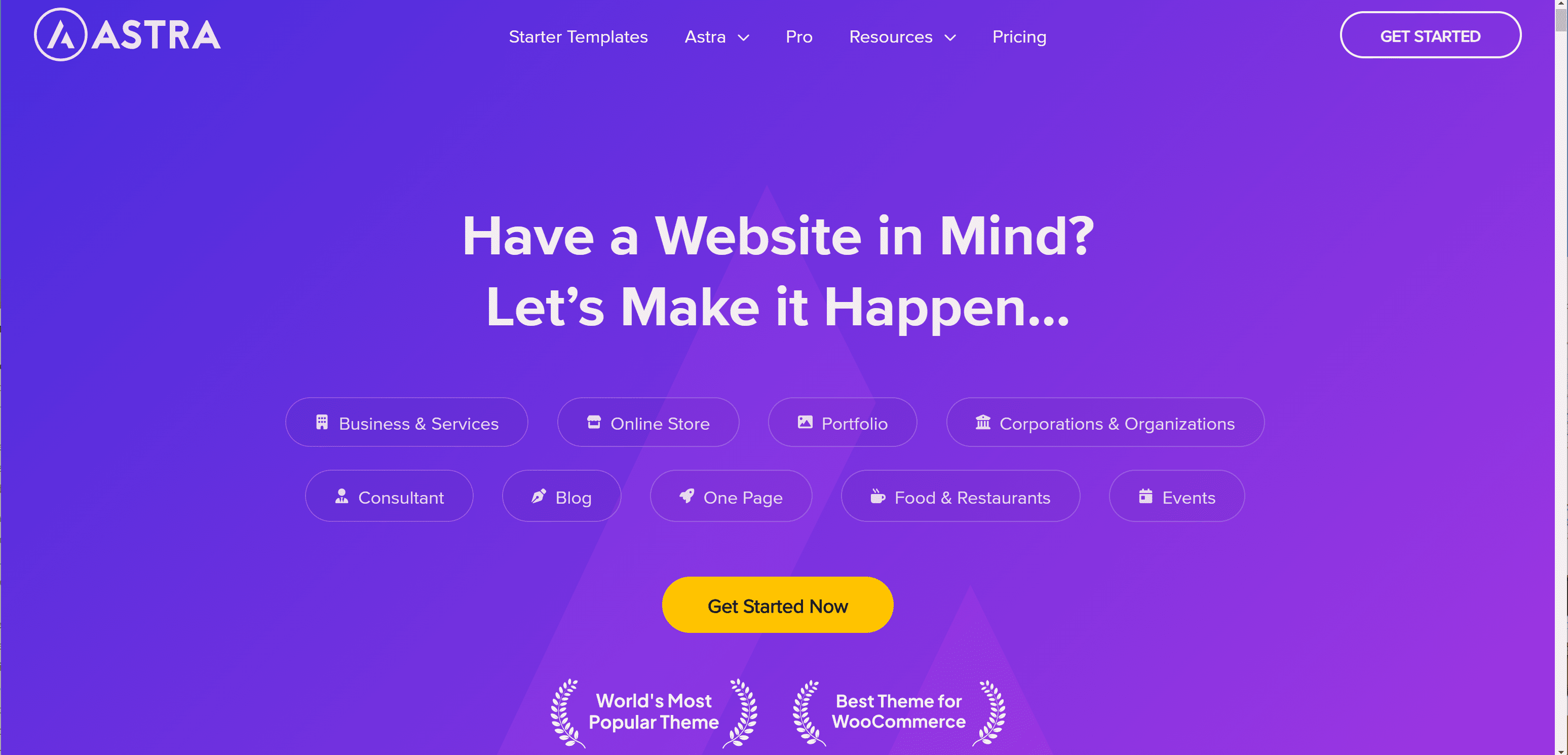
Astra
Screenshot from wpastra.com, November 2024
Astra is a powerful WordPress theme with retina-ready premade page templates to suit different businesses.
Its lightweight code and fast load speeds make it an excellent option for an SEO-friendly WordPress theme.
Astra supports popular WordPress plugins, including Yoast SEO and All in One SEO. It also supports drag-and-drop page builders such as WPBakery.
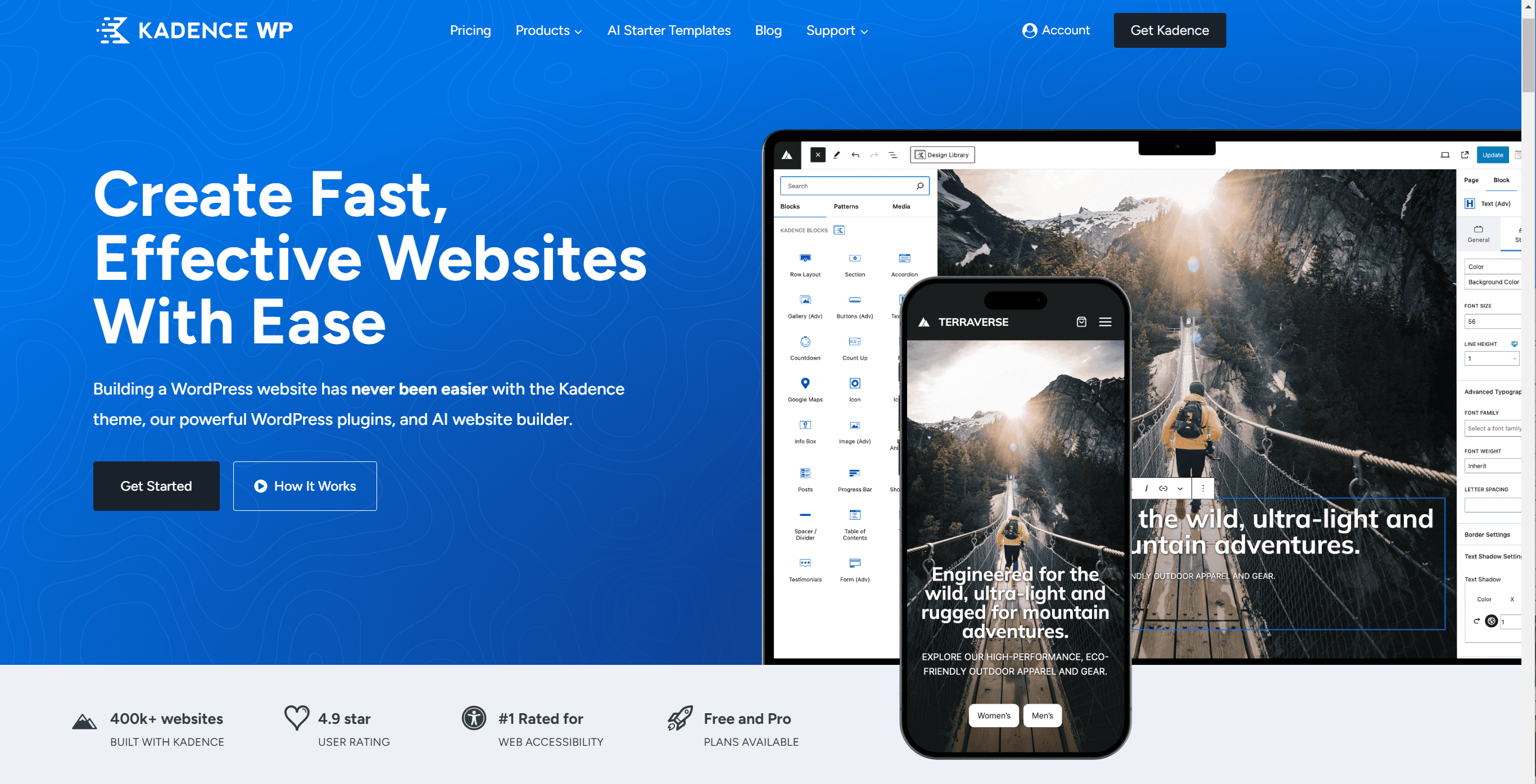
Kadence
Screenshot from kadencewp.com, November 2024
Kadence is a multi-purpose WordPress theme that lets you create lightning-fast websites in minutes. It has templates for brands, influencers, small businesses, ecommerce, and agencies.
It also integrates with major plugins, including Elementor, WooCommerce, and Beaver Builder.
Kadence is built with the best SEO practices for markup and schema and lets you customize every element of your website – including header styles, colors, and typography – easily.
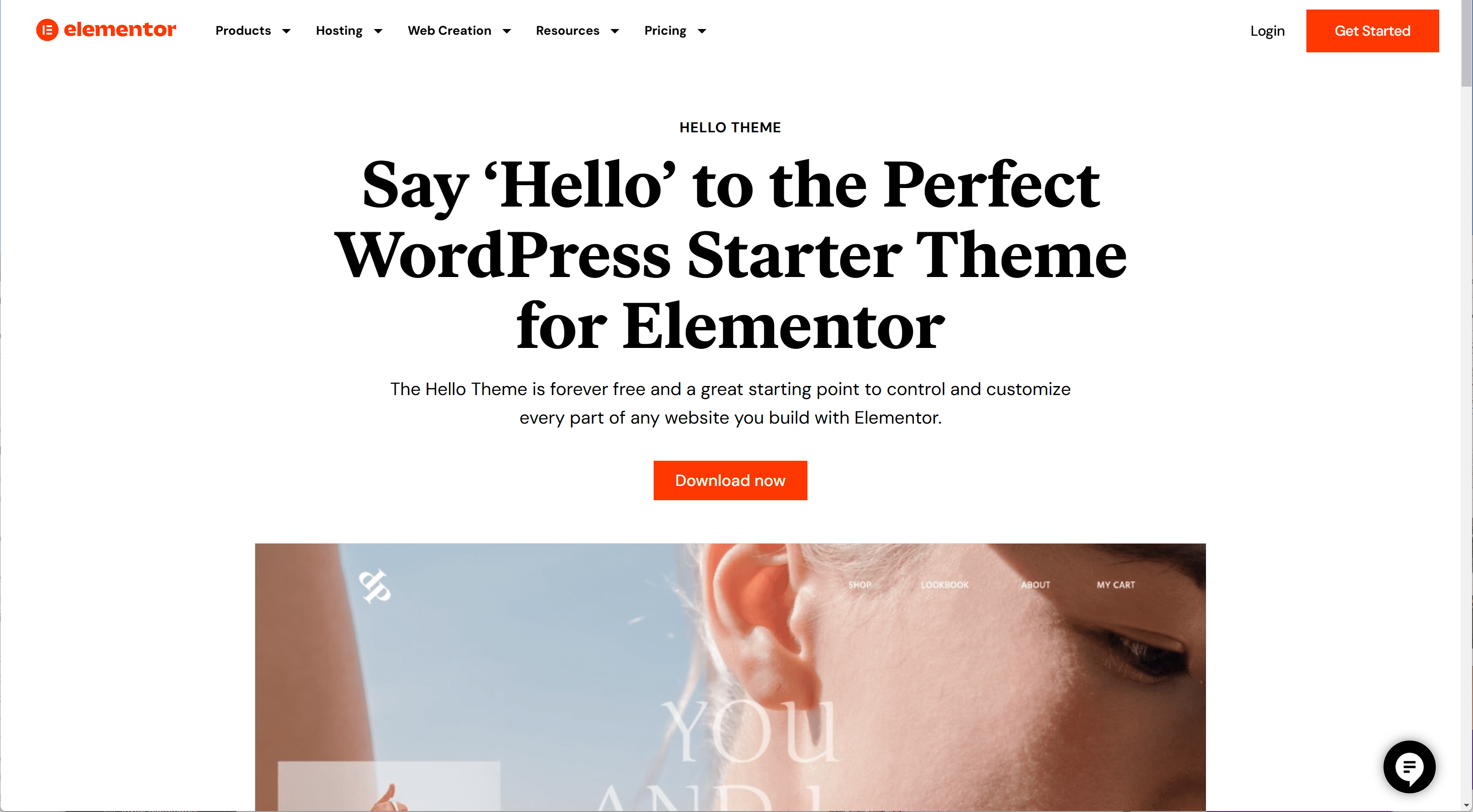
Hello By Elementor
Screenshot of elementor.com November 2024
Built with lean, non-intrusive code, Hello by Elementor is the perfect WordPress theme for SEO.
It’s ultra-lightweight, responsive, and claims to load websites in a quarter of a second. A faster website leads to lower bounce rates and happier users.
Despite its focus on speed and using minimal resources, Hello still offers hundreds of templates, plenty of customization options, and regular updates. It also has RTL support.
GeneratePress
Screenshot of generatepress.com, November 2024
Whether you’re a freelancer, startup, or agency, GeneratePress is a great WordPress theme for SEO.
It’s fast, lightweight, and accessible. The free version of the theme is focused on speed and performance, which are essential SEO elements.
Upgrading to the Premium version gives you access to GeneratePress’ block-style website builder (so you never have to learn a line of code), professionally designed starter websites, and customization controls.
Final Thoughts: How To Pick The Best SEO-Optimized WordPress Theme
WordPress themes are a great way to spruce up your website, but they shouldn’t hinder your SEO efforts. Don’t let the overwhelming amount of theme options intimidate you into quickly picking one and settling.
Instead, maintain your cool and pick an SEO-optimized WordPress theme after doing your research.
A Motion to Intervene has been filed in the WP Engine lawsuit against Automattic and Matt Mullenweg, alleging fifteen claims and seeking monetary awards along with changes to WordPress.org’s governance structure.
A motion to intervene is a legal request by a third party that seeks to join an ongoing lawsuit, the success of which hinges on proving that they have a significant interest in the outcome of a case.
Legal Filing Seeks To Take Control Of WordPress
Among the requests made in the legal filing is one that compels Matt Mullenweg to create a WordPress Oversight Board to oversee the governance of the WordPress Foundation, WordPress.org and other related entities.
“D. Order Defendant Matt Mullenweg to establish a Governance Oversight Board as defined in the Proposed Order For Contempt filed by Michael Willman;”
Moderator Of WPDrama Subreddit
The person filing the court motion is a WordPress web developer and a moderator of the r/WPDrama subreddit named Michael Willman, CEO of Redev, a WordPress development and SEO company, who alleges that Mullenweg banned him, which caused him to lose two clients and a significant amount of earnings because of those losses.
Michael explained what happened in a message to Search Engine Journal:
“Near the start of this dispute, I lost a large ($14,500) contract as a direct result of being banned by Matt along with everyone else loosely associated. We had just closed the contract mere days before and the client is just seeing all these stories, and they back out. Losing that revenue would eventually make us unable to serve our largest client at the time, and we lost them too.
I took this all personally, and I tried to take to his #ranting channel on Slack to respond to his inane blog posts and share how his actions had damaged me and got me to the point of being ready to sue him as well.
He then banned me in retaliation for that and afterwards claimed a message saying I was going to go to Houston to file other legal documents was a “physical threat.”
He has a long history of inconsistent application of the Code of Conduct and I don’t think he can show that his actions here were justified, my own reading of the Code of Conduct implies that some type of warning in private is the first step. “
That last part about the allegedly false claim that he made a physical threat against Matt Mullenweg is now a part of the new motion.
Post On Reddit
Mr. Willman posted about his motion on Reddit, saying that he will donate 5% of any monetary awards to WordPress.
Members of the Reddit WordPress community were supportive, with one member named JonOlds posting:
“A client backing out of a signed contract ($14,500) because you being banned created a significant change is the most clear-cut example of harm from the WPE bans that I’ve seen so far. Fuck MM, and I really hope this is granted.”
Another person wrote:
“Dude you’re my hero ❤
And I’m sorry for all this stuff that’s happened to you, it’s awful. I genuinely admire how well you’ve handled all this, while moderating this sub too.”
Claims For Relief
Section D of the filing lists fifteen claims, among them he cites that Mullenweg’s retaliatory actions disrupted existing client contracts and the ability to cultivate new clients. It also describes attempted extortion, libel and trade libel among the many other claims.
Three of the claims made in the motion:
“1. Intentional Interference with Contractual Relations Defendant Matt Mullenweg’s actions, including banning Michael Willman from the Make.WordPress.org Slack workspace and retaliating against him, disrupted existing contractual relationships. Some specific examples are the $14,500 website development contract that was canceled due to Michael Willman being banned from WordPress.org, the remainder of another contract with Trellis that was lost valued at $5,526.35, and an ongoing relationship with Trellis that included active retainers valued at $4,700 per month in addition to regular ad-hoc work, the combination of which generated $77,638.65 in invoices in 2024.
2. Intentional Interference with Prospective Economic Relations By targeting and banning Michael Willman from essential WordPress platforms, Defendants interfered with potential business opportunities. The absence of new website development projects, loss of existing relationships and the unease expressed by clients about the WordPress ecosystem are direct results of these retaliatory actions.
4. Attempted Extortion During discussions, Matt Mullenweg offered to refer clients to Michael Willman’s business on the condition that he cease working with WP Engine and join Automattic’s affiliate program. This constitutes coercive conduct aimed at disrupting Michael Willman’s business relationships.
6. Libel Matt Mullenweg publicly claimed that Michael Willman made threats of physical violence, a statement that is objectively false and defamatory. This damaged Michael Willman’s reputation within the WordPress community and beyond.
7. Trade Libel Public statements by Matt Mullenweg disparaged Michael Willman’s professional services and integrity, causing harm to his business relationships and reputation.”
Possible Outcome Of New Court Motion
The motion to intervene contains serious allegations of abuse of authority by the single most influential person in the open-source WordPress project, a worldwide ecosystem of developers, business users, publishers, plugin and theme developers and thousands of volunteers around the world who contribute to the development of the WordPress content management software.
The filing not only seeks restitution, it also asks the court for changes to the WordPress governance to remove Matt Mullenweg from his position of power at WordPress.
Read The Reddit Post And Legal Document
A link to the legal document is posted on a Reddit discussion about the filing:
Automattic announced it is minimizing support for the WordPress.org CMS project, using words and phrases that present the withdrawal of support as a positive change to make WordPress stronger, while casting blame on WP Engine for its decision to minimize contributions.
The entire statement uses double-speak, pretextual statements and passive-aggressive language to portray itself as a victim of WP Engine and framing the withdrawal of support as the unavoidable consequences of WPE’s lawsuit against Automattic, saying:
“Additionally, we’re having to spend significant time and money to defend ourselves against the legal attacks started by WP Engine and funded by Silver Lake, a large private equity firm.
…We’ve made the decision to reallocate resources due to the lawsuits from WP Engine.
…This legal action diverts significant time and energy that could otherwise be directed toward supporting WordPress’s growth and health.
…We remain hopeful that WP Engine will reconsider this legal attack, allowing us to refocus our efforts on contributions that benefit the broader WordPress ecosystem.”
At no point in the statement does Automattic acknowledge its role in creating the conflict, instead portraying itself as forced to go down the path of Mullenweg’s self-described “nuclear” war with WP Engine when in fact there has always been time to engage in constructive dialogue.
Automattic Turns Against The WordPress Community Itself
A stunning feature of Automattic’s statement is that this is the first time that it points a finger at the WordPress community itself as part of the reason for pulling back resources. It wraps the word “community” in quotation marks in a manner that seems to undermine the legitimacy of the critics, which has the subtext of portraying the critics as not true members of the WordPress community.
There is an undertone of contempt for the criticisms against Mullenweg, which to be fair started out as timid expressions of hope that things would work themselves out then gradually increased to outright calls for new a new governance structure that reflects the diversity of the entire WordPress community and a move away from the so-called “benevolent dictatorship” of Matt Mullenweg.
Automattic’s statements targeted the WordPress community itself:
“We’ve also faced intense criticism and even personal attacks against a number of Automatticians from members of the ‘community’ who want Matt and others to step away from the project.
…Automatticians who contributed to core will instead focus on for-profit projects within Automattic, such as WordPress.com, Pressable, WPVIP, Jetpack, and WooCommerce. Members of the ‘community’ have said that working on these sorts of things should count as a contribution to WordPress.”
Use Of Doublespeak
Lastly, Automattic’s statement uses language that seems to cross the line into doublespeak. Doublespeak is the use of language in a way that is deceptive and manipulative as opposed to a rhetorical approach that seeks to persuade. Doublespeak obscures and distorts reality and masks the real meaning and intent of a statement.
Example of doublespeak:
“To recalibrate and ensure our efforts are as impactful as possible, Automattic will reduce its sponsored contributions to the WordPress project. This is not a step we take lightly. It is a moment to regroup, rethink, and strategically plan how Automatticians can continue contributing in ways that secure the future of WordPress for generations to come. “
The portrayal of the withdrawal of support as a way of securing “the future of WordPress for generations to come” is manipulative and hides the reality that those actions have the opposite effect.
It also claims:
“This realignment is not an end, but a new beginning—one that will ultimately strengthen the foundation of WordPress.”
That’s an example of how Automattic’s statement portrays the actual weakening WordPress.org as a way to strengthen it.
There are many other examples of how the statement portrays Automattic as the victim, WP Engine as the aggressor and the WordPress community itself as complicit in undermining itself.
WordPress.com, the Automattic web hosting platform, just announced that the free and open source Sync local development app can now integrate directly with WordPress.com hosting. The new synchronization feature streamlines the process of developing a website on the desktop then pushing it live when it’s ready for deployment.
WordPress.com Hosting
WordPress.com is a WordPress web hosting and publishing platform that offers a free and paid tier, plus bargain-priced domain name registrations. WordPress.com is a for-profit company that’s owned by Automattic. Their slogan is “Everything you need to build and grow any website—all in one place” and with this new feature that slogan has never been more true.
The new feature is available to WordPress.com users on the paid Business plan level or higher.
According to the announcement, the new features bring the following benefits to users:
“Push and Pull with Ease: You can keep your local Studio sites connected to your WordPress.com site, so pushing or pulling will be as easy as clicking a button.
Flexible Syncing: Having complete freedom, you can connect a WordPress.com site to multiple Studio sites.
Team Collaboration: Multiple developers can connect a local Studio site to a shared WordPress.com site, making it easy to push and pull changes as a team.
Sync To and From Staging: If using staging sites are part of your development workflow, you can now easily push from your local Studio site to your WordPress.com staging site.
One-Click Bliss: No need to worry yourself with database dumps, manually syncing files over SFTP, or performing other monotonous manual steps. Synchronize your local and hosted sites at any time with just one click.”
Studio is available for both the Mac and Windows desktop environments.
Wix and WordPress are both solid options for building a website that ranks on Google – but which one is actually better for SEO and why?
According to BuiltWith, WordPress dominates the market with over 34 million websites and controls 44% of the content management system (CMS) market. Wix runs just over 8 million sites with an 11% market share.
But here’s the thing: These platforms aren’t as different as you might think.
Wix is built as an all-in-one solution. You get your hosting, build your website, and manage everything in one place.
You can connect all your SEO tools like Google Analytics and Search Console, link your social media, and handle email lists right from one dashboard.
For small business owners, especially those who aren’t super technical, this setup makes a lot of sense.
WordPress works differently. As an open-source CMS, it lets you build your site exactly how you want. You get complete control over your site structure, theme, and content – but you’ll need to find your own hosting provider.
While WordPress isn’t going anywhere as the market leader, Wix keeps getting better.
In this guide, we’ll break down the pros and cons of both platforms for SEO, and help you figure out which one makes the most sense for your website.
Why Wix Deserves A Second Look
Remember when WordPress was the only real choice for SEO? Those days are gone. New website builders have changed the game, and Wix should be a major consideration.
Wix started out as just an easy way to build good-looking websites. Tech-savvy users usually passed it by because they wanted more control over their sites. But that’s changed in a big way over the last few years.
Wix has been rolling out serious improvements, with a lot of focus on SEO tools. Here’s what they’ve added:
Custom URL Control: You can now change your URL structure however you want, add or remove prefixes, and create flat URLs that look clean and professional.
Smart Sitemap Management: The platform automatically updates sitemaps when you set up 301 redirects or change canonical tags.
Real-Time Tracking: You can see how search engines interact with your site through Bot Traffic reports that show you activity over time and by page.
AI-Powered SEO Help: Its new assistant analyzes your pages and suggests specific improvements.
Built-In Structured Data: Product pages and blog posts automatically get the right markup to help you show up in rich results.
Server Side Rendering: This helps search engines read and index your content more effectively.
Developer Tools: The Velo API lets developers customize things on the technical side.
SEO Checklist: A built-in guide helps you optimize your site step by step.
Back in the day, you’d need a bunch of different tools to handle all this. Getting accurate reports was especially tricky. Having everything built into Wix makes life much easier.
The Drawbacks Of Wix For SEO
Of course, Wix isn’t perfect. Here are the main SEO drawbacks from customers:
Code bloat is still a problem, which can slow down your pages.
Even with recent updates, you’re still somewhat limited in how much you can customize your site’s structure. Plus, since hosting and building are tied together, moving your site elsewhere can be a headache.
Some developers aren’t happy with Wix Studio, its new platform for high-end projects. One Reddit user recently called it “completely unreliable.”
The Argument For WordPress
WordPress started by making it relatively easy to build a website. Its open-source nature means it’s theoretically getting better thanks to its huge community of developers.
While the basic platform is free, you’ll probably need to pay for some plugins to get modern features.
These plugins are how you’ll handle most of your SEO work. WordPress also has more users than any other platform, which means more help is available when you need it.
The WordPress SEO Challenges
WordPress isn’t without its problems:
Plugins don’t always play nice together. While Yoast SEO might be the most popular tool, there are tons of options – and they can conflict with each other and cause issues.
Like any plugin, security vulnerabilities can pop up, and updates sometimes break other parts of your site.
Some people think WordPress has lost touch with what publishers need, pointing to bloated code in themes and plugins that make it harder to score well on Core Web Vitals.
That said, the huge number of available plugins is still a major plus. New ones come out daily, making it possible to build highly optimized sites.
Easy connection to Google Search Console, Analytics, and Bing Webmaster Tools.
The real differences show up when you need more advanced SEO features. That’s where WordPress’s flexibility gives it the edge.
But, for many small businesses that just need the basics, either platform will do the job.
Making SEO Work
Both platforms have their own way of handling SEO tasks you’ll need to tackle:
Content Management
While WordPress gives you more control over your content structure with custom post types and taxonomies, Wix makes it simple with built-in blog and product page tools that come pre-optimized.
Both platforms handle the basics well – like meta descriptions, title tags, and image optimization.
Speed And Mobile
WordPress lets you fine-tune your site’s performance through hosting choices and optimization plugins.
Wix handles this differently, with built-in mobile optimization and automatic speed improvements, though you have less control over the technical details.
Ecommerce SEO
If you’re selling online, both platforms can handle product schema and category structure.
WordPress + WooCommerce gives you more flexibility but requires more setup, while Wix’s e-commerce tools come ready to go with built-in SEO features.
Wix Vs. WordPress: The Verdict
Wix has come a long way. Many old complaints about lack of control don’t hold up anymore, and their basic SEO setup rivals WordPress.
For small businesses and online stores, Wix might be exactly what you need.
“Wix is fine for SEO. A few years back, it was pretty bad, but they’ve made fantastic progress. The old reputation lingers, but don’t let that sway you. They’ve done great work recently, including making it easy to have a fast site. If Wix works for you and meets your needs, there’s no reason to switch.”
Your choice really comes down to what matters most for your business. If you need deep customization and complete control over your website’s technical setup, WordPress is your best bet.
But if you want a simpler path to getting online while still maintaining strong SEO capabilities, Wix could be perfect – especially with its all-in-one approach that handles the technical details for you.
Matt Mullenweg cited a Reddit thread on X to promote the idea that WP Engine makes it difficult to cancel accounts. Turns out that his own hosting company does the exact same thing.
“Money Grab” Post By Redditor
Someone posted that they cancelled a WP Engine account on Friday December 6th. They subsequently learned that WP Engine has a 30 day advance notice cancellation policy so they called customer service and was assured they wouldn’t be charged, despite not giving 30 days advance notice.
They wrote:
“On Dec 6th, I cancelled my WPEngine service that I’ve had since 2015. …That’s when I discovered that WPEngine requires 30 days notice to cancel. An obvious money-grab. A user should be able to cancel a single-site hosting environment instantly with one click of a button. In fact, this will be the law soon, created because of unscrupulous cancellation tactics like this.
WPEngine support informed me that my site would be cancelled on Jan 3rd. …Surprise, surprise… it’s Jan 5th. My account hasn’t been cancelled, and I was charged $300 today for another year of service.”
Hours after starting the Reddit post to complain about WP Engine they updated it to say that WP Engine had refunded their money.
They posted:
“UPDATE: WP Engine support got back to me, cancelled the account today, and initiated a refund that’ll take up to 10 business days.”
Mullenweg Dumps On WP Engine
Mullenweg posted on X to compare WP Engine to an unscrupulous gym, accompanying his post with a screenshot of the Reddit post:
“One way @wpengine juices its profits at the expense of its customers is by making it hard to export or cancel your plan, like one of those bad gyms.”
He followed that up with another post touting that WordPress.com has a flexible cancellation policy:
“The WordPress philosophy is to make it easy for people to leave, so they’re more likely to stay. Give freedom and choice.”
“You must cancel at least one month before the scheduled end date of any annual subscription…”
What’s Going On?
WP Engine’s contract is clear that they require 30 days notice to cancel a service. But it’s not like once you pay you’re committed to a whole year of hosting. The contract enables customers to cancel their yearly hosting plan at any time (with 30 days notice) and the difference for any remaining months will be refunded.
The Redditor cancelled their account with less than 30 days notice (on a Friday), got charged 24 days later and then refunded on a Sunday, before the weekend was over.
Response On Reddit
While many Redditors were supportive of the person who started the discussion, others pointed out the obvious that it’s a weekend and they failed to give adequate notice.
An advisory has been issued about a high-severity WordPress vulnerability that makes it possible for attackers to inject arbitrary shortcodes into sites using the WordPress Popular Posts plugin. Attackers do not need a user account to launch an attack.
WordPress Popular Posts is installed in over 100,000 websites enables websites to display the most popular posts within any given time period and has been translated into sixteen different languages to extend its use around the world. It comes with caching features to improve performance and an admin console that allows website administrators to view popularity statistics.
WordPress Shortcode Vulnerability
Shortcodes is a feature that allows users to insert functionalities within a web page by inserting a predefined snippet within brackets that automatically inserts a script that performs a function, like adding a contact form with a shortcode that looks like this: [add_contact_form].
WordPress is gradually evolving away from the use of shortcodes in favor of blocks with specific functionalities. The official WordPress developer site encourages plugin and theme developers to discontinue using shortcodes in favor of dedicated blocks, with the main reason being that it’s a smoother workflow for a user to select and insert a block rather than configure a shortcode within a plugin then manually inserting the shortcode into a webpage.
“We would recommend people eventually upgrade their shortcodes to be blocks.”
The vulnerability discovered in the WordPress Popular Posts plugin is due to the implementation of the shortcode functionality, specifically a part called do_shortcode(), which is a WordPress function for processing and executing shortcodes that requires input sanitization and other standard WordPress plugin and theme security practices.
According to an advisory published by Wordfence:
“The WordPress Popular Posts plugin for WordPress is vulnerable to arbitrary shortcode execution in all versions up to, and including, 7.1.0. This is due to the software allowing users to execute an action that does not properly validate a value before running do_shortcode. This makes it possible for unauthenticated attackers to execute arbitrary shortcodes.”
That part about “validating a value” generally means checking to ensure that what the user inputs (the “value”), such as the content of a shortcode, is validated to confirm that it’s safe and conforms to expected inputs before being passed along for use by the website.
Official Plugin Changelog
A changelog is the documentation of what’s being updated, which for users of the plugin provides them an opportunity to understand what is being updated and to make decisions about whether to update their installation or not, thus transparency is important.
The WordPress Popular Posts plugin is responsibly transparent in their documentation of the update.
“Fixes a security issue that allows unintended arbitrary shortcode execution (props to mikemyers and the Wordfence team!)”
Recommended Actions
All versions of the WordPress Popular Posts plugin up to and including version 7.1.0 are vulnerable. Wordfence recommends updating to the latest version of the plugin, 7.2.0.
A high severity vulnerability in a popular WordPress backup plugin allows unauthenticated attackers to exploit the flaw. The vulnerability is rated 8.8 on a scale of 0.0 to 10.
UpdraftPlus: WP Backup & Migration Plugin
The vulnerability affects the popular Updraft Plus WordPress plugin, installed in over 3 million websites. Updraft Plus comes in a free and paid version that allows users to upload backups to a user’s cloud storage or to email the files. The plugin allows users to manually backup the website or schedule it for automatic backups. It offers a tremendous amount of flexibility of what can be backed up and can make a huge difference for recovering from a catastrophic server issue and is also useful for migrating to a different server altogether.
Wordfence explains the vulnerability:
“The UpdraftPlus: WP Backup & Migration Plugin plugin for WordPress is vulnerable to PHP Object Injection in all versions up to, and including, 1.24.11 via deserialization of untrusted input in the ‘recursive_unserialized_replace’ function. This makes it possible for unauthenticated attackers to inject a PHP Object.
No known POP chain is present in the vulnerable software. If a POP chain is present via an additional plugin or theme installed on the target system, it could allow the attacker to delete arbitrary files, retrieve sensitive data, or execute code. An administrator must perform a search and replace action to trigger the exploit.”
The Updraft Plus changelog seems to minimize the vulnerability, it doesn’t even call the update a security patch, it’s labeled as a “tweak.”
“TWEAK: Complete the review and removal of calls to the unserialize() PHP function allowing class instantiation begun in 1.24.7. (The final removal involved a theoretical security defect, if your development site allowed an attacker to post content to it which you migrated to another site, and which contained customised code that could perform destructive actions which the attacker knew about, prior to you then cloning the site. The result of this removal is that some search-replaces, highly unlikely to be encountered in practice, will be skipped).”
Updraft Plus Vulnerability Patched
Users are recommended to consider updating their installations of Updraft Plus to the latest version, 1.24.12. All versions prior to the latest version are vulnerable.