Today, at its MozCon 2024 conference, Moz announced a range of new AI-driven features and product updates.
The announcements focused on modernizing tools to address the changing needs of SEO professionals.
Ethan Hays, Moz’s General Manager, acknowledges that “the search landscape has seen more turbulence this last year than at almost any point in Moz’s 20-year history. Our goal is to help our customers face that head-on.”
Modern Tools For The Future Of SEO
Moz showcased a revamped version of STAT, its enterprise SERP tracking solution, and several usability improvements to the Moz Pro interface.
The company introduced Moz AI, a suite of tools designed to streamline workflows and enhance enterprise-grade data.
Additionally, Moz unveiled new affordable API plans, including Beta endpoints for keyword, intent, brand, and link metrics
Moz AI
Moz AI is a collection of three features integrated into Moz Pro:
Search Intent in Keyword Suggestions
Domain Search Theme
Domain Keyword Topics in Domain Overview.
These AI-driven capabilities allow Moz Pro customers to optimize their SEO strategies and make data-informed decisions with greater efficiency.
Accessible & Affordable Data
Moz announced the launch of new Moz API plans, making enterprise-quality data more accessible and affordable.
Starting at $5 per month, customers can now access an expanded set of Beta endpoints, including:
Keyword Metrics
Keyword Suggestions
Search Intent
Ranking Keywords
Brand Authority.
These plans offer a cost-effective solution for businesses looking to build custom tools, dashboards, SaaS products, and apps using Moz’s robust data.
Hays emphasized Moz’s commitment to its customers, stating, “Our core commitment is unchanged: empowering SEO practitioners through software, education, and community.”
MozCon 2024
MozCon 2024, which is currently underway, will feature live demonstrations of these product enhancements. Attendees will be able to experience the new features firsthand and interact with Moz experts.
Following Moz’s presentation, we will update this article with first-hand details straight from MozCon.
In Summary
As Moz celebrates its 20th anniversary, it remains dedicated to empowering SEO professionals with tools, education, and community support.
As Moz marks its 20th anniversary, it continues to focus on providing SEO professionals with advanced tools, educational resources, and community support to navigate the constantly changing search environment.
The secret to your competitors’ SEO success might be as simple as targeting the appropriate keywords.
Since these keywords are successful for your competitors, there’s a good chance they could be valuable for you as well.
In this article, we’ll explore the most effective yet simple ways to find competitors’ keywords so that you can guide your own SEO strategy and potentially outperform your competitors in SERPs.
Benefits Of Competitor Keyword Analysis
Competitor keywords are the search terms your competitors target within their content to rank high in SERPs, either organically or through paid ads.
Collecting search terms that your competitors rely on can help you:
1. Identify & Close Keyword Gaps.
The list of high-ranking keywords driving traffic to your competitors may include valuable search terms you’re currently missing out on.
To close these keyword gaps, you can either optimize your existing content with these keywords or use them as inspiration for creating new content with high traffic potential.
2. Adapt To Market Trends & Customer Needs.
You may notice a shift in the keywords your competitors optimize content for. This could be a sign that market trends or customer expectations are changing.
Keep track of these keywords to jump on emerging trends and align your content strategy accordingly.
3. Enhance Visibility & Rankings.
Analyzing your competitors’ high-ranking keywords and pages can help you identify their winning patterns (e.g., content format, user intent focus, update frequency, etc).
Study what works for your rivals (and why) to learn how to adapt these tactics to your website and achieve higher SERP positions.
How To Identify Your Competitors’ Keywords
There are many ways to find keywords used by competitors within their content. Let’s weigh the pros and cons of the most popular options.
Use SE Ranking
SE Ranking is a complete toolkit that delivers unique data insights. These insights help SEO pros build and maintain successful SEO campaigns.
Here’s the list of pros that the platform offers for agency and in-house SEO professionals:
Huge databases. SE Ranking has one of the web’s largest keyword databases. It features over 5 billion keywords across 188 regions. Also, the number of keywords in their database is constantly growing, with a 30% increase in 2024 compared to the previous year.
Reliable data. SE Ranking collects keyword data, analyzes it, and computes core SEO metrics directly from its proprietary algorithm. The platform also relies on AI-powered traffic estimations that have up to a 100% match with GSC data.
Thanks to SE Ranking’s recent major data quality update, the platform boasts even fresher and more accurate information on backlinks and referring domains (both new and lost).
As a result, by considering the website’s backlink profile, authority, and SERP competitiveness, SE Ranking now makes highly accurate calculations of keyword difficulty. This makes it easy to see how likely your own website or page is to rank at the top of the SERPs for a particular query.
Broad feature set. Beyond conducting competitive (& keyword) research, you can also use this tool to track keyword rankings, perform website audits, handle all aspects of on-page optimization, manage local SEO campaigns, optimize your content for search, and much more.
Great value for money. The tool offers premium features with generous data limits at a fair price. This eliminates the need to choose between functionality and affordability.
Let’s now review how to use SE Ranking to discover the keywords your competitors are targeting for both organic search and paid advertising.
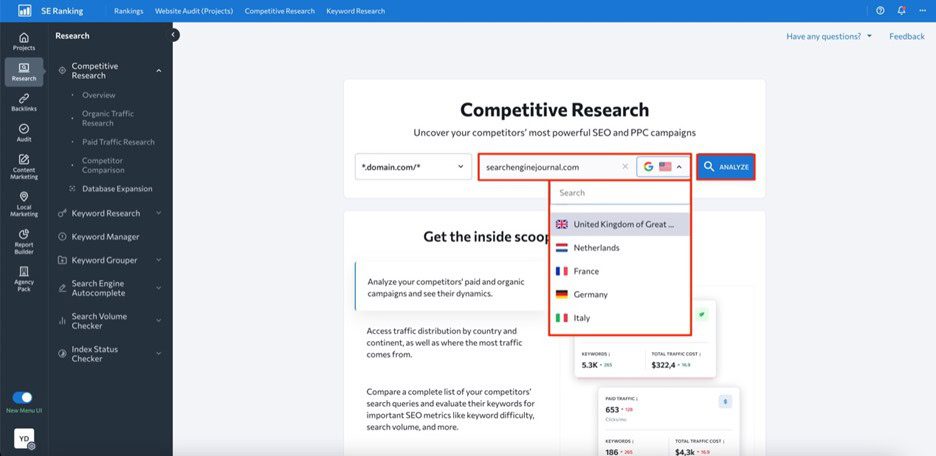
First, open the Competitive Research Tool and input your competitor’s domain name into the search bar. Select a region and click Analyze to initiate analysis of this website.
Image created by SE Ranking, May 2024
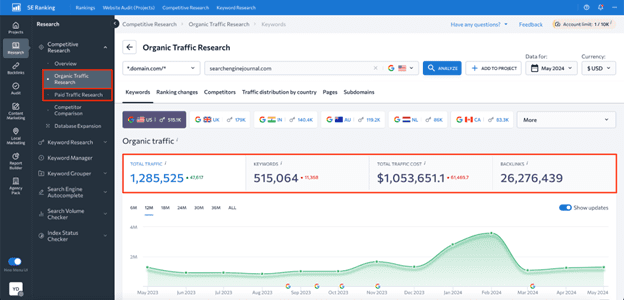
Depending on your goal, go either to the Organic Traffic Research or Paid Traffic Research tab on the left-hand navigation menu.
Here, you’ll be able to see data on estimated organic clicks, total number of keywords, traffic cost, and backlinks.
Image created by SE Ranking, May 2024
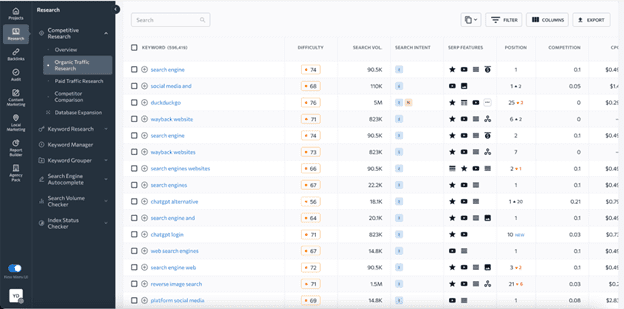
Upon scrolling this page down, you’ll see a table with all the keywords the website ranks for, along with data on search volume, keyword difficulty, user intent, SERP features triggered by keywords, ranking position, URLs ranking for the analyzed keyword, and more.
Image created by SE Ranking, May 2024
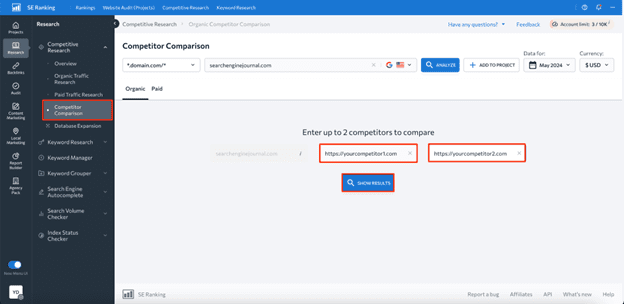
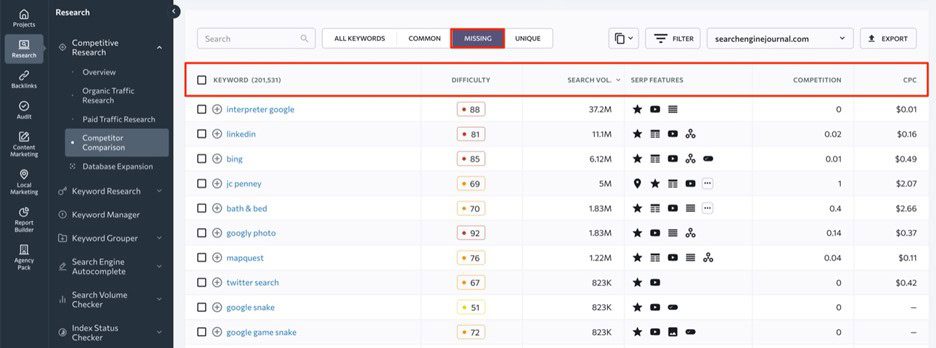
What’s more, the tool allows you to find keywords your competitors rank for but you don’t.
To do this, head to the Competitor Comparison tab and add up to two websites for comparison.
Image created by SE Ranking, May 2024
Within the Missing tab, you’ll be able to see existing keyword gaps.
Image created by SE Ranking, May 2024
While the platform offers many benefits, there are also some downsides to be aware of, such as:
Higher-priced plans are required for some features. For instance, historical data on keywords is only available to Pro and Business plan users.
Data is limited to Google only. SE Ranking’s Competitor Research Tool only provides data for Google.
Use Google Keyword Planner
Google Keyword Planner is a free Google service, which you can use to find competitors’ paid keywords.
Here’s the list of benefits this tool offers in terms of competitive keyword analysis:
Free access. Keyword Planner is completely free to use, which makes it a great option for SEO newbies and businesses with limited budgets.
Core keyword data. The tool shows core SEO metrics like search volume, competition, and suggested bid prices for each identified keyword.
Keyword categorization. Keyword Planner allows you to organize keywords into different groups, which may be helpful for creating targeted ad campaigns.
Historical data. The tool has four years of historical data available.
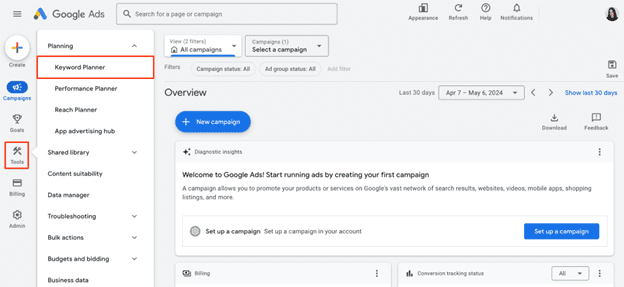
Once you log into your Google Ads account, navigate to the Tools section and select Keyword Planner.
Screenshot from Google Ads, May 2024
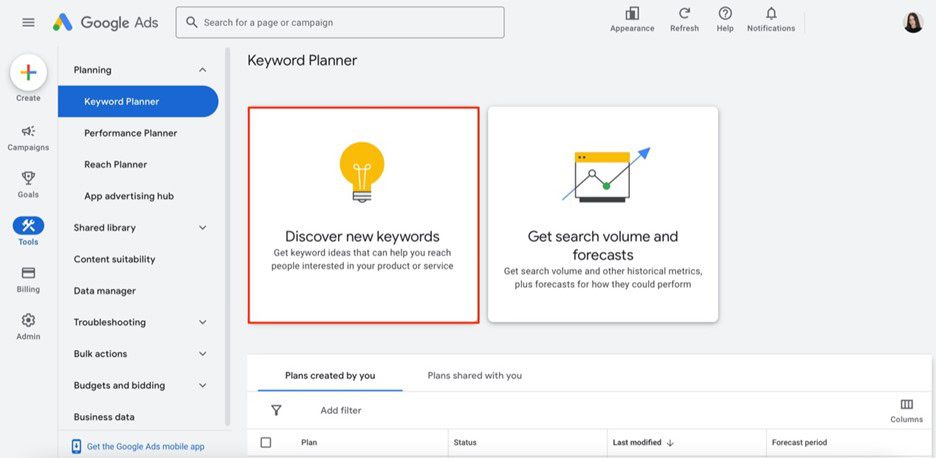
Now, click on the Discover new keywords option.
Screenshot from Google Ads, May 2024
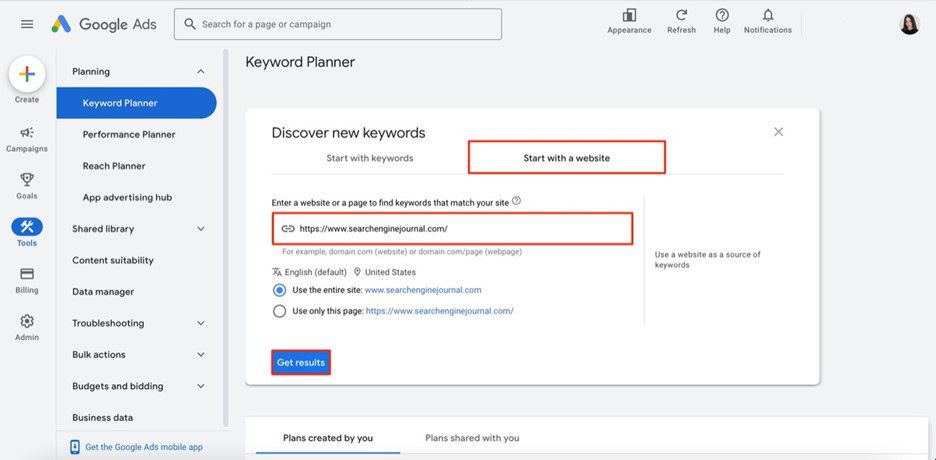
Choose Start with a website option, enter your competitor’s website domain, region, and language, then choose to analyze the whole site (recommended for deeper insights) or a specific URL.
Screenshot from Google Ads, May 2024
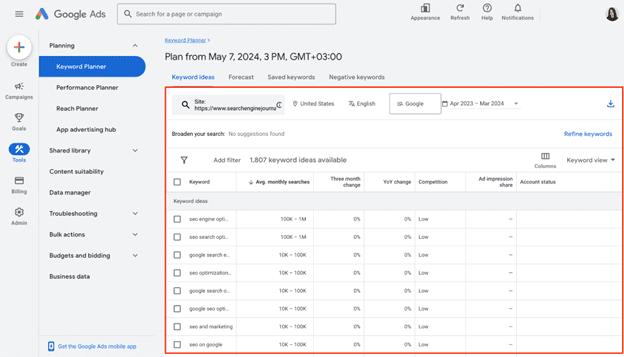
And there you have it — a table with all keywords that your analyzed website uses in its Google Ads campaigns.
Screenshot from Google Ads, May 2024
Although Keyword Planner can be helpful, it’s not the most effective and data-rich tool for finding competitors’ keywords. Its main drawbacks are the following:
No organic data. The tool offers data on paid keywords, which is mainly suitable for advertising campaigns.
Broad search volume data. Since it’s displayed in ranges rather than exact numbers, it might be difficult to precisely assess the demand for identified keywords.
No keyword gap feature. Using this tool, you cannot compare your and your competitors’ keywords side-by-side and, therefore, find missing keyword options.
So, if you want to access more reliable and in-depth data on competitors’ keywords, you’ll most likely need to consider other dedicated SEO tools.
Use SpyFu
SpyFu is a comprehensive SEO and PPC analysis tool created with the idea of “spying” on competitors.
Its main pros in terms of competitor keyword analysis are the following:
Database with 10+ years of historical data. Although available only in a Professional plan, SpyFu offers long-term insights to monitor industry trends and adapt accordingly.
Keyword gap analysis. Using this tool, you can easily compare your keywords to those of your competitors using metrics like search volume, keyword difficulty, organic clicks, etc.
Affordability. It’s suitable for businesses on a tight budget.
To explore competitor data, simply visit their website and enter your competitor’s domain in the search bar.
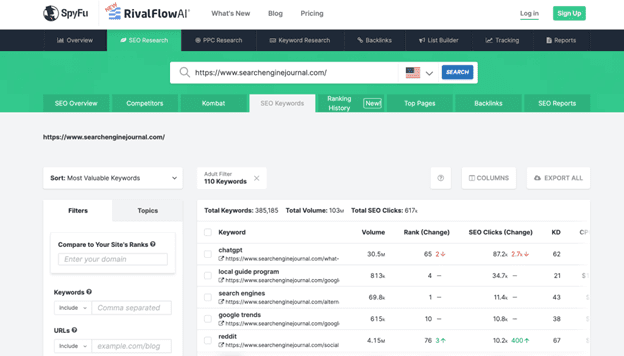
You’ll be presented with valuable insights into their SEO performance, from estimated traffic to the list of their top-performing pages and keywords. Navigate to the Top Keywords section and click the View All Organic Keywords button to see the search terms they rank for.
Screenshot of SpyFu, May 2024
Yet, this free version provides an overview of just the top 5 keywords for a domain along with metrics like search volume, rank change, SEO clicks, and so on. To perform a more comprehensive analysis, you’ll need to upgrade to a paid plan.
When it comes to the tool’s cons, it would be worth mentioning:
Keyword data may be outdated. On average, SpyFu updates data on keyword rankings once a month.
Limited number of target regions. Keyword data is available for just 14 countries.
Wrapping Up
There’s no doubt that finding competitors’ keywords is a great way to optimize your own content strategy and outperform your rivals in SERPs.
By following the step-by-step instructions described in this article, we’re sure you’ll be able to find high-value keywords you haven’t considered before.
Ready to start optimizing your website? Sign up for SE Ranking and get the data you need to deliver great user experiences.
This post was sponsored by DebugBear. The opinions expressed in this article are the sponsor’s own.
Keeping your website fast is important for user experience and SEO.
The Core Web Vitals initiative by Google provides a set of metrics to help you understand the performance of your website.
The three Core Web Vitals metrics are:
This post focuses on the recently introduced INP metric and what you can do to improve it.
How Is Interaction To Next Paint Measured?
INP measures how quickly your website responds to user interactions – for example, a click on a button. More specifically, INP measures the time in milliseconds between the user input and when the browser has finished processing the interaction and is ready to display any visual updates on the page.
Your website needs to complete this process in under 200 milliseconds to get a “Good” score. Values over half a second are considered “Poor”. A poor score in a Core Web Vitals metric can negatively impact your search engine rankings.
Google collects INP data from real visitors on your website as part of the Chrome User Experience Report (CrUX). This CrUX data is what ultimately impacts rankings.
Image created by DebugBear, May 2024
How To Identify & Fix Slow INP Times
The factors causing poor Interaction to Next Paint can often be complex and hard to figure out. Follow this step-by-step guide to understand slow interactions on your website and find potential optimizations.
1. How To Identify A Page With Slow INP Times
Different pages on your website will have different Core Web Vitals scores. So you need to identify a slow page and then investigate what’s causing it to be slow.
By default, page URLs are grouped into URL groups that cover many different pages. Be careful here – not all pages might have the problem that Google is reporting. Instead, click on each URL group to see if URL-specific data is available for some pages and then focus on those.
Screenshot of Google Search Console, May 2024
Using A Real-User Monitoring (RUM) Service
Google won’t report Core Web Vitals data for every page on your website, and it only provides the raw measurements without any details to help you understand and fix the issues. To get that you can use a real-user monitoring tool like DebugBear.
Real-user monitoring works by installing an analytics snippet on your website that measures how fast your website is for your visitors. Once that’s set up you’ll have access to an Interaction to Next Paint dashboard like this:
Screenshot of the DebugBear Interaction to Next Paint dashboard, May 2024
You can identify pages you want to optimize in the list, hover over the URL, and click the funnel icon to look at data for that specific page only.
Image created by DebugBear, May 2024
2. Figure Out What Element Interactions Are Slow
Different visitors on the same page will have different experiences. A lot of that depends on how they interact with the page: if they click on a background image there’s no risk of the page suddenly freezing, but if they click on a button that starts some heavy processing then that’s more likely. And users in that second scenario will experience much higher INP.
To help with that, RUM data provides a breakdown of what page elements users interacted with and how big the interaction delays were.
Screenshot of the DebugBear INP Elements view, May 2024
The screenshot above shows different INP interactions sorted by how frequent these user interactions are. To make optimizations as easy as possible you’ll want to focus on a slow interaction that affects many users.
In DebugBear, you can click on the page element to add it to your filters and continue your investigation.
3. Identify What INP Component Contributes The Most To Slow Interactions
Input Delay: Background code that blocks the interaction from being processed.
Processing Time: The time spent directly handling the interaction.
Presentation Delay: Displaying the visual updates to the screen.
You should focus on which INP component is the biggest contributor to the slow INP time, and ensure you keep that in mind during your investigation.
Screenshot of the DebugBear INP Components, May 2024
In this scenario, Processing Time is the biggest contributor to the slow INP time for the set of pages you’re looking at, but you need to dig deeper to understand why.
High processing time indicates that there is code intercepting the user interaction and running slow performing code. If instead you saw a high input delay, that suggests that there are background tasks blocking the interaction from being processed, for example due to third-party scripts.
4. Check Which Scripts Are Contributing To Slow INP
Sometimes browsers report specific scripts that are contributing to a slow interaction. Your website likely contains both first-party and third-party scripts, both of which can contribute to slow INP times.
A RUM tool like DebugBear can collect and surface this data. The main thing you want to look at is whether you mostly see your own website code or code from third parties.
Screenshot of the INP Primary Script Domain Grouping in DebugBear, May 2024
Tip: When you see a script, or source code function marked as “N/A”, this can indicate that the script comes from a different origin and has additional security restrictions that prevent RUM tools from capturing more detailed information.
This now begins to tell a story: it appears that analytics/third-party scripts are the biggest contributors to the slow INP times.
5. Identify Why Those Scripts Are Running
At this point, you now have a strong suspicion that most of the INP delay, at least on the pages and elements you’re looking at, is due to third-party scripts. But how can you tell whether those are general tracking scripts or if they actually have a role in handling the interaction?
DebugBear offers a breakdown that helps see why the code is running, called the INP Primary Script Invoker breakdown. That’s a bit of a mouthful – multiple different scripts can be involved in slowing down an interaction, and here you just see the biggest contributor. The “Invoker” is just a value that the browser reports about what caused this code to run.
Screenshot of the INP Primary Script Invoker Grouping in DebugBear, May 2024
The following invoker names are examples of page-wide event handlers:
onclick
onmousedown
onpointerup
You can see those a lot in the screenshot above, which tells you that the analytics script is tracking clicks anywhere on the page.
In contrast, if you saw invoker names like these that would indicate event handlers for a specific element on the page:
.load_more.onclick
#logo.onclick
6. Review Specific Page Views
A lot of the data you’ve seen so far is aggregated. It’s now time to look at the individual INP events, to form a definitive conclusion about what’s causing slow INP in this example.
Real user monitoring tools like DebugBear generally offer a way to review specific user experiences. For example, you can see what browser they used, how big their screen is, and what element led to the slowest interaction.
Screenshot of a Page View in DebugBear Real User Monitoring, May 2024
As mentioned before, multiple scripts can contribute to overall slow INP. The INP Scripts section shows you the scripts that were run during the INP interaction:
Screenshot of the DebugBear INP script breakdown, May 2024
You can review each of these scripts in more detail to understand why they run and what’s causing them to take longer to finish.
7. Use The DevTools Profiler For More Information
Real user monitoring tools have access to a lot of data, but for performance and security reasons they can access nowhere near all the available data. That’s why it’s a good idea to also use Chrome DevTools to measure your page performance.
To debug INP in DevTools you can measure how the browser processes one of the slow interactions you’ve identified before. DevTools then shows you exactly how the browser is spending its time handling the interaction.
Screenshot of a performance profile in Chrome DevTools, May 2024
How You Might Resolve This Issue
In this example, you or your development team could resolve this issue by:
Working with the third-party script provider to optimize their script.
Removing the script if it is not essential to the website, or finding an alternative provider.
Adjusting how your own code interacts with the script
How To Investigate High Input Delay
In the previous example most of the INP time was spent running code in response to the interaction. But often the browser is already busy running other code when a user interaction happens. When investigating the INP components you’ll then see a high input delay value.
This can happen for various reasons, for example:
The user interacted with the website while it was still loading.
A scheduled task is running on the page, for example an ongoing animation.
The page is loading and rendering new content.
To understand what’s happening, you can review the invoker name and the INP scripts section of individual user experiences.
Screenshot of the INP Component breakdown within DebugBear, May 2024
In this screenshot, you can see that a timer is running code that coincides with the start of a user interaction.
The script can be opened to reveal the exact code that is run:
Screenshot of INP script details in DebugBear, May 2024
The source code shown in the previous screenshot comes from a third-party user tracking script that is running on the page.
At this stage, you and your development team can continue with the INP workflow presented earlier in this article. For example, debugging with browser DevTools or contacting the third-party provider for support.
How To Investigate High Presentation Delay
Presentation delay tends to be more difficult to debug than input delay or processing time. Often it’s caused by browser behavior rather than a specific script. But as before, you still start by identifying a specific page and a specific interaction.
You can see an example interaction with high presentation delay here:
Screenshot of the an interaction with high presentation delay, May 2024
You see that this happens when the user enters text into a form field. In this example, many visitors pasted large amounts of text that the browser had to process.
Here the fix was to delay the processing, show a “Waiting…” message to the user, and then complete the processing later on. You can see how the INP score improves from May 3:
Screenshot of an Interaction to Next Paint timeline in DebugBear, May 2024
Get The Data You Need To Improve Interaction To Next Paint
Screenshot of the DebugBear Core Web Vitals dashboard, May 2024
Google’s CrUX data is aggregated over a 28-day period, which means that it’ll take a while before you notice a regression. With real-user monitoring you can see the impact of website changes right away and get alerted automatically when there’s a big change.
DebugBear monitors lab data, CrUX data, and real user data. That way you have all the data you need to optimize your Core Web Vitals in one place.
This article has been sponsored by DebugBear, and the views presented herein represent the sponsor’s perspective.
Ready to start optimizing your website? Sign up for DebugBear and get the data you need to deliver great user experiences.
Google announced a new tool for Analytics to streamline data comparisons.
The ‘saved comparisons’ feature allows you to save filtered user data segments for rapid side-by-side analysis.
Google states in an announcement:
“We’re launching saved comparisons to help you save time when comparing the user bases you care about.
Learn how you can do that without recreating the comparison every time!”
We’re launching saved comparisons to help you save time when comparing the user bases you care about. Learn how you can do that without recreating the comparison every time! → https://t.co/29nN2MiPtmpic.twitter.com/r8924rAT05
Google links to a help page that lists several benefits and use cases:
“Comparisons let you evaluate subsets of your data side by side. For example, you could compare data generated by Android devices to data generated by iOS devices.”
“In Google Analytics 4, comparisons take the place of segments in Universal Analytics.”
Saved Comparisons: How They Work
The new comparisons tool allows you to create customized filtered views of Google Analytics data based on dimensions like platform, country, traffic source, and custom audiences.
These dimensions can incorporate multiple conditions using logic operators.
For example, you could generate a comparison separating “Android OR iOS” traffic from web traffic. Or you could combine location data like “Country = Argentina OR Japan” with platform filters.
These customized comparison views can then be saved to the property level in Analytics.
Users with access can quickly apply saved comparisons to any report for efficient analysis without rebuilding filters.
Google’s documentation states:
“As an administrator or editor…you can save comparisons to your Google Analytics 4 property. Saved comparisons enable you and others with access to compare the user bases you care about without needing to recreate the comparisons each time.”
Rollout & Limitations
The saved comparisons feature is rolling out gradually. There’s a limit of 200 saved comparisons per property.
For more advanced filtering needs, such as sequences of user events, Google recommends creating a custom audience first and saving a comparison based on that audience definition.
Some reports may be incompatible if they don’t include the filtered dimensions used in a saved comparison. In that case, the documentation suggests choosing different dimensions or conditions for that report type.
Why SEJ Cares
The ability to create and apply saved comparisons addresses a time-consuming aspect of analytics work.
Analysts must view data through different lenses, segmenting by device, location, traffic source, etc. Manually recreating these filtered comparisons for each report can slow down production.
Any innovation streamlining common tasks is welcome in an arena where data teams are strapped for time.
How This Can Help You
Saved comparisons mean less time getting bogged down in filter recreation and more time for impactful analysis.
Here are a few key ways this could benefit your work:
Save time by avoiding constant recreation of filters for common comparisons (e.g. mobile vs desktop, traffic sources, geo locations).
Share saved comparisons with colleagues for consistent analysis views.
Switch between comprehensive views and isolated comparisons with a single click.
Break down conversions, engagement, audience origins, and more by your saved user segments.
Use thoughtfully combined conditions to surface targeted segments (e.g. paid traffic for a certain product/location).
The new saved comparisons in Google Analytics may seem like an incremental change. However, simplifying workflows and reducing time spent on mundane tasks can boost productivity in a big way.
Google has streamlined the process for using imported user data to build audiences in Google Analytics 4 (GA4).
This eliminates the need for users to visit a website or app before joining designated audiences.
Google’s official announcement states:
“We’ve made it easier to use imported user data with audiences. Now, data you upload, joined via either user ID or client ID can be used to qualify users for your GA4 audiences right away, without them needing to visit your site or app first.”
Google illustrated the new capability with an example:
“Imagine you have a ‘Gold’ loyalty tier audience. By uploading your loyalty tier data, ‘Gold’ users will automatically be added to your GA4 audience without requiring further activity from them.”
📢 We’ve made it easier to use imported user data with audiences. Now, data you upload, joined via either user ID or client ID can be used to qualify users for your #GA4 audiences right away, without them needing to visit your site or app first.
Google is tapping into GA4’s user data import functionality, which allows you to add external data like customer loyalty status, purchase histories, and lifetime values from CRM systems.
Before this change, uploaded user data informed analysis but didn’t automatically qualify users for audiences.
The new process provides a more seamless way to construct valuable audience segments using offline user insights.
A Google Analytics help document on user data import confirms:
“You can enhance user segmentation and remarketing audiences by importing user metadata that you store outside of Analytics.”
Requirements
Importing user data requires unique User IDs, Client IDs (web), and App Instance IDs (apps) to map user records. Google cautions against uploading files “that include duplicate keys.
Strict guidelines prohibit uploading “personally identifiable information with user-data import.” User IDs must be hashed.
Once uploaded and processed, the imported data becomes instantly available for audience qualification without additional actions. Subsequent uploads or data collection can overwrite values.
Why SEJ Cares
The change bridges the gap between an organization’s customer database and GA4 audience strategy.
Previously, uploaded offline user data informed analysis but didn’t directly build audiences. Building audiences depended on tracked site/app behavior separate from imported attributes like loyalty status.
This overcomes a limitation to utilizing holistic customer insights for GA4 audiences, creating an opportunity for audience-centric use cases.
How It Helps
This update to GA4 can simplify your audience marketing workflows in the following ways.
Audience List Uploads & Portability
You can now translate offline customer lists and CRM segmentation into GA4 audience definitions, allowing audience portability across systems.
Dynamic Audience Refreshes
You can overwrite imported values through periodic data uploads based on the latest offline qualifications. This removes the need for complex script-based audience refreshes or manual list management.
Richer Audience Enrichment
Uploaded attributes provide an additional layer of demographic, interest, intent, and engagement indicators.
These can be layered into audience definitions alongside on-site and app behavior, enabling richer segmentation logic.
Looking Ahead
This update could be a difference-maker for brands that leverage promotions, content experiences, and messaging tailored to their offline customer stratification, like loyalty tiers.
While the ability to upload offline user attributes has existed, instantly aligning those attributes to GA4 audience definitions opens up new opportunities for richer audience segmentation, tailored marketing, and optimized customer experiences.
Generating leads is crucial to boosting your sales – but if your landing pages aren’t effective, you’re going to struggle to turn visitors into customers.
Landing pages play a key role in elevating the effectiveness of your marketing efforts and differentiating, refining, and enhancing the user experience.
In this article, we’ll explore how to choose the right landing page builder for your business before highlighting the nine top landing page builders and what makes them stand out.
Let’s get into it.
Choosing The Right Landing Page Builder For Your Business
With so many options to choose from, how can you decide which landing page builder is right for you?
Here are a few things to consider when making your decision.
Marketing objectives: Start by deciding what you want to achieve with your landing pages. Are you looking to collect email subscribers, drive sales, generate leads, or promote an event? Each platform caters to different use cases, so leading with your goals can help you refine your search.
Ease of use: Different builders have different learning curves. If you’re a novice, you should probably opt for a tool that caters to beginners. If you have more technical experience, like coding knowledge, you might want to look to more advanced builders to get the most power.
Integration needs: Do you want your landing pages to integrate with other software or tools you’re already using?
Mobile optimization: It’s essential that your landing pages cater to mobile users, so make sure your builder considers that with features like responsive design.
Budget constraints: Unfortunately, budget matters. Landing page builders come with various price tags depending on their capabilities and features. Make sure you’re working within the boundaries of what you can afford.
While this is, by no means, an exhaustive list of considerations, it’s a starting point to help you choose a landing page builder that makes sense for your business needs.
Now, let’s look at nine of the best landing page builders to choose from.
1. Carrd
Screenshot from Carrd.com, April 2024
Best for: Simple projects, personal use, and small budgets.
Looking for a great landing page builder that won’t break the bank? Look no further than Carrd.
Carrd is a streamlined landing page builder that focuses on creating single-page websites quickly and easily. It’s designed for simplicity, making it ideal for anyone who wants to quickly create a webpage without needing to build a multi-page site.
Think portfolios, personal profiles, project presentations, and small business showcases.
Carrd’s user-friendly interface and selection of themes allow users to create sleek pages in the blink of an eye without even needing an account – you can just visit the website, pick a theme, and get started. However, you will need to sign up to save or publish your site.
It balances simplicity and functionality to help you craft that pages are clean, focused, and responsive across all devices. If you’re just testing the waters or working with slim budgets, this is the right tool for you.
Pros:
Extremely affordable, with a free tier available.
Intuitive and user-friendly interface.
Responsive design.
Fast and lightweight, making it ideal for quick and simple sites.
Cons:
Limited to single-page websites.
Restrictive layouts/themes, which limit creative freedom.
Lacks advanced features and integrations found in more comprehensive builders.
Pricing:
Carrd’s free basic plan allows you to launch three sites with Carrd branding to .carrd.co domains.
Paid plans range from $9 to $49 per year, and offer additional features like no Carrd branding, custom domains, and Google Analytics support (depending on your membership tier).
2. ConvertKit
Screenshot from ConvertKit.com, April 2024
Best for: Content creators, bloggers, and marketers focused on growing their audience through email.
Billing itself as “the creator marketing platform,” ConvertKit’s landing page builder is targeted at creators, bloggers, and marketers who want to expand their email subscriber base.
If your goal is to create a landing page to help you build an email list, ConvertKit might be the right option for you.
ConvertKit’s landing page builder offers a range of high-quality, customizable templates and integrates with third-party tools to help you get the most out of your site.
It also integrates with the stock photo platform Unsplash to offer access to 100,000+ free images for your landing page.
While ConvertKit’s analytics and customization options might not be as extensive as those of some of its competitors, its ease of use and focused approach make it a standout for email-driven campaigns.
Pros:
No cost for starting (up to 1,000 subscribers).
Access to thousands of free images.
Robust third-party integration capabilities.
Cons:
Limited template customization and flexibility.
A/B testing and analytics features are less advanced.
Priced higher than some basic landing page builders.
Pricing:
Free plan for up to 10,000 subscribers.
The Creator plan starts at $25/month and includes benefits like automation features and app integrations. Pricing scales are based on subscriber count.
3. Unbounce
Screenshot from Unbounce.com, April 2024
Unbounce is a leading landing page builder renowned for its focus on conversion rate optimization (CRO). Its website promises to help you “build high-converting landing pages with ease.”
It offers a suite of advanced tools, such as A/B testing, dynamic text replacement, and the Smart Traffic system, which uses AI to optimize visitor flow to the highest-converting page variant based on user behavior and characteristics.
It also focuses on features that can help you boost your lead gen efforts, such as opt-in email popups and sticky banners.
With 100+ responsive templates, Unbound makes it easy to create landing pages that are both engaging and effective.
Compared to some other options on this list, Unbounce is a particularly robust platform with tons of customization and integrations – and the price point reflects that.
As a premium offering with a steeper learning curve, it might not be the best for beginners – but its AI-powered features and conversion-focused tools make it a formidable tool for achieving your goals.
Pros:
Advanced A/B testing and AI-driven optimization.
Large selection of responsive templates.
Integrated features for enhancing lead capture.
Cons:
Higher price point than some other builders, which might not work for those with limited budgets.
Complex setup and steeper learning curve for new users.
Some customization limitations.
Pricing
The Build plan starts at $74/month and covers unlimited conversions, one root domain, and up to 20,000 monthly unique visitors.
Other paid plans range from $112/month up to $649/month.
4. Leadpages
Screenshot from Leadpages.com, April 2024
Best for: Small businesses and entrepreneurs looking to generate sales.
Need a landing page that will help you generate sales? Consider taking a look at Leadpages.
Its strength lies in its user-friendly, drag-and-drop editor and an extensive collection of templates that streamline the page-building process. Plus, according to the Leadpages website, it’s a platform that converts five times better than the industry average.
Leadages offers CRO tools, real-time analytics, and A/B testing capabilities, enabling users to enhance their page performance effectively.
Its various widgets allow you to add videos, images, forms, and even payment integrations directly onto your landing pages, making it a versatile tool for businesses that want to combine content with sales functionality.
On top of all this, Leadpages now includes an AI Engine for creating headlines and images and an AI writing assistant at some membership tiers, which can help you write better content.
Pros:
Intuitive no-code editor and easy payment integration.
Comprehensive A/B testing and real-time analytics.
Extensive template library with over 250 options.
Cons:
Higher cost compared to some alternatives.
Limited ecommerce features and potential mobile responsiveness issues.
Some users report mobile responsiveness issues.
Pricing:
The standard plan starts at $37/month for one custom domain, unlimited traffic and leads, and 10,000 monthly AI Engine credits.
More advanced features are available in higher-tier plans, which start at $74/month.
5. Landingi
Screenshot from Landingi.com, April 2024
Best for: Businesses seeking a versatile landing page solution with a wide range of features.
If you’re in the market for versatility, Landingi is worth investigating.
Landingi offers a flexible, comprehensive landing page builder with a robust set of features, including an advanced editor, popups, A/B testing, and a substantial library of 300+ templates.
Its unique Smart Sections feature allows you to reuse and easily update specific page elements across multiple designs, saving time and headaches.
Designed to serve businesses of all sizes, Landingi’s simple, drag-and-drop builder can help you create and optimize various types of landing pages – and if you have any HTML and CSS knowledge, it can be a pretty impressive editor.
Landingi is a particularly strong choice for small businesses looking to target different customer segments with unique landing pages. The integration capabilities with numerous apps, including payment gateways like Stripe, make it a great choice for companies looking to sell products.
While its rich feature set can be overwhelming for newcomers, and creating pages might take a bit longer compared to other platforms, the level of customization and control it offers makes Landingi one of the best landing page builders out there.
Pros:
Extensive template library with 300+ customizable options.
Powerful editing capabilities with Smart Sections for efficient design.
Broad integration with various apps, including payment systems.
Cons:
Steeper learning curve for beginners.
Potentially longer time to create landing pages compared to simpler platforms.
Pricing:
The Lite plan starts at $35/month and gives you 10 digital assets, unlimited conversions, 5,000 visits per month, and one custom domain.
Landingi also offers Professional and Unlimited tiers with more advanced features and capabilities.
6. Instapage
Screenshot from Instapage.com, April 2024
Best for: Large businesses, marketing teams, or agencies that require collaboration and advanced optimization features.
If you’re seeking a more high-end landing page platform, Instapage might be the one for you. It offers advanced features tailored for professional marketing teams and agencies with a need to create optimized landing pages at scale.
In addition to a drag-and-drop builder and plenty of high-quality templates, Instapage offers a bevy of features, including advanced cloud-based team collaboration tools, heatmaps for user engagement analysis, robust A/B testing capabilities, AI-generated content creation, and more.
One of its standout features is Instablocks, which allows users to create custom page components that can be easily reused across different projects.
Instapage supports advanced marketing goals with features like AdMap to align ads with page content. Plus, its mobile-friendly design ensures a fast, seamless user experience.
While Instapage offers a premium experience with its comprehensive set of tools and features, its higher price point and complex functionalities may be a barrier for smaller businesses or those new to landing page optimization.
Pros:
Extensive customization with a library of professional templates.
Instablocks for efficient design and asset reuse.
Effective team collaboration features.
Cons:
Premium pricing will be a barrier for many businesses.
Steep learning curve for utilizing advanced features.
Limitations in reporting and visitor tracking for lower-tier plans.
Pricing:
The Build plan starts at $199/month, with a 14-day free trial.
Customers will need to upgrade to a customized Convert plan to access some of the more complex features, such as AdMap, heatmaps, and more.
7. Wix
Screenshot from Wix.com, April 2024
Best for: Individuals and small businesses seeking creative control without advanced coding.
Now for something much more accessible: Wix is renowned for its user-friendly platform, which is ideal for creating attractive landing pages with minimal effort.
Like other options on this list, Wix offers an accessible drag-and-drop editor and a range of existing templates to help users craft aesthetically pleasing and functional landing pages.
Wix’s platform has a reputation for being particularly beginner-friendly, with a low learning curve and a free plan to help new users get started without any upfront investment.
For those focused on ecommerce, Wix provides specific features to build landing pages that showcase products and promotions, supported by over 50 payment solutions and tools like heatmaps to enhance user engagement and conversion rates.
While it offers a free starter plan, accessing more advanced functionalities and removing Wix ads requires upgrading to a paid subscription.
Wix’s balance of user-friendly design tools, ecommerce support, and cost-effective pricing makes it a favorable option for those new to web design or businesses needing straightforward, visually appealing landing pages.
Pros:
User-friendly with an intuitive drag-and-drop interface.
Free plan available, making it accessible for beginners.
Ecommerce capabilities with extensive payment integration.
Cons:
Advanced features and ad-free experience require a paid plan.
Potential limitations in customization for complex requirements.
Site speed may decrease with more intricate designs.
Pricing:
A free plan is available, but it includes Wix branding and lacks more advanced features like payments.
Paid plans start at $17/month, offering additional features.
8. Elementor
Screenshot from Elementor.com, April 2024
Best for: WordPress users looking for a powerful and intuitive landing page builder.
If you’re a WordPress user, you’ll want to know about Elementor.
It’s a WordPress page builder that has gained popularity for its flexibility, comprehensive customization capabilities, and user-friendly interface.
Elementor allows users to design dynamic and detailed landing pages within WordPress. This feature makes it the perfect choice for WordPress users who want to extend the functionality of their website with sleek landing pages that maintain a consistent look and feel with their existing content.
Its real-time editing features allow for immediate feedback on design changes without any coding.
It also offers dozens of designer-made templates to choose from. You can add custom forms and popups to your landing page, save page components for reuse, and seamlessly integrate with your customer relationship management (CRM) tools to create a powerful customer experience.
While Elementor offers a ton in terms of design flexibility and integration, it’s important to note that it’s exclusively for WordPress users and can be resource-intensive – so it might impact site performance, especially on more complex websites.
Pros:
Advanced customization and design flexibility.
Real-time editing and instant feedback.
Seamless WordPress integration.
Cons:
Exclusively for WordPress users.
Potentially impacts site performance due to resource intensity.
Pricing:
Free version with limited functionality.
Paid versions start at $59/year, providing advanced features and support.
9. Taplink
Screenshot from Taplink.at, April 2024
Best for: Social media influencers and businesses looking to direct traffic from social platforms to other content or actions.
This one’s a little different than some of the other examples here, but it deserves highlighting.
Taplink is a specialized micro-landing page builder optimized for social media profiles. It’s perfect for businesses and influencers that want to drive traffic from social media to other content or actions. You just use Taplink to create landing pages and share them on your social profiles.
Taplink stands out for its simplicity and mobile optimization, which is crucial when targeting social media audiences.
The focus on quick, effective page creation allows users to engage with their audience without the complexities of traditional website development.
For those aiming to convert social media interest into tangible outcomes – such as lead generation, sales, or content promotion – Taplink is a winner.
While its feature set is more limited than some of the more comprehensive builders featured here, its affordability and user-friendly design make it a great tool for those looking to maximize their social engagement with minimal effort and investment.
Pros:
Simple and quick setup.
Mobile-optimized for social media engagement.
Cost-effective for targeted campaigns.
Cons:
Designed primarily for micro-landing pages, limiting the scope.
Fewer features and customization options than extensive landing page builders.
Pricing:
Taplink offers a free basic plan, with premium features available on paid plans starting from $3/month. The most expensive tier, the Business tier, is $6/month.
There’s A Landing Page Platform To Help You Convert Visitors
Choosing the right landing page builder for your business can significantly impact your marketing success – but the decision will depend on your specific goals and needs.
As we’ve explored, each tool has unique strengths and caters to different aspects of the landing page creation and optimization process.
Whether you’re looking for advanced design capabilities, a user-friendly interface, or specific functionalities like CRO, there’s a platform that can help you not just streamline your landing page design process, but start converting visitors into loyal customers.
Software makes the SEO world go round. From analyzing your website data to performing research, effective SEO relies on a series of tools to assist humans in decision-making.
Paid subscription tools can be highly effective and usually come with support. But if you don’t have a large monthly budget, they might be out of the question.
The good news is that there are plenty of free tools. With a bit of time and know-how, you can create a free stack of software that helps you achieve your SEO goals.
What Are SEO Tools?
Think of SEO tools as your digital magnifying glass and toolkit for your website. They’re not just about providing numbers and graphs; they’re about offering insights and strategies to enhance your website’s visibility and performance.
These tools are the compass and map for navigating the vast world of search engine optimization, helping you pinpoint exactly where you stand and what steps you need to take to improve and boost visibility in search engine results pages (SERPs).
Each SEO tool has a unique function, just like how a hammer is distinct from a screwdriver in a traditional toolbox. They offer specialized assistance in various aspects of SEO:
Analytics – Understand your website traffic and user behavior.
Keyword Research – Discover what your audience is searching for.
Links – Analyze your backlink profile and build quality links.
Local SEO – Optimize your site for local search results.
Mobile SEO – Ensure your site is optimized for mobile users.
On-page SEO – Improve the content and structure of your website pages.
Research – Dive deep into market trends and competitor strategies.
Rank Checking – Monitor where your pages stand in search results.
Site Speed – Enhance the loading speed of your pages.
WordPress SEO – Optimize your WordPress site specifically for SEO.
SEO tools are incredibly useful, but you must understand how to use them to get the most out of them.
There are even a few toolsets that can help you in more than the areas we just mentioned, giving you more of an all-at-once glance at your SEO performance.
Do You Need SEO Tools?
The short answer is yes, you need SEO tools.
Imagine trying to build a table using only your hands.
You wouldn’t get very far, would you? No.
You will need tools – saws, a measuring tape, a drill, and screwdrivers, to name a few.
Similarly, while you can certainly create a website with basic knowledge and intuition, truly optimizing and understanding its performance requires the right tools.
Without them, you’re essentially playing a guessing game.
Without SEO tools, you’re missing out on:
The volume of traffic reaching your site.
Alerts on sudden drops in website visits.
Identifying and fixing HTML errors.
Tracking the quantity and quality of your backlinks.
Discovering potential keywords to drive more traffic.
And much, much more.
So, while it’s theoretically possible to manage a website without SEO tools, if you’re serious about maximizing its potential and reaching your audience effectively, leveraging these tools isn’t just recommended – it’s essential.
What Are The Best Free SEO Tools?
If you’re looking to get started with SEO or want to achieve better results for the low cost of $0, here are 110 of the best free SEO tools you should be using.
Free SEO Analytics Tools
1. Google Analytics 4
Screenshot by author, May 2022
Google Analytics 4 is an invaluable resource that is virtually indispensable to any digital marketer serious about SEO.
It provides plenty of handy data about websites, such as the number of site visits, traffic sources, and location demographics.
With the detailed information from Google Analytics, digital marketers can tweak their content strategy and figure out what works and what doesn’t.
More advanced users can learn how to use CASE statements for better Data Studio segments here.
3. Keyword Hero
Missing keyword data? Leave it to Keyword Hero, which uses advanced math and machine learning to fill in the blanks.
This service is free for up to 2,000 sessions per month. Keyword Hero also provides a 14-day free trial of any of its plans.
4. Mozcast
Mozcast tracks changes big and small to Google’s search algorithm.
With Google making hundreds of changes every year, keeping abreast of the latest developments helps you ensure you’re doing everything to have the best SERPs.
5. Panguin Tool
The Panguin Tool, provided by Barracuda Digital, lines up your search traffic with known changes to the Google search algorithm.
If you see a drop that lines up with an update, you’ve likely found the culprit and can work on fixing it!
6. Google Search Console Enhancer
A Chrome extension that beefs up your Google Search Console (GSC) with additional features and insights. Google Search Console Enhancer is like putting a turbocharger on your Console, providing you with more detailed data to fine-tune your SEO approach.
If you’re into the nitty-gritty of SEO data, this tool helps you create more sophisticated search patterns to dive deeper into your website’s search query data.
8. Lost Impressions Index Check
This tool from TameTheBots helps you uncover potential SEO opportunities by identifying where you might be losing visibility in search results.
Additionally, client-side redirects like meta and JavaScript redirects will also be flagged, ensuring any redirect issue can be uncovered immediately.
HTTP Headers, such as server types and caching headers, as well as the server IP address, can also be displayed with the click of a button.
Furthermore, all of these details can be copied to your clipboard for easy sharing or addition to a technical audit document.
10. Link Redirect Trace
Use this Chrome plugin to make sure all your link redirects are directing people and crawlers to where you want them to go.
11. Screaming Frog SEO Spider
Crawl your website for SEO errors.
Discover HTTP header errors, JavaScript rendering hiccups, excess HTML, crawl mistakes, duplicate content, and more with Screaming Frog SEO Spider.
12. Screaming Frog Log File Analyzer
Upload your log files to Screaming Frog’s Log File Analyzer to confirm search engine bots, check which URLs have been crawled, and study search bot data.
13. SEOlyzer
Another SEO log analysis tool that provides data in real-time and page categorization.
14. Xenu
One of the original free SEO tools, Xenu is a crawler that provides basic site audits, looks for broken links, and the other usual suspects.
15. Where Goes?
Track where redirection URLs and shortened links go with Where Goes?
16. Check My Links
Screenshot from Check My Links, May 2024
Check My Links is a nifty Chrome Extension that crawls through your webpage and identifies the status code for each link on the page – including broken links.
Each status code is color-coded with 200 status codes returning dark green, 300 status codes returning light green, and 400 status codes returning red.
Once identified, you can copy all bad links to your clipboard with one click.
17. Robots.txt Generator
Create a correct robots.txt file instantly so search engines know how to crawl your website.
This Google Title Rewrite Checker will allow you to check if Google is rewriting the title of a list of pages, allowing for deeper Title Tag structure analysis.
Free Keyword Research Tools
25. AnswerThePublic
Screenshot from AnswerThePublic, May 2024
AnswerThePublic is a nifty tool that provides content marketers with valuable data about the questions people ask online.
Once you input a keyword, it fetches popular queries based on that keyword and generates a cool graphic with the questions and phrases people use when they search for that keyword.
This data gives content creators insight into potential customers’ concerns and desires, and enables them to craft highly targeted content that addresses those needs.
AnswerThePublic also provides keyword suggestions using prepositions such as “versus,” “like,” and “with.”
It is an excellent research tool that can help you create better content that people will enjoy and be more likely to share.
26. Keyword Explorer
This keyword research tool will give you up to 1,000 keyword suggestions, a keyword difficulty score, a click-through rate date, and SERP analysis.
You get three free searches per day.
27. Keyword Planner
Google’s Keyword Planner is designed for ad campaigns, but you can use it for keyword research by seeing how keywords perform in ads.
28. Keyword Sheeter
Get keyword volume, cost per click, and competition data with this free keyword tool.
29. Keywords Everywhere
Screenshot from Keywords Everywhere, May 2024
Keywords Everywhere is a must-use keyword research tool due to the massive list of sites that it provides free search volume, CPC, and competition data for:
This tool lets you discover how difficult it will be to rank in the top 10 search results for any keyword.
Simply enter your term and choose your location, and Ahrefs will give you a score, with 0 being easy and 100 being extremely difficult.
31. Also Asked
Find out what questions people are asking about particular keywords so that you can write content that answers those questions with Also Asked.
Conduct searches by country and in different languages. You can claim three free searches to start.
32. Google Trends
With Google Trends, you can see the interest in a particular term from as recently as an hour to as far back as 2004.
Sort by categories, country, and type of search. See related topics, popularity by region, latest most frequently searched-for terms, and compare to other terms.
It’s a goldmine for SEO strategists looking to tap into current interests and emerging searches.
34. Keyword Surfer
This Chrome extension shows you the search volume in your Google search results. You can also see the word count and the number of keywords for top-ranking pages.
35. CanIRank
Screenshot by author, March 2024
As the name implies, CanIRank helps you determine if you can rank on the first page of search engines for a particular keyword.
Unlike other tools that merely provide data about how competitive keywords are, CanIRank lets you know the probability that you’ll rank for a search term and uses AI to give you suggestions on how to better target keywords.
CanIRank provides great competitive analysis data and actionable steps to get your site ranking higher with better SEO.
36. Seed Keywords
Come up with a question or topic you want to research, send it to your contacts, and have them select the keywords they would search for to get the information you want with Seed Keywords.
37. Exploding Topics
Similar to Google Trends, Exploding Topics will help uncover topics that are about to become popularly searched before they become popularly searched!
38. Ubersuggest
Screenshot by Ubersuggest, May 2024
Ubersuggest is a simple keyword research tool that scrapes data from Google’s Keyword Planner for keyword ideas based on a keyword you provide.
The tool also returns handy data for each keyword, including the search volume, CPC, and level of competition.
An excellent feature of Ubersuggest is its ability to filter out keywords you’re not interested in from search results.
The tool has recently added a feature where you can type in a competitor’s domain to get better keyword ideas.
39. Keys4Up
Get the related keywords, also known as semantically linked keywords, for any search with Keys4Up.
40. Wordtracker Scout
Wordtracker Scout will help discover what keywords people search for when they’re ready to make a purchase.
41. KWFinder
With KWFinder, you can discover long-tail keywords – those more specific, less frequently used keywords that yield higher results because of how specific they are.
42. Keywords People Use
Get into the minds of your audience by discovering the exact phrases and questions they use.
This tool helps you align your content with real user searches, making your site more visible and relevant.
See the backlink profile and domain authority of any URL with Link Explorer.
45. Link Miner
Discover if a given URL has any broken links and discover the metrics of those links, including both search and social data with the Link Miner extension.
46. Backlink Checker
Use this Backlink Checker to discover all the backlink data about a particular URL.
See the number of referring domains, the number of backlinks, the domain and URL rating, and its Ahrefs Rank, a domain’s position in Ahrefs’s list of most powerful sites.
47. The Anchor Text Suggestion Tool By Outreach Labs
Track your citations, discover new opportunities, and get the citations your competitors have with this Local Citation Finder.
57. Review Handout Generator
Print instructions on how to leave a Google review via desktop or mobile device for your business with Whitespark’s Review Handout Generator.
58. Fakespot Review Checker
This Chrome extension lets you know if the product you’re about to buy comes from a reputable seller and, if not, provides an alternative.
59. Mobile SERP Test
See your local SERPS on various mobile devices with Mobile SERP Test from Mobile Moxie.
Mobile SEO Tools
60. WebPageTest
Screenshot by author, March 2024
Get visual insights for Core Web Vitals, including the primary image responsible for low LCP scores, scripts responsible for render-blocking, and .gif examples of cumulative layout shifts from the WebPageTest.
61. Merkle Mobile-First Index Checker
See how your website stacks up relative to SEO best practices, depending on whether it’s your desktop or mobile version, with Mobile-First Index Checker.
Discover what’s keeping it from loading as fast as possible, and see what steps to take to optimize load speed.
64. Cloudflare
A free content delivery network (CDN) is a network of servers that speeds up content loading by using the server closest to the person doing the loading.
65. Reddico SERP Speed Test
Reddico’s SERP Speed Test tool allows you to compare your page speed at keyword level with the rest of the pages ranking on page 1.
The best part? Most countries are supported – simply choose your local from the drop-down.
Free Multi-Tools
66. Semrush Free Account
Screenshot from Semrush, March 2024
Semrush is an excellent keyword research SEO tool that, among other things, makes it easy to find out what keywords any page on the web is ranking for.
It provides detailed information about those keywords, including their position in SERPs, the URLs to which they drive traffic, and the traffic trends over the past 12 months.
With this feature-packed tool, you can easily find out what keywords your competitors are ranking for and craft great content around those terms and phrases.
Semrush also offers more features and unlimited access with various paid plans.
While they’re not cheap, you can get started with a 14-day free trial to test the premium features. Or follow the company’s guide on how to use features with a free account.
A suite of tools to make it easier to create content, including a plagiarism checker, article rewriter, grammar check, word counter, spell checker, paraphrasing tool, and more.
76. Internet Marketing Ninjas
From social tools and schema generator tools to webmaster tools and web design tools, check out the free suite of tools from Internet Marketing Ninjas.
Featuring keyword reports, keyword research, crawling dates, and more.
Unlike Google Analytics, Bing Webmaster Tools only focuses on organic search. It’s a must-have for anyone who wants to be ranked on Bing.
79. Woorank
Screenshot by author, May 2022
Woorank is a handy website analyzer that provides useful insights that can help you improve your site’s SEO.
It generates an SEO score for your site and an actionable “Marketing Checklist,” which outlines steps you can take to fix any problems with your site’s SEO.
Another cool feature of this free tool is the social shareability pane. This section provides social network data such as the number of likes, shares, comments, backlinks, and bookmarks across popular social networks.
Woorank also has a great mobile section where you can find information on how your pages render on mobile devices and how quickly they load.
80. SEObility
Find a suite of SEO tools that includes a site auditor, a SERP tracker, a backlink tracker, and more with SEObility.
81. Dareboost
This tool will provide you with an audit of your technical SEO, content, and website’s popularity.
You can also find out which keywords you should add to your pages.
82. Siteliner
Discover duplicate content, broken links, and page authority, and get both an XML sitemap and a detailed report of key site information with Siteliner.
83. InLinks
InLinks is about enhancing your content’s SEO by understanding and optimizing for the context of your topics, not just keywords.
It’s like having an SEO coach who helps you make your content more relevant and engaging through internal linking recommendations, AI content generation, content brief automation, and more.
On-Page SEO
84. Named Entities Indexing Checker
Part of InLinks, this indexing checker tool checks how well search engines understand the named entities (people, places, things) in your content.
Ensuring your content’s context is spot-on for better SEO performance is crucial.
85. JSON Crack
While more technical, this online JSON tool can help SEO professionals work with JSON, a common data format, making it easier to analyze and utilize structured data for SEO purposes.
86. Counting Characters Google SERP Tool
Screenshot by author, May 2024
While counting characters has been a long-standing approach to evaluating meta description and title tag length, the reality is Google doesn’t count the meta title and description in the number of characters. It uses pixels instead.
The Counting Characters tool will provide both the character count and the pixel count to ensure you are creating meta tags that are not cut off by an ellipsis – represented by (…).
New customers get $300 in free credits to spend on Natural Language. Use this data to improve your product or site design.
88. Rich Results Test
The Rich Results Test will discover if your website can support rich results, which is when your Google result includes non-textual elements like images.
89. Structured Markup Validator
Google’s structured data tool no longer exists. The Schema Markup Validator is the recommended alternative.
90. Ryte Structured Data Helper
The Ryte Structured Data Helper will provide you with a handy overview, showing you how to quickly and clearly validate your page’s Schema markup.
91. Google Tag Manager
Google Tag Manager allows you to manage your website tags without editing any code!
92. View Rendered Source
See how your browser renders a page with this Chrome extension, including modifications made by JavaScript.
Differences between raw and rendered versions are shown line-by-line.
93. Higher Visibility Google SERP Snippet Optimization Tool
Merkle’s Schema Markup Generator tool will help create JSON-LD markups for articles, breadcrumbs, events, FAQ pages, and how-to guides.
95. Animalz Revive
Find out which of your pages needs an update or an upgrade with Animalz Revive.
You can see the traffic for your pages, including the percentage of traffic your page lost since its peak.
96. Copyscape Free Comparison Tool
Copyscape’s Comparison Tool will help you check the percentage of shared text between two different pages to weed out plagiarism.
97. Internal Linking Tool
An internal linking tool to help you weave a web of internal links on your website, boosting your SEO by making your site more navigable and interconnected. Think of it as laying down a network of roads within your website, guiding visitors and search engines alike.
SEO Research Tools
98. Hunter
Hunter will help find all the important email addresses associated with a given domain.
99. SimilarWeb
Conduct competitor analysis with SimilarWeb that shows you a given domain’s traffic, top pages, engagement, marketing channels, and more.
100. Wappalyzer
Wappalyzer will help you determine if a given website is using a CMS, CRM, ecommerce platform, advertising networks, marketing tools, or analytics.
101. Wayback Machine
See a website throughout time, including pages that are no longer on the web with the Wayback Machine.
Bonus* check out the Compare tool to visualize how a page has changed based on specific timestamps.
Screenshot by author, March 2024
102. SEO Explorer
SEO Explorer is a free tool for keyword and link research.
103. RedditInsights.ai
This is a cool tool for peering into the vast world of Reddit to uncover trends and topics.
Understanding what’s buzzing on Reddit can guide content creation, helping you tap into what your audience is interested in to inform your keyword and content strategy.
For better or worse, artificial intelligence has completely shaken up the digital world. While it should never replace your current SEO activities, it can certainly enhance them.
Here are some free AI SEO tools; we’ll also explain how to use them.
114. OpenAI Chat (ChatGPT)
Screenshot by author, March 2024
Perhaps the most famous AI tool out there, ChatGPT can be a great help in your SEO efforts.
You can ask for advice, generate content ideas, and even get help with keyword research. It’s like having an SEO buddy you can brainstorm with anytime.
While the Premium ChatGPT, i.e., ChatGPT 4, is paid, ChatGPT 3.5 is free of charge.
115. AIRPM for ChatGPT
Think of AIPRM as your personal assistant to supercharge ChatGPT’s capabilities.
It helps you craft prompts that get straight to the point, whether you’re looking for keyword suggestions, content ideas, or SEO strategies, making your interactions with ChatGPT even more fruitful.
116. SEO.AI
This innovative tool leverages AI to analyze your content’s alignment with SEO best practices and offers suggestions for improvement.
It can provide insights into keyword optimization, readability, and other on-page SEO factors, helping you refine your content to better match search engine algorithms and user expectations.
You can get 10 content audits free!
Time to Take Your SEO Efforts To New Heights
In today’s digital landscape, standing out is not just about having a great website; it’s about making sure it’s seen.
With well over 100 free SEO tools at your disposal, the power to elevate your online presence is literally at your fingertips.
We’ll leave you with some parting tips to help you while using these free SEO tools:
Start with a goal – Have a clear objective before diving into the sea of tools. Are you looking to increase traffic, enhance user engagement, or improve your search engine rankings? Knowing your goal will help you select the right tools and focus your efforts effectively.
Experiment and explore – Don’t hesitate to try different tools to see which ones resonate with your workflow and provide the most valuable insights. What works for one site might not work for another, so exploration is key.
Integrate SEO into your routine – Make SEO a regular part of your content creation and website maintenance routine. It’s not a one-off task but a continuous effort that pays dividends over time.
Stay updated – The world of SEO is dynamic, with search engines constantly updating their algorithms. Keep abreast of the latest trends and adjust your strategies accordingly to maintain and enhance your site’s visibility.
Use data wisely – Leverage the data and insights from these tools to make informed decisions. But remember, data is most powerful when combined with creativity and a deep understanding of your audience.
Patience is key – SEO results don’t happen overnight. Be patient, keep refining your strategies, and the results will come.
So, whether you’re a seasoned SEO strategist or just starting, the wealth of free tools available means there’s no excuse not to optimize your site.
Dive in, explore, and watch as your website climbs the ranks, attracting more visitors and turning clicks into customers.
It really does seem there’s an app for everything these days.
For your music, your workouts… even to find someone to walk your dog. For whatever fantastical use you can dream up, there’s an app for it.
And spreadsheets are no exception.
But with a sea of spreadsheet apps available for iPhone users, how do you choose the right one? In the end, there’s no best spreadsheet app. However, with a bit of digging and a little help, it’s possible to find the best one for you.
Finding a Great Spreadsheet App Is Easy
Getting personal or professional business done no longer means you’re locked in front of a desktop computer all day.
Sore from sitting down for eight hours a day? Dying for a change of scenery? Need to stay on the go?
The answer you’re looking for may be in an app.
Sure, you’re working with a smaller screen and spreadsheet apps won’t always be for everyone. However, their easy accessibility and portability make them ideal for some.
Not only are there a vast amount of spreadsheet apps available today but they’re high quality, too. It’s quick and easy to find an app to suit your needs.
What to Look for in Spreadsheet Apps
Which app is best for you depends on what you want to get out of it. Do you have a large business and require robust customization and many functions? You probably need Microsoft Excel’s app.
Newbie working on a budget who needs something simple that works? Apple Numbers is likely more up your alley.
When choosing the best app for your spreadsheet needs, consider the following:
Learning curves.
Budget.
The number of features and functions required.
Storage needs.
Knowing what your needs are is the first step to choosing the best spreadsheet app for you.
What’s the Best Spreadsheet App for iPhone?
The number of apps out there can be simply overwhelming.
To help you out, here’s a list of my top five spreadsheet apps with their pros and cons.
1. Microsoft Excel
Image from Microsoft, April 2024
Cost: ~$100/yr
Pros:
Large number of functions.
Extremely customizable charts.
Great for collaboration.
Cons:
Steep learning curve.
Microsoft Excel now has an app available on iOS and Android.
Worry not. Just because Excel is now also an app doesn’t mean it doesn’t have high functionality.
Compared to other spreadsheet apps, Microsoft Excel does come at a steep price as you’ll need a license to use it. Depending on your needs, however, this app may still be well worth it.
Work with a team you need to communicate with?
Excel has solid collaboration features that make things easy, including comments and history tracking. Its massive number of functions make it a huge competitor on this list for those who require them.
The downside? With all of its functionality and ways to use it, the Microsoft Excel app comes with a steep learning curve. Because of this, it may not be the best spreadsheet app for beginners.
Looking for something a looking simpler? Keep reading.
2. Google Sheets
Image from Google Sheets, April 2024
Cost: Free up to 15 GB of storage
Pros:
No software needed.
Easy to use.
Formula tooltip.
Cons:
Can’t make as many chart types as Excel.
Charts can’t be edited outside of the app.
It’s neck-and-neck with Microsoft Excel for being one of the greatest spreadsheet apps out there. Google Sheets offers various unique benefits.
Two features are at the top of the list: its cost and storage.
Yes, Google Sheets is completely free for up to 15 GB of storage. Even if you require more extensive storage, their rates are fairly reasonable.
Also unique from Excel is Google Doc’s cloud storage. There’s no need to clog up your device with documents.
Another bonus? There isn’t any software to download.
Google Sheets also has fantastic collaboration tools, including chat, comments, real-time co-editing, and simple sharing. Here’s another app that can keep you effortlessly connected.
For newbies, Google Sheets is going to be your ideal app. It has an interface that’s easy to use – plus a clean interface that’s pleasing to the eye.
On top of that, Sheets comes with a helpful formula tooltip to provide definitions and arguments.
Google Sheets, just like any app, isn’t perfect. There aren’t quite as many types of charts as Excel, and they can’t be edited outside the app, as in Word.
Still, it has a great number of useful functions for a free app.
3. Apple Numbers
Image from Apple Numbers, April 2024
Price: Free (comes pre-installed on Macbooks)
Pros:
Clean, modern interface.
Comes equipped with templates.
Cons:
Lacks some key features.
Not available for Android.
Many use the Apple Numbers app for one reason: it comes already pre-installed on their Macbooks. Even better, the app is free even if you don’t have a Macbook.
However, Apple Numbers is predictably only available for iOS. That’s a bummer for Android users.
Many have applauded Apple Numbers for its sleek look. Numbers loads as an infinite blank canvas you can place tables onto, in stark contrast to Excel’s busy, pre-made design.
This is another great choice for beginners starting to use spreadsheets. Apple Numbers comes equipped with pre-built templates to help you quickly finish everyday tasks.
On the negative side, this spreadsheet app does not come with data analysis compatibility and is not able to manage large data sets.
Therefore, Apple Numbers may not be the best choice for business owners who need to process a large amount of data.
4. LibreOffice
Screenshot from LibreOffice, April 2024
Price: Free
Pros:
Completely free and open source.
Simple-to-create graphs.
Easy function building.
Cons:
No collaborative tools.
Interface is outdated.
A community-driven and developed software, LibreOffice was created by The Document Foundation as a not-for-profit project. Their goal was to create accessible software that everyone could use, and they largely succeeded.
LibreOffice is open source, meaning it’s made freely available and can be modified or redistributed. This also means the app is fantastic for those seeking to customize their app who are on a tight budget.
The app additionally boasts the ability to process large amounts of information.
Another app that works well for beginners, LibreOffice has made function building painless with an easy step-by-step guide. Graphs are also simple to create; you no longer have to pull your hair out while working on what should be a simple product.
On the downside, as it hasn’t been updated in a while, the interface is outdated with a cluttered view. This makes the app more cumbersome to navigate.
Still, you have to remember LibreOffice has about 300 features, all stuffed into one app. It’s going to be a little cluttered.
5. Zoho Sheets
Image from Zoho Sheets, April 2024
Price: Free (up to 5 GB)
Pros:
Has many functions.
Easily imports data.
Great formula builder.
Cons:
Advanced features are hidden in menus.
Fewer chart types.
Last on the list, but not least, Zoho Sheets has much to offer. It has a ton of available functions and easily imports data, including feeds.
The app also has a noteworthy formula builder with function descriptions, unlike Google Sheets. On the other hand, like Google Sheets, it’s free (up to a point) and cloud-based, so you can save storage on your device.
Even Microsoft Excel is given a run for its money when it comes to functions.
Zoho Sheet features over 350 functions, fiercely challenging their primary rival, Excel. This app also has some fantastic collaboration features, including; chat, real-time co-authoring, and sharing permissions.
Their charts have upsides and downsides. Although Zoho Sheets has fewer chart types than some of its competitors, the charts they do have are easy to create and customize. Not perfect for those who need to do more intricate projects, but suitable for a newbie.
Where Zoho Sheet falters is their navigability. Many advanced features are hidden in the menus, making them arduous to access. Work may be slower, although you’ll have access to more tools.
Conclusion
In a quickly evolving work scene, it can feel hard to catch up. Why not let an app make your life easier?
Spreadsheet apps can be perfect for business owners, workers, or anyone who really just needs to stay organized.
Depending on what you can afford, what functions you need, and what storage, there’s going to be a perfect app for you somewhere out there.
It’s all a numbers game.
More Resources:
Featured Image: Andrey_Popov/Shutterstock
FAQ
What factors should you consider when choosing a spreadsheet app for iPhone?
With the numerous spreadsheet applications available for iPhone users, selecting the right one hinges on several key considerations. It is vital to assess your unique requirements and preferences to make an informed choice. Here are the integral factors to bear in mind:
Learning Curve: How easy is the app to use, and how much time are you willing to invest in learning it?
Budget: What is your financial threshold? Free apps may suffice for basic needs, while paid versions offer more advanced features.
Features and Functions: Determine the complexity of the functions you need for your tasks. Some may need robust customization options for extensive data manipulation.
Storage Needs: Assess the amount of data you plan to handle and whether the app provides adequate storage options, either locally or in the cloud.
How does Microsoft Excel’s app for iPhone cater to collaborative needs?
Microsoft Excel’s app for iPhone is designed to accommodate the collaborative needs of various user groups, which is particularly beneficial for teams that require strong communication channels. Key features include:
Collaborative Tools: Real-time co-editing, comments, and history tracking enable team members to work together effectively from different locations.
Cloud Integration: With cloud capabilities, sharing updates and accessing the latest version of a document can be done seamlessly.
High Functionality: Excel’s wide array of functions makes it suitable for handling complex datasets and various analytical tasks, which are crucial for enterprise-level collaboration.
What advantages does Google Sheets offer over other spreadsheet apps?
Google Sheets stands out among spreadsheet apps due to its unique combination of features and accessibility. Here are the advantages that elevate its user experience:
Cost and Storage: Google Sheets is free for up to 15 GB of storage, with reasonable pricing for additional space.
Cloud-Based: It operates entirely in the cloud, negating the need for local storage on your device.
Accessibility: No software downloads are required, making it readily accessible across multiple devices.
Collaboration: Stellar collaborative tools like chat functionality, real-time co-editing, and easy sharing options streamline teamwork.
User-Friendly Interface: With an intuitive and aesthetically pleasing interface, Google Sheets is ideal for beginners and those who appreciate simplicity.
Are there any downsides to using Apple Numbers on the iPhone?
While the Apple Numbers app is renowned for its ease of use and sleek design, there are some limitations to consider before adopting it as your go-to spreadsheet app:
Limited Feature Set: Certain advanced features may be lacking, which could hinder complex data analysis.
Platform Restrictions: Apple Numbers is only available on iOS, excluding Android users from its potential user base.
Data Handling Limitations: The app is not ideally suited for managing large datasets, which could be a significant drawback for business owners and power users.