Update or delete? Cleaning up old content on your site

Sometimes, content on your website becomes irrelevant or outdated and you need to decide whether to update it or delete it. It can be tricky to decide what needs to be done, but don’t let this hold you back. Regularly updating outdated content should be a key part of your content maintenance activities. Let’s help you make that decision and discuss when you should update existing content or remove it altogether.

Update old content that is still valid

On our blog, we have an article on meta descriptions that needs regular updating to keep it relevant. We just have to ensure it stays up to date with all the changes Google makes to the way it handles meta descriptions. Our post helps people write meta descriptions, even though the advice changes over time. Although the article itself might be what we call cornerstone content, its content must be updated to keep up with the latest standards, constantly.

You can also create new, valuable content by updating old posts and making them current again: old wine in new bottles, as the saying goes. You can, for example, merge multiple old blog posts about the same subject into one new post or simply replace older parts of your post with updated content.

A good rule of thumb is to check the amount of traffic you’re getting on a page or post. Are you considering removing a page or unsure about what to do with an outdated one? If that page is still attracting a lot of traffic, it would be a shame to delete it. It would be better to update it to make sure it’s accurate and reflects the latest developments in that field. If the page is not getting a lot of traffic, but the topic is important to you(r company), that can also be a good reason to reevaluate the page and update its content.

Read more: How to update your content in 10 steps (and make it better) »

Delete irrelevant posts or pages

It’s likely that you have old posts or pages on your site that you no longer need. Think along the lines of a blog post about a product you stopped selling a while ago and have no intention of ever selling again. Or an announcement of an event that took place a long time ago. You may also have old pages with little or no content, known as thin content pages. This outdated content no longer adds value, now or in the foreseeable future. In that case, you need to either make it clear that this content is no longer relevant or assign the URL a new purpose.

When we talk about deleting old content, I don’t mean simply pressing “delete” and forgetting about it. If you do that, the content may still appear in Google search results for weeks after deletion. The URL might actually have some link value as well, which would be a shame to waste. So, what should you do? Here are two options:

“301 Redirect” the old post to a related one

When a URL still holds value because, say, you have a number of quality links pointing to that page, you want to leverage that value by redirecting the URL to a related one. With a 301 redirect, you’ll inform search engines and visitors that a better or newer version of this content can be found elsewhere on your site. The 301 redirect automatically sends people and Google to this page.

Say you have an old post on a specific product. You need to delete it, so the logical next step would be to redirect that post to a newer post about this product. If you don’t have that post, choose a post about the closest product possible. One that can still help out the user in a way that the old product would. Redirecting to a relevant category might be an option in some edge cases, but this should not be standard practice. Furthermore, redirecting to the homepage should be avoided — this is an SEO anti-pattern.

There are a few ways to create a 301 redirect in WordPress, but using the redirect manager in Yoast SEO Premium makes it incredibly easy.

Tell search engines the content is intentionally gone

If there isn’t a relevant page on your site to redirect to, it’s wise to tell Google to forget about your old post entirely by serving a “410 Deleted” status. This status code will tell Google and visitors that the content didn’t just disappear; you’ve deleted it with a reason.

When Google can’t find a post, the server typically returns a “404 Not Found” status to the search engine’s bot. You’ll also find a 404 crawl error in your Google Search Console for that page. Eventually, Google will work it out, and the URL will gradually vanish from the search result pages. But this takes time.

The 410 is more powerful in the sense that it informs Google that the page is permanently deleted and will never be available again. You deleted it on purpose. Google will act on that faster than with a 404. Read up about the server status codes if this is all gibberish to you.

Keep reading: How to properly delete a page from your site »

Do you have old content to deal with?

Cleaning up old content should be part of your content maintenance routine. If you don’t review your old posts regularly, you’re bound to encounter issues sooner or later. You might show incorrect information to visitors or hurt your own rankings by having too many pages about the same topic, increasing the chances of keyword cannibalization. So prune your content regularly and decide what to do: update, merge or delete.

Clean up orphaned content with Yoast SEO Premium

A great place to start is with your orphaned content, which is content that has zero internal links to it. You might be surprised, but most of us have orphaned content on our website. Which is a shame, because both your audience and Google won’t be able to find this content. Meaning that you might be missing out on a great place in the search results and lots of traffic.

To help you clean up your old content, we’ve created an SEO workout that identifies those pages and guides you through four simple steps to fix them. These steps enable you to determine whether you want to update or delete a page. And when you do decide to update it, it also suggests pages or posts from which you can link to this updated content.

The first step in the orphaned content workout in Yoast SEO Premium

You will need Yoast SEO Premium to use this workout. You might also want to try our other internal linking SEO workout to help you rank higher with your best content, also available in the Premium plugin:

Unlock our SEO workouts with Yoast SEO Premium

Get Yoast SEO Premium and enjoy access to all our best SEO tools, training and SEO workouts!

How to create a 301 redirect in WordPress

Do you need to create a 301 redirect in your WordPress site? You’ve come to the right place! We’ll show you how to set up 301 redirects using three methods. Do you know if you need to use a redirect or whether a 301 redirect is right? No worries, we’ll explain that, too.

Redirects in a nutshell

The name ‘redirect’ says it all: It sends visitors traveling from a specific page to an alternative one instead. Or, if there’s no alternative, an HTTP header (similar to redirects) can make that clear to users and search engines. It’s like registering a change of address when you move house. What if an old friend visits your old home to visit you? A redirect is like a front door note telling your visitors where you live now. Any time you change a URL or delete a page, you should think about redirects.

Different redirects serve different purposes. Since this post is all about 301 redirects, let’s look at some situations where you might need to use one.

When should you use a 301 redirect?

A 301 redirect should be used when:

  • You’ve permanently deleted a page on your site, but you have another similar page you want to send users to instead
  • You’ve changed the URL of a page that was already published
  • You’re moving your site to a new domain
  • You’re changing your URL structure, e.g. changing from HTTP to HTTPS, or removing ‘www’ from the start of your URL

These are some of the more common reasons for using a 301 redirect, but other situations require redirecting, too. And besides that, there are other redirects and HTTP headers you can use in other situations. For instance, if you permanently delete a page and there is no suitable replacement or substitute you can send users to, then a 410 redirect is what you need to use. We have another post where you can read more about which redirects to use in which situations.

Option 1: Create a 301 redirect on the server

To set up a 301 redirect using .htaccess for the given example URLs, you need to add a specific line to your site’s .htaccess file, which is located in the root directory of your WordPress installation. Here’s how you can do it:

  1. Access your server. Access your site’s files using an FTP client or your web host’s file manager. You can also access and edit your .htaccess file from inside the Yoast SEO tools section.
  2. Locate the .htaccess file: The .htaccess file is usually in the root directory of your WordPress installation.
  3. Edit the .htaccess file: Open the .htaccess file with a text editor.
  4. Add the redirect rule: Insert the following line at the end of the file to create the redirect. This rule indicates that requests to /page-1 should be permanently redirected to /page-2.
Redirect 301 /page-1 /page-2
  1. Save changes: If you use an FTP client, save your changes to the .htaccess file and upload them back to your server.

Using this rule, any request to https://example.com/page-1 will be permanently redirected to https://example.com/page-2. The 301 status code indicates to search engines and browsers that the redirect is permanent. Note that this approach assumes the URLs follow the format /page-1 and /page-2 without additional subdirectories. You can adjust the path if your URLs are different.

These configurations can become unmaintainable over time, especially if you’re an avid blogger trying to improve your posts’ SEO. You must also log in to your server over FTP, edit the files, and re-upload them whenever you add a new redirect. That’s why, generally speaking, this method is not considered the way to go.

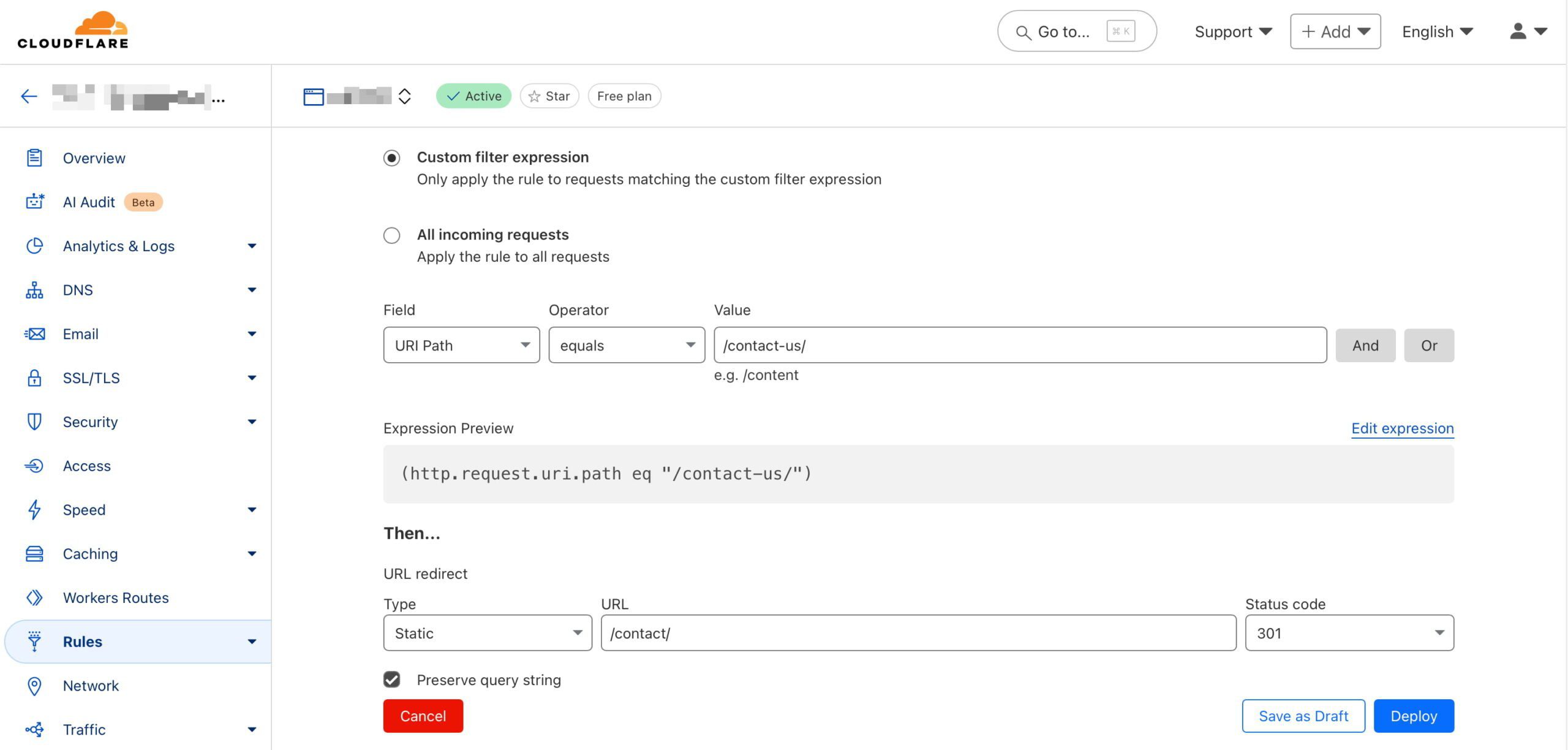
Option 2: Create a 301 redirect with Cloudflare

Most of us already use Cloudflare in one form or another, so you know that it offers a wide array of tools to help our websites perform. For instance, it comes with a Rules feature where you can set various options related to your website cache. You can also find various redirect options here; this will help you guide up redirects for everything from HTTP to HTTPS to single redirects for individual pages.

It’s easy to set up redirects through Cloudflare. Here’s how that works:

  1. Log into your Cloudflare account: Go to the Cloudflare dashboard and select your account and domain. Then, select Rules and Overview.
  2. Create a redirect rule: Select Create rule and then choose Redirect Rule. In the Rule name field, you might name it something like Redirect Page 1 to Page 2.
  3. Define the matching criteria: Set a wildcard pattern and set the Request URL to https://example.com/page-1. This means any traffic to example.com/page-1 will be matched for redirection
  4. Set the redirect parameters:
    • Target URL: Enter https://example.com/page-2 as the redirect destination.
    • Status code: Select 301 to indicate a permanent redirect.
    • Preserve query string: Decide based on your preference; enable this option if the original URL’s query string should be retained. When you choose to preserve the query string in a redirect, you keep any additional parameters that may be included in the original URL when redirecting to the new URL. Preserving the query string is often useful for tracking purposes, like retaining analytics or advertising parameters, ensuring that useful data isn’t lost during redirection.
  5. Deploy the rule:
    Click Deploy to save and activate the redirect.

Now, whenever someone visits https://example.com/page-1, they will be redirected to https://example.com/page-2 with a 301 status code, indicating a permanent move.

You can efficiently manage traffic without touching your server configuration by setting up redirects via Cloudflare. It provides flexibility for using simple patterns or more complex URL structures.

Cloudflare offers essential tools to manage the performance of your website

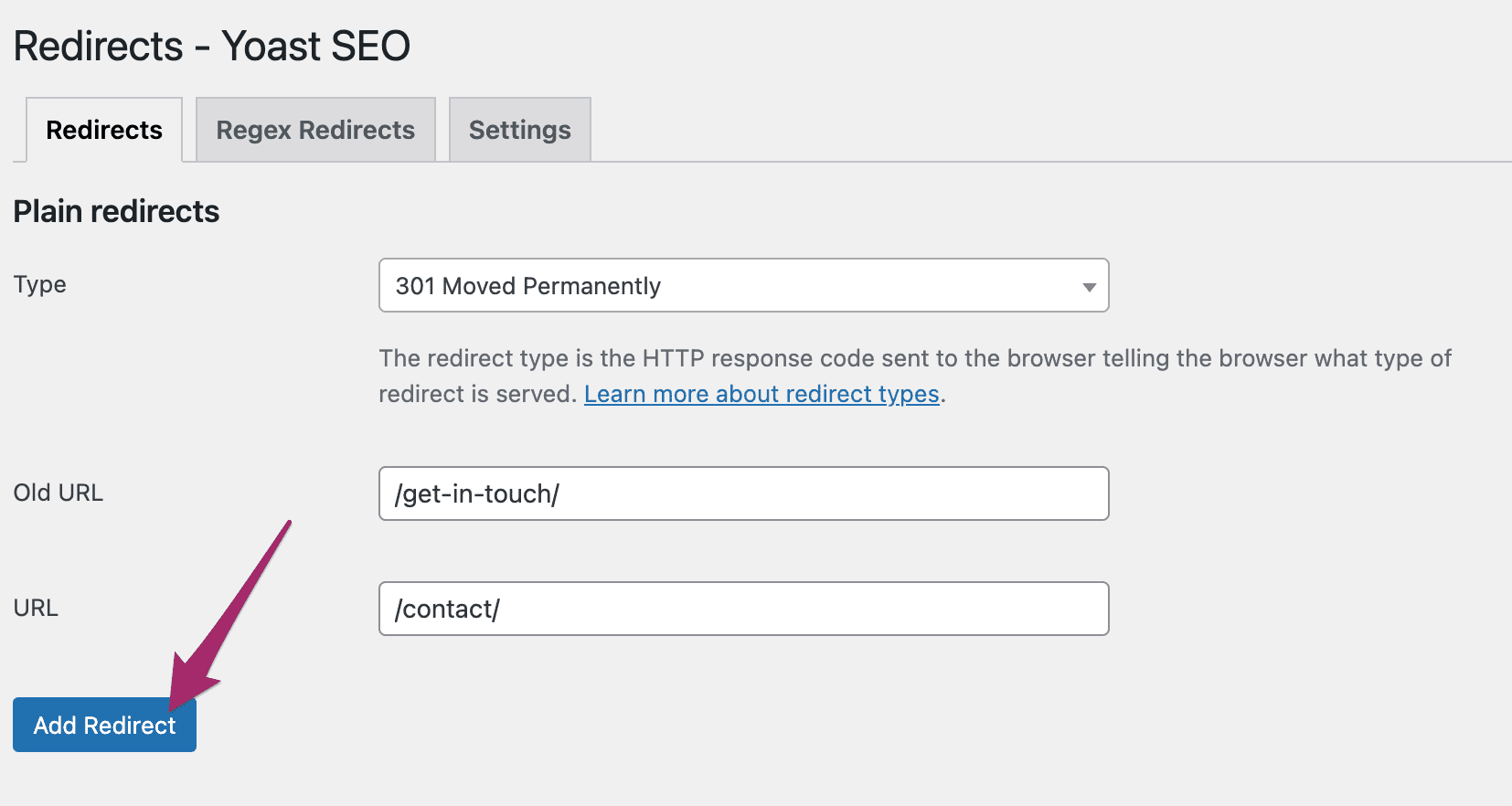
Option 3: Create a 301 redirect the easy way with Yoast SEO

Our Yoast SEO Premium plugin offers you a helping hand when it comes to creating these redirects. Our built-in redirect manager assists you whenever you change the URL of a post, page, or any taxonomies that may result in a possible 404 if you don’t properly redirect visitors. In addition, we also offer you an interface to edit or remove these redirects at a later point in time. The plugin also tells you when you’re about to create a redirect that will result in a redirect loop. This looping is something you want to avoid at all costs.

Here’s how you can set up a 301 redirect using Yoast SEO Premium in WordPress:

  1. Access the Yoast SEO settings: Log into your WordPress admin area and navigate to the Yoast SEO section.
  2. Open the Redirect Manager: Go to the Redirects feature in Yoast SEO Premium.
  3. Add a new redirect: Follow the steps below to create a new rule.
    • In the Old URL field, enter /page-1 as the source path.
    • In the New URL field, enter the destination /page-2 as the complete new URL.
    • Choose a 301 (Moved Permanently) from the list of redirect types.
  4. Save the Redirect: Click Add redirect, and Yoast SEO will handle the redirection.

Yoast SEO Premium also offers an option to automatically redirect deleted content. When you delete a page or post, Yoast SEO prompts you to set up a redirect to avoid broken links. This ensures visitors and search engines won’t encounter 404 errors and are smoothly directed to a relevant page.

These features are part of Yoast SEO Premium, designed to make managing redirects straightforward without manually altering code or server settings. They keep your site user-friendly and help maintain SEO performance by preventing dead links.

Adding a redirect with Yoast SEO Premium is very easy

Conclusion

Understanding how to set up 301 redirects is essential for maintaining your website’s integrity and user experience. Whether you choose Cloudflare, Yoast SEO Premium, or the .htaccess method, each approach offers a simple solution to guide visitors to the right place, preventing 404 errors and keeping your SEO rankings intact. Smoothly transitioning traffic from old links to new ones enhances usability and search visibility. Choose the best method that suits your needs and keeps your website running smoothly.

Read more: How to properly delete pages from your site »