Google AI Overviews: How To Measure Impressions & Track Visibility

AIO Is Reshaping Click Distribution On SERPs

AI Overviews change how clicks flow through search results. Position 1 organic results that previously captured 30-35% CTR might see rates drop to 15-20% when an AI Overview appears above them.

Industry observations indicate that AI Overviews appear 60-80% of the time for certain query types. For these keywords, traditional CTR models and traffic projections become meaningless. The entire click distribution curve shifts, but we lack the data to model it accurately.

Brands And Agencies Need To Know: How Often AIO Appears For Their Keywords

Knowing how often AI Overviews appear for your keywords can help guide your strategic planning.

Without this data, teams may optimize aimlessly, possibly focusing resources on keywords dominated by AI Overviews or missing chances where traditional SEO can perform better.

Check For Citations As A Metric

Being cited can enhance brand authority even without direct clicks, as people view your domain as a trusted source by Google.

Many domains with average traditional rankings lead in AI Overview citations. However, without citation data, sites may struggle to understand what they’re doing well.

How CTR Shifts When AIO Is Present

The impact on click-through rate can vary depending on the type of query and the format of the AI Overview.

To accurately model CTR, it’s helpful to understand:

  • Whether an AI Overview is present or not for each query.
  • The format of the overview (such as expanded, collapsed, or with sources).
  • Your citation status within the overview.

Unfortunately, Search Console doesn’t provide any of these data points.

Without Visibility, Client Reporting And Strategy Are Based On Guesswork

Currently, reporting relies on assumptions and observed correlations rather than direct measurements. Teams make educated guesses about the impact of AI Overview based on changes in CTR, but they can’t definitively prove cause and effect.

Without solid data, every choice we make is somewhat of a guess, and we miss out on the confidence that clear data can provide.

How To Build Your Own AIO Impressions Dashboard

One Approach: Manual SERP Checking

Since Google Search Console won’t show you AI Overview data, you’ll need to collect it yourself. The most straightforward approach is manual checking. Yes, literally searching each keyword and documenting what you see.

This method requires no technical skills or API access. Anyone with a spreadsheet and a browser can do it. But that accessibility comes with significant time investment and limitations. You’re becoming a human web scraper, manually recording data that should be available through GSC.

Here’s exactly how to track AI Overviews manually:

Step 1: Set Up Your Tracking Infrastructure

  • Create a Google Sheet with columns for: Keyword, Date Checked, Location, Device Type, AI Overview Present (Y/N), AI Overview Expanded (Y/N), Your Site Cited (Y/N), Competitor Citations (list), Screenshot URL.
  • Build a second sheet for historical tracking with the same columns plus Week Number.
  • Create a third sheet for CTR correlation using GSC data exports.

Step 2: Configure Your Browser For Consistent Results

  • Open Chrome in incognito mode.
  • Install a VPN if tracking multiple locations (you’ll need to clear cookies and switch locations between each check).
  • Set up a screenshot tool that captures full page length.
  • Disable any ad blockers or extensions that might alter SERP display.

Step 3: Execute Weekly Checks (Budget 2-3 Minutes Per Keyword)

  • Search your keyword in incognito.
  • Wait for the page to fully load (AI Overviews sometimes load one to two seconds after initial results).
  • Check if AI Overview appears – note that some are collapsed by default.
  • If collapsed, click Show more to expand.
  • Count and document all cited sources.
  • Take a full-page screenshot.
  • Upload a screenshot to cloud storage and add a link to the spreadsheet.
  • Clear all cookies and cache before the next search.

Step 4: Handle Location-specific Searches

  • Close all browser windows.
  • Connect to VPN for target location.
  • Verify IP location using whatismyipaddress.com.
  • Open a new incognito window.
  • Add “&gl=us&hl=en” parameters (adjust country/language codes as needed).
  • Repeat Step 3 for each keyword.
  • Disconnect VPN and repeat for the next location.

Step 5: Process And Analyze Your Data

  • Export last week’s GSC data (wait two to three days for data to be complete).
  • Match keywords between your tracking sheet and GSC export using VLOOKUP.
  • Calculate AI Overview presence rate: COUNT(IF(D:D=”Y”))/COUNTA(D:D)
  • Calculate citation rate: COUNT(IF(F:F=”Y”))/COUNT(IF(D:D=”Y”))
  • Compare the average CTR for keywords with vs. without AI Overviews.
  • Create pivot tables to identify patterns by keyword category.

Step 6: Maintain Data Quality

  • Re-check 10% of keywords to verify consistency.
  • Document any SERP layout changes that might affect tracking.
  • Archive screenshots weekly (they’ll eat up storage quickly).
  • Update your VPN locations if Google starts detecting and blocking them.

For 100 keywords across three locations, this process takes approximately 15 hours per week.

The Easy Way: Pull This Data With An API

If ~15 hours a week of manual SERP checks isn’t realistic, automate it. An API call gives you the same AIO signal in seconds, on a schedule, and without human error. The tradeoff is a little setup and usage costs, but once you’re tracking ~50+ keywords, automation is cheaper than people.

Here’s the flow:

Step 1: Set Up Your API Access

  • Sign up for SerpApi (free tier includes 250 searches/month).
  • Get your API key from the dashboard and store it securely (env var, not in screenshots).
  • Install the client library for your preferred language.

Step 2, Easy Version: Verify It Works (No Code)

Paste this into your browser to pull only the AI Overview for a test query:

https://serpapi.com/search.json?engine=google&q=best+laptop+2026&location=United+States&json_restrictor=ai_overview&api_key=YOUR_API_KEY

If Google returns a page_token instead of the full text, run this second request:

https://serpapi.com/search.json?engine=google_ai_overview&page_token=PAGE_TOKEN&api_key=YOUR_API_KEY
  • Replace YOUR_API_KEY with your key.
  • Replace PAGE_TOKEN with the value from the first response.
  • Replace spaces in queries and locations with +.

Step 2, Low-Code Version

If you don’t want to write code, you can call this from Google Sheets (see the tutorial), Make, or n8n and log three fields per keyword: AIO present (true/false), AIO position, and AIO sources.

No matter which option you choose, the:

  • Total setup time: two to three hours.
  • Ongoing time: five minutes weekly to review results.

What Data Becomes Available

The API returns comprehensive AI Overview data that GSC doesn’t provide:

  • Presence detection: Boolean flag for AI Overview appearance.
  • Content extraction: Full AI-generated text.
  • Citation tracking: All source URLs with titles and snippets.
  • Positioning data: Where the AI Overview appears on page.
  • Interactive elements: Follow-up questions and expandable sections.

This structured data integrates directly into existing SEO workflows. Export to Google Sheets for quick analysis, push to BigQuery for historical tracking, or feed into dashboard tools for client reporting.

Demo Tool: Building An AIO Reporting Tool

Understanding The Data Pipeline

Whether you build your own tracker or use existing tools, the data pipeline follows this pattern:

  • Input: Your keyword list (from GSC, rank trackers, or keyword research).
  • Collection: Retrieve SERP data (manually or via API).
  • Processing: Extract AI Overview information.
  • Storage: Save to database or spreadsheet.
  • Analysis: Calculate metrics and identify patterns.

Let’s walk through implementing this pipeline.

You Need: Your Keyword List

Start with a prioritized keyword set.

Include categorization to identify AI Overview patterns by intent type. Informational queries typically show higher AI Overview rates than navigational ones.

Step 1: Call SerpApi To Detect AIO blocks

For manual tracking, you’d check each SERP:

  • Individually. (This tutorial takes 2 – 3 minutes per manual check.)
  • Instantly. (This returns structured data instantly.)

Step 2: Store Results In Sheets, BigQuery, Or A Database

View the full tutorial for:

Step 3: Report On KPIs

Calculate the following key metrics from your collected data:

  • AI Overview Presence Rate.
  • Citation Success Rate.
  • CTR Impact Analysis.

Combine with GSC data to measure CTR differences between keywords with and without AI Overviews.

These metrics provide the visibility GSC lacks, enabling data-driven optimization decisions.

Clear, transparent ROI reporting for clients

With AI Overview tracking data, you can provide clients with concrete answers about their search performance.

Instead of vague statements, you can present specific metrics, such as: “AI Overviews appear for 47% of your tracked keywords, with your citation rate at 23% compared to your main competitor’s 31%.”

This transparency transforms client relationships. When they ask why impressions increased 40% but clicks only grew 5%, you can show them exactly how many queries now trigger AI Overviews above their organic listings.

More importantly, this data justifies strategic pivots and budget allocations. If AI Overviews dominate your client’s industry, you can make the case for content optimization targeting AI citation.

Early Detection Of AIO Volatility In Your Industry

Google’s AI Overview rollout is uneven, occurring in waves that test different industries and query types at different times.

Without proper tracking, you might not notice these updates for weeks or months, missing crucial optimization opportunities while competitors adapt.

Continuous monitoring of AI Overviews transforms you into an early warning system for your clients or organization.

Data-backed Strategy To Optimize For AIO Citations

By carefully tracking your content, you’ll quickly notice patterns, such as content types that consistently earn citations.

The data also reveals competitive advantages. For example, traditional ranking factors don’t always predict whether a page will be cited in an AI Overview. Sometimes, the fifth-ranked page gets consistently cited, while the top result is overlooked.

Additionally, tracking helps you understand how citations relate to your business metrics. You might find that being cited in AI Overviews improves your brand visibility and direct traffic over time, even if those citations don’t result in immediate clicks.

Stop Waiting For GSC To Provide Visibility – It May Never Arrive

Google has shown no indication of adding AI Overview filtering to Search Console. The API roadmap doesn’t mention it. Waiting for official support means flying blind indefinitely.

Start Testing SerpApi’s Google AI Overview API Today

If manual tracking isn’t sustainable, we offer a free tier with 250 searches/month so you can validate your pipeline. For scale, our published caps are clear: 20% of plan volume per hour on plans under 1M/month, and 100,000 + 1% of plan volume per hour on plans ≥1M/month.

We also support enterprise plans up to 100M searches/month. Same production infrastructure, no setup.

Build Your Own AIO Analytics Dashboard And Give Your Team Or Clients The Insights They Need

Whether you choose manual tracking, build your own scraping solution, or use an existing API, the important thing is to start measuring. Every day without AI Overview visibility is a day of missed optimization opportunities.

The tools and methods exist. The patterns are identifiable. You just need to implement tracking that fills the gap Google won’t address.

Get started here →

For those interested in the automated approach, access SerpApi’s documentation and test the playground to see what data becomes available. For manual trackers, download our spreadsheet template to begin tracking immediately.

Mueller: Background Video Loading Unlikely To Affect SEO via @sejournal, @MattGSouthern

Google Search Advocate John Mueller says large video files loading in the background are unlikely to have a noticeable SEO impact if page content loads first.

A site owner on Reddit’s r/SEO asked whether a 100MB video would hurt SEO if the page prioritizes loading a hero image and content before the video. The video continues loading in the background while users can already see the page.

Mueller responded:

“I don’t think you’d notice an SEO effect.”

Broader Context

The question addresses a common concern for sites using large hero videos or animated backgrounds.

The site owner described an implementation where content and images load within seconds, displaying a “full visual ready” state. The video then loads asynchronously and replaces the hero image once complete.

This method aligns with Google’s documentation on lazy loading, which recommends deferring non-critical content to improve page performance.

Google’s help documents state that lazy loading is “a common performance and UX best practice” for non-critical or non-visible content. The key requirement is ensuring content loads when visible in the viewport.

Why This Matters

If you’re running hero videos or animated backgrounds on landing pages, this suggests that background loading strategies are unlikely to harm your rankings. The critical factor is ensuring your primary content reaches users quickly.

Google measures page experience through Core Web Vitals metrics like Largest Contentful Paint. In many cases, a video that loads after visible content is ready shouldn’t block these measurements.

Implementation Best Practices

Google’s web.dev documentation recommends using preload=”none” on video elements to avoid unnecessary preloading of video data. Adding a poster attribute provides a placeholder image while the video loads.

For videos that autoplay, the documentation suggests using the Intersection Observer API to load video sources only when the element enters the viewport. This lets you maintain visual impact without affecting initial page load performance.

Looking Ahead

Site owners using background video can generally continue doing so without major SEO concerns, provided content loads first. Focus on Core Web Vitals metrics to verify your implementation meets performance thresholds.

Test your setup using Google Search Console’s URL Inspection Tool to confirm video elements appear correctly in rendered HTML.


Featured Image: Roman Samborskyi/Shutterstock

Canonical URLs: definitive guide to canonical tags 

Imagine telling someone that www.mysite.com/blog/myarticle and www.mysite.com/myarticle are actually the same page. To you, they’re the same, but to Google, even a small difference in the URL makes them separate pages. That is where the canonical tag steps in. In this guide, we will walk you through what a canonical URL is, how URL canonicalization works, when to use it, and which mistakes to avoid so that search engines always understand your preferred page version.

Table of contents

What is a canonical URL?

A canonical URL is the main, preferred, or official version of a webpage that you want search engines like Google to crawl and index. It helps search engines determine which version of a page to treat as the primary one when multiple URLs lead to similar or duplicate content. As a result, it avoids duplicate content and protects your SEO ranking signals.

All of the following URLs can show the same page, but you should set only one as the canonical URL:

  • https://www.mysite.com/product/shoes
  • https://mysite.com/product/shoes?ref=instagram
  • https://m.mysite.com/product/shoes
  • https://www.mysite.com/product/shoes?color=black

What is a canonical tag?

A canonical tag (also called a rel="canonical" tag) is a small HTML snippet placed inside the section of a webpage to tell search engines which URL is the canonical or master version. It acts like a clear label saying, “Index this page, not the others.” This prevents duplicate content issues, consolidates ranking signals, and supports proper canonicalization across your site.

Here’s an example of a canonical tag in action:

This tag should be placed on any alternate or duplicate versions that point back to the main page you want indexed.

How does URL canonicalization work?

Canonicalization is the process of selecting the representative or canonical URL of a piece of content. From a group of identical or nearly identical URLs, this is the version that search engines treat as the main page for indexing and ranking.

Once you understand that, canonicalization becomes much easier to visualize. Think of it as a three-step workflow.

How the canonicalization process works

Here’s how the canonicalization works:

Search engines detect duplicate or similar URLs

Google groups URLs that return the same (or almost the same) content. These could come from:

  • URL parameters
  • HTTP vs. HTTPS versions
  • Desktop vs. mobile URLs
  • Filtered or sorted pages
  • Regional versions
  • Accidental duplicates like staging URLs

You signal which URL is canonical

You can guide search engines using canonical signals like:

  • The rel="canonical" tag
  • 301 redirects
  • Internal links pointing to one preferred version
  • Consistent hreflang usage
  • XML sitemaps listing the preferred URL
  • HTTPS over HTTP

The strongest and clearest hint is the canonical tag placed in the head of the page.

Google selects one canonical URL

Google uses your signals, along with its own evaluation, to determine the primary URL. While Google typically follows canonical tags, it may override them if it detects stronger signals such as redirects, internal linking patterns, or user behaviour.

Once Google settles on the canonical URL, search engines will:

  • Consolidate link equity into the canonical page
  • Index the canonical URL
  • Treat all non-canonical URLs as duplicates
  • Reduce crawl waste
  • Avoid showing similar pages in search results

Canonical tags are a hint, not a directive. Google may still distribute link equity differently if it deems the canonical tag unreliable.

Reasons why canonicalization happens

Canonicalization becomes necessary when different URLs lead to the same content. Some common reasons are:

Region variants

For example, you have one product page for the USA and one for the UK, like: https://example.com/product/shoes-us and https://example.com/product/shoes-uk.

If the content is almost identical, use one canonical link or a clear regional setup to avoid confusion.

Pro tip: For regional variants, combine canonical tags with hreflang to specify language/region targeting.

Device variants

When you serve separate URLs for mobile and desktop, such as: https://m.example.com/product/shoes and https://www.example.com/product/shoes.

Canonical tags help search engines understand which URL is the primary version.

Protocol variants

Sorting and filtering often create many URLs that show similar content, like:

https://example.com/shoes?sort=price or https://example.com/shoes?color=black&size=7

A single canonical URL, such as https://example.com/shoes, tells search engines which page should carry the main ranking signals.

Also read: Optimizing ecommerce product variations for SEO and conversions

Accidental variants

Maybe a staging or demo version of the site is left crawlable, or both https://example.com/page and https://example.com/page/ return the same content

Canonical tags and proper URL canonicalization help avoid these unintentional duplicates.

Some duplicate content on a site is normal. The goal of canonicalization in SEO is not to eliminate every duplicate, but to show search engines which URL you want them to treat as the primary one.

In practical aspects

In practice, canonicalization comes down to a few key things:

Placement

The canonical tag is placed in the head of the HTML, for example:

link rel="canonical" href="https://www.example.com/preferred-page" /

Each page should have at most one canonical tag, and it should point to the clean, preferred canonical URL.

Identification

Search engines examine several signals to determine the canonical version of a page. The rel="canonical" tag is important, but they also consider 301 redirects, internal links, sitemaps, hreflang, and whether the page is served on HTTPS. When these signals are consistent, it is easier for Google to pick the right canonicalized URL.

Crawling and indexing

Once search engines understand which URL is canonical, they primarily crawl and index that version, folding duplicates into it. Link equity and other signals are consolidated to the canonical page, which improves stability in rankings and makes your canonical tag SEO setup more effective.

The main rule for canonicalization is simple: if multiple URLs display the same content, choose one, make it your canonical URL, and clearly signal that choice with a proper canonical tag.

Google’s John Mueller puts it simply: ‘I recommend doing this kind of self-referential rel=canonical because it really makes it clear for us which page you want to have indexed or what this URL should be when it’s indexed.’

And that’s exactly why canonical tags matter; they tell search engines which version of a page is the real one. This keeps your SEO signals clean and prevents your site from competing with itself.

They’re important because they:

  • Avoid duplicate content issues: Canonical tags inform Google which URL should be indexed, preventing similar or duplicate pages from confusing crawlers or diluting rankings
  • Consolidate link equity: Canonicalization works similarly to internal linking; both are techniques used to direct authority to the page that matters most. Instead of splitting ranking signals across duplicate URLs, all information is consolidated into a single canonical URL
  • Improve crawl efficiency: Search engines don’t waste time crawling unnecessary duplicate pages, which helps them discover your important content faster
  • Enhance user experience: Users land on the correct, up-to-date version of your page, not a filtered, parameterized, or accidental duplicate

Canonical tags are useful in various everyday SEO scenarios. Here are the most common scenarios where you’ll want to use a rel=canonical tag to signal your preferred URL.

URL versions

If your page loads under multiple URL formats, with or without “www,” HTTP vs. HTTPS, and with or without a trailing slash, search engines may index each version separately. A canonical tag helps you standardize the preferred version so Google doesn’t treat them as separate pages.

Duplicate content

Ecommerce sites, blogs with tag archives, and category-driven pages often generate duplicate or near-duplicate content by design. If the same product or article appears under multiple URLs (filters, parameters, tracking codes, etc.), canonical tags help Google understand which canonical URL is the authoritative one. This prevents cannibalization and protects your canonical SEO setup.

Also read: Ecommerce SEO: how to rank higher & sell more online

Syndicated content

If your content is republished on partner sites or aggregators, always use a canonical tag that points back to your original version. This ensures your page retains the ranking signals, not the syndicated copy, and search engines know exactly where the content was originally published.

If syndication partners don’t honor your canonical tag, consider using noindex or negotiating link attribution.

Paginated pages

Long lists or multi-page articles often create a chain of URLs like /page/2/, /page/3/, and so on. These pages contribute to the same topic but shouldn’t be indexed individually. Adding canonical tags to the paginated sequence (typically pointing to page 1 or a “view-all” version) helps consolidate indexing and keeps rankings focused on the primary page.

Pro tip: For paginated content, use self-referencing canonicals (each page points to itself) unless you have a ‘view-all’ page that loads quickly and is crawlable.

Also read: Pagination & SEO: best practices

Site migrations

When you change domains, restructure URLs, or move from HTTP to HTTPS, using consistent canonical tags helps reinforce which pages replace the old ones. It signals to search engines which canonicalized URL should inherit ranking power. During migrations, canonical tags act as a safety net to prevent duplicate versions from competing with each other.

URL canonicalization is all about giving search engines a clear signal about which version of a page is the preferred or canonical URL. You can implement it in several simple steps.

Using the rel=”canonical” tag

The most common way (as shown multiple times in this blog post) to set a canonical URL is by adding a rel="canonical" tag in the head section of your page. It looks like this:

link rel="canonical" href="https://www.example.com/preferred-url"/

This tag tells search engines which URL should carry all ranking signals and appear in search results. Ensure that every duplicate or alternate version links to the same preferred URL, and that the canonical tag is consistent throughout the site.

You can also use rel="canonical" in HTTP headers for non-HTML content such as PDFs. This is helpful when you cannot place a tag in the page itself.

Pro tip: While supported for PDFs, Google may not always honor canonical HTTP headers. Use them in conjunction with other signals (e.g., sitemaps).

Also, ensure the canonical tag is as close to the top of the head section as possible so that search engines can see it early. Each page should have only one canonical tag, and it should always point to a clean, accessible URL. Avoid mixing signals. The canonical URL, your internal links, and your sitemap entries should all match.

Setting a preferred domain in Google Search Console

Google lets you choose whether you prefer your URLs to appear with or without www. Setting this preference helps reinforce your canonical signals and prevents search engines from treating www and non-www versions as different URLs.

To set your preferred domain, open your property in Google Search Console, go to Settings, and choose the version you want to treat as your primary domain.

Redirects (301 redirects)

A 301 redirect is one of the strongest signals you can send. It permanently informs browsers and search engines that one URL has been redirected to another and that the new URL should be considered the canonical URL.

Use 301 redirects when:

  • You merge duplicate URLs
  • You change your site structure
  • You migrate to HTTPS
  • You want to consolidate link equity from outdated pages

Of course, redirects replace the old URL, while canonical tags suggest a preference without removing the duplicate.

With Yoast SEO Premium, you can manage redirects effortlessly right inside your WordPress dashboard. The built-in redirect manager feature of the SEO plugin helps you avoid unnecessary 404s and prevents visitors from landing on dead ends, keeping your site structure clean and your user experience smooth.

A smarter analysis in Yoast SEO Premium

Yoast SEO Premium has a smart content analysis that helps you take your content to the next level!

Additional canonicalization techniques

There are a few more ways to support your canonical setup.

  • XML sitemaps: Always include only canonical URLs in your sitemap. This helps search engines understand which URLs you want indexed
  • Hreflang annotations: For multi-language or multi-region sites, hreflang tags help search engines serve the correct regional version while still respecting your canonical preference
  • Link HTTP headers: For files like PDFs or other non-HTML content, using a rel="canonical" HTTP header helps you specify the preferred URL server-side

Each of these methods reinforces your canonical signals. When you use them together, search engines have a much clearer understanding of your canonicalized URLs.

Implementing canonicalization in WordPress with Yoast

Manually adding a rel="canonical" tag to the head of every duplicate page can be fiddly and error prone. You need to edit templates or theme files, keep tags consistent with your sitemap and internal linking, and remember special cases, such as PDFs or paginated series. Modifying site code and HTML is risky when you have numerous pages or multiple editors working on the site.

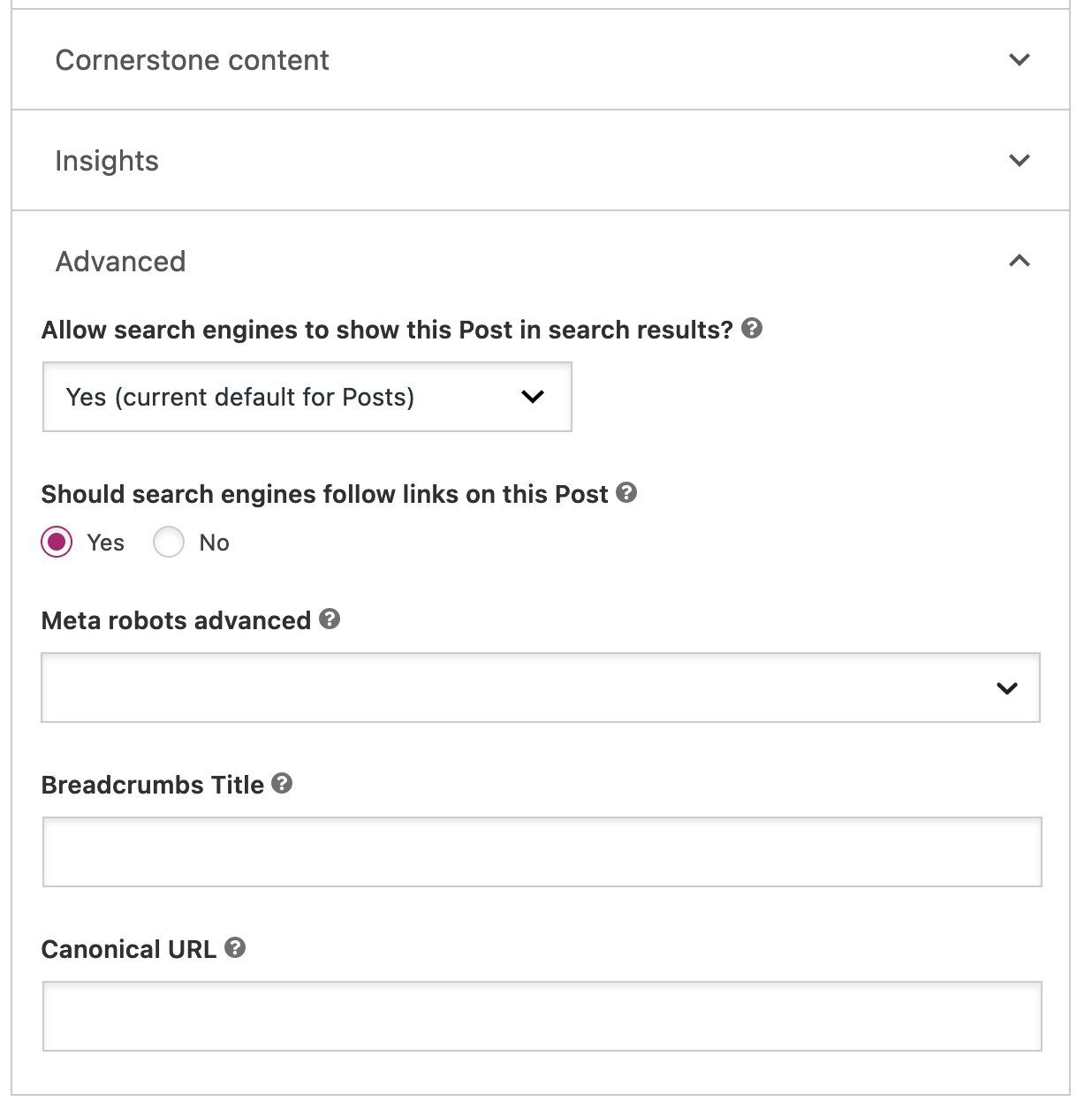
Yoast SEO makes this easier and safer. The plugin automatically generates sensible canonical URL tags for all your pages and templates, eliminating the need for manual theme file edits or code additions. You can still override that choice on a page-by-page basis in the Yoast SEO sidebar: open the post or page, go to Advanced, and paste the full canonical URL in the Canonical URL field, then save.

  • Automatic coverage: Yoast automatically adds canonical tags to pages and archives by default, which helps prevent many common duplicate content issues
  • Manual override: For special cases, use the Yoast sidebar > Advanced > Canonical URL field to set a custom canonical. This accepts full URLs and updates when you save the post
  • Edge cases handled: Yoast will not output a canonical tag on pages set to noindex, and it follows best practices for paginated series and archives
  • Developer options: If you need custom behavior, you can filter the canonical output programmatically using the wpseo_canonical filter or use Yoast’s developer API
  • Cross-domain and non-HTML: Yoast supports cross-site canonicals, and you can use rel=”canonical” in HTTP headers for non-HTML files when needed

Both Yoast SEO and Yoast SEO Premium include canonical URL handling, and the Premium version adds extra automation and controls to streamline larger sites.

Must read: How to change the canonical URL in Yoast SEO for WordPress

rel=“canonical”: one URL to rule them all

Canonical URLs may seem like a small technical detail, but they play a huge role in helping search engines understand your site. When Google finds multiple URLs displaying the same content, it must select one version to index. If you do not guide that choice, Google will make the decision on its own, and that choice is not always the version you intended. That can lead to split ranking signals, wasted crawl activity, and frustrating drops in visibility.

Using canonical URLs gives you back that control. It tells search engines which page is the primary version, which ones are duplicates, and where all authority signals should be directed. From filtering URLs to regional variants to accidental duplicates that slip through the cracks, canonicals keep everything tidy and predictable.

The good news is that canonicalization does not have to be complicated. A simple rel=”canonical” tag, consistent URL handling, smart redirects, and clean sitemap signals are enough to prevent most issues. And if you are working in WordPress, Yoast SEO takes care of almost all of this automatically, so you can focus on creating content instead of wrestling with code.

At the end of the day, canonical URLs are about clarity. Show search engines the version that matters, remove the noise, and keep your authority consolidated in one place. When your signals are clear, your rankings have a solid foundation to grow.

The Technical SEO Debt That Will Destroy Your AI Visibility

If you’re a CMO, I feel your pain. For years, decades even, brand visibility has largely been an SEO arms race against your competitors. And then along comes ChatGPT, Perplexity, and Claude, not to mention Google’s new AI-powered search features: AI Mode and AI Overviews. Suddenly, you’ve also got to factor in your brand’s visibility in AI-generated responses as well.

Unfortunately, the technical shortcuts that helped your brand adapt quickly and stay competitive over the years have most likely left you with various legacy issues. This accumulated technical SEO debt could potentially devastate your AI visibility.

Of course, every legacy issue or technical problem will have a solution. But your biggest challenge in addressing your technical SEO debt isn’t complexity or incompetence; it’s assumption.

Assumptions are the white ants in your search strategy, hollowing out the team’s tactics and best efforts. Everything might still seem structurally sound on the surface because all the damage is happening inside the walls of the house, or between the lines of your SEO goals and workflows. But then comes that horrific day when someone inadvertently applies a little extra pressure in the wrong spot and the whole lot caves in.

The new demands of AI search are applying that pressure right now. How solid is your technical SEO?

Strong Search Rankings ≠ AI Visibility

One of the most dangerous assumptions you can make is thinking that, because your site ranks well enough in Google, the technical foundations must be sound. So, if the search engines have no problem crawling your site and indexing your content, the same should also be true for AI, right?

Wrong.

Okay, there are actually a couple of assumptions in there. But that’s often the way: One assumption provides the misleading context that leads to others, and the white ants start chewing your walls.

Let’s deal with that second assumption first: If your site ranks well in Google, it should enjoy similar visibility in AI.

We recently compared Ahrefs data for two major accommodation websites: Airbnb and Vrbo.

When we look at non-branded search, both websites have seen a downward trend since July. The most recent data point we have (Oct. 13-15, 2025) has Airbnb showing up in ~916,304 searches and Vrbo showing up in ~615,497. That’s a ratio of roughly 3:2.

Image from author, October 2025

But when we look at estimated ChatGPT mentions (September 2025), Airbnb has ~8,636, while Vrbo has only ~1,573. That’s a ratio of ~11:2.

Image from author, October 2025

I should add a caveat at this point that any AI-related datasets are early and modeled, so should be taken as indicative rather than absolute. However, the data suggests Vrbo appears far less in AI answers (and ChatGPT in particular) than you’d expect if there was any correlation with search rankings.

Because of Vrbo’s presence in Google’s organic search results, it does have a modest presence in Google’s AI Overviews and AI Mode. That’s because Google’s AI features still largely draw on the same search infrastructure.

And that’s the key issue here: Search engines aren’t the only ones sending crawlers to your website. And you can’t assume AI crawlers work in the same way.

AI Search Magnifies Your Technical SEO Debt

So, what about that first assumption: If your site ranks fine in Google, any technical debt must be negligible.

Google’s search infrastructure is highly sophisticated, taking in a much wider array of signals than AI crawlers currently do. The cumulative effect of all these signals can mask or compensate for small amounts of technical debt.

For example, a page with well-optimized copy, strong schema markup, and decent authority might still rank higher than a competitor’s, even if your page loads slightly slower.

Most AI crawlers don’t work that way. They strip away code, formatting, and schema markup to ingest only the raw text. With fewer other signals to balance things out, anything that hinders the crawler’s ability to access your content will have a greater impact on your AI visibility. There’s nowhere for your technical debt to hide.

The Need For Speed

Let’s look at just one of the most common forms of technical SEO debt: page speed.

Sub-optimal page speed rarely has a single cause. It’s usually down to a combination of factors – bloated code, inefficient CSS, large JavaScript bundles, oversized images and media files, poor infrastructure, and more – with each instance adding just a little more drag on how quickly the page loads in a typical browser.

Yes, we could be talking fractions of a second here and there, but the accumulation of issues can have a negative impact on the user experience. This is why faster websites will generally rank higher; Google treats page speed as a direct ranking factor in search.

Page speed also appears to be a significant factor in how often content appears in Google’s new AI Mode.

Dan Taylor recently crunched the data on 2,138 websites appearing as citations in AI Mode responses to see if there was any correlation between how often they were cited and their LCP and CLA scores. What he found was a clear drop-off in AI Mode citations for websites with slower load times.

Image from author, October 2025

We also looked at another popular method website owners use to assess page speed: Google’s PageSpeed Insights (PSI) tool. This aggregates a bunch of metrics, including the above two alongside many more, to generate an overall score out of 100. However, we found no correlation between PSI scores and citations in AI Mode.

So, while PageSpeed Insights can give you handy diagnostic information, identifying the various issues impacting your load times, your site’s Core Web Vitals are a more reliable indicator of how quickly and efficiently site visitors and crawlers can access your content.

I know what you’re thinking: This data is confined to Google’s AI Mode. It doesn’t tell us anything about whether the same is true for visibility in other AI platforms.

We currently lack any publicly available data to test the same theory for other agentic assistant tools such as ChatGPT, but the clues are all there.

Crawling Comes At A Cost

Back in July, OpenAI’s Sam Altman told Axios that ChatGPT receives 2.5 billion user prompts every day. For comparison, SparkToro estimates Google serves ~16.4 billion search queries per day.

The large language model (LLM) powering each AI platform responds to a prompt in two ways:

  1. Drawing on its large pool of training data.
  2. Sending out bots or crawlers to verify and supplement the information with data from additional sources in real time.

ChatGPT’s real-time crawler is called ChatGPT-User. At the time of writing, the previous seven days saw ChatGPT-User visit the SALT.agency website ~6,000 times. In the same period, Google’s search crawler, Googlebot, accessed our website ~2,500 times.

Handling billions of prompts each day consumes a huge amount of processing power. OpenAI estimates that its current expansion plans will require 10 gigawatts of power, which is roughly the output of 10 nuclear reactors.

Each one of those 6,000 crawls of the SALT website drew on these computational resources. However, a slow or inefficient website forces the crawler to burn even more of those resources.

As the volume of prompts continues to grow, the cumulative cost of all this crawling will only get bigger. At some point, the AI platforms will have no choice but to improve the cost efficiency of their crawlers (if they haven’t already), shunning those websites requiring more resources to crawl in favor of those which are quick and easy to access and read.

Why should ChatGPT waste resources crawling slow websites when it can extract the same or similar information from more efficient sites with far less hassle?

Is Your Site Already Invisible To AI?

All the above assumes the AI crawler can access your website in the first place. As it turns out, even that isn’t guaranteed.

In July this year, Cloudflare (one of the world’s largest content delivery networks) started blocking AI crawlers by default. This decision potentially impacts the AI visibility of millions of websites.

Cloudflare first gave website owners the ability to block AI crawlers in September 2024, and more than 1 million customers chose to do just that. The new pay-per-crawl feature takes this a step further, allowing paid users of Cloudflare to choose which crawlers they will allow and on what terms.

However, the difference now is that blocking AI crawlers is no longer opt-in. If you want your website and content to be visible in AI, you need to opt out; assuming you’re aware of the changes, of course.

If your site runs on Cloudflare infrastructure and you haven’t explicitly checked your settings recently, there’s a decent chance your website might now be invisible to ChatGPT, Claude, and Perplexity. Not because your content isn’t good enough. Not because your technical SEO is poor. But because a third-party platform made an infrastructure decision that directly impacts your visibility, and you might not even know it happened.

This is the uncomfortable reality CMOs need to face: You can’t assume what works today will work tomorrow. You can’t even assume that decisions affecting your AI visibility will always happen within your organisation.

And when a change like this does happen, you absolutely can’t assume someone else is handling it.

Who Is Responsible?

Most technical SEO issues will have a solution, but you’ve got to be aware of the problem in the first place. That requires two things:

  1. Someone responsible for identifying and highlighting these issues.
  2. Someone with the necessary skills and expertise to fix them.

Spelled out like this, my point might seem a tad patronizing. But be honest, could you name the person(s) responsible for these in your organization? Who would you say is responsible for proactively and autonomously identifying and raising Cloudflare’s new pay-per-crawl policy with you? And would they agree with your expectation if you asked them?

Oh, and don’t cop out by claiming the responsibility lies with your external SEO partners. Agencies might proactively advise clients whenever there’s “a major disturbance in the Force,” such as a pending Google update. But does your contract with them include monitoring every aspect of your infrastructure, including third-party services? And does this responsibility extend to improving your AI visibility on top of the usual SEO activities? Unless this is explicitly spelled out, there’s no reason to assume they’re actively ensuring all the various AI crawlers can access your site.

In short, most technical SEO debt happens because everyone assumes it’s someone else’s job.

The CMO assumes it’s the developer’s responsibility. It’s all code, right? The developers should know the website needs to rank in search and be visible in AI. Surely, they’ll implement technical SEO best practice by default.

But developers aren’t technical SEO experts in exactly the same way they’re not web designers or UX specialists. They’ll build what they’re briefed to build. They’ll prioritize what you tell them to prioritize.

As a result, the dev team assumes it’s up to the SEO team to flag any new technical changes. But the SEO team assumes all is well because last quarter’s technical audit, based on the same list of checks they’ve relied on for years, didn’t identify anything amiss. And everybody assumes that, if there were going to be any issues with AI visibility, someone else would have raised it by now.

This confusion all helps technical debt to accumulate, unseen and unchecked.

→ Read more: Why Your SEO Isn’t Working, And It’s Not The Team’s Fault

Stop Assuming And Start Doing

The best time to prevent white ants from eating the walls in your home is before you know they’re there. Wait until the problems are obvious, and the expense of fixing all the damage will far outweigh the costs of an initial inspection and a few precautionary measures.

In the same way, don’t wait until it becomes obvious that your brand’s visibility in AI is compromised. Perform the necessary inspections now. Identify and fix any technical issues now that might cause issues for AI crawlers.

A big part of this will be strong communication between your teams, with accountabilities that make clear who is responsible for monitoring and actioning each factor contributing to your overall visibility in AI.

If you don’t, any investment and effort your team puts into optimizing brand content for AI could be wasted.

Stop assuming tomorrow will work like today. Technical SEO debt will impact your AI visibility. That’s not up for debate. The real question is whether you’ll proactively address your technical SEO debt now or wait until the assumptions cause your online visibility to crumble.

More Resources:


Featured Image: SvetaZi/Shutterstock

Google Reminds Websites To Use One Review Target via @sejournal, @MattGSouthern

Google updated its review snippet documentation to clarify that each review or rating in structured data should point to one clear target, reducing ambiguity.

  • Google updated its review snippet docs to clarify how review targets should be specified
  • You should avoid attaching the same review or rating to multiple different entities
  • A quick audit of templates and plugins can catch confusing nesting.
From slow to super fast: how to boost site speed the right way

Did you know that even a one-second delay in page loading speed can cause up to 11% fewer page views? That’s right, you might have the best content strategy and a solid plan to drive traffic, but visitors won’t stay long if your site lags. Page speed is one of the biggest factors in keeping users engaged and converting.

In this guide, we’ll uncover the most common causes of slow websites and explore proven ways to boost website performance. Whether your site feels sluggish or you simply want to make it faster, these insights will help you identify what’s holding it back and how to fix it.

Table of contents

What do we mean by ‘website performance’ and why is it important for you?

Website performance is all about how efficiently your site loads and responds when someone visits it. It’s not just about how fast a page appears; it’s about how smoothly users can interact with your content across devices, browsers, and locations. In simple terms, it’s the overall quality of your site’s experience that should feel fast, responsive, and effortless to use.

When your page loading speed is optimized, you’re not only improving the user experience but also setting the foundation for long-term website performance.

Here’s why it matters for every website owner:

Fast-loading sites have higher conversion rates and lower bounce rates

Attention spans are notoriously short. As the internet gets faster, they’re getting shorter still. Numerous studies have found a clear link between the time it takes a page to load and the percentage of visitors who become impatient while waiting.

By offering a fast site, you encourage your visitors to stay longer. Not to mention, you’re helping them complete their checkout journey more quickly. That helps improve your conversion rate and build trust and brand loyalty. Think of all the times you’ve been cursing the screen because you had to wait for a page to load or were running in circles because the user experience was atrocious. It happens so often, don’t be that site.

A fast page improves user experience

Google understands that the time it takes for a page to load is vital to the overall user experience. Waiting for content to appear, the inability to interact with a page, and even noticing delays create friction.

That friction costs time, money, and your visitor’s experience. Research shows that the level of stress from waiting for slow mobile results can be more stressful than watching a horror movie. Surely not, you say? That’s what the fine folks at Ericsson Research found a few years back.

Ericsson Mobility Report MWC Edition, February 2016

Improving your site speed across the board means making people happy. They’ll enjoy using your site, make more purchases, and return more frequently. This means that Google will view your site as a great search result because you are delivering high-quality content. Eventually, you might get a nice ranking boost.

Frustration hurts your users and hurts your rankings

It’s not just Google – research from every corner of the web on all aspects of consumer behavior shows that speed has a significant impact on outcomes.

  • Nearly 70% of consumers say that page speed impacts their willingness to buy (unbounce)
  • 20% of users abandon their cart if the transaction process is too slow (radware.com)
  • The BBC found that they lost an additional 10% of users for every additional second their site took to load

These costs and site abandonment happen because users dislike being frustrated. Poor experiences lead them to leave, visit other websites, and switch to competitors. Google easily tracks these behaviors (through bounces back to search engine results pages, short visits, and other signals) and is a strong indicator that the page shouldn’t be ranking where it is.

Google needs fast sites

Speed isn’t only good for users – it’s good for Google, too. Slow websites are often inefficient. They may load too many large files, haven’t optimized their media, or fail to utilize modern technologies to serve their page. That means that Google has to consume more bandwidth, allocate more resources, and spend more money.

Across the whole web, every millisecond they can save, and every byte they don’t have to process, adds up quickly. And quite often, simple changes to configuration, processes, or code can make websites much faster with no drawbacks. That may be why Google is so vocal about its education on performance.

A faster web is better for users and significantly reduces Google’s operating costs. Either way, that means that they’re going to continue rewarding fast(er) sites.

Improving page speed helps to improve crawling for search engines

Modern sites are incredibly wieldy, and untangling that mess can make a big difference. The larger your site is, the greater the impact page speed optimizations will have. That not only impacts user experience and conversion rates but also affects crawl budget and crawl rate.

When a Googlebot comes around and crawls your webpage, it crawls the HTML file. Any resources referenced in the file, like images, CSS, and JavaScript, will be fetched separately. The more files you have and the heavier they are, the longer it will take for the Googlebot to go through them.

On the flip side, the more time Google spends on crawling a page and its files, the less time and resources Google has to dedicate to other pages. That means Google may miss out on other important pages and content on your site.

Optimizing your website and content for speed will provide a good user experience for your visitors and help Googlebots better crawl your site. They can come around more often and accomplish more.

Page speed is a ranking factor

Google has repeatedly said that a fast site helps you rank better. It’s no surprise, then, that Google has been measuring the speed of your site and using that information in its ranking algorithms since 2010.

In 2018, Google launched the so-called ‘Speed Update,’ making page speed a ranking factor for mobile searches. Google emphasized that it would only affect the slowest sites and that fast sites would not receive a boost; however, they are evaluating website performance across the board.

In 2021, Google announced the page experience algorithm update, demonstrating that page speed and user experience are intertwined. Core Web Vitals clearly state that speed is an essential ranking factor. The update also gave site owners metrics and standards to work with.

Of course, Google still wants to serve searchers the most relevant information, even if the page experience is somewhat lacking. Creating high-quality content remains the most effective way to achieve a high ranking. However, Google also states that page experience signals become more important when many pages with relevant content compete for visibility in the search results.

Google mobile-first index

Another significant factor in page speed for ranking is Google’s mobile-first approach to indexing content. That means Google uses the mobile version of your pages for indexing and ranking. This approach makes sense as we increasingly rely on mobile devices to access the internet. In recent research, Semrush found out that 66% of all website visits come from mobile devices.

To compete for a spot in the search results, your mobile page needs to meet Core Web Vitals standards and other page experience signals. And this is not easy at all. Pages on mobile take longer to load compared to their desktop counterparts, while attention span stays the same. People might be more patient on mobile devices, but not significantly so.

Take a look at some statistics:

  • The average website loading time is 2.5 seconds on desktop and 8.6 seconds on mobile, based on an analysis of the top 100 web pages worldwide (tooltester)
  • The average mobile web page takes 15.3 seconds to load (thinkwithgoogle)
  • On average, webpages on mobile take 70.9% longer to load than on desktop (tooltester)
  • A loading speed of 10 seconds increases the probability of a mobile site visitor bouncing by 123% compared to a one-second loading speed (thinkwithgoogle)

All the more reasons to optimize your website and content if your goal is to win a spot in the SERP.

Understanding the web page loading process

When you click a link or type a URL and press Enter, your browser initiates a series of steps to load the web page. It might seem like magic, but behind the scenes, there’s a lot happening in just a few seconds. Understanding this process can help you see what affects your page loading speed and what you can do to boost website performance.

The “one second timeline” from Google’s site speed documentation

The process of loading a page can be divided into three key stages:

Network stage

This is where the connection begins. When someone visits your site, their browser looks up your domain name and connects to your server. This process, known as DNS lookup and TCP connection, enables data to travel between your website and the visitor’s device.

You don’t have much direct control over this stage, but technologies like content delivery networks (CDNs) and smart routing can make a big difference, especially if you serve visitors from around the world. For local websites, optimizing your hosting setup can still help improve overall page loading speed.

Server response stage

Once the connection is established, the visitor’s browser sends a request to your server asking for the web page and its content. This is when your server processes that request and sends back the necessary files.

The quality of your hosting, server configuration, and even your website’s theme or plugins all influence how quickly your server responds. A slow response is one of the most common issues with slow websites, so investing in a solid hosting environment is crucial if you want to boost your website’s performance.

One popular choice is Bluehost, which offers reliable infrastructure, SSD storage, and built-in CDN support, making it a go-to hosting solution for many website owners.

Browser rendering stage

Now it’s time for the browser to put everything together. It retrieves data from your server and begins displaying it by loading images, processing CSS and JavaScript, and rendering all visible elements.

Browsers typically load content in order, starting with what’s visible at the top (above the fold) and then proceeding down the page. That’s why optimizing the content at the top helps users interact with your site sooner. Even if the entire page isn’t fully loaded yet, a quick initial render can make it feel fast and keep users engaged.

Key causes that are causing your website to slow down

While you can’t control the quality of your visitors’ internet connection, most slow website issues come from within your own setup. Let’s examine the key areas that may be hindering your site’s performance and explore how to address them to enhance your website’s performance.

Your hosting service

Your hosting plays a big role in your website’s performance because it’s where your site lives. The speed and stability of your host determine how quickly your site responds to visitors. Factors such as server configuration, uptime, and infrastructure all impact this performance.

Choosing a reliable host eliminates one major factor that affects speed optimization. Bluehost, for example, offers robust servers, reliable uptime, and built-in performance tools, making it a go-to hosting choice for anyone serious about speed and stability.

Your website theme

Themes define how your website looks and feels, but they also impact its loading speed. Some themes are designed with clean, lightweight code that’s optimized for performance, while others are heavy with animations and complex design elements. To boost website performance, opt for a theme that prioritizes simplicity, efficiency, and clean coding.

Large file size

From your HTML and CSS files to heavy JavaScript, large file sizes can slow down your website. Modern websites often rely heavily on JavaScript for dynamic effects, but overusing it can cause your pages to load slowly, especially on mobile devices. Reducing file sizes, compressing assets, and minimizing unnecessary scripts can significantly improve the perceived speed of your pages.

Badly written code

Poorly optimized code can cause a range of issues, from JavaScript errors to broken layouts. Messy or redundant code makes it harder for browsers to load your site efficiently. Cleaning up your code and ensuring it’s well-structured helps improve both performance and maintainability.

Images and videos

Unoptimized images and large video files are among the biggest causes of slow websites. Heavy media files increase your page weight, which directly impacts loading times. If your header image or hero banner is too large, it can delay the appearance of the main content. Optimizing your media files through compression, resizing, and Image SEO can dramatically improve your website’s speed.

Too many plugins and widgets

Plugins are what make WordPress so flexible, but adding too many can slow down your site. Each plugin adds extra code that your browser needs to process. Unused or outdated plugins can also conflict with your theme or other extensions, further reducing performance. Audit your plugins regularly and only keep the ones that truly add value.

Absence of a CDN

A content delivery network (CDN) helps your website load faster for users worldwide. It stores copies of your site’s static content, such as images and CSS files, across multiple servers located in different regions. This means that users access your site from the nearest available server, reducing loading time. If your audience is global, using a CDN is one of the easiest ways to boost website performance.

Redirects

Redirects are useful for managing URLs and maintaining SEO, but too many can slow down your site. Each redirect adds an extra step before reaching the final page. While a few redirects won’t hurt, long redirect chains can significantly affect performance. Whenever possible, try to link directly to the final URL to maintain consistent page loading speed.

For WordPress users, the redirect manager feature in Yoast SEO Premium makes handling URL changes effortless and performance-friendly. You can pick from redirect types such as 301, 302, 307, 410, and 451 right from the dashboard. Since server-side redirects tend to load faster than PHP-based ones, Yoast lets you choose the type your stack supports, allowing you to avoid slow website causes and boost website performance.

A smarter analysis in Yoast SEO Premium

Yoast SEO Premium has a smart content analysis that helps you take your content to the next level!

How to measure page speed and diagnose performance issues

Before you can improve your website performance, you need to know how well (or poorly) your pages are performing. Measuring your page speed helps you identify what’s slowing down your website and provides a direction for optimization.

What is page speed, really?

Page speed refers to how quickly your website’s content loads and becomes usable. But it’s not as simple as saying, ‘My website loads in 4 seconds.’ Think of it as how fast a visitor can start interacting with your site.

A page might appear to load quickly, but still feel slow if buttons, videos, or images take time to respond. That’s why website performance isn’t defined by one single metric — it’s about the overall user experience.

Did you know?

There is a difference between page speed and site speed. Page speed measures how fast a single page loads, while site speed reflects your website’s overall performance. Since every page behaves differently, measuring site speed is a more challenging task. Simply put, if most pages on your website perform well in terms of Core Web Vitals, it is considered fast.

Core metrics that define website performance

Core Web Vitals are Google’s standard for evaluating how real users experience your website. These metrics focus on the three most important aspects of page experience: loading performance, interactivity, and visual stability. Improving them helps both your search visibility and your user satisfaction.

  • Largest Contentful Paint (LCP): Measures how long it takes for the main content on your page to load. Aim for LCP within 2.5 seconds for a smooth loading experience
  • Interaction to Next Paint (INP): Replaces the older First Input Delay metric and measures how quickly your site responds to user interactions like taps, clicks, or key presses. An INP score under 200 milliseconds ensures your site feels responsive and intuitive
  • Cumulative Layout Shift (CLS): Tracks how stable your content remains while loading. Elements shifting on screen can frustrate users, so keep CLS below 0.1 for a stable visual experience

How to interpret and improve your scores

Perfection is not the target. Progress and user comfort are what count. If you notice issues in your Core Web Vitals report, here are some practical steps:

  • If your LCP is slow: Compress images, serve modern formats like WebP, use lazy loading, or upgrade hosting to reduce load times
  • If your INP score is high: Reduce heavy JavaScript execution, minimize unused scripts, and avoid main thread blocking
  • If your CLS score is poor: Set defined width and height for images, videos, and ad containers so the layout does not jump around while loading
  • If your TTFB is high: Time to First Byte is not a Core Web Vital, but it still impacts loading speed. Improve server performance, use caching, and consider a CDN

Remember that even small improvements create a noticeable difference. Faster load times, stable layouts, and quicker interactions directly contribute to a smoother experience that users appreciate and search engines reward.

Tools to measure and analyze your website’s performance

Here are some powerful tools that help you measure, analyze, and improve your page loading speed:

Google PageSpeed Insights

Google PageSpeed Insights is a free tool from Google that provides both lab data (simulated results) and field data (real-world user experiences). It evaluates your page’s Core Web Vitals, highlights problem areas, and even offers suggestions under ‘Opportunities’ to improve load times.

Google Search Console (Page Experience Report)

The ‘Page Experience’ section gives you an overview of how your URLs perform for both mobile and desktop users. It groups URLs that fail Core Web Vitals, helping you identify whether you need to improve LCP, FID, or CLS scores.

Lighthouse (in Chrome DevTools)

Lighthouse is a built-in auditing tool in Chrome that measures page speed, accessibility, SEO, and best practices. It’s great for developers who want deeper insights into what’s affecting site performance.

WebPageTest

WebPage Test lets you test how your website performs across various networks, locations, and devices. Its ‘waterfall’ view shows exactly when each asset on your site loads, perfect for spotting slow resources or scripts that delay rendering.

Chrome Developer Tools (Network tab)

If you’re hands-on, Chrome DevTools is your real-time lab. Open your site, press F12, and monitor how each resource loads. It’s perfect for debugging and understanding what’s happening behind the scenes.

A quick checklist for diagnosing performance issues

Use this checklist whenever you’re analyzing your website performance:

  • Run your URL through PageSpeed Insights for Core Web Vitals data
  • Check your Page Experience report in Google Search Console
  • Use Lighthouse for a detailed technical audit
  • Review your WebPageTest waterfall to spot bottlenecks
  • Monitor your server performance (ask your host or use plugins like Query Monitor)
  • Re-test after every major update or plugin installation

Speed up, but with purpose

As Mahatma Gandhi once said, ‘There is more to life than increasing its speed.’ The same goes for your website. While optimizing speed is vital for better engagement, search rankings, and conversions, it is equally important to focus on creating an experience that feels effortless and meaningful to your visitors. A truly high-performing website strikes a balance between speed, usability, accessibility, and user intent.

When your pages load quickly, your content reads clearly, and your navigation feels intuitive, you create more than just a fast site; you create a space where visitors want to stay, explore, and connect.

Google Launches Structured Data For Merchant Shipping Policies via @sejournal, @MattGSouthern

Google Search now supports organization-level shipping policy markup, giving ecommerce websites a code-based way to surface delivery costs and transit times in Search and knowledge panels.

When you add ShippingService structured data, Google can display shipping information next to your products.

What’s New

Google added documentation describing ShippingService, which lets you define costs and delivery windows by product weight, dimensions, order value, or destination.

A standard policy lives under Organization via the hasShippingService property; product-specific overrides use OfferShippingDetails under Offer and support a smaller set of fields.

Implementation

Google recommends placing shipping policy markup on a single page.

Each ShippingService includes one or more ShippingConditions objects that specify when rates apply. If several apply to a product, Google uses the lowest cost and shows the associated speed. Fixed fees can be set with MonetaryAmount, and percentage-based fees with ShippingRateSettings. Transit times use ServicePeriod and can include businessDays and handling cutoff times.

Destination granularity supports country codes (ISO 3166-1), optional region codes (US, Australia, Japan only), and postal codes in the US, Canada, and Australia. Don’t provide both a region and postal code for the same condition.

If you combine markup with other Google shipping configurations, Google applies an order of precedence.

For example, when both markup and Search Console shipping settings are present, Google will use the Search Console settings. Google also notes that Content API for Shopping is the strongest source in this hierarchy.

Why This Matters

This gives you a markup-only path to publish shipping policies that Search can read, which may help keep details current even before products appear in feeds. If you already manage delivery settings in Merchant Center or Search Console, you can keep doing that; just be aware those sources can override page markup when both exist.

Looking Ahead

As with other rich results, your markup must follow Google’s structured data policies, Search Essentials, and the technical guidelines in the doc for it to be eligible for use in Search.


Featured Image: New Africa/Shutterstock

URL Case Sensitivity and SEO

Google treats the portion of a URL after the domain name as case-sensitive. Thus Google could index both domain.com/example and domain.com/EXAMPLE but combine domain.com/example and DOMAIN.com/example.

This matters because content management systems typically generate URLs from page titles and often retain capitalization, resulting in three problems for search engine optimization:

  • Duplicate content. Google may index both versions of the URL if they serve the same content.
  • Link equity splitting. Capitalized URLs with lowercase inbound links can split link equity, hurting the ranking of the primary version.
  • Internal errors. Sites hosted on Linux servers (such as Shopify and, often, WooCommerce) will display a 404 error page for capitalized URL characters when users enter lowercase versions.

Most web crawlers (and Search Console) do not offer case-sensitive URL filters, making detection challenging. The best way to prevent them is to ensure your server redirects all versions of a URL to the desired version. Each of these could redirect to domain.com/url, for example:

  • domain.com/URL
  • domain.com/Url
  • domain.com/uRl

Some content management systems will automatically redirect, but always check to confirm. Enter the three URL versions above in your browser. If all load the same version (usually lowercase), no further action is required. If any result in an error page, fix immediately.

Depending on the CMS, plugins and apps can help set up cross-site redirection rules. Software engineer Brian Love’s guide explains how to enforce lowercase URLs.

Choosing URLs

For SEO, there is no URL rule as long as all versions redirect to the preferred version. I like lowercase URLs for simplicity and ease of cross-site redirect setup, although some users prefer capitalized URLs for readability, branding, and ad performance.

Cross-site URL consistency will not produce material ranking increases. But it will help Google understand your site structure, improve crawlability, and clarify what’s indexed.

A Step-By-Step AEO Guide For Growing AI Citations & Visibility via @sejournal, @fthead9

This post was sponsored by TAC Marketing. The opinions expressed in this article are the sponsor’s own.

After years of trying to understand the black box that is Google search, SEO professionals have a seemingly even more opaque challenge these days – how to earn AI citations.

While at first glance inclusion in AI answers seems even more of a mystery than traditional SEO, there is good news. Once you know how to look for them, the AI engines do provide clues to what they consider valuable content.

This article will give you a step-by-step guide to discovering the content that AI engines value and provide a blueprint for optimizing your website for AI citations.

Take A Systematic Approach To AI Engine Optimization

The key to building an effective AI search optimization strategy begins with understanding the behavior of AI crawlers. By analyzing how these bots interact with your site, you can identify what content resonates with AI systems and develop a data-driven approach to optimization.

While Google remains dominant, AI-powered search engines like ChatGPT, Perplexity, and Claude are increasingly becoming go-to resources for users seeking quick, authoritative answers. These platforms don’t just generate responses from thin air – they rely on crawled web content to train their models and provide real-time information.

This presents both an opportunity and a challenge. The opportunity lies in positioning your content to be discovered and referenced by these AI systems. The challenge is understanding how to optimize for algorithms that operate differently from traditional search engines.

The Answer Is A Systematic Approach

  • Discover what content AI engines value based on their crawler behavior.
    • Traditional log file analysis.
    • SEO Bulk Admin AI Crawler monitoring.
  • Reverse engineer prompting.
    • Content analysis.
    • Technical analysis.
  • Building the blueprint.

What Are AI Crawlers & How To Use Them To Your Advantage

AI crawlers are automated bots deployed by AI companies to systematically browse and ingest web content. Unlike traditional search engine crawlers that primarily focus on ranking signals, AI crawlers gather content to train language models and populate knowledge bases.

Major AI crawlers include:

  • GPTBot (OpenAI’s ChatGPT).
  • PerplexityBot (Perplexity AI).
  • ClaudeBot (Anthropic’s Claude).
  • Googlebot crawlers (Google AI).

These crawlers impact your content strategy in two critical ways:

  1. Training data collection.
  2. Real-time information retrieval.

Training Data Collection

AI models are trained on vast datasets of web content. Pages that are crawled frequently may have a higher representation in training data, potentially increasing the likelihood of your content being referenced in AI responses.

Real-Time Information Retrieval

Some AI systems crawl websites in real-time to provide current information in their responses. This means fresh, crawlable content can directly influence AI-generated answers.

When ChatGPT responds to a query, for instance, it’s synthesizing information gathered by its underlying AI crawlers. Similarly, Perplexity AI, known for its ability to cite sources, actively crawls and processes web content to provide its answers. Claude also relies on extensive data collection to generate its intelligent responses.

The presence and activity of these AI crawlers on your site directly impact your visibility within these new AI ecosystems. They determine whether your content is considered a source, if it’s used to answer user questions, and ultimately, if you gain attribution or traffic from AI-driven search experiences.

Understanding which pages AI crawlers visit most frequently gives you insight into what content AI systems find valuable. This data becomes the foundation for optimizing your entire content strategy.

How To Track AI Crawler Activity: Find & Use Log File Analysis

The Easy Way: We use SEO Bulk Admin to analyze server log files for us.

However, there’s a manual way to do it, as well.

Server log analysis remains the standard for understanding crawler behavior. Your server logs contain detailed records of every bot visit, including AI crawlers that may not appear in traditional analytics platforms, which focus on user visits.

Essential Tools For Log File Analysis

Several enterprise-level tools can help you parse and analyze log files:

  • Screaming Frog Log File Analyser: Excellent for technical SEOs comfortable with data manipulation.
  • Botify: Enterprise solution with robust crawler analysis features.
  • Semrush: Offers log file analysis within its broader SEO suite.
Screenshot from Screaming Frog Log File AnalyserScreenshot from Screaming Frog Log File Analyser, October 2025

The Complexity Challenge With Log File Analysis

The most granular way to understand which bots are visiting your site, what they’re accessing, and how frequently, is through server log file analysis.

Your web server automatically records every request made to your site, including those from crawlers. By parsing these logs, you can identify specific user-agents associated with AI crawlers.

Here’s how you can approach it:

  1. Access Your Server Logs: Typically, these are found in your hosting control panel or directly on your server via SSH/FTP (e.g., Apache access logs, Nginx access logs).
  2. Identify AI User-Agents: You’ll need to know the specific user-agent strings used by AI crawlers. While these can change, common ones include:
  • OpenAI (for ChatGPT, e.g., `ChatGPT-User` or variations)
  • Perplexity AI (e.g., `PerplexityBot`)
  • Anthropic (for Claude, though often less distinct or may use a general cloud provider UAs)
  • Other LLM-related bots (e.g., “GoogleBot” and `Google-Extended` for Google’s AI initiatives, potentially `Vercelbot` or other cloud infrastructure bots that LLMs might use for data fetching).
  1. Parse and Analyze: This is where the previously mentioned log analyzer tools come into play. Upload your raw log files into the analyzer and start filtering the results to identify AI crawler and search bot activity. Alternatively, for those with technical expertise, Python scripts or tools like Splunk or Elasticsearch can be configured to parse logs, identify specific user-agents, and visualize the data.

While log file analysis provides the most comprehensive data, it comes with significant barriers for many SEOs:

  • Technical Depth: Requires server access, understanding of log formats, and data parsing skills.
  • Resource Intensive: Large sites generate massive log files that can be challenging to process.
  • Time Investment: Setting up proper analysis workflows takes considerable upfront effort.
  • Parsing Challenges: Distinguishing between different AI crawlers requires detailed user-agent knowledge.

For teams without dedicated technical resources, these barriers can make log file analysis impractical despite its value.

An Easier Way To Monitor AI Visits: SEO Bulk Admin

While log file analysis provides granular detail, its complexity can be a significant barrier for all but the most highly technical users. Fortunately, tools like SEO Bulk Admin can offer a streamlined alternative.

The SEO Bulk Admin WordPress plugin automatically tracks and reports AI crawler activity without requiring server log access or complex setup procedures. The tool provides:

  • Automated Detection: Recognizes major AI crawlers, including GPTBot, PerplexityBot, and ClaudeBot, without manual configuration.
  • User-Friendly Dashboard: Presents crawler data in an intuitive interface accessible to SEOs at all technical levels.
  • Real-Time Monitoring: Tracks AI bot visits as they happen, providing immediate insights into crawler behavior.
  • Page-Level Analysis: Shows which specific pages AI crawlers visit most frequently, enabling targeted optimization efforts.
Screenshot of SEO Bulk Admin AI/Bots ActivityScreenshot of SEO Bulk Admin AI/Bots Activity, October 2025

This gives SEOs instant visibility into which pages are being accessed by AI engines – without needing to parse server logs or write scripts.

Comparing SEO Bulk Admin Vs. Log File Analysis

Feature Log File Analysis SEO Bulk Admin
Data Source Raw server logs WordPress dashboard
Technical Setup High Low
Bot Identification Manual Automatic
Crawl Tracking Detailed Automated
Best For Enterprise SEO teams Content-focused SEOs & marketers

For teams without direct access to server logs, SEO Bulk Admin offers a practical, real-time way to track AI bot activity and make data-informed optimization decisions.

Screenshot of SEO Bulk Admin Page Level Crawler ActivityScreenshot of SEO Bulk Admin Page Level Crawler Activity, October 2025

Using AI Crawler Data To Improve Content Strategy

Once you’re tracking AI crawler activity, the real optimization work begins. AI crawler data reveals patterns that can transform your content strategy from guesswork into data-driven decision-making.

Here’s how to harness those insights:

1. Identify AI-Favored Content

  • High-frequency pages: Look for pages that AI crawlers visit most frequently. These are the pieces of content that these bots are consistently accessing, likely because they find them relevant, authoritative, or frequently updated on topics their users inquire about.
  • Specific content types: Are your “how-to” guides, definition pages, research summaries, or FAQ sections getting disproportionate AI crawler attention? This can reveal the type of information AI models are most hungry for.

2. Spot LLM-Favored Content Patterns

  • Structured data relevance: Are the highly-crawled pages also rich in structured data (Schema markup)? It’s an open debate, but some speculate that AI models often leverage structured data to extract information more efficiently and accurately.
  • Clarity and conciseness: AI models excel at processing clear, unambiguous language. Content that performs well with AI crawlers often features direct answers, brief paragraphs, and strong topic segmentation.
  • Authority and citations: Content that AI models deem reliable may be heavily cited or backed by credible sources. Track if your more authoritative pages are also attracting more AI bot visits.

3. Create A Blueprint From High-Performing Content

  • Reverse engineer success: For your top AI-crawled content, document its characteristics.
  • Content structure: Headings, subheadings, bullet points, numbered lists.
  • Content format: Text-heavy, mixed media, interactive elements.
  • Topical depth: Comprehensive vs. niche.
  • Keywords/Entities: Specific terms and entities frequently mentioned.
  • Structured data implementation: What schema types are used?
  • Internal linking patterns: How is this content connected to other relevant pages?
  • Upgrade underperformers: Apply these successful attributes to content that currently receives less AI crawler attention.
  • Refine content structure: Break down dense paragraphs, add more headings, and use bullet points for lists.
  • Inject structured data: Implement relevant Schema markup (e.g., `Q&A`, `HowTo`, `Article`, `FactCheck`) on pages lacking it.
  • Enhance clarity: Rewrite sections to achieve conciseness and directness, focusing on clearly answering potential user questions.
  • Expand Authority: Add references, link to authoritative sources, or update content with the latest insights.
  • Improve Internal Linking: Ensure that relevant underperforming pages are linked from your AI-favored content and vice versa, signaling topical clusters.

This short video walks you through the process of discovering what pages are crawled most often by AI crawlers and how to use that information to start your optimization strategy.

Here is the prompt used in the video:

You are an expert in AI-driven SEO and search engine crawling behavior analysis.

TASK: Analyze and explain why the URL [https://fioney.com/paying-taxes-with-a-credit-card-pros-cons-and-considerations/] was crawled 5 times in the last 30 days by the oai-searchbot(at)openai.com crawler, while [https://fioney.com/discover-bank-review/] was only crawled twice.

GOALS:

– Diagnose technical SEO factors that could increase crawl frequency (e.g., internal linking, freshness signals, sitemap priority, structured data, etc.)

– Compare content-level signals such as topical authority, link magnet potential, or alignment with LLM citation needs

– Evaluate how each page performs as a potential citation source (e.g., specificity, factual utility, unique insights)

– Identify which ranking and visibility signals may influence crawl prioritization by AI indexing engines like OpenAI’s

CONSTRAINTS:

– Do not guess user behavior; focus on algorithmic and content signals only

– Use bullet points or comparison table format

– No generic SEO advice; tailor output specifically to the URLs provided

– Consider recent LLM citation trends and helpful content system priorities

FORMAT:

– Part 1: Technical SEO comparison

– Part 2: Content-level comparison for AI citation worthiness

– Part 3: Actionable insights to increase crawl rate and citation potential for the less-visited URL

Output only the analysis, no commentary or summary.

Note: You can find more prompts for AI-focused optimization in this article: 4 Prompts to Boost AI Citations.

By taking this data-driven approach, you move beyond guesswork and build an AI content strategy grounded in actual machine behavior on your site.

This iterative process of tracking, analyzing, and optimizing will ensure your content remains a valuable and discoverable resource for the evolving AI search landscape.

Final Thoughts On AI Optimization

Tracking and analyzing AI crawler behavior is no longer optional for SEOs seeking to remain competitive in the AI-driven search era.

By using log file analysis tools – or simplifying the process with SEO Bulk Admin – you can build a data-driven strategy that ensures your content is favored by AI engines.

Take a proactive approach by identifying trends in AI crawler activity, optimizing high-performing content, and applying best practices to underperforming pages.

With AI at the forefront of search evolution, it’s time to adapt and capitalize on new traffic opportunities from conversational search engines.

Image Credits

Featured Image: Image by TAC Marketing. Used with permission.

In-Post Images: Image by TAC Marketing. Used with permission. 

Google Warns Against Relying On SEO Audit Tool Scores via @sejournal, @MattGSouthern

Google warned against relying on tool-generated scores for technical SEO audits.

Search Relations team member Martin Splitt outlined a three-step framework in a Search Central Lightning Talk that emphasizes site-specific context over standardized metrics.

The Three-Step Framework

Splitt outlined the core objective in the video:

“A technical audit, in my opinion, should make sure no technical issues prevent or interfere with crawling or indexing. It can use checklists and guidelines to do so, but it needs experience and expertise to adapt these guidelines and checklists to the site you audit.”

His recommended framework has three phases.

First, use tools and guidelines to identify potential issues. Second, create a report tailored to the specific site. Third, make recommendations based on actual site needs.

Understanding site technology comes before running diagnostic tools. Group findings by effort required and potential impact, Splitt said.

When 404s Are Normal

High 404 counts don’t always mean problems.

The red flag is unexplained rises without corresponding website changes.

Splitt explained:

“A high number of 404s, for instance, is expected if you removed a lot of content recently. That’s not a problem. It’s a normal consequence of that. But if you have an unexplained rise in 404 responses, though, that’s something you want to point out and investigate…”

Google Search Console’s Crawl Stats report shows whether 404 patterns match normal site maintenance or indicate technical issues.

Context Over Scores

Tools generate numerical scores that lack site-specific context.

Not everything tools flag carries equal weight. An international site needs hreflang auditing, while a single-language site doesn’t.

Splitt emphasized human judgment over automation:

“Please, please don’t follow your tools blindly. Make sure your findings are meaningful for the website in question and take the time to prioritize them for maximum impact.”

Talk to people who know the site and its technology. They’ll tell you if findings make sense.

Why This Matters

Generic checklists waste time on low-impact fixes while missing critical issues.

Tool scores may flag normal site behavior as problems. They assign priority to issues that don’t affect how search engines crawl your content.

Understanding when metrics reflect normal operations helps you focus audit resources where they matter. This applies whether you’re running internal audits or evaluating agency reports.

Looking Ahead

Audit platforms continue adding automated checks and scoring systems. This widens the gap between generic findings and actionable recommendations.

Google’s guidance reinforces that technical SEO requires expertise beyond tool automation.

Sites with international setups, large content archives, or frequent publishing benefit most from context-driven audits.

Hear Splitt’s full talk in the video below: