Canonical URLs: definitive guide to canonical tags 

Imagine telling someone that www.mysite.com/blog/myarticle and www.mysite.com/myarticle are actually the same page. To you, they’re the same, but to Google, even a small difference in the URL makes them separate pages. That is where the canonical tag steps in. In this guide, we will walk you through what a canonical URL is, how URL canonicalization works, when to use it, and which mistakes to avoid so that search engines always understand your preferred page version.

Table of contents

What is a canonical URL?

A canonical URL is the main, preferred, or official version of a webpage that you want search engines like Google to crawl and index. It helps search engines determine which version of a page to treat as the primary one when multiple URLs lead to similar or duplicate content. As a result, it avoids duplicate content and protects your SEO ranking signals.

All of the following URLs can show the same page, but you should set only one as the canonical URL:

  • https://www.mysite.com/product/shoes
  • https://mysite.com/product/shoes?ref=instagram
  • https://m.mysite.com/product/shoes
  • https://www.mysite.com/product/shoes?color=black

What is a canonical tag?

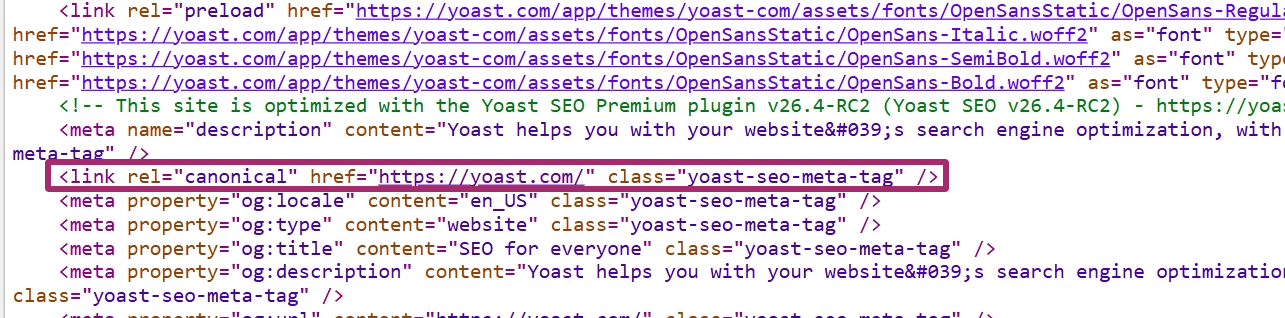
A canonical tag (also called a rel="canonical" tag) is a small HTML snippet placed inside the section of a webpage to tell search engines which URL is the canonical or master version. It acts like a clear label saying, “Index this page, not the others.” This prevents duplicate content issues, consolidates ranking signals, and supports proper canonicalization across your site.

Here’s an example of a canonical tag in action:

This tag should be placed on any alternate or duplicate versions that point back to the main page you want indexed.

How does URL canonicalization work?

Canonicalization is the process of selecting the representative or canonical URL of a piece of content. From a group of identical or nearly identical URLs, this is the version that search engines treat as the main page for indexing and ranking.

Once you understand that, canonicalization becomes much easier to visualize. Think of it as a three-step workflow.

How the canonicalization process works

Here’s how the canonicalization works:

Search engines detect duplicate or similar URLs

Google groups URLs that return the same (or almost the same) content. These could come from:

  • URL parameters
  • HTTP vs. HTTPS versions
  • Desktop vs. mobile URLs
  • Filtered or sorted pages
  • Regional versions
  • Accidental duplicates like staging URLs

You signal which URL is canonical

You can guide search engines using canonical signals like:

  • The rel="canonical" tag
  • 301 redirects
  • Internal links pointing to one preferred version
  • Consistent hreflang usage
  • XML sitemaps listing the preferred URL
  • HTTPS over HTTP

The strongest and clearest hint is the canonical tag placed in the head of the page.

Google selects one canonical URL

Google uses your signals, along with its own evaluation, to determine the primary URL. While Google typically follows canonical tags, it may override them if it detects stronger signals such as redirects, internal linking patterns, or user behaviour.

Once Google settles on the canonical URL, search engines will:

  • Consolidate link equity into the canonical page
  • Index the canonical URL
  • Treat all non-canonical URLs as duplicates
  • Reduce crawl waste
  • Avoid showing similar pages in search results

Canonical tags are a hint, not a directive. Google may still distribute link equity differently if it deems the canonical tag unreliable.

Reasons why canonicalization happens

Canonicalization becomes necessary when different URLs lead to the same content. Some common reasons are:

Region variants

For example, you have one product page for the USA and one for the UK, like: https://example.com/product/shoes-us and https://example.com/product/shoes-uk.

If the content is almost identical, use one canonical link or a clear regional setup to avoid confusion.

Pro tip: For regional variants, combine canonical tags with hreflang to specify language/region targeting.

Device variants

When you serve separate URLs for mobile and desktop, such as: https://m.example.com/product/shoes and https://www.example.com/product/shoes.

Canonical tags help search engines understand which URL is the primary version.

Protocol variants

Sorting and filtering often create many URLs that show similar content, like:

https://example.com/shoes?sort=price or https://example.com/shoes?color=black&size=7

A single canonical URL, such as https://example.com/shoes, tells search engines which page should carry the main ranking signals.

Also read: Optimizing ecommerce product variations for SEO and conversions

Accidental variants

Maybe a staging or demo version of the site is left crawlable, or both https://example.com/page and https://example.com/page/ return the same content

Canonical tags and proper URL canonicalization help avoid these unintentional duplicates.

Some duplicate content on a site is normal. The goal of canonicalization in SEO is not to eliminate every duplicate, but to show search engines which URL you want them to treat as the primary one.

In practical aspects

In practice, canonicalization comes down to a few key things:

Placement

The canonical tag is placed in the head of the HTML, for example:

link rel="canonical" href="https://www.example.com/preferred-page" /

Each page should have at most one canonical tag, and it should point to the clean, preferred canonical URL.

Identification

Search engines examine several signals to determine the canonical version of a page. The rel="canonical" tag is important, but they also consider 301 redirects, internal links, sitemaps, hreflang, and whether the page is served on HTTPS. When these signals are consistent, it is easier for Google to pick the right canonicalized URL.

Crawling and indexing

Once search engines understand which URL is canonical, they primarily crawl and index that version, folding duplicates into it. Link equity and other signals are consolidated to the canonical page, which improves stability in rankings and makes your canonical tag SEO setup more effective.

The main rule for canonicalization is simple: if multiple URLs display the same content, choose one, make it your canonical URL, and clearly signal that choice with a proper canonical tag.

Google’s John Mueller puts it simply: ‘I recommend doing this kind of self-referential rel=canonical because it really makes it clear for us which page you want to have indexed or what this URL should be when it’s indexed.’

And that’s exactly why canonical tags matter; they tell search engines which version of a page is the real one. This keeps your SEO signals clean and prevents your site from competing with itself.

They’re important because they:

  • Avoid duplicate content issues: Canonical tags inform Google which URL should be indexed, preventing similar or duplicate pages from confusing crawlers or diluting rankings
  • Consolidate link equity: Canonicalization works similarly to internal linking; both are techniques used to direct authority to the page that matters most. Instead of splitting ranking signals across duplicate URLs, all information is consolidated into a single canonical URL
  • Improve crawl efficiency: Search engines don’t waste time crawling unnecessary duplicate pages, which helps them discover your important content faster
  • Enhance user experience: Users land on the correct, up-to-date version of your page, not a filtered, parameterized, or accidental duplicate

Canonical tags are useful in various everyday SEO scenarios. Here are the most common scenarios where you’ll want to use a rel=canonical tag to signal your preferred URL.

URL versions

If your page loads under multiple URL formats, with or without “www,” HTTP vs. HTTPS, and with or without a trailing slash, search engines may index each version separately. A canonical tag helps you standardize the preferred version so Google doesn’t treat them as separate pages.

Duplicate content

Ecommerce sites, blogs with tag archives, and category-driven pages often generate duplicate or near-duplicate content by design. If the same product or article appears under multiple URLs (filters, parameters, tracking codes, etc.), canonical tags help Google understand which canonical URL is the authoritative one. This prevents cannibalization and protects your canonical SEO setup.

Also read: Ecommerce SEO: how to rank higher & sell more online

Syndicated content

If your content is republished on partner sites or aggregators, always use a canonical tag that points back to your original version. This ensures your page retains the ranking signals, not the syndicated copy, and search engines know exactly where the content was originally published.

If syndication partners don’t honor your canonical tag, consider using noindex or negotiating link attribution.

Paginated pages

Long lists or multi-page articles often create a chain of URLs like /page/2/, /page/3/, and so on. These pages contribute to the same topic but shouldn’t be indexed individually. Adding canonical tags to the paginated sequence (typically pointing to page 1 or a “view-all” version) helps consolidate indexing and keeps rankings focused on the primary page.

Pro tip: For paginated content, use self-referencing canonicals (each page points to itself) unless you have a ‘view-all’ page that loads quickly and is crawlable.

Also read: Pagination & SEO: best practices

Site migrations

When you change domains, restructure URLs, or move from HTTP to HTTPS, using consistent canonical tags helps reinforce which pages replace the old ones. It signals to search engines which canonicalized URL should inherit ranking power. During migrations, canonical tags act as a safety net to prevent duplicate versions from competing with each other.

URL canonicalization is all about giving search engines a clear signal about which version of a page is the preferred or canonical URL. You can implement it in several simple steps.

Using the rel=”canonical” tag

The most common way (as shown multiple times in this blog post) to set a canonical URL is by adding a rel="canonical" tag in the head section of your page. It looks like this:

link rel="canonical" href="https://www.example.com/preferred-url"/

This tag tells search engines which URL should carry all ranking signals and appear in search results. Ensure that every duplicate or alternate version links to the same preferred URL, and that the canonical tag is consistent throughout the site.

You can also use rel="canonical" in HTTP headers for non-HTML content such as PDFs. This is helpful when you cannot place a tag in the page itself.

Pro tip: While supported for PDFs, Google may not always honor canonical HTTP headers. Use them in conjunction with other signals (e.g., sitemaps).

Also, ensure the canonical tag is as close to the top of the head section as possible so that search engines can see it early. Each page should have only one canonical tag, and it should always point to a clean, accessible URL. Avoid mixing signals. The canonical URL, your internal links, and your sitemap entries should all match.

Setting a preferred domain in Google Search Console

Google lets you choose whether you prefer your URLs to appear with or without www. Setting this preference helps reinforce your canonical signals and prevents search engines from treating www and non-www versions as different URLs.

To set your preferred domain, open your property in Google Search Console, go to Settings, and choose the version you want to treat as your primary domain.

Redirects (301 redirects)

A 301 redirect is one of the strongest signals you can send. It permanently informs browsers and search engines that one URL has been redirected to another and that the new URL should be considered the canonical URL.

Use 301 redirects when:

  • You merge duplicate URLs
  • You change your site structure
  • You migrate to HTTPS
  • You want to consolidate link equity from outdated pages

Of course, redirects replace the old URL, while canonical tags suggest a preference without removing the duplicate.

With Yoast SEO Premium, you can manage redirects effortlessly right inside your WordPress dashboard. The built-in redirect manager feature of the SEO plugin helps you avoid unnecessary 404s and prevents visitors from landing on dead ends, keeping your site structure clean and your user experience smooth.

A smarter analysis in Yoast SEO Premium

Yoast SEO Premium has a smart content analysis that helps you take your content to the next level!

Additional canonicalization techniques

There are a few more ways to support your canonical setup.

  • XML sitemaps: Always include only canonical URLs in your sitemap. This helps search engines understand which URLs you want indexed
  • Hreflang annotations: For multi-language or multi-region sites, hreflang tags help search engines serve the correct regional version while still respecting your canonical preference
  • Link HTTP headers: For files like PDFs or other non-HTML content, using a rel="canonical" HTTP header helps you specify the preferred URL server-side

Each of these methods reinforces your canonical signals. When you use them together, search engines have a much clearer understanding of your canonicalized URLs.

Implementing canonicalization in WordPress with Yoast

Manually adding a rel="canonical" tag to the head of every duplicate page can be fiddly and error prone. You need to edit templates or theme files, keep tags consistent with your sitemap and internal linking, and remember special cases, such as PDFs or paginated series. Modifying site code and HTML is risky when you have numerous pages or multiple editors working on the site.

Yoast SEO makes this easier and safer. The plugin automatically generates sensible canonical URL tags for all your pages and templates, eliminating the need for manual theme file edits or code additions. You can still override that choice on a page-by-page basis in the Yoast SEO sidebar: open the post or page, go to Advanced, and paste the full canonical URL in the Canonical URL field, then save.

  • Automatic coverage: Yoast automatically adds canonical tags to pages and archives by default, which helps prevent many common duplicate content issues
  • Manual override: For special cases, use the Yoast sidebar > Advanced > Canonical URL field to set a custom canonical. This accepts full URLs and updates when you save the post
  • Edge cases handled: Yoast will not output a canonical tag on pages set to noindex, and it follows best practices for paginated series and archives
  • Developer options: If you need custom behavior, you can filter the canonical output programmatically using the wpseo_canonical filter or use Yoast’s developer API
  • Cross-domain and non-HTML: Yoast supports cross-site canonicals, and you can use rel=”canonical” in HTTP headers for non-HTML files when needed

Both Yoast SEO and Yoast SEO Premium include canonical URL handling, and the Premium version adds extra automation and controls to streamline larger sites.

Must read: How to change the canonical URL in Yoast SEO for WordPress

rel=“canonical”: one URL to rule them all

Canonical URLs may seem like a small technical detail, but they play a huge role in helping search engines understand your site. When Google finds multiple URLs displaying the same content, it must select one version to index. If you do not guide that choice, Google will make the decision on its own, and that choice is not always the version you intended. That can lead to split ranking signals, wasted crawl activity, and frustrating drops in visibility.

Using canonical URLs gives you back that control. It tells search engines which page is the primary version, which ones are duplicates, and where all authority signals should be directed. From filtering URLs to regional variants to accidental duplicates that slip through the cracks, canonicals keep everything tidy and predictable.

The good news is that canonicalization does not have to be complicated. A simple rel=”canonical” tag, consistent URL handling, smart redirects, and clean sitemap signals are enough to prevent most issues. And if you are working in WordPress, Yoast SEO takes care of almost all of this automatically, so you can focus on creating content instead of wrestling with code.

At the end of the day, canonical URLs are about clarity. Show search engines the version that matters, remove the noise, and keep your authority consolidated in one place. When your signals are clear, your rankings have a solid foundation to grow.

Keyword and content cannibalization: how to identify and fix it

If you optimize your articles for similar terms, your rankings might suffer from keyword or content cannibalization: you’ll be ‘devouring’ your chances to rank in Google! Especially when your site is growing, your content could start competing with itself. Here, we’ll explain why keyword and content cannibalism can harm SEO, how to recognize it, and what to do about it.

Table of contents

What is keyword cannibalization?

Keyword cannibalization happens when multiple pages on your website target the same or very similar keywords. This often occurs unintentionally, especially as your site grows and more content accumulates. Pages that are too similar in focus might confuse search engines, which may struggle to decide which to rank higher. As a result, your pages compete with one another, and all of them can rank lower.

For example, if you publish two posts — one optimized for “does readability rank” and another for “readability ranking factor” — Google may see them competing for the same query. Instead of one strong result, both might hover around lower positions, weakening your site’s overall performance.

What is content cannibalization?

Content cannibalization is closely related but centers on the issue of multiple articles covering the same topic, regardless of whether they’re optimized for the same keyword. It’s a broader issue that affects thematic overlap more than exact keyword matching.

Where keyword cannibalization focuses on duplicating keywords, content cannibalization involves too many pages delivering overlapping value. This undermines user experience, spreads authority thin, and can make your content performance uneven.

Is cannibalization harmful?

Both keyword and content cannibalization can hurt SEO.

  • Lower rankings: Google often limits the number of results from a domain per query. When several of your pages try to rank for the same keyword, they could all underperform. This is especially true when neither page is clearly better in content depth, backlinks, or relevance.
  • Diluted backlinks: Instead of one strong page getting all the backlinks, multiple weaker ones split the attention. If many pages discuss a similar topic, other sites may link to each inconsistently. As a result, no one page accumulates strong authority. This fragmentation makes it harder for your content to rank competitively.
  • Confused crawlers: Search engines can’t always easily figure out which page they should prioritize. As a result, this could lead to inconsistent rankings. These days, Google is better at understanding topical relationships and can often see their differences. If content overlap is too high and intent is unclear, prioritization issues can still arise, especially on sites with thin or low-quality pages.
  • Reduced Click-Through Rate (CTR): Spreading clicks across several similar listings may lower the collective performance. If multiple similar titles from your domain show in results, users may split clicks between them. Worse, one strong CTA title might appear further down the page than a weaker or outdated one. This can impact user engagement and CTR for both pages, especially if they fall further down the SERPs.

In short, cannibalization limits your content’s potential by weakening each page’s authority and clarity.

How to identify cannibalization issues

As your site grows, you’ll have more and more content. Some of these articles are going to be about a similar topic. Even when you’ve always categorized it well, your content might compete with itself. You’re suffering from keyword or content cannibalization. Finding and fixing keyword cannibalization issues should be part of your content maintenance work to prevent all this.

Identifying keyword cannibalization

Start with a site search. Use site:yourdomain.com “keyword” in Google to surface all pages relevant to a particular term. If you see two or more of your URLs targeting the same term, they may be in conflict.

Next, use tools like Google Search Console. Look under the Performance tab. Filter by query to view keywords that bring in impressions and clicks, then see which pages receive traffic from those terms. Then, use SEO tools such as Ahrefs or Semrush to track keyword rankings and expose overlapping URLs targeting the same terms.

Look especially for pages that rank beyond the top five positions for the same term. When two of your URLs rank closely together outside the top spots, it’s often a sign that neither is performing optimally.

A simple site search with your domain and keyword will show all the pages ranking for that term

Identifying content cannibalization

Content cannibalization is subtler. You might not see overlapping keywords, but you may notice thematic overlap.

Review URL structures and tags to catch duplicates

Start by scanning your site’s URLs and content categories to catch pages covering the same topic in different formats. Look for similar slugs, repeated folder structures, or articles under the same tag or category. This quick check often reveals duplicate coverage, especially on larger sites or those with multiple writers.

Use keyword/topic mapping tools

Trace what each page is targeting. Create a list of your key pages and their target keywords or main topics. This helps you spot when multiple pages aim for the same term or cover the same subject. It doesn’t matter whether you use a tool or a spreadsheet, but keyword mapping helps explain the purpose of content. It also helps avoid overlap and ensures that all pages on your site have a place in your strategy.

Use the page filter

In Google Search Console, use the Page filter to see how each URL performs. The data gives insights into impressions, clicks, and average position. Look for pages that are getting traffic from similar queries. Multiple pages appearing for the same or closely related terms could signal content cannibalization. You can also use the Query filter to search by keyword and review which pages compete for it.

How to fix cannibalization issues

You should know your content, its performance, and where overlaps exist. Fixing keyword or content cannibalization means auditing, evaluating, and restructuring your pages. It doesn’t mean you should delete content blindly. Every page on your site should have a purpose and support your site’s overall SEO strategy. Below are practical ways to resolve both types of cannibalization.

Fixing keyword cannibalization

In many cases, solving keyword cannibalization means deleting and merging content. We will run you through some of that maintenance work as we did it at Yoast to show you how to do this. In particular, we’ll show you some thinking around a cluster of keywords related to keyword research.

Step 1: Audit your content

The first step is finding all the content on the keyword research topic. Most of that was simple: we have a keyword research tag, and most of the content was nicely tagged. This was also confronting, as we had many posts about the topic.

We searched for site:yoast.com "keyword research" and Google showed all the posts and pages on the site that mentioned the topic. We had dozens of articles devoted to keyword research or large sections mentioning it. Dozens or so mentioned it in passing and linked to other articles.

We started auditing the content for this particular group of keywords to improve our rankings around the cluster of keywords related to keyword research. So we needed to analyze which pages were ranking and which weren’t. This content maintenance turned out to be badly needed. It was surely time to find and fix possible cannibalization issues!

Step 2: Analyze the content performance

Go to Google Search Console and find the Performance section. In that section, click the filter bar. Click Query and type “keyword research” into the box like this:

A Google Search Console keyword query filter helping you find which articles rank for terms
Google Search Console helps you find which articles rank for certain terms

This makes Google Search Console match all queries containing keyword and research. This gives you two very important pieces of data. A list of the keywords your site has been shown in the search results for, and the clicks and click-through rate (CTR) for those keywords. A list of the pages that were receiving all that traffic, and how much traffic each of those pages received.

Start with the total number of clicks the content received for all those queries, then look at the individual pages. Something was clear: just a few posts were getting most of the traffic. But we knew we had loads of articles covering this topic. It was time to clean up. Of course, we didn’t want to throw away any posts that were getting traffic not included in this bucket of traffic, so we had to check each post individually. 

We removed the Query filter and used another option: the Page filter. This allows you to filter by a group of URLs or a specific URL. On larger sites, you might be able to filter by groups of URLs. In this case, we looked at the data for each post individually, which is best if you truly want to find and fix keyword cannibalization on your website.

Step 3: Decide on the next steps

After reviewing each post in this content maintenance process, we decided whether to keep it or delete it. If we deleted a post (which we did for most of them), we decided which post we should redirect it to.

For each of those posts, we evaluated whether they had sections to merge into another article. Some posts had paragraphs or sections that could be merged into another post. When merging posts entails more work (and time) than adding one paragraph or a few sentences, we recommend working in a new draft by cloning one of the original posts with Yoast Duplicate Post plugin. This way, you can work on your merged post without making live changes to one of your original posts.

Step 4: Take action

We had a list of action items: content to add to specific articles, after which each piece of content could be deleted from the articles it came from. Using Yoast SEO Premium, it’s easy to 301 redirect a post or page when you delete it, so that process was fairly painless.

With that, we’d removed the excess articles about the topic and retained only the most important ones. We still had a list of articles that mentioned the topic and linked to one of the other. We reviewed them and ensured each was linked to one or more of the remaining articles in the appropriate section.

Another example of fixing cannibalization by merging

Another example: We once had three separate articles covering how to do an SEO audit, split into parts 1, 2, and 3. Each post focused on a different section of the audit process, but none of them ranked well or brought in meaningful traffic. On their own, the articles felt incomplete, and splitting the topic likely made it harder for users (and search engines) to find everything they needed in one place. We decided to take a step back.

After reviewing performance data and gathering insights on what users were actually searching for, we merged the three posts into a single, more useful SEO audit guide. We rewrote outdated sections, expanded key points, added a practical checklist, included tool recommendations, and tightened up the structure. Since updating and combining the content, that article now ranks for more keywords than the separate posts ever did, draws more consistent traffic, and performs better overall. It’s a good example of how merging overlapping content, when done thoughtfully, can give users more value and improve SEO at the same time.

This shows three old seo audit articles that were merged in a much better, more comprehensive guide
Merging three simple posts into one big, much-improved SEO audit guide helped boost performance

Yoast Duplicate Post is a great free plugin

Ever wanted to quickly make a copy of a post in WordPress to work on some changes without the risk of ruining the published post?

You need Yoast Duplicate Post!

Fixing content cannibalization

Even if keywords differ slightly, topics may still overlap, and there are things you can do to improve that.

Create a cornerstone/pillar or landing page

Create a main page — a cornerstone article — that covers the broad topic in depth, then link to more specific articles that explore subtopics. This helps define a content hierarchy, improves internal linking, and signals which page should rank for the core topic to search engines. Supporting content can still rank independently, but will pass relevance and authority back to the pillar.

Consolidate underperforming content

If you have several pages covering similar ideas, but none are ranking well, combine them into one stronger, more complete resource. Prioritize the page with the most traffic or links, and bring valuable sections from the others. This helps reduce redundancy, improve content quality, and give search engines a clear page to index for that topic.

Use 301 redirects

Redirects are an important tool for your cannibalization actions. After deleting content, remember to use 301 redirects to send visitors from the old URLs to the updated one. Of course, you can also send them to the most relevant page as an alternative. This keeps existing rankings, backlinks, and traffic from the original pages intact. Plus, it also helps to avoid broken links or indexing issues. 

Preventive measures

Another way to avoid future keyword or content cannibalization issues is to prevent them, of course. 

Audit your content regularly

Analyze the content for your most important topics regularly. Look for overlapping pages, outdated posts, or content that doesn’t fit your keyword strategy. Regular audits will help you find issues early, which can help keep your site focused and maintain search visibility.

Assign a unique target keyword to each page

Before creating new content, please ensure no existing page targets the same keyword. Giving each page a clear, unique focus prevents internal competition and helps search engines understand which page to rank for a given query.

Write with a clear content brief

Start every piece with a brief that outlines the target keyword, search intent, key points to cover, and how it supports your existing content. Such a strategy helps your articles stay focused and avoids topic overlap. In addition, it ensures that the new content you add is truly unique to your site.

Keep a keyword and topic map

Maintain a simple record of which topics and keywords are already covered on your site. This makes it easier to spot gaps, avoid duplication, and plan new content that fits your overall strategy. A keyword map also helps when updating or pruning existing pages.

Also, if you’re running an e-commerce site with many similar product pages, make sure category pages are well-optimized and that your products clearly support them through internal linking.

Common mistakes in addressing cannibalization

Cannibalization happens, and many site owners have tried to address it in one way or another. Of course, there are right and wrong ways to do this.

Deleting pages without checking their value

Don’t delete content because you think it no longer serves a goal. Before you do that, look at traffic data, backlinks, and search performance before taking drastic measures. For instance, a page may look outdated, while in reality, it still drives traffic or has solid external links. Simply deleting it could lead to unwanted ranking losses.

Relying on canonical tags without checking content

Adding a canonical tag isn’t always the right fix. If two pages are too similar, merging or redirecting them may be better. Canonicals help when content overlap is minimal and both pages still serve a purpose, not as a quick workaround for duplication without analysis.

Merging pages that target different search intent

Just because two pages cover a similar topic doesn’t mean they should be combined. If each one is aimed at a very specific audience or answers a different question, merging them could hurt relevance and rankings. Always consider the intent behind each page before deciding to consolidate.

Overlooking internal linking opportunities

Internal links help search engines understand which pages are most important. If you skip this step, you may weaken page authority and miss chances to guide crawlers — and users — to your key content. Linking related pages strategically can reduce confusion and support stronger rankings.

Final thoughts on keyword and content cannibalization

A growing website means a growing risk of content overlapping. This could be a risk to the visibility of all that content. To prevent this, perform regular content audits and carefully plan and structure your content. 

Whether you’re fixing overlapping blog posts or aligning product pages under a clear hierarchy, regularly addressing cannibalization helps search engines — and users — find the most relevant, valuable pages on your site.