WordPress Unpauses Development But Has It Run Out Of Time? via @sejournal, @martinibuster
Automattic announced that it is reversing its four-month pause in WordPress development and will return to focusing on the WordPress core, Gutenberg, and other projects. The pause in contributions came at a critical moment, as competitors outpaced WordPress in ease of use and technological innovation left the platform behind.

Did WordPress Need A Four-Month Pause?

Automattic’s return to normal levels of contributions were initially contingent on WP Engine withdrawing their lawsuit against Automattic and Mullenweg, with the announcement stating:

“We’re excited to return to active contributions to WordPress core, Gutenberg, Playground, Openverse, and WordPress.org when the legal attacks have stopped.”

WP Engine and Automattic are still locked in litigation, so what changed?

Automattic suggests that it has reconsidered its place as the future of content management:

“After pausing our contributions to regroup, rethink, and plan strategically, we’re ready to press play again and return fully to the WordPress project.

…We’ve learned a lot from this pause that we can bring back to the project, including a greater awareness of the many ways WordPress is used and how we can shape the future of the web alongside so many passionate contributors. We’re committed to helping it grow and thrive…”

Automattic’s announcement suggests that they realized moving forward with WordPress is important despite continued litigation.

But did Automattic really need a four-month pause to come to that realization?

Where Did The WordPress Money Go?

And it’s not like Automattic was hurting for money to throw at WordPress. Salesforce Ventures invested $300 million dollars into Automattic in 2019 and an elated Mullenweg wrote that this would enable them to almost double the pace of innovation for WP.com, their enterprise offering WordPress VIP, WooCommerce, Jetpack, and increase resources to WordPress.org and Gutenberg.

Mullenweg wrote:

“For Automattic, the funding will allow us to accelerate our roadmap (perhaps by double) and scale up our existing products—including WordPress.com, WordPress VIP, WooCommerce, Jetpack, and (in a few days when it closes) Tumblr. It will also allow us to increase investing our time and energy into the future of the open source WordPress and Gutenberg.”

In the years immediately following the $300 million investment, updates to WooCommerce increased by 47.62% and as high as 80.95% and just a little bit higher for the year 2024. Jetpack continued at an average release schedule of 7 updates per year although it shot up to 22 updates in 2024. The enterprise level WordPress VIP premium service may have also benefited (changelog here).

Updates to the WordPress Core remained fairly unchanged according to the official release announcements and the pace of Gutenberg releases also followed a steady pace, with no significant increases.

List of number of WordPress release announcements per year:

  • 2019 – 29 announcements
  • 2020 28 announcements
  • 2021 26 announcements
  • 2022 27 announcements
  • 2023 26 announcements
  • 2024 30 announcements
  • 2025 9 announcements

All the millions of dollars invested in Automattic, along with any other income earned, had no apparent effect on the pace of innovation in the WordPress core.

Survival Of The Fittest CMS

A positive development from Automattic’s pause to rethink is the announcement of a new AI group, modeled after their Performance group. The new team is tasked with coordinating AI initiatives within WordPress’ core development. Like their Performance group, the new AI group was formed after their competitors had outpaced them, so WordPress is once again late in adapting to user needs and the fast pace of technology.

Matt Mullenweg struggled to answer where WordPress would be in five years when asked at the February 2025 WordCamp Asia event. He asked someone from Automattic to join him on stage to answer the question, but that other person also couldn’t answer because there was, in fact, no plan or idea other than the short-term roadmap focused on the immediate future.

Mullenweg explained the lack of a long-term vision as a strategic decision to remain adaptable to the fast pace of technology:

“Outside of Gutenberg, we haven’t had a roadmap that goes six months or a year, or a couple versions, because the world changes in ways you can’t predict.

But being responsive is, I think, really is how organisms survive.

You know, Darwin, said it’s not the fittest of the species that survives. It’s the one that’s most adaptable to change. I think that’s true for software as well.”

That’s a somewhat surprising statement, given that WordPress has a history of being years late to prioritizing website performance and AI integration. Divi, Elementor, Beaver Builder, and other WordPress editing environments had already cracked the code on democratizing web design in 2017 with block-based, point-and-click editors when WordPress began their effort to develop their own block-based editor.

Eight years later, Gutenberg is so difficult for many users that the official Classic Editor plugin has over ten million installations, and advanced web developers prefer other, more advanced web builders.

Takeaways:

  • Automattic’s Strategic Reversal
    Automattic reversed its pause on WordPress contributions despite unresolved litigation with WP Engine, perhaps signaling a change in internal priorities or external pressures.
  • Delayed Response to AI Trends
    A new AI group has been formed within WordPress core development, but this move comes years after competitors embraced AI—suggesting a reactive rather than proactive strategy.
  • Lack of Long-Term Vision
    WordPress leadership admits to having no roadmap beyond the short term, framing adaptability as a strength even as the platform lags in addressing user needs and keeping up with technological trends.
  • Minimal Impact from Major Investments
    Despite receiving hundreds of millions in funding, core WordPress and Gutenberg development showed no significant acceleration, raising questions about where investment actually went.
  • Usability and Competitive Lag
    Gutenberg arguably struggles with usability, as shown by the popularity of the Classic Editor plugin and user preference for third-party builders.
  • WordPress at a Competitive Disadvantage
    WordPress now finds itself needing to catch up in a CMS market that has evolved rapidly in both ease of use and innovation.

The bottom line is that the pace of development for the WordPress core and Gutenberg remained steady after the 2019 investment, and after all of the millions of dollars that Automattic received from companies like Newfold Digital, sponsored contributions, and volunteer contributions from individuals themselves, the effect on the speed of development and innovation maintained the same follow-the-competitors-from-behind pace.

Automattic’s return to WordPress core development inadvertently calls attention to how far the platform has fallen behind competitors like Wix in usability and innovation, despite major investments and years of community support. For users and developers, this means that WordPress must now work to regain trust by proving it can adapt quickly and deliver the tools that modern site developers, businesses, and content creators actually need.

Automattic has a legitimate dispute with WP Engine, but the way it was approached became a major distraction that resulted in an arguably unnecessary four-month pause to WordPress development. The platform might have been in danger of losing relevance if not for the work of third-party innovators, and it still arguably lags behind competitors.


Future-Proofing WordPress SEO: How To Optimize For AI-Driven Search Features via @sejournal, @cshel

Search is changing. I hate saying that (again) because it feels cliche at this point. But, cliche or not, it is true and it is seismic.

With the rollout of AI Overviews, Bing Copilot, and conversational search interfaces like ChatGPT and Perplexity, SEO is no longer just about traditional rankings; it’s about representation and visibility.

Instead of obsessing over page 1 and traffic numbers, WordPress site owners need to start focusing on whether they’re represented in the answers users actually see and if that visibility is resulting in revenue.

The old rankings system itself is mattering less and less because AI-driven search features aren’t just scraping a list of URLs. They’re synthesizing content, extracting key insights, and delivering summary answers.

If your content isn’t built for that kind of visibility, it may as well not exist.

Google doesn’t even look like Google anymore. Since the March core update, AI Overviews have more than doubled in appearance, and this trend shows no signs of slowing. This is our new reality, and it’s only going to accelerate.

WordPress is already a flexible, powerful platform, but out of the box, it’s not optimized for how AI-driven search works today.

In this guide, I’ll show you how to future-proof your WordPress site by aligning your structure, content, and technical setup with what large language models actually understand and cite.

Don’t Build Trash Content

Before we talk about how to do it right, let’s talk about the strategy that’s finally running out of road.

For literal decades, site owners have spun up content sites that were never designed for people, only for ad revenue. These sites weren’t meant to inform or help – just rank well enough to earn the click and display the ad.

Unfortunately, WordPress made this model wildly scalable. It almost instantly became the go-to tool for anyone who wanted to launch dozens (or hundreds) of sites fast, slap on some AdSense, and rake in passive income – money for nothing and your clicks for free.

That model worked very well for a very long time. But (thankfully), that time has come to an end.

AI Overviews and answer engines aren’t surfacing this kind of content anymore. Traffic is drying up. Cost per mille (CPM) is down. And trust – not volume – is the currency that search engines now prioritize.

Even if you’re trying to brute-force the model with paid placements or “citation strategies,” you’re competing with brands that have earned their authority over the years.

To be clear, WordPress is not and was never the problem. The problem is that people use it to scale the wrong kind of content.

If your content is created for algorithms instead of actual people, AI is going to pass you by. This new era of search doesn’t reward valueless content factories. It rewards clarity, “usefulness,” and trust.

Nothing in the rest of this article is going to fix that dying business model. If that’s what you’re here for, you’re already too late.

If, however, you’re focused on publishing something valuable – something worth reading, referencing, or citing – then please, keep reading.

Use WordPress Like You Mean It

WordPress is the most widely used content management system (CMS) for a reason. It’s flexible, extensible, and powerful when you use it right.

However, default settings and bloated themes won’t cut it in an AI-first environment. You have to optimize with clarity in mind.

Let’s start with your theme. Choose one that uses semantic HTML properly:

,

,
, and a clear heading hierarchy.

Avoid themes and builders that generate “div soup.” Large language models rely on clean HTML to interpret relationships between elements. If your layout is a maze of

s and JavaScript, the model may miss the point entirely.

If the theme you love isn’t perfect, that’s fine. You can usually fix the markup with a child theme, custom template, or a little dev help. It’s worth the investment.

A Checklist For Optimizing WordPress Fundamentals

  • Use lightweight themes: e.g., GeneratePress, Astra, or Blocksy are all well-regarded by developers for their performance and clean markup.
  • Optimize image delivery: Large, uncompressed images are one of the biggest culprits behind slow load times. Reducing file sizes improves speed, performance scores, and user experience, especially on mobile.
  • Use caching and CDNs: These reduce server load and speed up delivery by storing content closer to your users. Better performance means faster indexing, higher satisfaction, and improved Core Web Vitals.
  • Delete unused plugins: Seriously. If it’s deactivated and collecting dust, it’s a liability. Every inactive plugin is an unpatched attack vector just waiting to be exploited.
  • Delete unused themes: Same issue as above. They can still pose security risks and bloat your site’s file structure. Keep only your active theme and a fallback default, like Twenty Twenty-Four.

Declutter Hidden Or Fragmented Content

Pop-ups, tabs, and accordions might be fine for user experience, but they can obscure content from LLMs and crawlers.

If the content isn’t easily accessible in the rendered HTML – without requiring clicks, hovers, or JavaScript triggers to reveal – it may not be indexed or understood properly.

This can mean key product specs, FAQs, or long-form content go unnoticed by AI-driven search systems.

Compounding the problem is clutter in the Document Object Model (DOM).

Even if something is visually hidden from users, it might still pollute your document structure with unnecessary markup.

Minimize noisy widgets, auto-playing carousels, script-heavy embeds, or bloated third-party integrations that distract from your core content.

These can dilute the signal-to-noise ratio for both search engines and users.

If your theme or page builder leans too heavily on these elements, consider simplifying the layout or reworking how key content is presented.

Replacing JavaScript-heavy tabs with inline content or anchor-linked jump sections is one simple, crawler-friendly improvement that preserves UX while supporting AI discoverability.

Use WordPress SEO Plugins That Help Structure For LLMs

WordPress SEO plugins are most often associated with schema, and schema markup is helpful, but its value has shifted in the era of AI-driven search.

Today’s large language models don’t need schema to understand your content. But that doesn’t mean schema is obsolete.

In fact, it can act as a helpful guidepost – especially on sites with less-than-perfect HTML structure (which, let’s be honest, describes most websites).

It helps surface key facts and relationships more reliably, and in some cases, makes the difference between getting cited and getting skipped.

Modern SEO tools do more than just generate structured data. They help you manage metadata, highlight cornerstone content, and surface author information – all of which play a role in how AI systems assess trust and authority.

Just don’t make the mistake of thinking you can “add E-E-A-T” with a plugin toggle. John Mueller has said as much at Search Central Live NYC in March of this year.

What author schema can do, however, is help search engines and LLMs connect your content to your wider body of work. That continuity is where E-E-A-T becomes real.

Finally, consider adding a WordPress SEO plugin that can generate a Table of Contents.

While it’s useful for readers, it also gives LLMs a clearer understanding of your page’s hierarchy, helping them extract, summarize, and cite your content more accurately.

Structure Your Content So AI Uses It

Whether you’re creating posts in the Block Editor, Classic Editor, or using a visual page builder like Elementor or Beaver Builder, the way you structure your content matters more than ever.

AI doesn’t crawl content like a bot. It digests it like a reader. To get cited in an AI Overview or answer box, your content needs to be easy to parse and ready to lift.

Start by using clear section headings (your H2s and H3s) and keeping each paragraph focused on a single idea.

If you’re explaining steps, use numbered lists. If you’re comparing options, try a table. The more predictable your structure, the easier it is for a language model to extract and summarize it.

And don’t bury your best insight in paragraph seven – put your core point near the top. LLMs are just like people: They get distracted. Leading with a clear summary or TL;DR increases your odds of inclusion.

Finally, don’t forget language cues. Words like “Step 1,” “Key takeaway,” or “In summary” help AI interpret your structure and purpose. These phrases aren’t just good writing; they’re machine-readable signals that highlight what matters.

Show AI You’re A Trusted Source

WordPress gives you powerful tools to communicate credibility – if you’re taking advantage of them.

E-E-A-T (which stands for experience, expertise, authoritativeness, and trustworthiness) isn’t just an acronym; it’s the bar AI systems use to decide whether your content is worth citing.

WordPress gives you plenty of opportunities to show you’re the real deal.

Start by making your authors visible. Include a bio, credentials, and a link to an author archive.

If your theme doesn’t support it, add a plugin or customize the layout.

Schema markup for authors helps, too, but remember, it doesn’t magically give you E-E-A-T. What it does is help LLMs connect your byline to your broader body of work across the web.

From there, build out internal signals of authority. Link your content together in meaningful ways.

Surface cornerstone pieces that demonstrate depth on a topic. These internal relationships show both users and machines that your site knows what it’s talking about.

Finally, keep it fresh. Outdated content is less likely to be included in AI answers.

Regular content audits, scheduled refreshes, and clear update timestamps all help signal to LLMs (and humans) that you’re active and credible.

Final Thoughts: Build For Understanding, Not Just Ranking

At this point, it should be clear that WordPress can absolutely thrive in an AI-first search environment – but only if you treat it like a platform, not a shortcut.

Success with AI Overviews, answer engines, and conversational search doesn’t come from tricking algorithms. It comes from helping language models truly understand what your content is about – and why you’re the one worth citing.

That means focusing on structure. On clarity. On authorship. On consistency. That means building not just for Google’s crawler, but for the models that generate answers people actually read.

So, yes, SEO has changed. If you’re using WordPress, you’re already holding the right tool. Now, it’s just a matter of wielding it well.

More Resources:


Featured Image: Roman Samborskyi/Shutterstock

WordPress Scraper Plugin Compromised By Security Vulnerability via @sejournal, @martinibuster

A WordPress plugin that automatically posts content scraped from other websites has been discovered to contain a critical vulnerability that allows anyone to upload malicious files to affected websites. The severity of the vulnerability is rated at 9.8 on a scale of 1-10.

Crawlomatic Multisite Scraper Post Generator Plugin for WordPress

The Crawlomatic WordPress plugin is sold via the Envato CodeCanyon store for $59 per license. It enables users to crawl forums, weather statistics, articles from RSS feeds, and directly scrape the content from other websites and then automatically publish the content on the user’s website.

The plugin’s Envato CodeCanyon web page features a banner that notes that the author of the plugin has been recognized for having met “WordPress quality standards” and displays a badge indicating that it is “Envato WP Requirements Compliant,” an indication that it meets Envato’s “security, quality, performance and coding standards in WordPress plugins and themes.”

The plugin’s directory page explains that it it can crawl and scrape virtually any website, including JavaScript-based sites, promising that it can turn a user’s website into a “money making machine.”

Unauthenticated Arbitrary File Upload

The Crawlomatic WordPress plugin is missing a filetype validation check in all version prior to and including version 2.6.8.1.

According to a warning posted on Wordfence:

“The Crawlomatic Multipage Scraper Post Generator plugin for WordPress is vulnerable to arbitrary file uploads due to missing file type validation in the crawlomatic_generate_featured_image() function in all versions up to, and including, 2.6.8.1. This makes it possible for unauthenticated attackers to upload arbitrary files on the affected site’s server which may make remote code execution possible.”

Users of the plugin are recommended by Wordfence to update to at least version 2.6.8.2.

Read more at Wordfence:

Crawlomatic Multipage Scraper Post Generator <= 2.6.8.1 – Unauthenticated Arbitrary File Upload

Featured Image by Shutterstock/nakaridore

What is Site Kit by Google? A guide for WordPress users

Site Kit by Google is a free WordPress plugin that connects your site to important tools like Analytics, Search Console, and Ads. After installing, it’s easy to verify your accounts, after which you see data in your dashboard. That data is nice to have, but it has limits, especially if you need detailed reports.

Table of contents

What is Site Kit by Google and why use it?

Site Kit by Google is a fundamental analytics tool that helps you answer questions like:

  • How many people are visiting your site?
  • What page do they land on first?
  • Which keywords did they search to find you?
  • Are your ads earning clicks?

With Site Kit, Google puts the data right into WordPress, so you don’t need to go digging around different platforms to seek your data. The tool gets its data straight from each service, and shows the most important data in clear graphs, tables, and a flexible, customizable Key Metrics widget. 

Who is it for? (and when it’s not enough)

But Site Kit is not the analytics tool to rule them all in WordPress land. It covers the basics well, but it won’t work for everyone’s goals. What it does do is make it incredibly easy to set up and run various Google Analytics accounts. 

Site Kit by Google works well for:

  • WordPress users who want to track basic performance
  • People who prefer not to use extra plugins or code
  • Site owners who manage everything themselves

But it may feel limited if you:

  • Run ads at scale and need conversion-level insight
  • Use custom events or eCommerce tracking
  • Want to control every aspect of your website’s scripts and tags

It covers the basics well, but it’s not built for advanced setups.

What does it look like?

After installing and connecting Site Kit, you’ll find a new menu item in your WordPress dashboard. Clicking this will lead you to the dashboard where most of the statistics and settings live. You’ll also notice a new drop-down menu when you visit posts on your site. Thanks to this drop-down, you can quickly see statistics for this specific article without having to open Analytics.

Overview dashboard

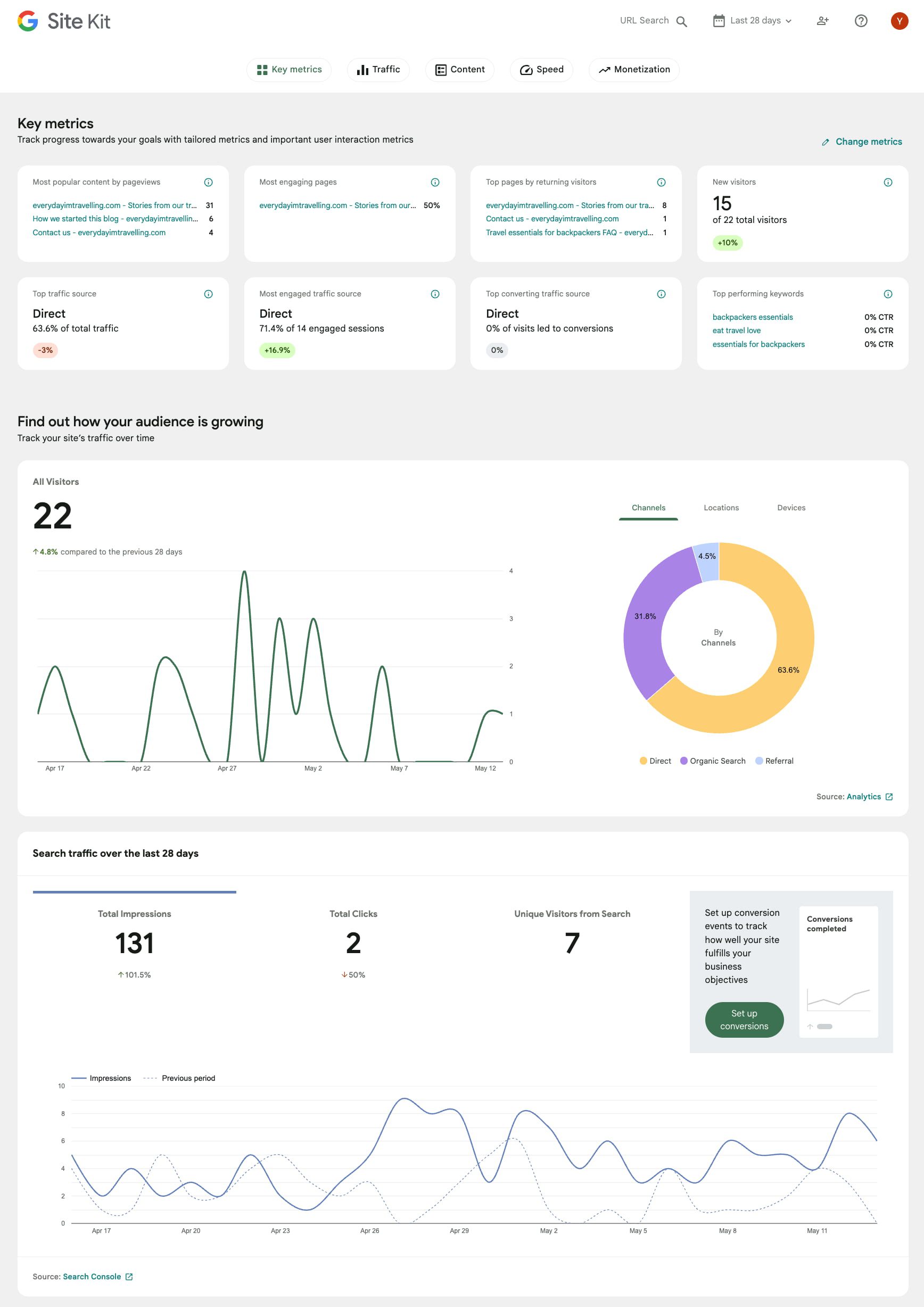
The Dashboard gives you an overview of how your site is performing. Of course, depending on what services you connect your site to, you might see something like this:

  • Traffic and engagement insights from Google Analytics 
  • Clicks and impressions from search traffic provided by Search Console
  • An overview of the top-performing pages
  • Earnings from Ads or AdSense, if you run ads, that is
  • Site speed performance powered by PageSpeed Insights 
  • An overview of how different groups compare, for instance, new vs. returning visitors

Some sections also show trend indicators like arrows or percentage changes compared to the previous period. This will help you spot trends and act upon them. Click on any source to open a more detailed view in the corresponding Google tool.

Part of the Site Kit dashboard showing various stats and the Key Metrics widget at the top

Key Metrics widget

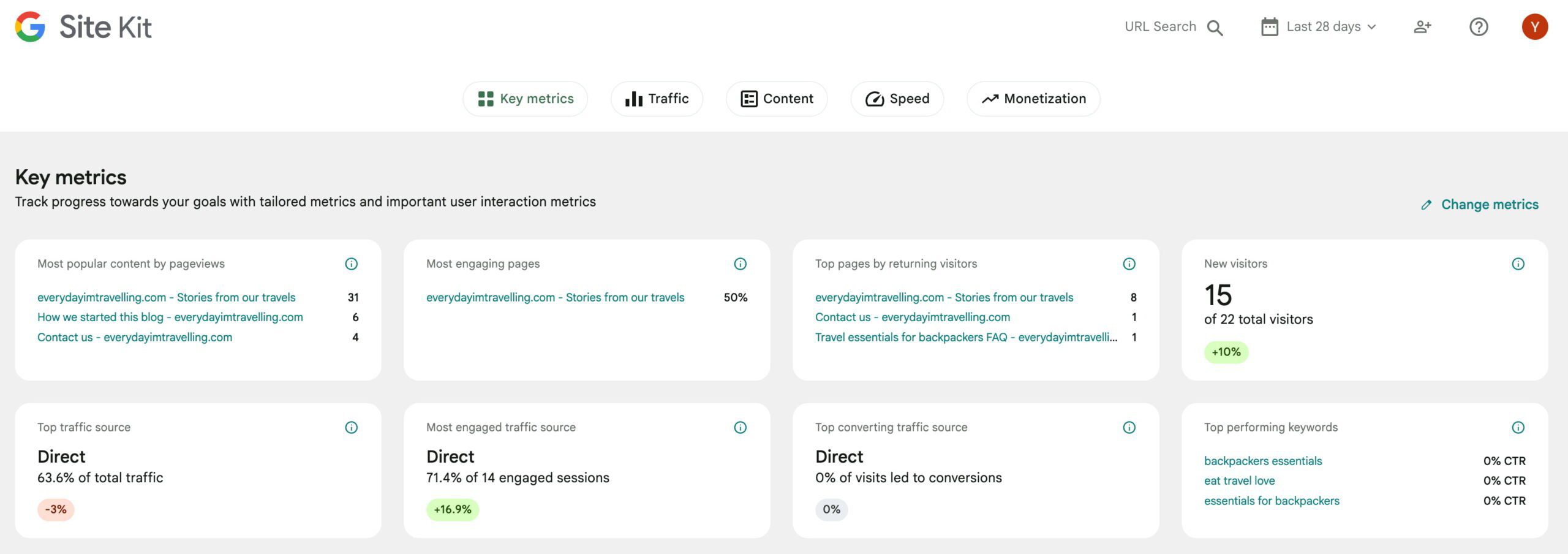
You can set up the Key Metrics section the way you want. Site Kit will ask you a couple of questions about your site’s goals and what you want to focus on. Then, it will suggest metrics to show at the top of the dashboard. You can choose which blocks you want to see, such as top converting traffic sources, new visitors, recent trending pages, and much more. 

Admin bar stats

After Site Kit is active, you’ll also see a small dropdown at the top of your WordPress admin bar when you’re viewing your site. Click it, and you’ll get a mini-report showing page-specific stats, including search impressions, clicks, and traffic over time.

Site Kit will help you quickly find out how your content is doing, straight from the WordPress admin bar

What Google services can you connect?

Once installed, you can connect the following tools. Two of them — Search Console and Google Analytics 4 — are enabled during the initial setup. You can connect:

  • Google Analytics 4
  • Search Console
  • AdSense 
  • Reader Revenue Manager
  • Google Ads
  • Tag Manager

Google Analytics 4 (GA4)

Site Kit will add your GA4 tag automatically, after which it shows data such as:

  • The number of visitors
  • Sources of sessions (organic search, direct, referral)
  • Average engagement rate
  • Session durations

The data shown is summarized, so if you want custom reports or event tracking, you need to open GA4. 

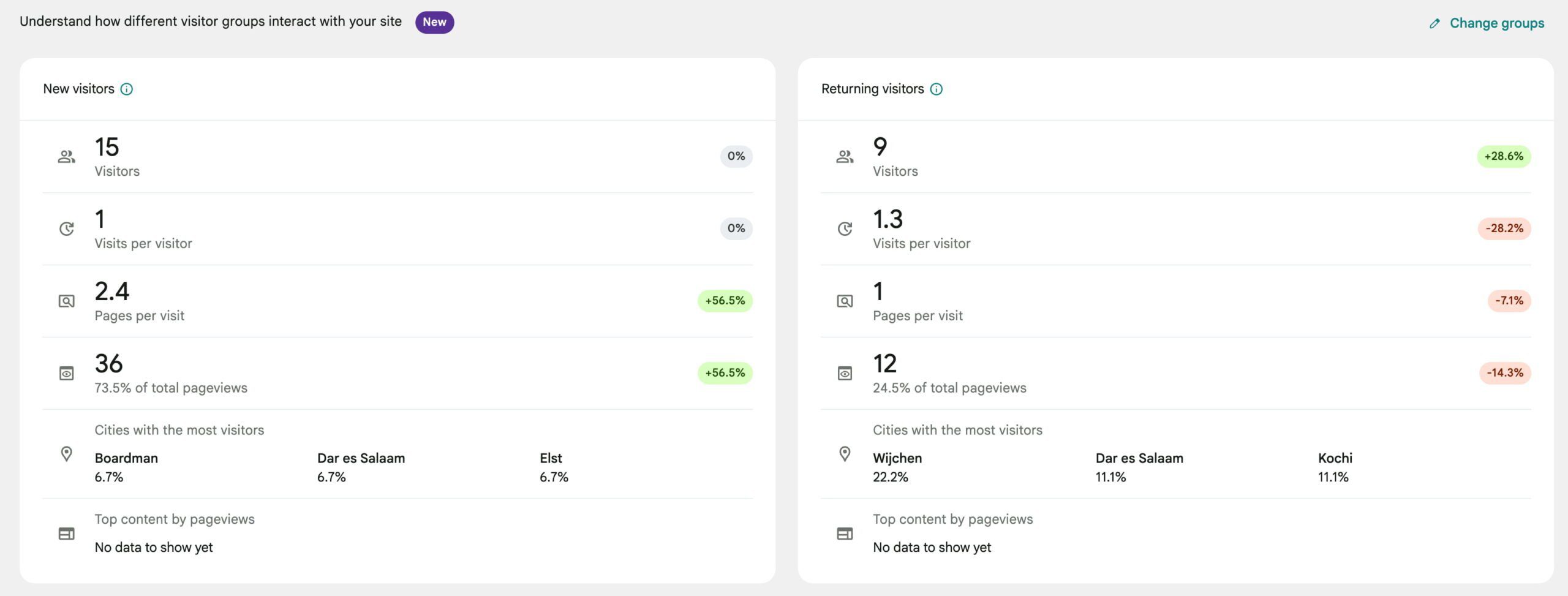
a new dashoard in site kit showing the difference in interaction between various visitor groups
Visitor grouping is the newest addition to Site Kit by Google

Google Search Console

After installing and connecting, you’ll get some key data from Search Console right inside your WordPress dashboard:

  • The queries people searched to find your site
  • Number of clicks and impressions
  • Unique visitors from search
  • Page-level performance in search

This kind of data is very helpful for content optimization purposes and to inform your SEO strategy. 

AdSense/Ads (monetization)

If you use Google’s systems to run ads, Site Kit can show data on ad impressions, top-earning pages, and estimated revenue from auto ads, for instance. Simply connect the services to see the data. Remember that it doesn’t replace the AdSense dashboards, but it does give you quick insights.

Reader Revenue Manager

Reader Revenue Manager is a Google tool for adding subscription and contribution options to your website. It’s designed for publishers and content creators who want to monetize their content through reader support, such as recurring memberships or one-time donations.

With Site Kit, you can connect Reader Revenue Manager to your WordPress site in just a few clicks. Once linked, it adds the necessary code to your site automatically, so you don’t need to add tags or install it manually. This feature is optional in Site Kit and is mostly used by publishers offering paywalled or premium content.

PageSpeed Insights

Site Kit runs a PageSpeed test directly inside WordPress. In the PageSpeed Insights section, you’ll see both lab data and field data. Lab data is based on simulated testing in a controlled environment and helps you identify performance issues during development. Field data, on the other hand, reflects how real users experience your site across different devices and network conditions. Together, they provide a balanced view of how your pages perform.

The report shows load performance scores, data on Core Web Vitals (like LCP and CLS). It also gives suggestions for improving speed. But it only tests your homepage and doesn’t include custom settings. For full reports, you can still visit PageSpeed Insights separately.

Tag Manager

You can link a Google Tag Manager container through Site Kit. This lets you manage third-party scripts (like Facebook Pixel or custom tracking tags) from one place. The plugin doesn’t give you a full interface for editing tags — you’ll do that inside the Tag Manager platform.

Managing Analytics in Site Kit by Google

For most site owners or managers, Analytics and Search Console are the most important Google tools. Site Kit makes it easy to set those two services up properly. Of course, you can also use existing accounts.

Enhanced measurement support

GA4 also has Enhanced Measurement, which tracks scrolls, outbound links, file downloads, and other actions automatically. If you activate these in your GA4 property, Site Kit can track them. Unfortunately, it’s not possible to choose which ones to turn on from inside WordPress; you need to go into your GA4 settings for that. 

Event tracking and tag insertion

Site Kit doesn’t support event setup or tracking reports inside the WordPress dashboard. If you need full control over events, you have to use GA4 directly or use Tag Manager to set up the custom events.

Limitations of Analytics in Site Kit

You’ll probably understand by now that Site Kit is not a replacement for GA4 — it’s a neat tool that gives quick insights and nothing more. You don’t get access to funnel reports, attribution models, or filters. You can’t edit events or see predictive metrics, and there’s no support for GA4 audiences or Google Analytics 360.

What’s Enhanced Conversion tracking?

With Enhanced Conversions, you can connect Google Ads clicks to leads or form submissions. This improves the reporting of these events when users are on different devices or block cookies. After setting this up, Site Kit will detect form submissions and pass the data to Google Ads.

Site Kit currently supports some of the most popular WordPress contact form plugins, such as Contact Form 7, WPForms, and Ninja Forms. However, if you use an unsupported custom form, Site Kit can’t automatically add enhanced conversions. 

Again, Site Kit has many limitations in this area. For instance, it doesn’t support purchase-based eCommerce conversions or offline conversions. It also doesn’t support pixel-level tracking, third-party forms, popups, and embedded forms. So, it’s specifically designed for simple lead form submissions. 

Key Metrics widget for quick performance insights

Key Metrics are a very valuable addition as they give quick insights into data of your choosing. They’re quick to understand but not very in-depth. For key strategy decisions, you’re going to need more data.

This widget pulls together important GA4 and Search Console data into a block on your dashboard. You can choose which metrics to show and reorder them. To change your selection, click the Change metrics button in the corner of the Key Metrics section. You can also rerun the question from the Site Kit admin settings.

Each metric includes a figure and a trend comparison from the previous period. For example, you may see engagement is “up 6%” compared to the last 28 days. Click any of them to open the full source report in GA4 or Search Console.

The widget has limitations. It doesn’t show custom events or real-time reporting, campaign attribution breakdowns, or GA4-specific collections like audiences or conversions. The widget and Site Kit, in general, are for broad insights, not advanced analytics. 

The Site Kit Key Metrics widget shows various data that you can tailor to your needs and goals

Is Site Kit by Google enough for your goals?

Site Kit is a good starting point for most WordPress users. It brings together valuable Google data without having to do much work. But whether it’s enough depends on whether you need to get from your analytics and tracking tools. 

SEO and content insights

Site Kit is not an SEO plugin like Yoast SEO. However, you can get data from Search Console that will help you understand how people find your website in the search results. With this, you’ll form an understanding of which content works well and how your site performs in the search results. 

However, as mentioned, it’s not an SEO plugin, so you need to install a tool like Yoast SEO to do much of the heavy lifting. Plugins like these help with most SEO tasks, like fixing technical issues, adding structured data, and improving your content. 

Monetization

If you’re running ads, Site Kit shows basic ad metrics like impressions, estimated earnings, and top-earning pages. It helps you monitor your ads without having to log into another app. 

It doesn’t support advanced ad setups, and you can’t manually place ads. It’s also not possible to optimize layouts based on behavior or run A/B tests to find the best ad format. If you’re working with multiple ad networks, you’ll need a tool that can do a lot more than Site Kit.

Marketing analytics

For reporting basics, Site Kit will do just fine. You can see trends in users, sessions, referral sources, and engagement time — all brought to you by Google Analytics 4. 

However, Site Kit doesn’t give access to campaign statistics, UTM tracking, or event-based funnels. It also doesn’t offer the option to set goals or segment traffic by behavior. For these kinds of insights, you need to dive straight into GA4 or use a more in-depth reporting tool. If you run marketing campaigns, track conversions, or use CRM tools, Site Kit won’t provide enough data. 

eCommerce and advanced use cases

For eCommerce, Site Kit won’t cut it. It doesn’t integrate with WooCommerce and doesn’t offer a revenue tracking option. It also doesn’t have access to carts, products, transactions, or customer behavior. There’s no way to measure things like average order value or conversion rates. 

For advanced eCommerce tracking, you need to set this up in GA4 directly or use other methods to access this data. Site Kit doesn’t support this at all. 

Should you use Site Kit by Google?

Site Kit is a good option if you want a free tool to view traffic, search, and performance statistics without having to set up a bunch of tools. It’s very easy to use and useful enough for small websites. 

If you’re running a huge publication or an online store, need to track custom campaigns, or manage a large number of ad accounts, Site Kit won’t cut it. That’s not to say it’s useless for those cases. One of its biggest draws is that it makes setting up GA4, Search Console, Ads, and Tag Manager accounts incredibly easy. It’s a great starting point to build your analytic toolkit upon.

10Web Releases API For Scaled White Label AI Website Building via @sejournal, @martinibuster

10Web has launched an AI Website Builder API that turns text prompts into fully functional WordPress websites hosted on 10Web’s infrastructure, enabling platforms to embed AI website creation into their product workflows. Designed for SaaS tools, resellers, developers, and agencies, the API delivers business-ready sites with ecommerce features, AI-driven customization, and full white-label support to help entrepreneurs launch quickly and at scale.

Developer And Platform Focused API

10Web AI website builder API was designed for developers and platforms who serve entrepreneurs, enabling them to embed website creation into their own tools so that non-technical users (entrepreneurs and small business owners) can launch websites with zero coding or technical knowledge.

10Web describes their product capabilities:

“Text-to-website AI: Generates structure, content, sections, and visuals

Plugin presets: Define default tools per client, project, or vertical

Drag-and-drop editing: Built-in Elementor-based editor for post-generation control

Managed WordPress infrastructure: Hosting, SSL, staging, backups, and DNS

Dashboards & sandbox: Analytics, developer tools, and real-time preview”

Learn more at 10Web:

Integrate the #1 AI Website Builder API into your platform

Featured Image by Shutterstock/Surf Ink

WordPress WooCommerce Bug Causing Sites To Crash via @sejournal, @martinibuster

A WordPress bug is causing WooCommerce sites to display a fatal error, crashing ecommerce sites. The problem originates from a single line of code. A workaround has been created. The WooCommerce team is aware of the issue and is working on issuing a permanent fix in the form of a patch.

WooCommerce Sites Crashing

Someone posted about the error at the WordPress.org support forums and others with the same problem replied that they were experiencing the same thing. Most of those responding reported that they had not recently done anything to their sites, that they had crashed all of a sudden.

The person who initially reported the bug offered a workaround for getting websites back up and running, an edit of a single line of code in the BlockPatterns.php file, which is a WooCommerce file.

The file is located here:

wp-content/plugins/woocommerce/src/Blocks/BlockPatterns.php

Others reported receiving the same fatal error message:

“Uncaught Error: strpos(): Argument #1 ($haystack) must be of type string, null given in /var/www/site/data/www/site.com.br/wp-content/plugins/woocommerce/src/Blocks/BlockPatterns.php on line 251”

One of the commenters on the discussion posted:

“Same issue here.

It occurred in version 9.8.2, and upgrading to 9.8.3 didn’t resolve it. Downgrading to 9.7.1 didn’t help either.

The problem happened without any interaction with plugins or recent updates. Replacing the code at line 251 worked as a temporary workaround.

We’ll need to find a more stable solution until the WooCommerce team releases an official patch.”

Others reported that they received the error after updating their plugins but that rolling back the update didn’t solve the problem, while others reported that they hadn’t done anything prior to experiencing the crash.

Someone from WooCommerce support responded to say that the WooCommerce team is aware of the problem and are working to address it:

“Thank you for reporting this. It’s a known issue, and a temporary workaround has been shared here: https://github.com/woocommerce/woocommerce/issues/57760#issuecomment-2854510504

You can track progress and updates on the GitHub thread: https://github.com/woocommerce/woocommerce/issues/57760, as the team is aware and actively addressing it.”

Discussion On GitHub

The official WooCommerce GitHub repository has this note:

“Some sites might see a fatal error around class BlockPatterns.php, with the website not loading. This was due a bad response from Woo pattern repository. A fix was deployed to the repository but certain sites might still have a bad cache value.”

They also wrote:

“The issue has been fixed from the cache source side but certain sites were left with a bad cache value, we will be releasing patch updates to fix that.”

Featured Image by Shutterstock/Kues

WordPress Jubilee Of Forgiveness Continues via @sejournal, @martinibuster

Last week, WordPress declared a “jubilee” and is unblocking all community members who were previously blocked. The official WordPress X (formerly Twitter) account posted a reminder that the unblocking is still ongoing.

According to the latest post:

“We’re clearing out all previous human blocks to create a more open and collaborative environment. While community and directory guidelines remain, consider any old blocks to be bugs that are on their way out.”

A similar post on the official WordPress site echoed the post on X:

“As I said, we’re dropping all the human blocks. Community guidelines, directory guidelines, and such will need to be followed going forward, but whatever blocks were in place before are now cleared. It may take a few days, but any pre-existing blocks are considered bugs to be fixed.”

WordPress appears to be using the word Jubilee in the sense of the Jewish and biblical tradition of a year of forgiveness.

The part about “Dropping all the human blocks” is similar to the Jewish jubilee in terms of forgiveness.

Moving forward, all pre-existing blocks will be considered “bugs” for fixing and everyone who is unblocked and those who were never blocked will still be subject to being banned should they fail to abide by WordPress community guidelines.

The post on X received a handful of responses.

Read the latest post on X:

Featured Image by Shutterstock/Ollyy

WordPress Robots.txt: What Should You Include? via @sejournal, @alexmoss

The humble robots.txt file often sits quietly in the background of a WordPress site, but the default is somewhat basic out of the box and, of course, doesn’t contribute towards any customized directives you may want to adopt.

No more intro needed – let’s dive right into what else you can include to improve it.

(A small note to add: This post is only useful for WordPress installations on the root directory of a domain or subdomain only, e.g., domain.com or example.domain.com. )

Where Exactly Is The WordPress Robots.txt File?

By default, WordPress generates a virtual robots.txt file. You can see it by visiting /robots.txt of your install, for example:

https://yoursite.com/robots.txt

This default file exists only in memory and isn’t represented by a file on your server.

If you want to use a custom robots.txt file, all you have to do is upload one to the root folder of the install.

You can do this either by using an FTP application or a plugin, such as Yoast SEO (SEO → Tools → File Editor), that includes a robots.txt editor that you can access within the WordPress admin area.

The Default WordPress Robots.txt (And Why It’s Not Enough)

If you don’t manually create a robots.txt file, WordPress’ default output looks like this:

User-agent: *
Disallow: /wp-admin/
Allow: /wp-admin/admin-ajax.php

While this is safe, it’s not optimal. Let’s go further.

Always Include Your XML Sitemap(s)

Make sure that all XML sitemaps are explicitly listed, as this helps search engines discover all relevant URLs.

Sitemap: https://example.com/sitemap_index.xml
Sitemap: https://example.com/sitemap2.xml

Some Things Not To Block

There are now dated suggestions to disallow some core WordPress directories like /wp-includes/, /wp-content/plugins/, or even /wp-content/uploads/. Don’t!

Here’s why you shouldn’t block them:

  1. Google is smart enough to ignore irrelevant files. Blocking CSS and JavaScript can hurt renderability and cause indexing issues.
  2. You may unintentionally block valuable images/videos/other media, especially those loaded from /wp-content/uploads/, which contains all uploaded media that you definitely want crawled.

Instead, let crawlers fetch the CSS, JavaScript, and images they need for proper rendering.

Managing Staging Sites

It’s advisable to ensure that staging sites are not crawled for both SEO and general security purposes.

I always advise to disallow the entire site.

You should still use the noindex meta tag, but to ensure another layer is covered, it’s still advisable to do both.

If you navigate to Settings > Reading, you can tick the option “Discourage search engines from indexing this site,” which does the following in the robots.txt file (or you can add this in yourself).

User-agent: *
Disallow: /

Google may still index pages if it discovers links elsewhere (usually caused by calls to staging from production when migration isn’t perfect).

Important: When you move to production, ensure you double-check this setting again to ensure that you revert any disallowing or noindexing.

Clean Up Some Non-Essential Core WordPress Paths

Not everything should be blocked, but many default paths add no SEO value, such as the below:

Disallow: /trackback/
Disallow: /comments/feed/
Disallow: */feed/
Disallow: */embed/
Disallow: /cgi-bin/
Disallow: /wp-login.php
Disallow: /wp-json/

Disallow Specific Query Parameters

Sometimes, you’ll want to stop search engines from crawling URLs with known low-value query parameters, like tracking parameters, comment responses, or print versions.

Here’s an example:

User-agent: *
Disallow: /*?replytocom=
Disallow: /*?print=

You can use Google Search Console’s URL Parameters tool to monitor parameter-driven indexing patterns and decide if additional disallows are worthy of adding.

Disallowing Low-Value Taxonomies And SERPs

If your WordPress site includes tag archives or internal search results pages that offer no added value, you can block them too:

User-agent: *
Disallow: /tag/
Disallow: /page/
Disallow: /?s=

As always, weigh this against your specific content strategy.

If you use tag taxonomy pages as part of content you want indexed and crawled, then ignore this, but generally, they don’t add any benefits.

Also, make sure your internal linking structure supports your decision and minimizes any internal linking to areas you have no intention of indexing or crawling.

Monitor On Crawl Stats

Once your robots.txt is in place, monitor crawl stats via Google Search Console:

  • Look at Crawl Stats under Settings to see if bots are wasting resources.
  • Use the URL Inspection Tool to confirm whether a blocked URL is indexed or not.
  • Check Sitemaps and make sure they only reference pages you actually want crawled and indexed.

In addition, some server management tools, such as Plesk, cPanel, and Cloudflare, can provide extremely detailed crawl statistics beyond Google.

Lastly, use Screaming Frog’s configuration override to simulate changes and revisit Yoast SEO’s crawl optimization features, some of which solve the above.

Final Thoughts

While WordPress is a great CMS, it isn’t set up with the most ideal default robots.txt or set up with crawl optimization in mind.

Just a few lines of code and less than 30 minutes of your time can save you thousands of unnecessary crawl requests to your site that aren’t worthy of being identified at all, as well as securing a potential scaling issue in the future.

More Resources:


Featured Image: sklyareek/Shutterstock

GoDaddy Is Offering Leads To Freelancers And Agencies via @sejournal, @martinibuster

GoDaddy launched a new partner program called GoDaddy Agency that matches web developers with leads for small to mid-sized businesses (SMBs). It provides digital agencies with tools, services, and support to help them grow what they offer their customers.

The new program is available to U.S. based freelancers and web development agencies. GoDaddy offers the following benefits:

  • Client leads
    Partners are paired with SMBs based on expertise and business goals. GoDaddy delivers high-intent business referrals from GoDaddy’s own Web Design Services enquiries.
  • Commission revenue opportunities
    Partners can earn up to 20% commission for each new client purchases.
  • Access to premium WordPress tools
  • Co-branded marketing
    Top-performing partners benefit from more exposure from joint marketing campaigns.
  • Dedicated Support
    Every agency is assigned an Agency Success Manager who can help them navigate ways to benefit more from the program.

Joseph Palumbo, Go-to-Market and Agency Programs Director at GoDaddy explained:

“The GoDaddy Agency Program is all about helping agencies grow. We give partners the tools, support, and referrals they need to take on more clients and bigger projects—without adding more stress to their day. It’s like having a team behind your team.”

For WordPress Developers And More

I asked GoDaddy if this program exclusively for WordPress developers. They answered:

“GoDaddy has a wide variety of products to help make any business successful. So, this isn’t just about WordPress. We have plenty of website solutions, like Managed WordPress, Websites + Marketing or VPS for application development. Additionally, we have other services like email through Office 365, SSL certificates and more.”

Advantage Of Migrating Customers To GoDaddy

I asked GoDaddy what advantages can a developer at another host receive by bringing all of their clients over to GoDaddy?

They answered:

“First, our extensive product portfolio and diverse hosting selection allows agencies to house all and any projects at GoDaddy, allowing them to simplify their operations and giving them the opportunity to manage their business from a single dashboard and leverage a deep connection with a digital partner that understands their challenges and opportunities.

On top of that, there’s the growth potential. Every day, we get calls from customers who want websites that are too complex for us to design and build. So, we have created a system that instead of directing those customers elsewhere, we can connect with Web agencies that are better suited to handle their requests.

If a digital agency becomes a serious partner and the work they do meets our standards, and they have great customer service , etc. we can help make connections that are mutually beneficial to our customers and our partners.”

Regarding my question about WordPress tools offered to agency partners, a spokesperson answered:

“We have a wide variety of AI tools to help them get their jobs done faster. From website design via AI to product descriptions and social posts. Beyond our AI tools, agency partners that use WordPress can work directly with our WordPress Premium Support team. This is a team of WordPress experts and developers who can assist with anything WordPress-related whether hosted at GoDaddy or somewhere else.”

Takeaways

When was the last time your hosting provider gave you a business lead?  The Agency partner program is an innovative ecosystem that supports agencies and freelancers who partner with GoDaddy, a win-win for everyone involved.

It makes sense for a web host to share business leads from customers who are actively in the market for web development work with partner agencies and freelancers who could use those leads. It’s a win-win for the web host and the agency partners, an opportunity that’s worth looking into.

GoDaddy’s new Agency Program connects U.S.-based web developers, freelancers and agencies with high-intent leads from small-to-mid-sized businesses while offering commissions, tools, and support to help agencies grow their client base and streamline operations. The program is a unique ecosystem that enables developers to consolidate hosting, leverage WordPress and AI tools, and benefit from co-marketing and personalized support.

  • Client Acquisition via Referrals:
    GoDaddy matches agency partners with high-intent SMB leads generated from its own service inquiries.
  • Revenue Opportunities:
    Agencies can earn up to 20% commission on client purchases made through the program.
  • Consolidated Hosting and Tools:
    Agencies can manage multiple client types using GoDaddy’s product ecosystem, including WordPress, VPS, and Websites + Marketing.
  • Premium WordPress and AI Support:
    Partners gain access to a dedicated WordPress Premium Support team and AI-powered productivity tools (e.g., design, content generation).
  • Co-Branded Marketing Exposure:
    High-performing partners receive increased visibility through joint campaigns with GoDaddy.
  • Dedicated Success Management:
    Each partner is assigned an Agency Success Manager for personalized guidance and program optimization.
  • Incentive for Migration from Other Hosts:
    GoDaddy offers a centralized platform offering simplicity, scale, and client acquisition opportunities for agencies switching from other providers.

Read more about the GoDaddy Agency program:

GoDaddy Agency: A New Way to Help Digital Consultants Grow

Apply to join the Agency Program here.

Is WordPress The Right Choice For eCommerce Websites? via @sejournal, @atuljindal01

WordPress is a popular choice when it comes to building ecommerce websites. Currently, over 4 million live stores are powered by WooCommerce, which runs on the WordPress platform.

The platform offers countless benefits for online sellers. So, it’s easy to see why so many ecommerce merchants choose WordPress for their business.

But, is it really the best choice for your business?

Let’s review some of WordPress’s pros and cons before making that decision.

WordPress For Ecommerce

Many big brand, successful ecommerce websites run on WordPress. But, should you trust WordPress’s capabilities to run an online store?

WordPress has some very obvious benefits for ecommerce sellers, but that’s not to say there are no downsides. You have to keep both the benefits and the downsides in mind before deciding whether or not you want to move forward with WordPress.

The Benefits

WordPress has a tight-knit, supportive community and lots of help available for whoever needs it.

The platform also empowers its users with powerful performance-tracking insights and optimization opportunities, which are not the only benefits of using WordPress for ecommerce.

There are more:

No Transaction Costs

If you are building an ecommerce store, you will be making some transactions on the website.

Some website builders and ecommerce platforms keep a percentage of every transaction that happens on the website as a fee. WordPress does not do that.

When using WordPress, you only have to pay the payment processing fee to your payment gateway provider. The website builder won’t charge anything.

This may make selling online using WordPress more cost-effective, especially for smaller businesses.

Besides that, WordPress also integrates seamlessly with numerous payment gateways apart from the most popular ones. You can use PayPal and Stripe, but WordPress also supports other, less popular, regional payment gateways.

WordPress Is Free

There’s no monthly subscription involved when it comes to WordPress.

You have to pay for the hosting, domain, and added functionality, but getting started is free.

This is unlike other platforms, which have a flat fee that you have to pay upfront before you can even get a feel for the platform.

Enhanced Customization

Your website needs to be visually appealing and stand out from the crowd. This will help you reinforce your unique brand identity and deliver a more memorable experience.

Unfortunately, many ecommerce platforms offer cookie-cutter websites that have the same layout and visual look and feel. This can make it harder for your brand to stand out and be unique.

WordPress, however, has thousands of themes that allow you to customize your site according to your business’s unique personality.

When you build a WordPress website, you also get access to the source code. This enables you to take your customization beyond simply adjusting the theme and transform every aspect of the website. The only requirement: development expertise.

WordPress also has thousands and thousands of plugins. These plugins can help you not just customize your website however you want, but also offer functionality that boosts the experience your business delivers online.

Website Ownership

Lots of hard work and resources have gone into launching your ecommerce store. You want to keep it under your ownership and wish to reserve the right to move it whenever you want to.

With WordPress, this is possible.

You have complete ownership of the website you build using WordPress. This includes the website content, as well as all its data and files, and you can use them as you please.

Flexibility In Hosting Options

Many popular ecommerce platforms provide managed hosting, which is great, but it can get problematic when your business grows or your priorities and goals evolve.

WordPress offers hosting as well, but it also allows you to buy hosting from third-party providers, so you can host your website wherever you want.

This flexibility in hosting options allows you to switch hosting providers as your business grows.

Not being tied to one hosting provider also allows you to take your website elsewhere if performance drops because of server issues on the host’s side.

Scalability

Your ecommerce business will eventually grow. It will attract more traffic and you’ll make more sales, so you need a website that can grow with you and support your plans.

With numerous plugins and hosting flexibility, WordPress offers the scalability you need when running a fast-growing business.

SEO-Friendly

About 33% of all traffic to ecommerce websites comes from organic searches. You know what this means: You cannot skip SEO when optimizing your website.

As amazing as your SEO strategy may be, it needs your ecommerce platforms support it.

The good thing about WordPress is that it has features and plugins to support your SEO efforts and boost its outcomes.

Marketing Integrations

SEO is just one part of your marketing strategy. There are other tactics you need to implement to maintain your growth trajectory.

WordPress supports numerous marketing integrations to help your email and social media marketing efforts.

It also has plugins for customer engagement and social proof to make sure your ecommerce store has everything it needs to generate value.

The Downsides

As amazing as WordPress may be for ecommerce, it has some downsides that you need to know before deciding whether you want to use it for your ecommerce store.

WordPress Is Not Very User-Friendly

Getting started on WordPress is free. It may be simple, too. However, running a successful ecommerce store on WordPress requires technical expertise.

There’s a learning curve involved in doing anything more than logging into WordPress to get started.

Support is available, and you can easily access hundreds of tutorials and help blogs, but learning to build a WordPress website from scratch with online tutorials requires time and effort.

Needs Regular Updates

WordPress’s core software, as well as the plugins, all get frequent updates. In most cases, you have to install these updates manually to make sure your website is up-to-date.

Failing to follow these updates can make your website more vulnerable to threats and increase the risk of it getting hacked or ransomed.

If you own or manage a WordPress website, you will have to spend time tracking all these updates and installing them promptly to avoid the risk of exploitation.

Securing The Website Is Your Responsibility

WordPress’s popularity and the large number of themes and plugins an average website uses make WordPress websites more vulnerable to security breaches.

While WordPress has a security team that constantly checks for security vulnerabilities in the core software and releases patches and updates, you have to install these updates on time to secure your website and avoid the risk of hacking.

Nearly 70% of WordPress websites run the latest version of the software, so 30% are at risk of vulnerabilities.

Manually tracking updates all the time and installing them is labor-intensive. That is why many business owners fall short and end up running a website that is more at risk of an attack.

Plugins Can Create Problems

WordPress plugins help you customize your website and offer enhanced functionalities, but they also have their own set of problems.

For one, installing too many plugins can bloat the code of your website and slow it down. In the ecommerce world, every second that your website fails to load properly means missed business.

Second, just like the core software, plugins also get security patches and updates that need to be installed.

Falling short on this end can lead to plugins introducing backdoor pathways into your website that malicious actors can exploit.

Even if you are all caught up on the updates, the plugins, unless thoroughly vetted before download, can be sketchy and make your website more vulnerable to attacks.

Plugins were responsible for 97% of all new security vulnerabilities in WordPress websites.

WordPress Is Not An Ecommerce Platform

WordPress is a content management system. It can support ecommerce websites, but it is not built to do that.

Other ecommerce platforms like Shopify and BigCommerce are built to help you sell online.

This is why WordPress may have some limitations when it comes to ecommerce, especially if compared with other big ecommerce players.

That’s not to say WordPress can’t do ecommerce. It can. You’ll just have to research and add a variety of plugins and manage the website well to maximize your chances of success.

WordPress Vs. Shopify And BigCommerce

Shopify and BigCommerce are also popular choices for building ecommerce websites.

How does WordPress fare against them? Is it better? Is it worse?

The truth is Shopify and BigCommerce are both managed platforms. They are designed to help people with no coding knowledge build and launch their ecommerce websites easily.

This is why, while WordPress may have a learning curve, Shopify and BigCommerce are both more user-friendly and easier to use.

However, WordPress still leads in customization and flexibility. Shopify and BigCommerce both have themes and apps with upgraded functionality and visual appeal, but they are limited compared to WordPress.

Final Word

WordPress has all that you need to build an ecommerce store. It supports payment gateways, has no transaction fee, and offers many plugins, but all of these benefits come with some downsides.

Managing a WordPress website can be time-consuming. There may be a learning curve involved, and if you slack on updates, your website may develop security vulnerabilities.

So, the choice between WordPress and some other managed ecommerce platform comes down to your business, goals, and priorities.

If you have the technical expertise and resources to dedicate to managing, maintaining, and updating a WordPress site, it may be a good option for you.

If you want a platform that makes building and running an ecommerce platform a breeze, you may want to look into other options.

More Resources:


Featured Image: SofikoS/Shutterstock